
When parents fall behind, you remind them. School Dynamics has two kinds of reminder. A demand notice is a letter to each parent whose child owes, printed from a demand, with meal cards, gate passes and one SMS to go with it. Text reminders go to parents by SMS, either when you send them or by themselves on dates you set.
Demands are under Fees & finance › School finance › Finance reports, on the Demand notices tab. The automatic reminders are under Settings › Message settings › Reminders.
Before you start#
- The bursar, the finance officer and the school administrator make and change demands. The head teacher and the deputy can open demands and print them, but not change them.
- Sending a demand's SMS is for the bursar and the school administrator. Every SMS is paid from the school's SMS wallet. See How SMS works.
Make a demand#
A demand is a rule that picks students by their balance: for example, P.5, P.6 and P.7, boarders, owing at least UGX 200,000. It then prints a notice for each of them.
- Press Add demand.
- Type a Title, for example Term 3 balances, P.7.
- Under Students who, choose the condition and type the amount: owe at least, owe more than, owe at most (or nothing), owe less than (or nothing), owe exactly, have paid ahead by at least or have paid ahead by more than. It starts at owe more than UGX 0, which means everyone who owes. The line under it says in words whom it selects.
- Choose the students:
- By class: tick the classes, and choose the Residence (Everyone, Day scholars or Boarders). Only active students in those classes now are picked.
- Named students: add the students one by one. They are picked whatever their status or residence, but the balance condition still applies.
- To print a big class in parts, tick Print only part of each class list and give the positions. They are counted from 0 in each class list: 0 to 49 is the first 50 students.
- Read the green line: Selects N students now, owing UGX … in all.
- Choose the Due date. It is printed on the notices; it is also the month on meal cards and the expiry on gate passes.
- Tick Students' photos on meal cards and gate passes if you want them.
- Check the Notice text. The buttons above it put in the student's name, class, balance and SchoolPay code, and, when the parent made a promise to pay, the details of that promise. A blank line starts a new paragraph.
- Check the SMS text, or empty it to send no SMS.
- Press Save demand. The demand's page opens.
The balance a demand reads is everything the student owes, over every term. The amount on the notice has no minus sign: a balance of UGX -350,000 prints as UGX 350,000.
Print the notices, meal cards and gate passes#
Open a demand by clicking its title in the list (a quick view shows how many students it reaches and what they owe), then Open full page; or go straight to the page after saving. At the top: how many students it selects now, what they owe, the due date and whether its SMS was sent.
Under Print:
- Demand notices: one letter for each selected student who owes, on the school's letterhead, as many to a page as fit, with a line to cut along. The bursar's signature is printed on each when the school has uploaded one; otherwise there is a line to sign.
- Notices, two a page (larger): the same letters, bigger.
- Meal cards: boarders' cards have breakfast, lunch and supper for each day of the due date's month; day scholars' have the week days.
- Gate passes: with the balance and the due date as the expiry.
- List of students: everyone selected, by class, with their balances.
Students who owe nothing (a demand for meal cards often picks them) get no demand notice; meal cards and gate passes include them. The page says how many were left out.
Below, the page lists the selected students class by class, with their residence, payment code and balance. Click a name to open the student's account.
Send the demand's SMS#
- On the demand's page, under SMS to parents, press Send SMS….
- Read the counts: the students who owe, the SMS going out, the parents with no valid number (left out), the cost and what is in the wallet, and a few example texts.
- Press Send N SMS.
Each student's parent gets the text; a student with no parent on record gets it on their own number. The same text to the same number goes once. Students who owe nothing are not texted.
If the card says the demand has no SMS text, press Edit and add one. If the wallet cannot pay for every message, nothing is sent: top up first. If the school cannot send messages at all, the card says why.
Change, copy or delete a demand#
- Edit (on the demand's page, or in the row's menu in the list) opens the same form. Press Save changes.
- Duplicate makes a copy with (copy) after the title. The copy has not printed or sent anything yet, so it can send its SMS again.
- Delete (in the row's menu) removes only the demand. No balance is touched, and SMS already sent stay sent.
The list shows each demand's condition, its classes (or how many named students), residence, due date, and whether it was Printed and its SMS sent. Search by title, or choose a residence.
Demands from promises to pay#
When parents have missed their promises, press From promises to pay above the list, then Demand notices from promises on that page. The demand names the students of the promises you chose who still owe, and its notice quotes each parent's promise. It has no SMS text until you edit it. See Promises to pay.
Text reminders you send#
| To | Use |
|---|---|
| Text every parent whose child owes, today | A new message under Messages to classes or parents, with Only parents whose child owes a set amount of fees ticked and the fees balance put into the words. See Sending a message. |
| Send the balance and how to pay, now or on a date | The Balance and how to pay message under Settings › Message settings › Templates. |
| Remind before a fees deadline | The Fees deadline message under Settings › Message settings › Templates: reminders on the days before the deadline you set, to parents of students who still owe. |
| Remind parents who promised a date | Remind by SMS on Promises to pay. |
| Send letters | A demand, above. |
Reminders that go by themselves#
Three reminders about fees can go without anyone pressing send. Each one is off until your school switches it on.
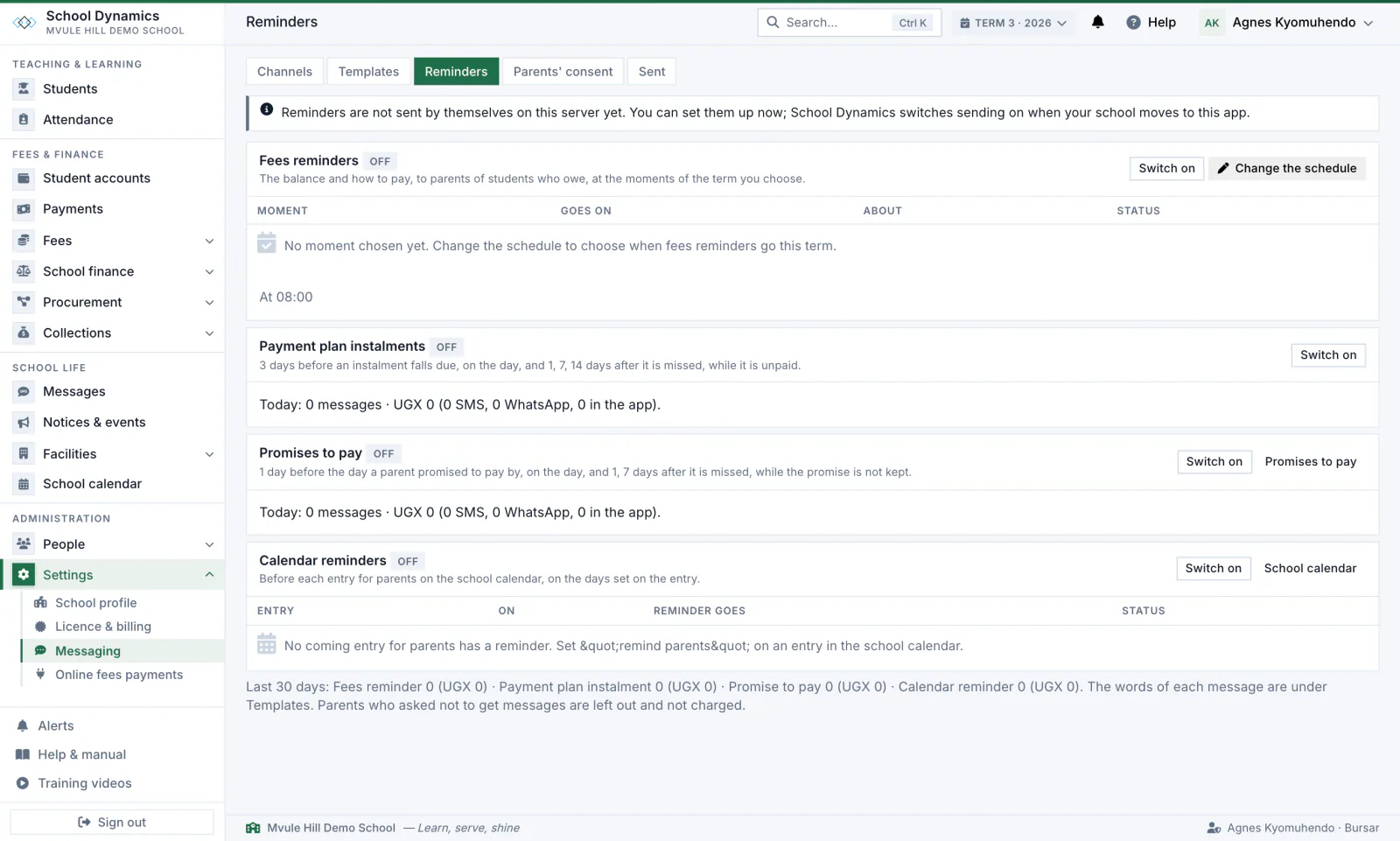
- Fees reminders are On or Off. They start Off.
- Switch them on or off.
- Choose the moments of the term they go: after opening, mid-term, before exams, before report cards.
- Reminders for payment-plan instalments, switched on here.
- Reminders for promises to pay, switched on here.
- Fees reminders 1: the balance and how to pay, to the parent of every active student who owes, at the moments of the term you choose. Each child's parent gets one reminder for each moment.
- Payment plan instalments 4: before, on and after the day each instalment falls due, while it is unpaid. See Payment plans.
- Promises to pay 5: before, on and after the day a parent promised to pay by, while the promise is not kept. See Promises to pay.
To set up fees reminders:
- Open Settings › Message settings, then the Reminders tab.
- Under Fees reminders, press Change the schedule 3.
- Choose the moments. Leave a moment empty to skip it:
- Days after the term opens (0 is the first day of term);
- Mid-term (half way through the term);
- Days before exams (before each published exam timetable and exam week);
- Days before report cards, and when Report cards come out on (empty: the term's last day).
- Choose the Time of day.
- To leave out small balances, type an amount in Only students owing more than (UGX). To remind some classes only, tick them under Only these classes.
- Press Save the schedule.
- Press Switch on 2.
The table then lists this term's moments, the day and time each goes, and whether it is coming, due now, sent or passed. The Next: line says how many messages the next one will send, what it costs and what is in the wallet. The words of each reminder are under Settings › Message settings › Templates. Parents who asked not to get messages are left out and not charged.