
Every deposit on the school's bank statement should match a fees receipt in School Dynamics. Bank reconciliation puts the two side by side. You import the statement, School Dynamics matches what is certain, and you match or explain the rest. In the end you see deposits nobody receipted, and receipts the bank never shows.
Open it from Fees & finance › School finance › Bank reconciliation.
Before you start#
- The school administrator, the bursar and the finance officer import statements, match and reconcile. The head teacher and the deputy can look.
- The school's bank account must exist under Bank accounts & votes.
- Bank payments are matched only when they were recorded into that bank account. Choose the right account when you record a bank payment.
- Export the statement from internet banking as CSV (Excel works too), up to 5 MB and 5,000 lines.
Import a statement#
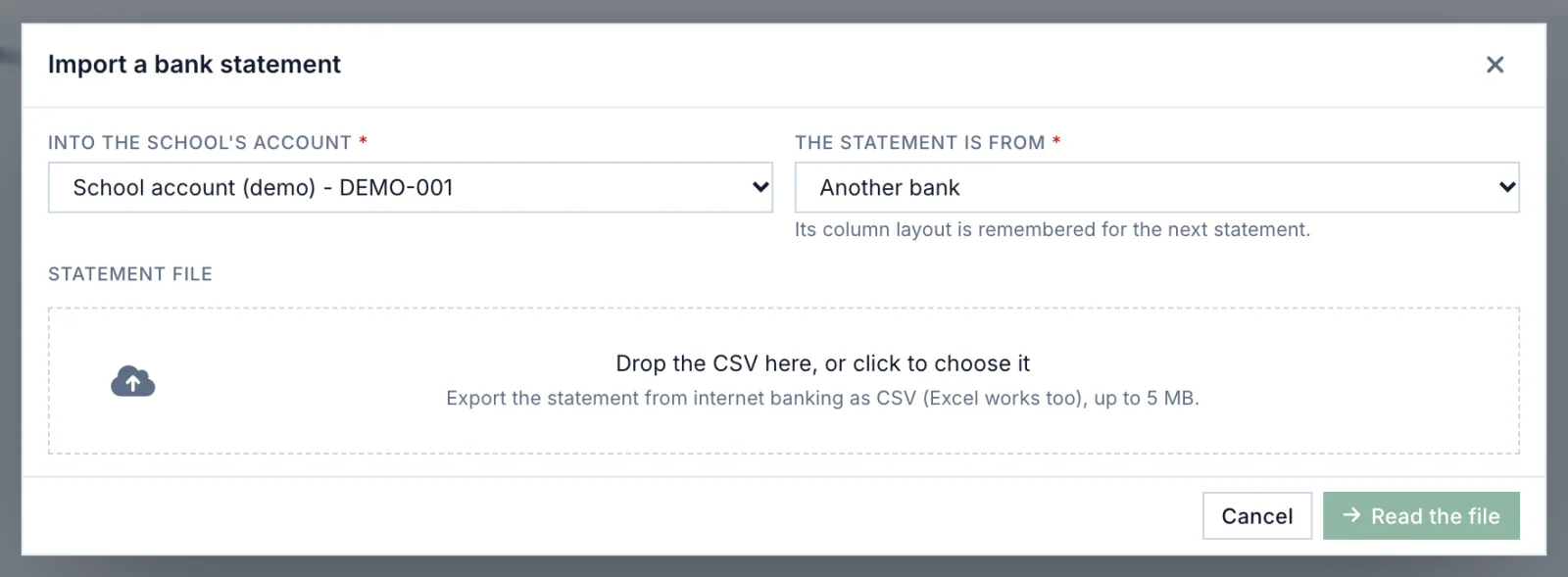
- The school's bank account the statement belongs to.
- The bank. Its column layout is remembered for next time.
- Drop the statement exported from internet banking (CSV or Excel).
- Read the file, then check its columns.
- Press Import a bank statement.
- Under Into the school's account 1, choose the bank account.
- Under The statement is from 2, choose the bank: Stanbic Bank, Centenary Bank, dfcu Bank, Equity Bank, Absa Bank, Bank of Africa, or Another bank.
- Drop the file on Statement file 3.
- Press Read the file 4.
- Check the columns. Headings are on row is the row with the column titles (statements often start with lines about the account). Choose how Dates are written, then the column for Transaction date, Description, and either Money in (credit) and Money out (debit), or the one Amount (one signed column). Reference and Balance help when the bank has them.
- Press Check the lines.
- Read the preview: New lines, Money in, and Already here (lines brought in from an earlier statement). Lines that could not be read are listed.
- Press Import (the button says how many lines, for example Import 214 lines).
The columns you chose are saved for that bank, and filled in the next time. Lines with no money (the opening or closing balance, totals) are left out.
The statement opens, already matched as far as is certain. A message says how many lines were imported and how many matched.
How matching works#
A deposit is compared with the receipts paid within 5 days either side of its date, for the same amount. A receipt is money paid in through the bank (into this account), SchoolPay, PegPay or online (Pesapal). It is matched for you only when that is certain:
- A receipt of that amount whose reference is written on the bank line.
- Otherwise, the only receipt of that amount, when no other open bank line of the same amount could be it.
- Otherwise, when no single receipt fits, the only day's total of one channel. SchoolPay, PegPay and Pesapal pay schools one sum per day.
Anything less certain is left for you. A receipt is matched to one bank line only.
Work through a statement#
The top of the page shows the period and file, how many money-in lines are matched, how many lines are reconciled, and how many were not found in the bank or in the fees records. The tabs:
| Tab | Shows |
|---|---|
| No receipt found yet | Money in with no receipt matched yet. Start here. |
| Matched | Lines matched to receipts, waiting for you to confirm them. |
| Reconciled | Lines confirmed, with who did it and when. |
| Money out | Withdrawals, charges and transfers out. |
| Receipts not on the statement | Receipts of the period that no bank line shows. |
Match a line by hand#
- On No receipt found yet, press Match on the line.
- Tick the receipts it is. Receipts of the same amount come first. Under A day's total, Choose these ticks all of one channel's receipts for a day.
- Check Chosen: what you ticked, against the bank's figure.
- If they differ, write a Note saying why, for example less Pesapal charges.
- Press Match (the button counts what you ticked, for example Match 3 receipts).
If no receipt fits, the payment may not be recorded yet, or it was recorded with another date, channel or bank account. Record or correct it, then come back and match the line. Match what is certain runs the automatic matching again.
Confirm the matches#
On Matched, check the student and channel beside each line, then press Reconcile all matched. Every matched line is marked reconciled in your name. To confirm one line, press Reconcile on it, then Mark reconciled.
Lines that are not fees#
A line that is not a fees deposit (bank charges, interest, a transfer to the savings account, other income) cannot be matched. Press Reconcile, write a Note saying what it is, then press Mark reconciled. Money out is always reconciled this way.
Undo#
Unmatch removes a match that is wrong. A reconciled line must first be reopened: press Reopen on it.
Receipts not on the statement#
This tab lists receipts the fees records hold for the statement's period (with 5 days either side) that no bank line claims. Each one is money School Dynamics says came in, but no statement shows. Check whether it is on the next statement, or whether it was recorded with the wrong channel, date or bank account.
Remove a wrong statement#
While no line of a statement is reconciled, Remove takes it away with its matches. Nothing in the fees records changes. Once a line is reconciled, the statement stays: reopen its lines first.
Good to know#
- Nothing is added to any account from this page. Balances do not change when you match or reconcile.
- The list of statements shows, for each one, the money in, how many lines are matched and reconciled, and how many money-in lines were not found. Click the bank account for a quick view of the deposits still waiting for a receipt, then Open to match.