
A bursary lowers what a student owes. You set up a scheme once (a name and a fixed amount per student), then award it to students for a term. Each award takes the scheme's amount off the student's fees, so their balance goes up by that much and they owe less.
Open it from Fees & finance › Fees › Bursaries. The page has two tabs: Beneficiaries (who has a bursary) and Schemes.
Before you start#
- The bursar, the finance officer and the school administrator can make schemes, award them and remove awards. The head teacher and the deputy can see the page but cannot change anything.
- A scheme must have an amount above zero before you can award it.
Make a scheme#
- Open the Schemes tab.
- Press New scheme.
- Type the Name, for example Staff children bursary.
- Type the Amount per student (UGX): the amount each student gets per award.
- Choose the Offer: Termly offer or One-time offer.
- Add a Description if it helps (who sponsors it, the conditions).
- Press Add scheme.
The Offer is a label for you. A termly bursary does not renew by itself: you award it again each term.
The Schemes tab lists each scheme with its offer, its Amount per student, how many students hold it in the term chosen at the top, and how much it took off fees in that term. Its buttons award the scheme, edit it, or delete it. A scheme can be deleted only while nobody holds it. Otherwise the page says how many awards it has: remove them first.
Award a bursary#
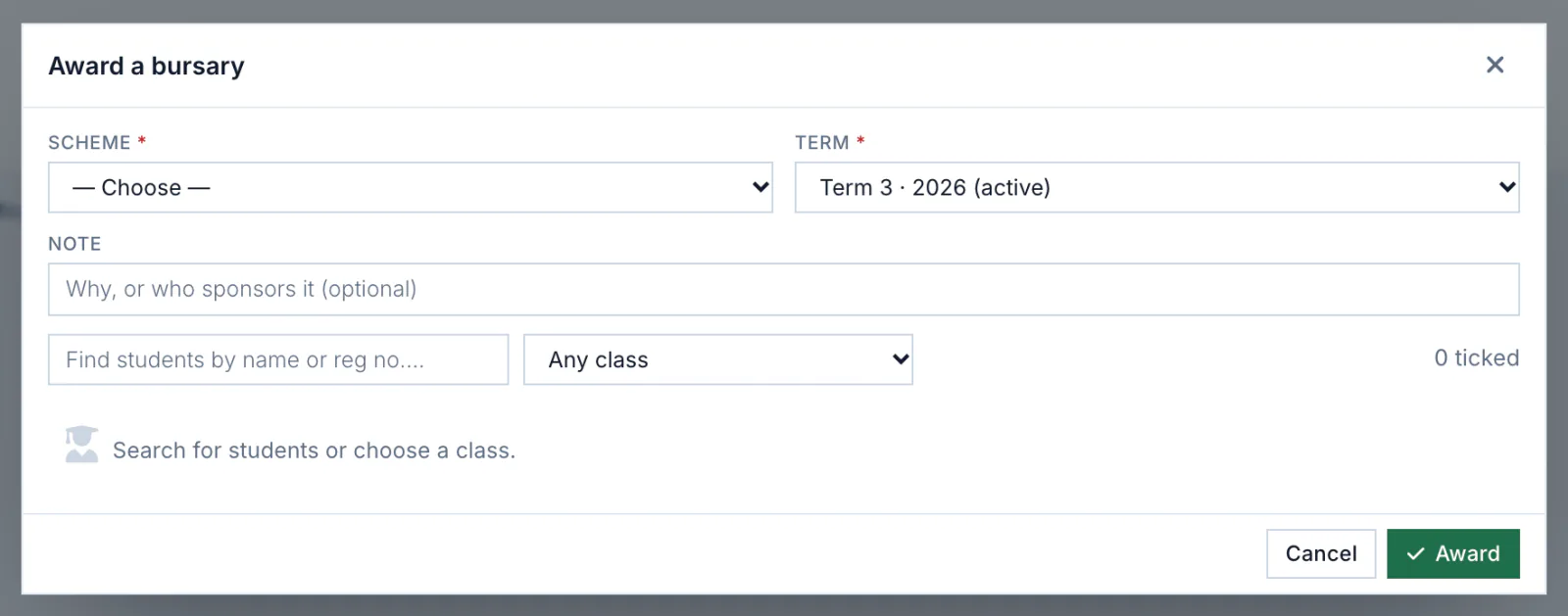
- The scheme, with the amount each student gets
- The term the bursary is for
- Find students by name or reg no.
- Or show a whole class, then tick the students
- Award: the amount is taken off each ticked student's fees
- On the Beneficiaries tab, press Award bursary. (On the Schemes tab, the hand icon on a scheme's row opens the same dialog with that scheme chosen.)
- Choose the Scheme 1. Each scheme shows the amount it gives.
- Choose the Term 2. It starts on the term chosen at the top of the page, or the active term.
- Type a Note if you want: why, or who sponsors it.
- Find the students: type a name or reg no. 3, or choose a class 4. Only active students are listed.
- Tick each student, or press Tick all shown.
- Check the line under the list: Each ticked student gets UGX 300,000 — UGX 1,500,000 in all, taken off their fees for the term.
- Press Award 5.
A message says how many students were awarded and the total, for example Awarded 5 students: 5 awards, UGX 1,500,000. Each student's account gets a line such as Bursary funds of UGX 300,000 deposited to account by Staff children bursary bursary scheme for Term 2 · 2026.
A student can hold a scheme only once per term. A student who already holds it for that term is greyed out in the list with Already holds this scheme this term, and cannot be ticked.
The list of beneficiaries#
The Beneficiaries tab shows every award for the term chosen at the top. It starts on the active term; choose All terms to see every term. You can also search by name or reg no., and show one scheme only.
Each row shows the student, their class, the scheme, the term, what the award Taken off fees, and the student's balance now: owed in red, or paid ahead in green when they have paid more than they were billed. Click a student's name to look at their fees without leaving the page.
Export gives every row the filters show as Excel or CSV. Saved views keeps a set of filters you use often.
Remove an award#
If a bursary was given by mistake, remove the award. Do not try to edit the line on the student's account.
- On the Beneficiaries tab, press the remove icon at the end of the student's row.
- Read the dialog. It names the student, the scheme and the term, and says how much is put back on the student's account: exactly what this award took off.
- Press Remove award.
To remove several at once, tick them in the list, press Remove ticked awards…, check the table of what each one gives back, and press the button at the foot (for example Remove 4 awards). You can remove up to 200 at a time. If one cannot be removed, the message names it and the others are still done.
Some awards were made before School Dynamics linked each award to its line on the account. For those, the line is found by the scheme's name and the term, and the dialog says so. If no line can be found, nothing is put back and the dialog says This award never took anything off the student's fees, so nothing is put back.
Good to know#
- An award is a line that takes money off the student's fees in the award's term. It is not a payment and needs no receipt.
- Changing a scheme's amount never changes awards already made. The message after saving says so: Scheme updated. Awards already made keep the amount they gave.
- A scheme that gives UGX 0 cannot be awarded. The dialog says to set its amount per student first.
- Every scheme saved or deleted, award made and award removed is written in the school's activity log.