
The fee structure is what each class pays in a term: school fees, lunch, a development fund. When the term is the active term, each fee becomes a bill on the account of every active student in the class. You set it up at the start of every term, before parents start paying.
Open it from Fees & finance › Fees › Fee structure. The fee structure is one part of how a student's balance is made. If you have not read it yet, start with How fees work.
Before you start#
- The bursar, the finance officer and the school administrator can add, change and bill fees. The head teacher and the deputy can look but not change anything.
- The school needs an active term. If the page says This school has no active term, set one under Academic years (see Years and terms).
- The term's classes must exist for that academic year.
Reading the page#
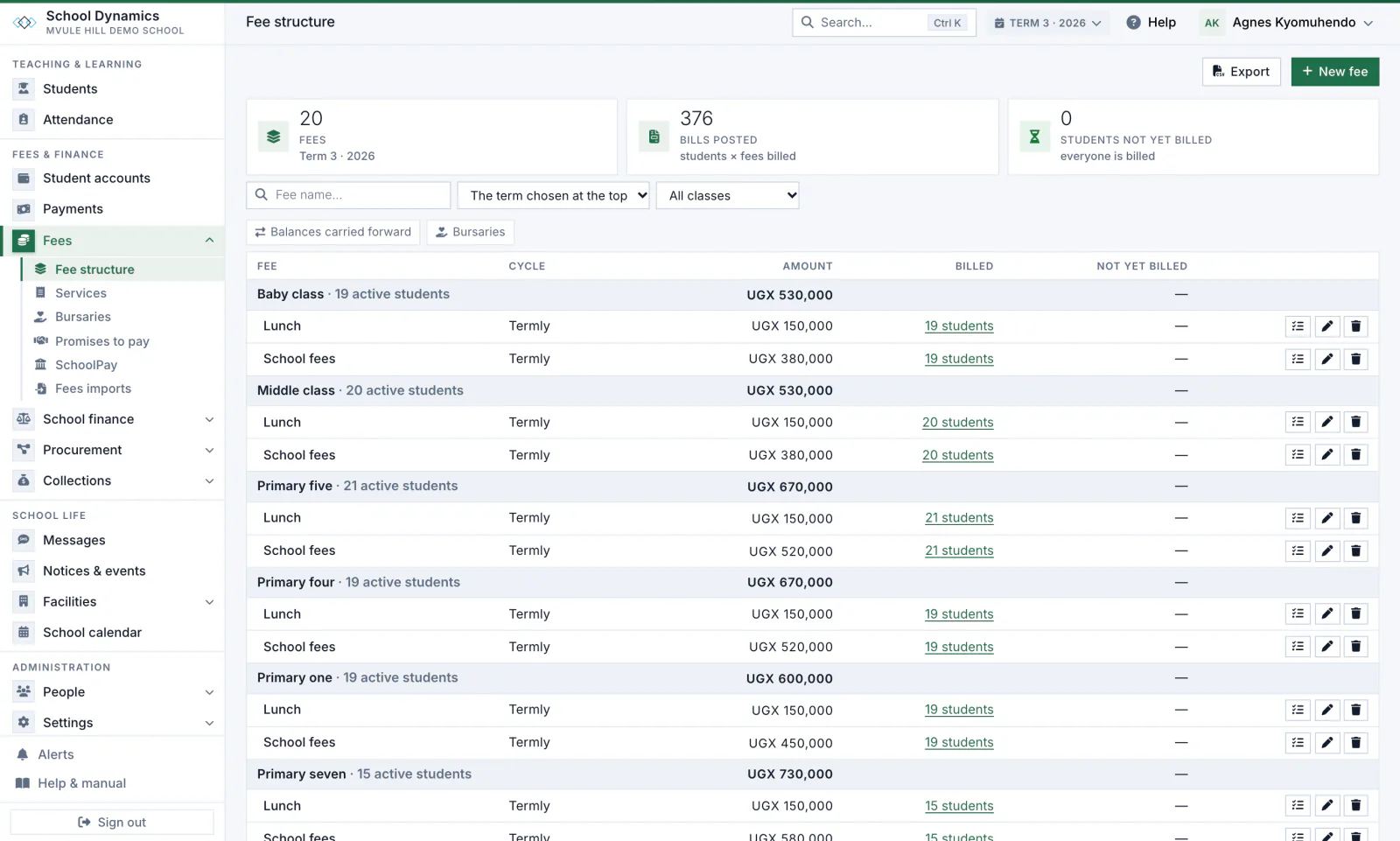
- The term's fees, the bills added, and how many active students are not billed yet.
- The term shown. It follows the term in the top bar; choose another to look back.
- Each class, its active students, and what one student pays in all.
- How many students are billed for this fee. Click to see their bills.
- Carry last term's balances into the new term.
- Add a fee for a class and a term.
The figures at the top 1 count the term's fees, the bills already added (one for each student and fee), and the active students who have not been billed yet, with the total still to bill.
The page shows the term chosen in the top bar 2. Choose another term in the list to see or prepare its fees. You can also narrow the list to one class, or search by fee name.
Fees are grouped by class 3. The class line shows how many active students the class has and what one student pays in all. For example, P.4 with School fees at UGX 520,000 and Lunch at UGX 150,000 shows UGX 670,000.
Under each fee, Billed 4 says how many students carry the bill. Click it to see each student's bill (see below). For the active term, Not yet billed counts the active students still waiting for the fee.
Balances carried forward 5 opens the page that carries last term's balances into the new term (see below). Bursaries opens Bursaries.
Add a fee#
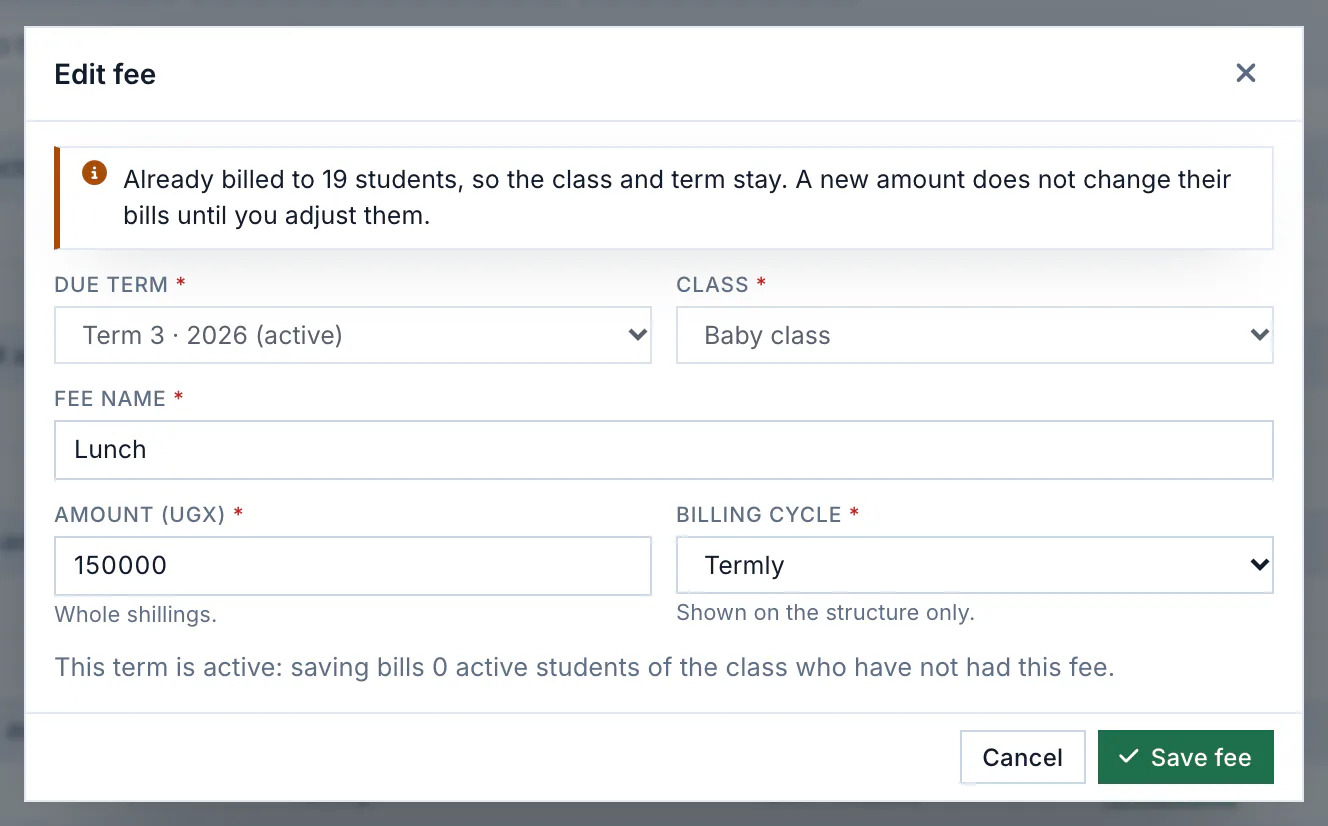
- The term the fee is due in.
- The class that pays it. Only classes of the term's year are listed.
- The fee's name, as students' statements will show it.
- The amount, in whole shillings.
- This fee is already billed, so its class and term are locked.
- Save. A fee due in the active term is billed to the class at once.
- Press New fee at the top of the page.
- Choose the Due term 1.
- Choose the Class 2. Only the classes of that term's year are listed.
- Type the Fee name 3, for example Tuition or Lunch.
- Type the Amount (UGX) 4, in whole shillings.
- Leave the Billing cycle on Termly, or choose One time for a fee paid once (a development fund, say). This is only shown on the structure; it does not change the bill.
- Press Add fee 6. (When you change a fee, the button says Save fee.)
If the term is the active term, the dialog says how many students saving will bill, for example This term is active: saving bills 20 active students of the class who have not had this fee. Saving then puts the bill on each of their accounts at once. Their statement shows a line such as Debited UGX 520,000 for School fees.
A fee for a term that is not active yet is saved but not billed. When that term becomes active, the page offers Bill all classes.
A school with theology classes also sees Class type. Choose Theology class to charge a fee to the students of a theology class.
Billing the term#
Fees are billed to students on their own in these cases:
- you save a fee whose due term is the active term (its class is billed);
- an active student is admitted to a class, or a student becomes active (for example when a payment arrives for them);
- an active student moves to another class during the term: the old class's fees for the term are undone and the new class's fees are billed (see Changing class).
Anyone left over is counted under Students not yet billed. To bill them:
- Press Bill all classes at the top, or Bill this class on a class's line.
- Check the list. It names each student, the fee and the amount, and the total to bill.
- Press Bill … students.
Only active students in the class are billed, and only for fees of the active term. A student already billed for a fee is left out, so you cannot bill anyone twice. If someone billed or a student moved while the list was open, nothing is added and the page asks you to check the list again.
Change a fee#
Press the pencil beside a fee. You can change its name, amount and billing cycle at any time.
Once a fee is billed, its class and term are locked. The dialog says Already billed to … students, so the class and term stay 5. To move it, delete it (and undo its bills), then add a new fee.
A new amount does not change bills already added. After you save, the page says Students billed before the change still carry the old amount and opens the fee's bills, so you can adjust them.
Check a fee's bills#
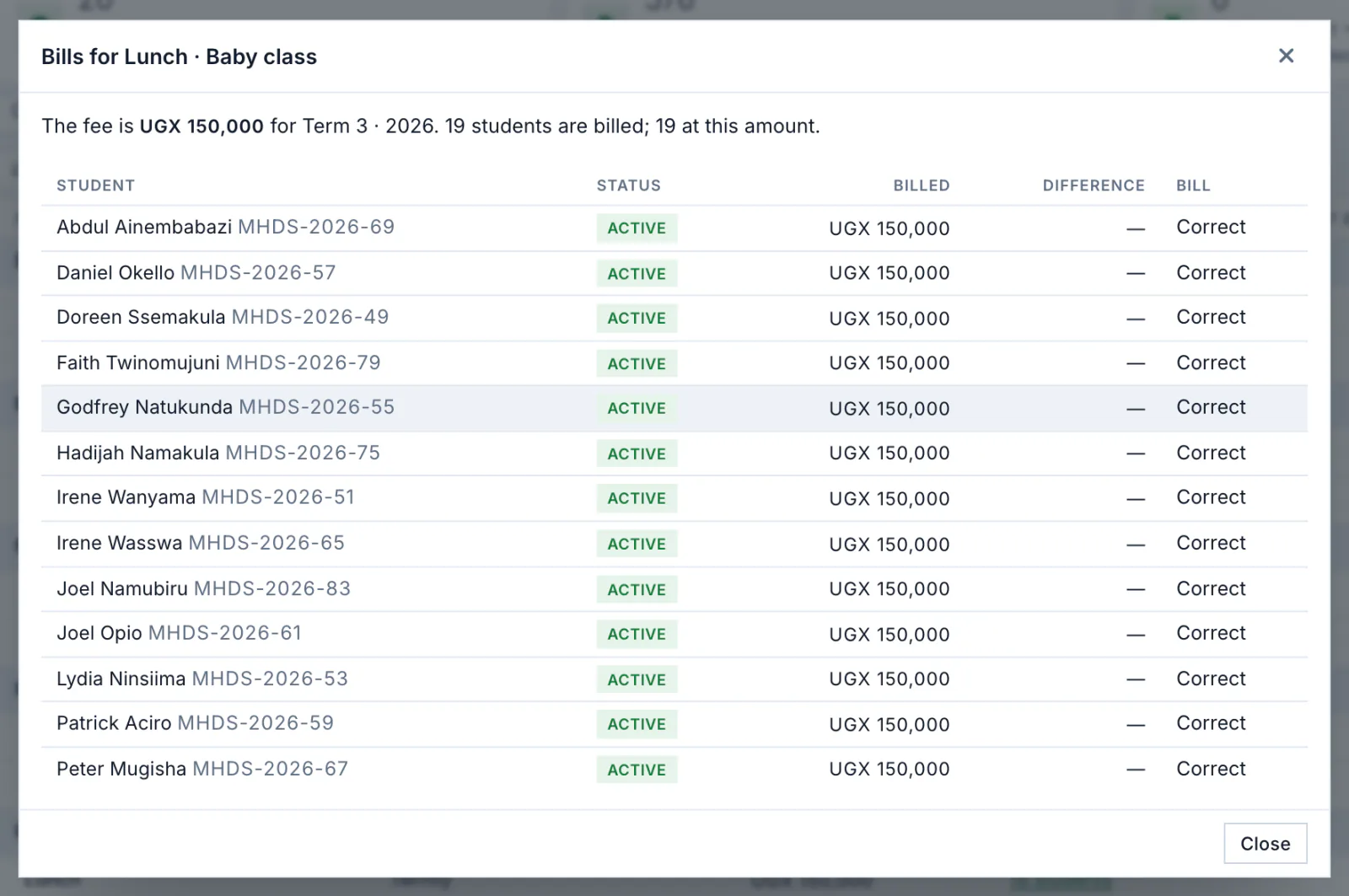
- The fee today, how many students are billed, and how many at another amount.
- How far each bill is from the fee today.
- Correct, To adjust, or left alone for you to fix from the statement.
Click the Billed count of a fee, or its list icon, to see every student billed for it. The top line 1 gives the fee's amount today, how many students are billed, and how many at another amount. Difference 2 shows how far each bill is from the fee today. The last column 3 says what will happen to each one:
| It says | Means |
|---|---|
| Correct | The bill matches the fee. |
| To adjust | The bill is at another amount (the fee was changed after billing). |
| Bill line not found | The bill could not be found on the account. Left alone. |
| Two possible lines | More than one line could be this bill. Left alone. |
| Undone by hand | Someone undid the bill on the statement. Left alone. |
When some bills are at another amount, press Adjust … bills to UGX … and confirm. Each of those students gets a line for the difference on their account. Their balance moves by that difference. Fix the ones left alone from the student's statement (see Fixing mistakes).
Delete a fee#
- Press the bin beside the fee.
- If nobody was billed for it, press Delete fee. It is removed.
- If students were billed, keep Undo their bills too ticked. The dialog says how many lines it will add to cancel the bills, and their total.
- Press Undo bills and delete fee.
Carry balances into a new term#
Each student's balance already counts every term. Carrying it forward makes the new term open with what was owed (or paid in advance) before it. For each student it adds two lines that cancel out: carried down in the old term, and a balance brought forward in the new one. The balance itself does not move. The new term's figures, such as Brought forward on the student's Fees tab, then include the old debt.
Open Fee structure and press Balances carried forward. The page lists every carry-forward already set up: the two terms, which students, whether it is Carried, and the totals carried.
- Press Carry balances.
- Choose the From term and the To term. One of the two must be the active term, and the first must come before the second.
- Under Students, choose Active students only or All students.
- Tick When checked again later, update balances already carried if they have moved if late payments or corrections should update what was carried.
- Press See the list. No account changes yet: the list of students opens.
- Check the list. The Action column says Carry, Update, Add the missing line, Already carried, Nothing to carry (a zero balance) or No account.
- Press Carry … balances.
The amount carried is everything on the account from before the new term. A bill or payment already added in the new term is not counted twice.
You can come back later and press Check and carry (or Check again). New students get their lines, and with the update box ticked, balances that have moved since are updated. Each pair of terms can be set up only once. If you try again, the page says it is already set up: open that one in the list and carry the balances from there.
What happens next#
- Every bill is a line on the student's account, and the balance falls by its amount. See Student accounts.
- Parents see the new balance on the parents' pages when the school shows them that account. See Student accounts.
- Charges that only some students take (transport, uniforms) are not class fees: set them up as Services. To bring in balances from a spreadsheet, see Import fees.
- Every fee added, changed or deleted, and every billing run, is written in the school's activity log.