
An academic year is the school year, with its own dates, its terms and its classes. One year and one term are active at a time, and the whole school works in them: new bills, payments, roll-calls and the term's report cards go to the active term. You make a new year once a year and change the active term three times a year.
Open it from School structure › Academic years.
Before you start#
- The school administrator, the head teacher, the deputy, the director of studies, teachers and the secretary can open this page.
- Only the school administrator, the director of studies and the school's owner can make years, change dates or change the active term.
Reading the page#
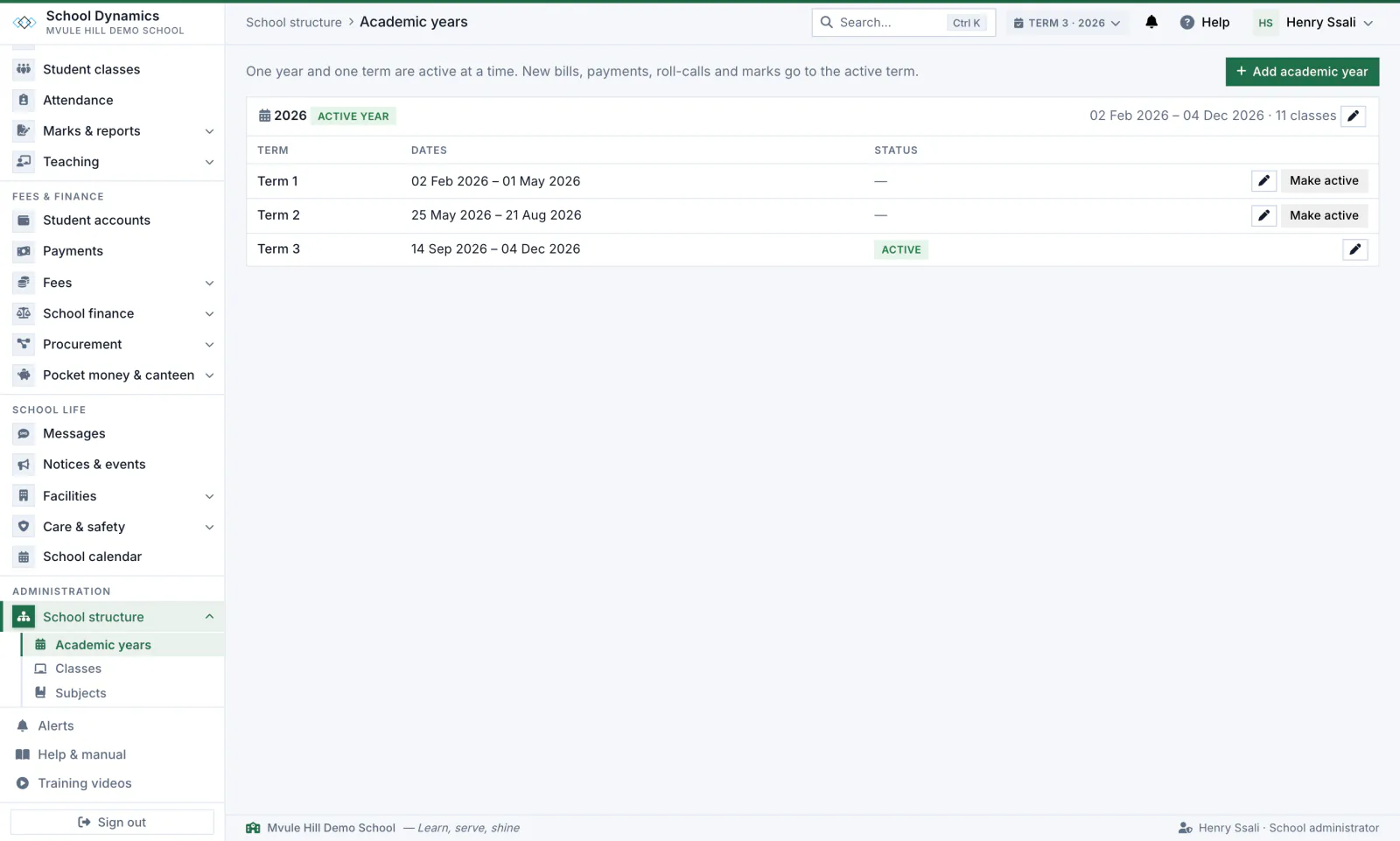
- Make the next academic year, with its terms and classes.
- The active year.
- The active term: the whole school works in it.
- Make another term the active one.
- Change a term's name or dates.
Each year is a box, newest first, with its dates and how many classes it has. The active year carries a badge 2, and so does the active term 3 in its table. Add academic year 1 makes the next year. Make active 4 beside a term makes it the active one, and the pencil 5 changes a term's name or dates.
Start a new academic year#
Do this before the new year's first term starts, so its classes are ready for promotion.
- Press Add academic year. The dialog suggests the next year's name and dates.
- Check Name (for example 2027), Starts and Ends. The end must be after the start.
- Tick Make it the active year now only if the school moves into the new year today. Otherwise leave it, and make it active when its first term starts.
- Type Your password, to confirm.
- Press Add year.
The new year gets its three terms and one class for each level the school teaches, each with its usual subjects. The school's owner stands as class teacher until you change it. A university's year gets two semesters and no classes (its classes come from its programmes; see Programmes).
Then move the students up into the new classes: see Changing class and promotion.
Set a term's dates#
- Press the pencil beside the term.
- Give it a Name if you want one (for example Second term). Left as a number, it shows as Term 2.
- Set Starts and Ends.
- Press Save term.
Changing a term's name or dates does not change which term is active. To change a year's name, dates or details, press the pencil beside the year's name, then Save year.
Change the active term#
When a new term starts:
- Find the new term in its year.
- Press Make active beside it.
- Confirm. The whole school now works in that term.
- Making a term active also makes its year the active year.
- Pressing Make active beside a year makes that year active, and its first term becomes the active term.
Look at another term from the top bar#
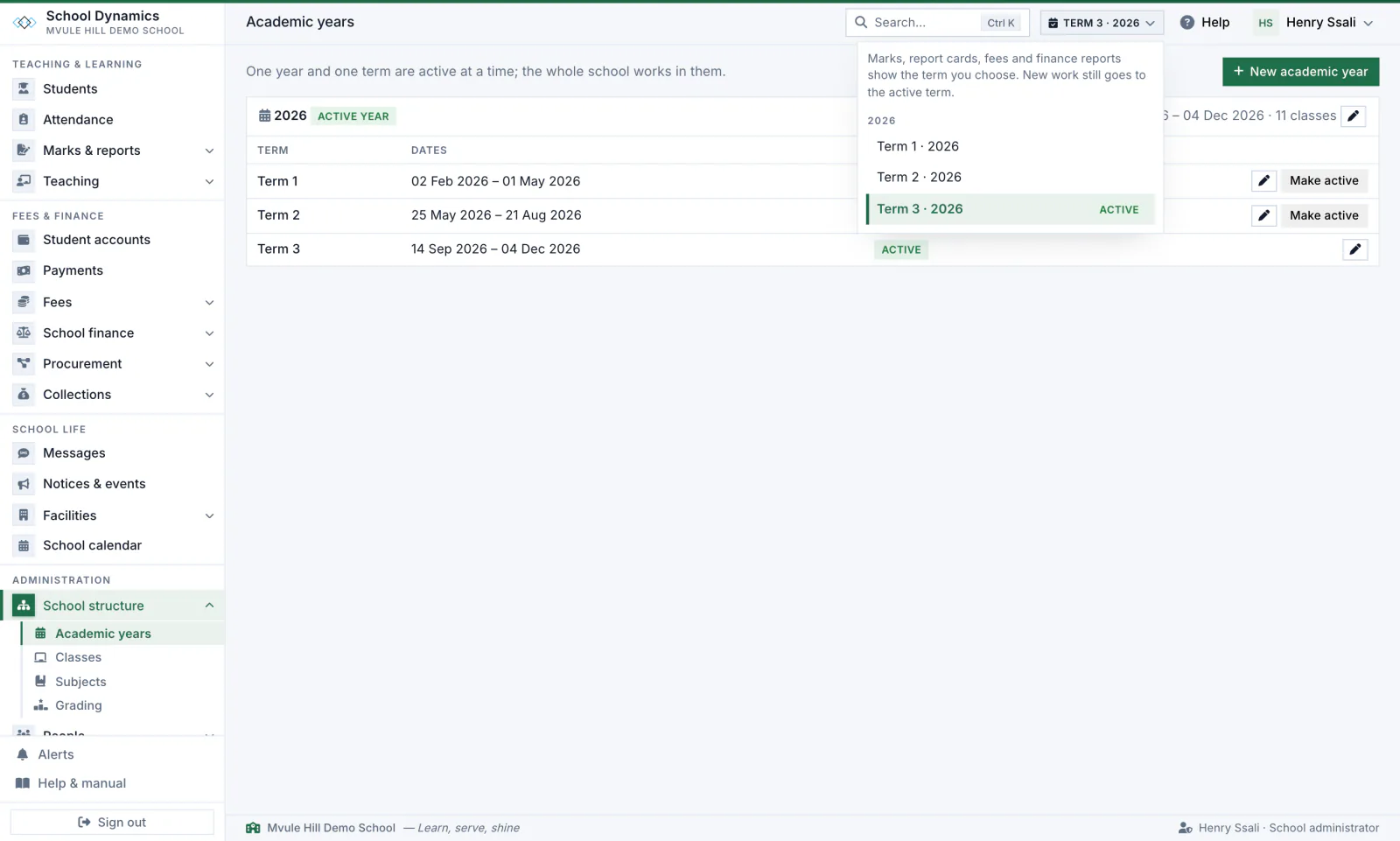
- The term you are looking at. It says Viewing when it is not the active term.
- Reports show the term you choose; new work still goes to the active term.
- Choose a term to look at it.
The top bar shows a term 1. Choose another one there to look back at it: marks, report cards, fees and finance reports then show the term you chose 2. This changes nothing for the school, and nothing for anyone else. New work still goes to the active term.
- Press the term in the top bar.
- Choose a term under its year 3. The active one is marked Active.
- To go back, open it again and press Back to the active term.
While you look at another term, the top bar says Viewing before its name, so you always know. See also Finding your way.
Good to know#
- Years and terms are never deleted. A year made by mistake can be renamed, given other dates and left inactive.
- Changing the active term does not move students or bill fees by itself. Fees are set per term under Fees; see Fee structure.
- A school billed per term by School Dynamics: when its licence invoice for a term is paid, that term becomes the active term by itself. See Licence and billing.
- At a university, the active term is the active semester. Making a semester active marks as enrolled exactly the students who are enrolled for it.