
The school profile holds what every page and printed document says about your school: its name, motto, contacts, logo and colours, the head teacher's name and the signatures. Set it in the first week, and change it whenever something changes.
Open it from Settings › School profile.
Before you start#
- Every member of staff can open the school profile and read it.
- Only the school's owner and the school administrators can change it. They see an Edit button on each tab.
- The SchoolPay and Licence tabs show only to those who can also see the school's money (the bursar, the head teacher and the deputy, among others). The Messages tab shows only to those who can send messages.
The tabs#
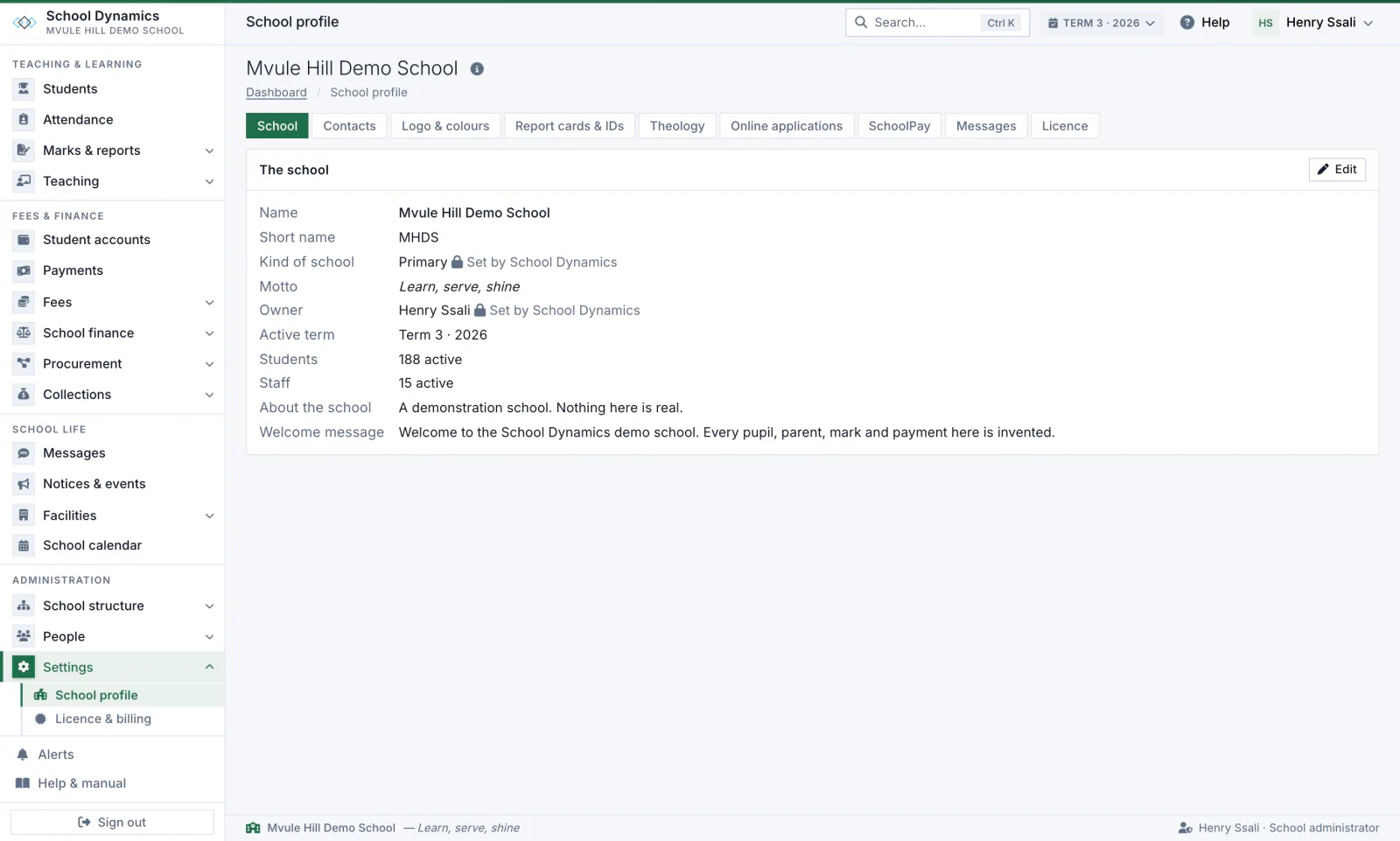
- One tab for each group of settings. Some tabs show only to the people who deal with them.
- Edit opens this tab's settings. Only the owner and school administrators see it.
- What is set now. A dash means nothing is set yet.
- Set by School Dynamics, not by the school.
Each tab 1 holds one group of settings. What is set now is listed under it 3; a dash means nothing is set yet.
| Tab | What it holds |
|---|---|
| School | The name, short name, motto, a few lines about the school and a welcome message. It also shows the kind of school, the owner, the active term and how many students and staff are active. |
| Contacts | Address, P.O. box, phone, second phone, email and website. |
| Logo & colours | The logo, the school colour and the second colour. |
| Report cards & IDs | The head teacher's name, the head teacher's, director of studies' and bursar's signatures, and when ID cards expire. |
| Theology | Whether the school teaches theology. See Theology classes. |
| Online applications | Whether parents can apply online, the fee, the deadline and the documents to bring. See Online applications. |
| SchoolPay | Whether SchoolPay payments are imported by themselves, and from which date. See SchoolPay. |
| Messages | The school's switch for sending text messages, the SMS wallet and when credit was last bought. See How SMS works. |
| Licence | Where the school's licence stands. It only shows; the licence is managed by School Dynamics. See Licence and billing. |
Some lines say Set by School Dynamics 4: the kind of school, the owner and the web address. The school cannot change them, because they decide the school's classes, terms, menus and sign-in. Ask School Dynamics support if one is wrong.
Change a setting#
- Open the tab, for example Contacts.
- Press Edit 2. A dialog opens with that tab's settings.
- Change what you need. Leave a field empty to clear it.
- Press Save settings.
A short note confirms what was saved, for example Contacts saved. If nothing was different, it says Nothing was changed.
Only the school's name is required. A few rules are checked when you save:
- Short name: leave it blank and it becomes the initials of the name, up to five letters.
- Phone and Second phone: digits and the usual signs only (
+, spaces, brackets, dashes). - Website: a web address such as www.school.ac.ug.
- Email: a real email address.
Logo and colours#
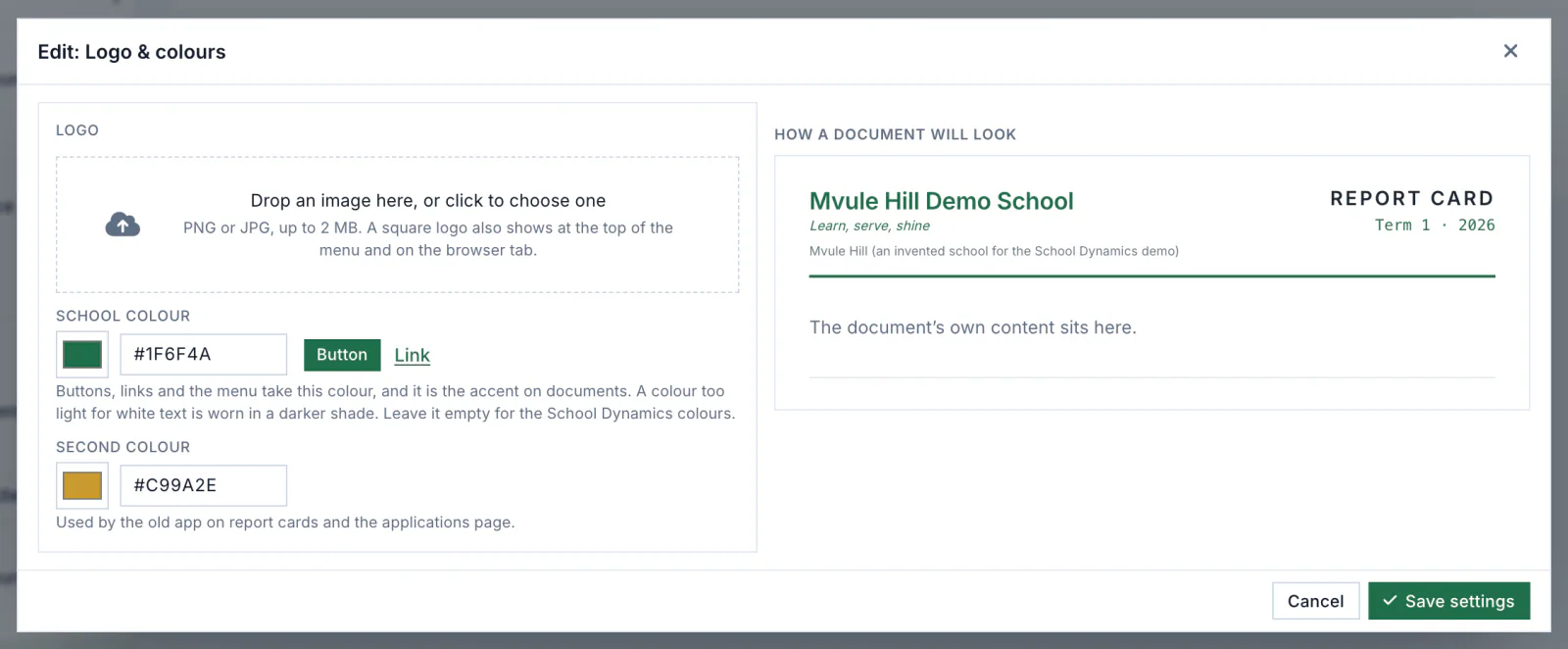
- Drop the logo here, or click to choose it: a PNG or JPG of up to 2 MB.
- The school colour, as # and six letters or digits. The square beside it opens a colour picker.
- How a document will look with this logo and colour, before you save.
- Save. The page opens again in the new colours.
The sign-in page, the menu, the footer and every printed document wear the school's logo, colour and motto. Set them under Logo & colours:
- Logo 1: drop a picture on the box, or click it to choose one. It must be a PNG or JPG of up to 2 MB. A square logo also shows at the top of the menu and on the browser tab.
- School colour 2: buttons, links and the menu take this colour, and it is the accent on documents. Type it as
#followed by six letters or digits (like#1C4795), or click the square to pick one. A colour too light for white text is worn on the screens in a darker shade; the dialog tells you which. Leave it empty to keep the School Dynamics colours. - Second colour: kept for report cards and the applications page of School Dynamics classic.
The right side 3 shows how a document's heading will look with the logo, colour, name, motto and contacts, before you save. When you press Save settings 4, the page opens again so the menu and footer show the change. The motto is set on the School tab.
Names and signatures on documents#
Under Report cards & IDs:
- Head teacher's name is printed beside the head teacher's signature.
- Upload the head teacher's, director of studies' and bursar's signatures: a PNG with a clear background prints best, up to 2 MB. The head teacher's signature is printed on report cards and letters; the bursar's on receipts and finance reports.
- Student ID cards expire and Staff ID cards expire: the date printed on ID cards. Left blank, it is 31 December of the current year.
To take a signature off the documents, press Remove beside it on the tab. Only the owner and school administrators can.
What happens when you save#
- Every change is written in the school's activity log: who changed which setting, from what to what.
- A new logo or signature is kept as a new file; the old file is not deleted.
- If the school has no academic year yet, saving the profile makes the first one, starting today, with its terms and classes, and the note says so.
- Changing the name, logo, colours or the theology setting opens the page again, so the menu shows the change at once.