
A grading scale turns a mark into a grade and its aggregates: for example, marks from 80 to 100 might be D1, worth 1 aggregate. Report cards add up the aggregates of the graded subjects. This page holds the school's scales, and two banks that report cards draw on: report comments and behaviour comments.
Open it from School structure › Grading.
Before you start#
- The school administrator, the head teacher, the deputy, the director of studies and the school's owner can open and change this page.
- A scale is used once a term's report settings choose it; see Report settings.
The grading scales#
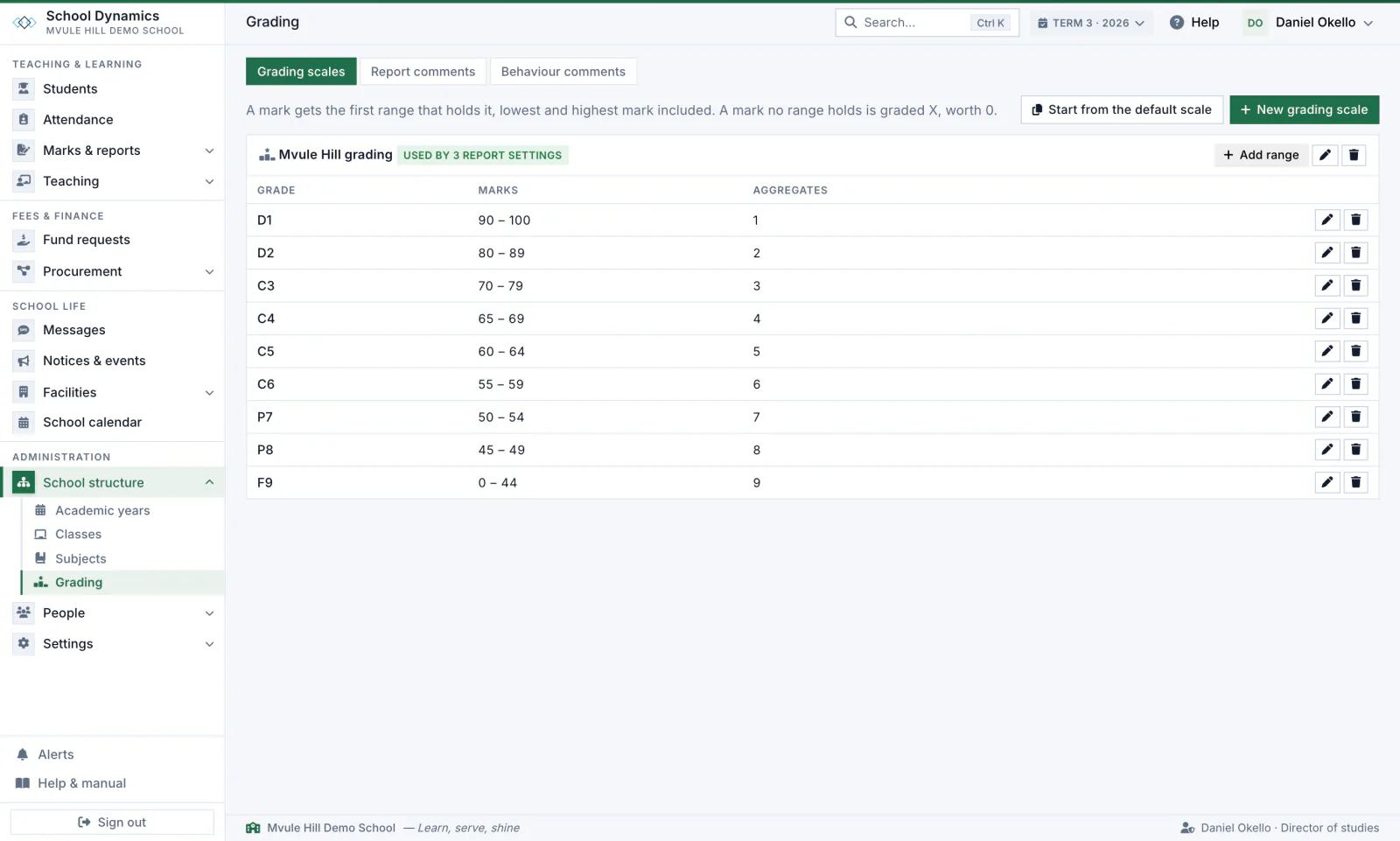
- Grading scales, report comments and behaviour comments: three pages of one menu entry.
- Add a copy of the standard scale, D1 to F9, to change as you need.
- Make a scale of your own.
- The scale's ranges: the grade, its lowest and highest mark, and its aggregates.
- Add a range to the scale.
The page has three tabs 1: Grading scales, Report comments and Behaviour comments. Each scale is a box with its ranges 4, highest first. A scale that report settings use says so in its heading (Used by 3 report settings).
Start from the default scale#
Most schools start here.
- Press Start from the default scale 2.
- Confirm. A copy of the standard scale, D1 to F9, is added to the school with its ranges.
- Change any range that is different at your school: press its pencil, change it, and press Save changes.
Make a scale of your own#
- Press New grading scale 3.
- Give it a Name, for example Primary grading, and press Create scale.
- Press Add range 5 on the new scale.
- Type the Grade (up to 15 characters, such as D1), the Lowest mark, the Highest mark and the Aggregates (what the grade adds to a student's total, such as 1 for D1).
- Press Add range.
- Add the other ranges the same way. Each time, the lowest mark is suggested: one above the highest mark so far.
The rules for a range:
- Marks run from 0 to 100, and both the lowest and the highest mark are included.
- Ranges in one scale cannot overlap. If they would, the dialog says which marks are already in which grade.
- A scale cannot have two ranges with the same grade.
- Two scales of the school cannot have the same name.
How a mark gets its grade#
A mark gets the first range that holds it. A mark that no range holds is graded X, worth 0 aggregates. Under each scale, the page warns you in words when some marks are in no range (Marks 35 to 39 are in no range, so they are graded X) or in two ranges at once. Fix the ranges, then make the term's report cards again so the grades follow.
Rename, delete or copy a scale#
- The pencil in a scale's heading renames it.
- The bin deletes the scale and its ranges. A scale that report settings use stays: the box says how many terms use it.
- If report settings in other schools also grade with a scale, its ranges cannot change here and the box says so; the scale shows Copy this scale instead of Add range. Copy it, change the copy, and choose the copy in your report settings.
- If one of your report settings grades with another school's scale (as old settings sometimes did), a note at the top says so. Choose one of your own scales in those report settings instead.
Report comments#
The Report comments tab is the bank of comments for the class teacher and the head teacher. Each comment belongs to a band of total aggregates (for example 4 to 12). When cards are made with comments from the bank, each card gets one comment, picked at random from the band that holds the student's total. None is written below 3 aggregates.
- Add the standard comments adds 40 ready-made comments in five bands (0–12, 13–24, 25–28, 29–32 and 33–36). Comments the school already has are not added twice.
- New comment adds one: type the band (From (aggregates) and To (aggregates)), the Class teacher's comment and the Head teacher's comment (each 5 to 500 characters), then press Add comment.
- Write
[NAME]for the student's name, and[HE_OR_SHE],[HIS_OR_HER]and[HIM_OR_HER]for He or She, His or Her, Him or Her. The dialog shows how the comment reads for a girl and for a boy.
How the comments get onto the cards is in Comments.
Behaviour comments#
The Behaviour comments tab holds short sentences about how a child behaves, grouped by behaviour (Discipline, Punctuality, Participation…), each marked Praise or Concern. Teachers add them to a report card's comment with a tap; they are never written onto cards by themselves.
- Add the standard sentences adds the ready-made ones the school does not have yet.
- New sentence adds one: type the Behaviour, choose Praise or Concern, write the Sentence, and press Add sentence.
- Removing a sentence from the bank does not change cards that already use it.