
Every term has one set of report settings: the report's title and grading scale, which of the three exams count, who may enter their marks, how positions are worked out and what the printed card shows. The report settings are the first step of the term at a glance, which copies them from last term. This lesson explains each choice, so you can change them.
Open them from Marks & reports › Report cards, tab Report settings.
Before you start#
- The director of studies, head teacher, deputy and school administrator can add and change settings. Teachers and the secretary can look at them.
- The school needs a grading scale of its own (see Grading scales).
The list of terms#
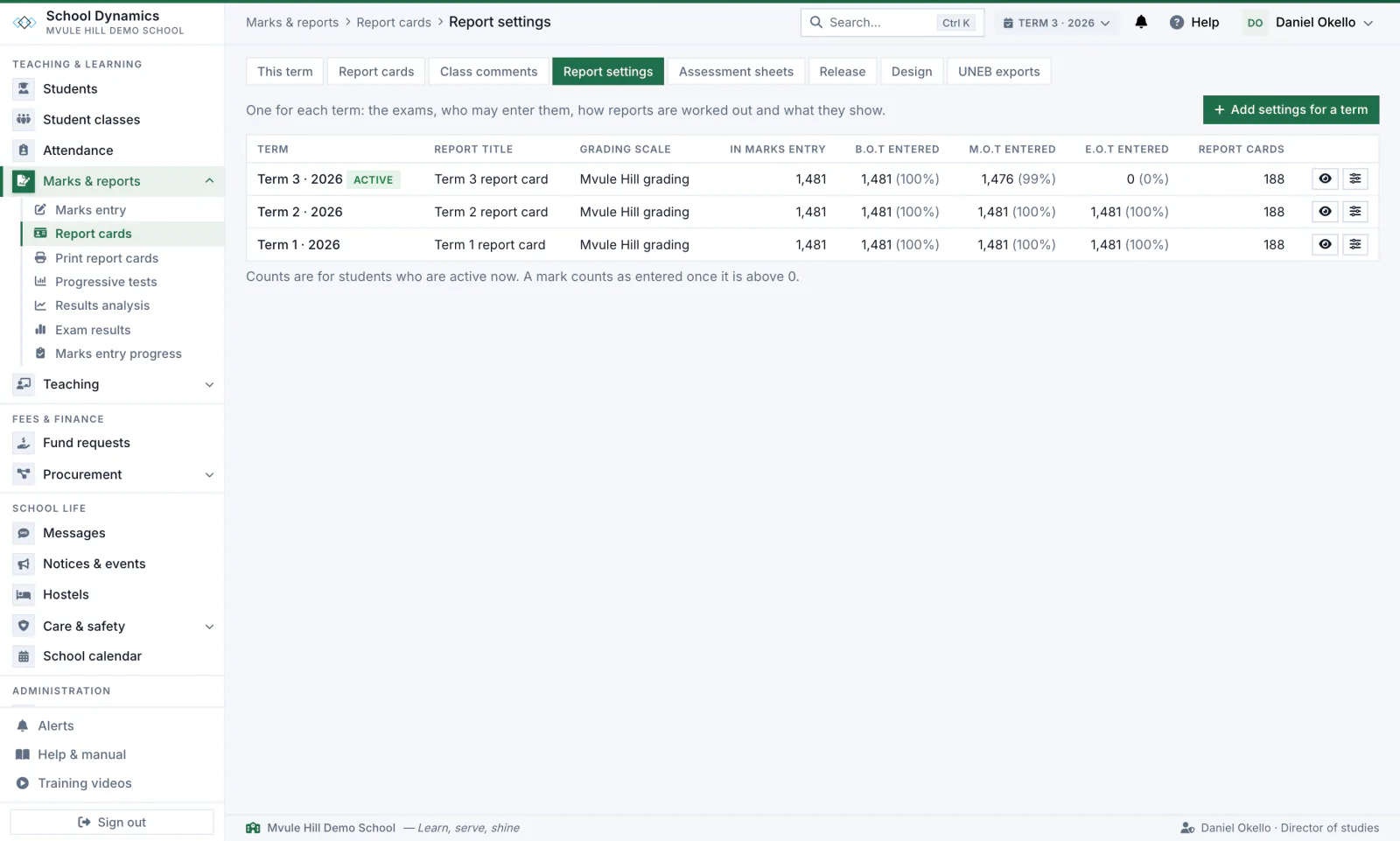
- Add the settings for a new term.
- A term. Click it for a quick view: the exams, how far marking is and the classes furthest behind.
- How many marks are in for each exam, out of the students listed in each subject.
- Open the term's settings page.
Each line is one term, newest first. Add settings for a term 1 adds a term that has none yet. Click a term 2 for a quick view, with Open the settings at the bottom.
The figures 3 count marks of students who are active now. A mark counts as entered once it is above 0. The last column counts the report cards made. The settings icon 4 opens the term's page.
Add a term's settings#
- Press Add settings for a term.
- Choose the Term. Only terms without settings are offered.
- Type the Report title, for example END OF TERM TWO - 2026. It is printed at the top of every report card.
- Choose the Grading scale.
- Press Add settings. The term's settings page opens, ready for the exams.
The term's settings page#
The page has three tabs:
- Marks entered: marks entered, by class. Click a class to see its subjects. A class where some students are not listed in their subjects says missing from marks entry.
- Settings: the form below.
- Make report cards: prepares marks entry and makes the report cards (see Make the report cards). Only those who manage reports see it.
At the top, Enter marks opens marks entry for this term, and Report cards opens its cards.
The settings, one by one#
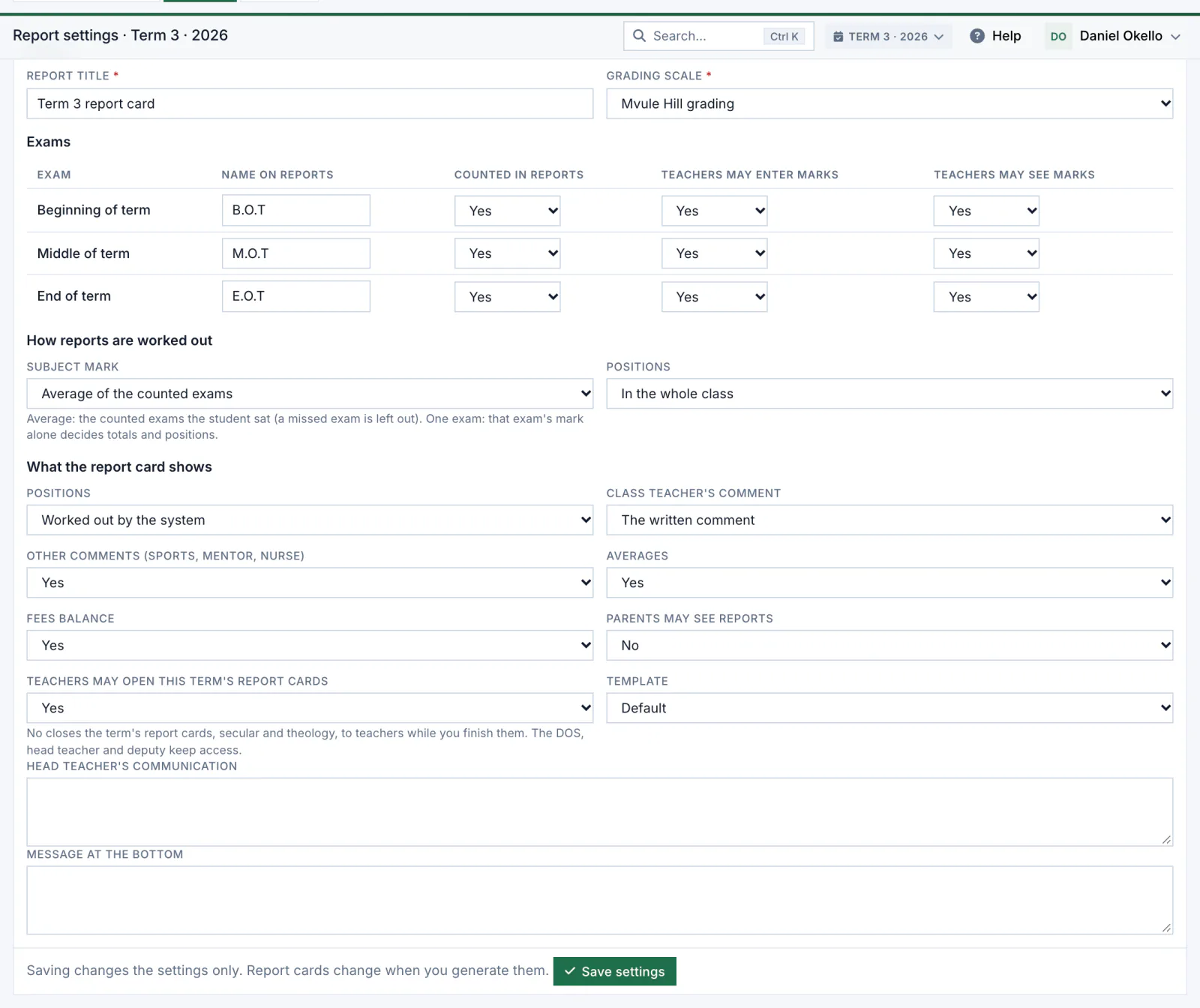
- The title printed at the top of every card.
- Each exam: its name, whether it counts, and whether teachers may enter or see it.
- How a subject's mark is worked out: the average of the exams, or one exam.
- What the printed card shows.
- Save. Nothing is made again until you generate.
Report 1: the title and the grading scale.
Exams 2: one line each for the beginning, middle and end of term (B.O.T, M.O.T and E.O.T).
| Column | Means |
|---|---|
| Name on reports | The exam's name on the cards, up to 30 characters (B.O.T unless you change it). |
| Counted in reports | Yes: the exam's marks count towards the subject's mark. |
| Teachers may enter marks | Yes: teachers can type this exam's marks. No closes it to them. |
| Teachers may see marks | When entry is closed, Yes still shows teachers the marks. No hides the exam from them. |
The director of studies, head teacher, deputy and school administrator can enter any exam's marks, whether it is open to teachers or not.
How reports are worked out 3:
- Subject mark: Average of the counted exams averages the counted exams the student sat; a missed exam is left out, so it does not pull the average down. One exam's mark uses one exam alone (choose it under Which exam) for the totals and positions.
- Positions: In the whole class or Within each stream. Students are ranked by aggregates, fewest first, and equal aggregates by total marks, highest first.
What the report card shows 4:
| Choice | Options |
|---|---|
| Positions | Worked out by the system, A space to write one (written by hand on the printed card), or No positions. |
| Class teacher's comment | The written comment, A space to write one, or No comment. |
| Other comments (sports, mentor, nurse) | Yes or No. |
| Averages | Yes or No: the average column. |
| Fees balance | Yes or No. |
| Parents may see reports | Used when you save copies for the parents' app (see What parents see). |
| Teachers may open this term's report cards | No, closed to teachers hides the term's cards from teachers while you finish them. The DOS, head teacher and deputy keep access. |
| Layout in the old system | A choice kept from the old app. How cards look is chosen under Card design. |
Extra exams, under the form, are for a class that sat another set of exams this term, beyond the three: for example a second end of term set for P.6. See Extra exams below.
Head teacher's message prints on every card of the term, under the comments. Message at the bottom is a note at the foot of the card. Neither is copied to the next term.
Press Save settings 5. Report settings saved. The report cards change only when you make them again.
Extra exams#
Use an extra exam when some classes sat another set of exams this term and the three exams are taken. It is added for chosen classes only, so other classes never see it.
- Open the term's page, tab Settings, and press Add an extra exam under Extra exams.
- Type its Name on reports, for example E.O.T 2. It heads its column on the card.
- Tick the Classes that sat it.
- Leave Teachers may enter its marks ticked, or untick it so only the DOS, head teacher and deputy enter them.
- Leave Leave the Average column off these classes' report cards ticked when the cards should show each set's marks and no average.
- Press Save extra exam.
Its marks are entered in Marks entry, in a column after the term's exams, for those classes only. The same people enter them, and the same locks apply: a closed term or a released card cannot be changed.
The report cards of those classes print it as its own column, with each mark's grade on the term's grading scale. It is not counted in the subject's mark, the aggregates, the division or the positions: they are worked out as before. Report cards show its marks as soon as they are entered; there is nothing to make again.
Each set's result. In those classes, every exam on the card is a set (for example E.O.T and E.O.T 2), and each set gets its own result, worked out exactly as the term's is but from that set's marks only:
- the subject's grade in the set, beside each mark;
- the learner's aggregates and division in the set, in two rows under the marks table. With the average off and up to three sets, the result boxes at the top give each set's aggregates and division too;
- in Marks entry, Grade, Aggs and Div. columns for each set, updated as marks are typed.
For a term exam a 0 means no mark yet; for an extra exam a 0 is a mark. A set where some subjects that count have no mark says on 2 of 4 beside its division. These figures are shown, not stored: the term's result and the positions stay as they are.
A term can have up to three extra exams. Change edits one; Remove deletes it with its marks, and the cards stop printing it.
When saving is refused#
| You see | Do this |
|---|---|
| Give the report a title, like END OF TERM TWO - 2026. | Type a title of 2 to 200 characters. |
| Choose the exam whose marks make the report. | You chose One exam's mark: pick the exam under Which exam. |
| Give each exam a name of up to 30 characters, like B.O.T. | Shorten the exam's name, or fill in a blank one. |
| Choose one of this school's grading scales (Administration › Grading). | Pick one of your own scales. |
| Choose the classes that sat this exam. | For an extra exam: tick at least one class. |
| This term already has an exam called … | Give the extra exam its own name, different from the term's exams. |
Theology settings#
Schools with theology classes have a Theology settings tab with the same page for the theology report cards. It has no class teacher's comment choice, no other comments and no Teachers may open switch; the one on the secular settings closes both kinds of card to teachers. In theology, a blank or 0 counts as 0 in the average; only an exam entered as absent in the marks grid is left out. See Theology marks.
Good to know#
- Warnings at the top of the page tell you when the grading scale is another school's, when the old app still has a step waiting on these settings (saving here clears it), and when the old app left two cards for one student (the newest is the one used).
- Next term, step 1 of the term at a glance copies these settings, except the head teacher's message and the message at the bottom.