
Print a class at a time from Marks & reports › Print report cards. You get one PDF to print, or a ZIP file with one PDF per student (to email or share). Single cards print from the card itself.
Before you start#
- The term's report cards are made (see Make the report cards).
- The director of studies, head teacher, deputy and school administrator print any class. A class teacher (or stream teacher) prints the term's cards of their own class, unless the term is closed to teachers.
Print a class#
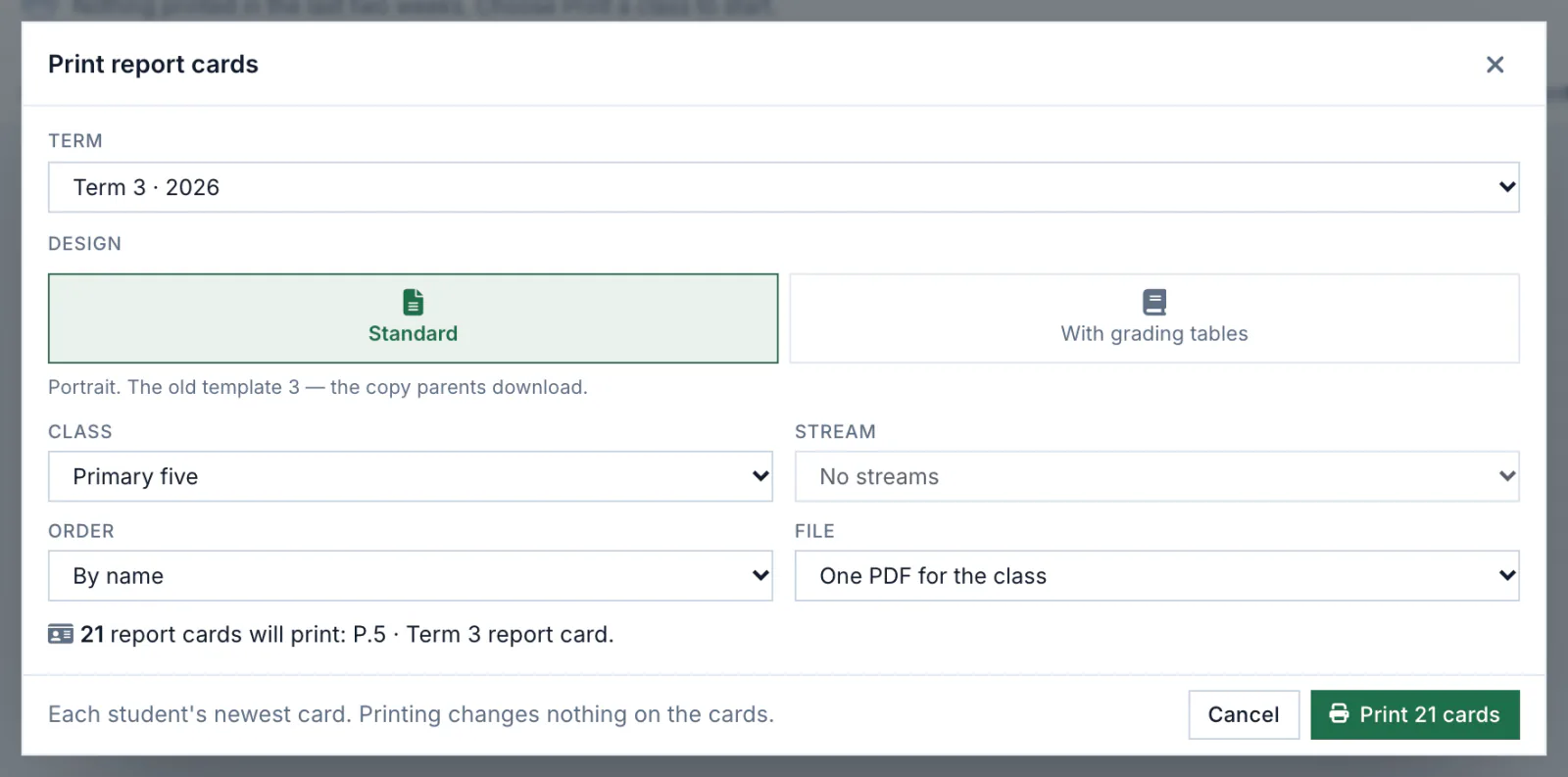
- The term whose cards you print.
- The design of the card.
- The class, then a stream if you want one.
- One PDF for the class, or a ZIP with one PDF per student.
- Print. The button says how many cards.
- Press Print a class. The Print report cards window opens.
- Choose the Term 1. It starts on the term in the top bar.
- Choose the Design 2 (see the table below).
- Choose the Class 3. Keep Whole class, or choose one Stream.
- Choose the Order: By name or By position.
- Choose the File 4: One PDF for the class or A ZIP file: one PDF per student.
- Check the line … report cards will print, then press Print … cards 5.
A progress bar shows while the cards are drawn. You may close the window: the print carries on and appears under Recent prints when it is ready. When it is done, press Download PDF (or Download ZIP), or Preview to look at a PDF first. Print another class starts again.
If some cards are out of date, the window says how many before you print, with Make them again.
A class is drawn a few cards at a time, so even 400 cards print without the server running out of room, and a card with many subjects is drawn a little tighter so it keeps to one page with its QR code. If a card cannot be drawn, it is left out and named in the window (and under Recent prints), and the rest still print. Printing the class again the same day draws only the cards that changed: after correcting one comment, the class prints again in seconds. A very long print carries on by itself if the server has to pause it.
Designs#
| Design | What you get |
|---|---|
| Standard | Portrait. The card parents download. |
| With grading tables | Portrait, with the grading tables printed on it. |
Schools with theology classes see four designs instead: Secular and theology on one page (the card parents download), Secular only, Theology only (choose a theology class) and Secular and theology side by side (landscape, marks and aggregates only).
When the school has saved a design under Report cards › Design, the window starts on it (see Card design).
For those who manage reports, Report cards at the top of the window also offers New curriculum and Progressive tests when the school has them. Those print in their own design, and By position is not offered for new-curriculum cards.
Recent prints#
The Print a class tab lists the prints of the last two weeks: what was printed, the design and file kind, how many cards, by whom and when. Use the eye to preview a PDF, or the download icon. Prints are kept for two weeks. Class teachers see only their own prints.
Print one card#
Open a student's card (from the report cards list, or Parents & fees) and press Print, or press the print icon on the list. The card opens in a window as it prints:
- Design changes the design of this one card.
- PDF or Page view: if the PDF does not show on your device, choose Page view.
- New tab and Download.
What is on a printed card#
A printed card is drawn from what the cards and marks hold when you print; nothing is worked out again. It shows the student's class and stream, the class teacher and the head teacher, the student's LIN, SchoolPay code and photo when they are recorded, and the subjects that appear on reports, with a column for each exam the term counts. A score below 1 prints as "–". The term's settings decide the rest: the position (or a blank to write one in), the class teacher's comment (or a blank), the other comments, and the fees balance (NIL BALANCE, the amount, or a blank when the student's account is not shown to parents). The message at the bottom closes the card.
Every card also carries a QR code. Anyone can scan it to check the card is genuine: the check shows the school, the student's initials, the class, the term and the day it was issued, never the marks. If a released class is reopened and corrected, scanning an old printed card says a corrected card was issued.
When printing is refused#
| You see | Do this |
|---|---|
| There are no report cards to print for … Make them on the This term page first. | Make the class's cards. |
| That is … report cards; print up to 400 at a time (choose a stream). | Choose one stream. |
| You can print the report cards of your own class only. | Ask the director of studies to print other classes. |
| This print is already running. Wait for it to finish. | The same print is being drawn. Wait, then look under Recent prints. |
Good to know#
- Each print uses each student's newest card. Printing never changes a card.
- To give parents the cards on their phones, save the parents' copies instead (see What parents see).