
Each report card carries a class teacher's comment and a head teacher's comment, and can carry sports, mentor and nurse comments. You can write them one card at a time with the whole card in front of you (One by one), a whole class on one page, or let the system fill blanks from the school's comment bank.
Who writes which comment#
| Comment | Who may write it |
|---|---|
| Class teacher's comment | The class teacher (or the stream's teacher), and those who manage reports |
| Head teacher's comment | The director of studies, head teacher, deputy and school administrator |
| Sports and mentor comments | The class teacher, a teacher of the student, and those who manage reports |
| Nurse's comment | The class teacher, and those who manage reports |
Theology cards have the class teacher's and head teacher's comments only.
Choose what to write first#
Open Marks & reports › Report cards, tab Class comments. The page opens One by one, on a short list of choices:
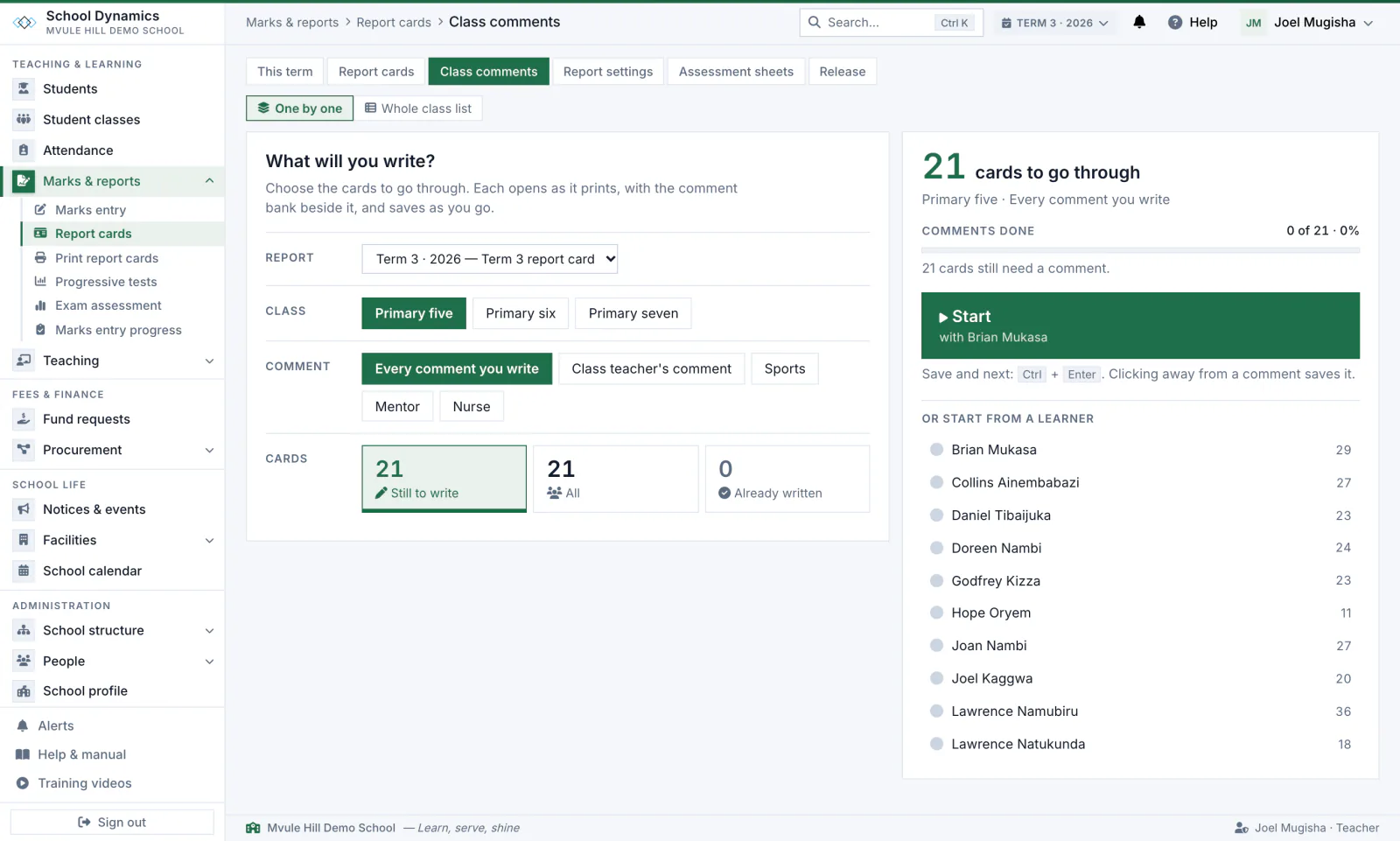
- One by one, or the whole class on one page.
- The class you are writing for.
- Which cards: those still to write, all, or those already written, with how many each.
- Start at the first card still to write.
- Or start from any learner.
- Report: Secular or Theology (schools with theology) and the term.
- Class 2: tap your class. Teachers see the classes they lead or teach; the director of studies sees every class. When the class has streams, tap one, or All streams.
- Comment: Every comment you write, or one of them only (for example Head teacher's comment), when you write more than one.
- Cards 3: Still to write, All or Already written, each with how many cards it holds. The first time, Still to write is chosen.
Beside the choices (under them on a phone), the page shows how many cards you will go through and how many are done. Press Start commenting 4 to open the first card still to write, or pick any learner from the list under it 5. On a phone, Start commenting also stays at the bottom of the screen.
When everything is written, the page says so and offers to read through all the cards again. Closing the one-by-one window brings you back here, with the counts brought up to date.
To see the whole class on one page instead, press Whole class list 1; One by one brings you back. The page remembers your class and filters, on any computer, but always opens one by one. A card is done when the comments you answer for are written: the class teacher's for a class teacher, the class teacher's and head teacher's for the director of studies, or the one comment you chose.
Write comments one by one#
Press Start commenting (or, in the whole class list, One by one or the stack icon beside a student) to go through the cards you chose, one at a time, in a large window:
- In the middle, the report card exactly as it prints, with this school's design. Click a comment on the card and type it there: the comment you may write is outlined, the box on the right fills as you type, and clicking away saves it.
- On the right, a box for each comment you may write, with the student's marks, aggregates, division, position and (when roll-calls are taken) attendance. Under the class teacher's and head teacher's boxes are the comment bank's comments for the student's aggregates and the behaviour sentences; under the sports, mentor and nurse boxes, the behaviour sentences. Tap one to put it in where the cursor is (it shows on the card at once), then change the words as you wish.
- Previous performance: the student's earlier report cards (last term and last year are marked), their aggregates, division and position, and this term's subject marks beside last term's. Cards from the old marks system are marked Old results and open in old results.
- Conduct this term, when there are conduct records.
- On the left (or the list at the top on a smaller screen), every student of the walk, done or not: pick one to go there. The bar at the top counts how many are done.
Press Save and next to save and open the next card; Previous goes back. Leaving a box also saves it, and closing the window saves first. On a keyboard, Ctrl+Enter (⌘+Enter on a Mac) saves and opens the next card, Ctrl+S saves, and Alt+N and Alt+P go to the next and previous card.
If a save fails, you stay on the card with your words still in the box and the reason above it. If someone else saved the same comment while you were writing, both are shown: choose Put mine in its place or Keep theirs.
A released class, or a closed term for a teacher, opens read-only, and the window says why.
Write a class's comments on one page#
Open Marks & reports › Report cards, tab Class comments, and press Whole class list.
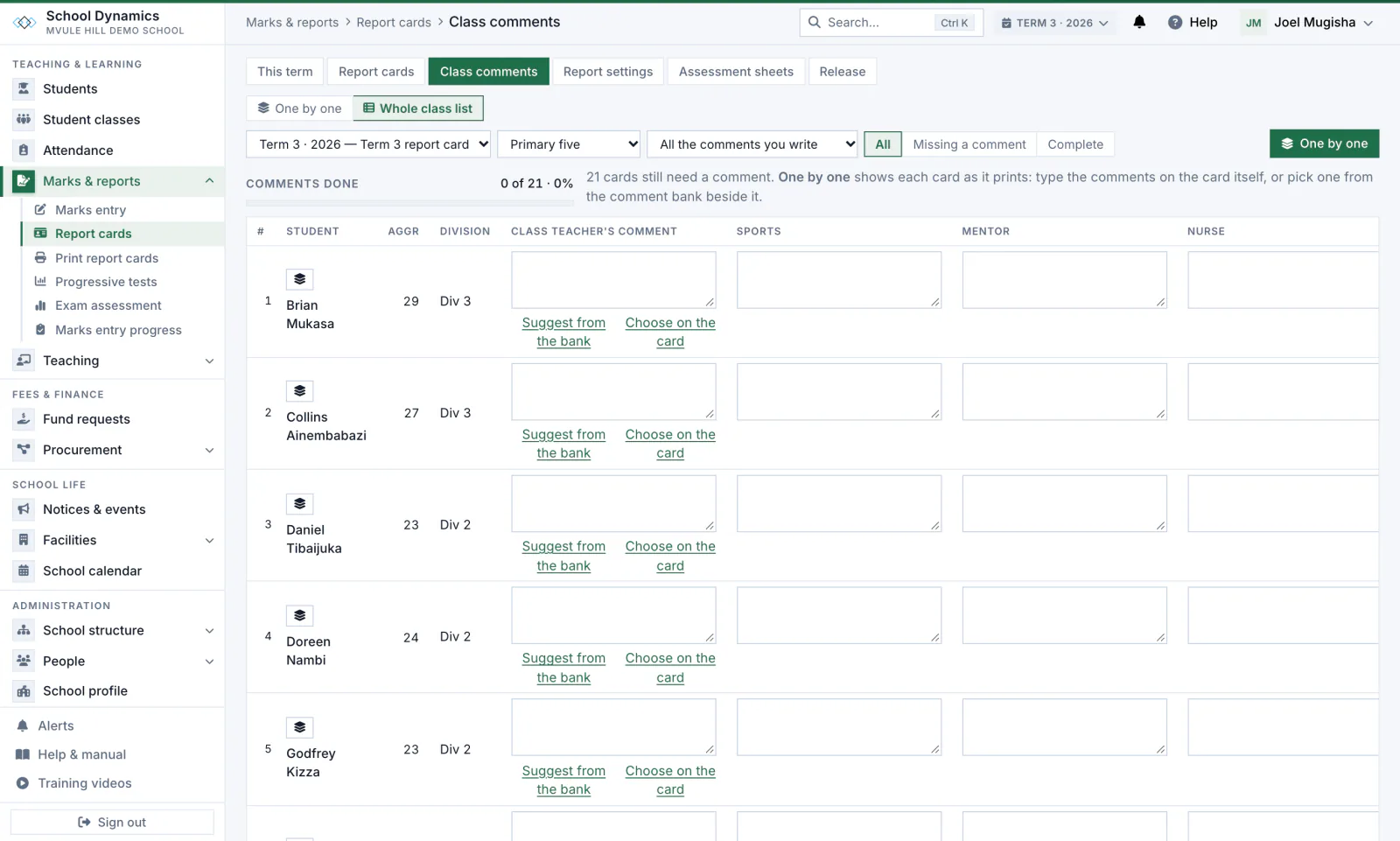
- The term's report.
- Your class. Only the classes you lead or teach are listed.
- The comments you may write, one column each.
- Type, then click away: it saves.
Each line shows the student's aggregates and division, so the comment can match the results. There is one column 3 for each comment you may write; a comment the term's settings or the card design leave off the printed card says (not printed). The bar at the top counts the cards done.
Under an empty class teacher's or head teacher's box, Suggest from the bank fills it with a comment from the bank for that student's aggregates, and saves it. Change the words if you wish; the box saves again when you leave it. Choose on the card opens that student's card in One by one, with every bank comment for their aggregates to pick from.
If the class is released, or the term is closed to teachers because the school has moved on, a notice says so and the boxes cannot be changed.
Write one card's comments#
Open the card from the report cards list and press Write comments in its quick view. On the card's own page, and for those who manage reports, the button is Change; a theology class teacher sees Write the class teacher's comment. Under the class teacher's and head teacher's boxes are three helpers:
- From the comment bank (…): the bank's comments for this card's band. Pick one to put it in the box.
- Add a behaviour sentence: sentences about behaviour, grouped (for example Discipline), marked praise or concern. Pick one to add it to the end of the comment.
- AI draft: shows only when the school has switched AI suggestions on. It writes a draft from the student's marks and attendance. Read it and change it before saving.
Nothing is saved until you press Save comments (or Save comment, or Save report card).
Fill every blank comment at once#
The director of studies can fill the blanks for the whole term:
- On the term at a glance, step 5: Write the missing ones from the comment bank.
- When making the cards: tick Also write comments from the comment bank, where none is written yet.
- On the Make report cards tab: tick Write comments. With Only where no comment is written yet ticked (the default), typed comments are kept. Untick it to write every card's comments again.
For each card, the system picks one comment at random from the bank's band that holds the student's total aggregates, and writes both the class teacher's and head teacher's comments from it. Cards below 3 aggregates, and cards whose band has no comment, are left as they are.
The comment bank#
The bank is under School structure › Grading, tab Report comments. The director of studies, head teacher, deputy and school administrator can change it.
- Add the standard comments adds 40 ready-made comments in five bands (0–12, 13–24, 25–28, 29–32 and 33–36 aggregates). A school's own comments are not added twice.
- New comment opens a form: From (aggregates), To (aggregates), the Class teacher's comment and the Head teacher's comment (both needed, 5 to 500 characters). Press Add comment.
- The pen and bin icons edit and remove a comment.
In a comment, these words are filled in for each student: [NAME] (the student's name), [HE_OR_SHE], [HIS_OR_HER] and [HIM_OR_HER] (He, His, Him for a boy; She, Her, Her for a girl; He/She, His/Her, Him/Her when the sex is not recorded). The form shows how the comment reads for a girl and for a boy. Any other word in square brackets is refused, so a misspelt word is caught before it prints.
The Behaviour comments tab holds the behaviour sentences. Add the standard sentences adds a ready-made set; New sentence asks for the Behaviour, whether it is Praise or Concern, and the sentence. Behaviour sentences are never written onto cards by themselves: a teacher adds them.
AI comment drafts for a class#
When the school has AI suggestions switched on, the dashboard offers Draft report-card comments with AI. Its page lists a class's cards with their comments. Draft asks for one draft; Draft the ones without a comment asks for drafts for the cards that have none, up to ten at a time, within the school's daily allowance. Read and approve opens the draft: change it, then press Approve and save to write it on the card, or Discard the draft. Only figures are sent to make a draft, never a student's name. If the page says AI suggestions are switched off for your school, the head teacher or school administrator can switch them on from Alerts.
Good to know#
- Every saved comment is kept in the school's activity log.
- A comment is at most 1,000 characters.
- Before a class is checked, the release page counts the cards without a class teacher's or head teacher's comment.