
Teachers enter each exam's marks under Marks & reports › Marks entry. You choose your class and subject, and type each student's mark. There is no submit button: every mark saves by itself. The page works the same on a laptop and on a phone, and keeps your marks while the internet is off.
Before you start#
- The term needs report settings, and marks entry must be prepared. The director of studies does both (see The term at a glance). If there are none, the page says No mark rows here yet.
- You can enter marks for the subjects you teach, and for every subject of a class you are class teacher of. The director of studies, head teacher, deputy and school administrator can enter any subject.
- An exam must be open to teachers. The director of studies opens and closes each exam. Only the exams open for entry have a column.
Enter marks#
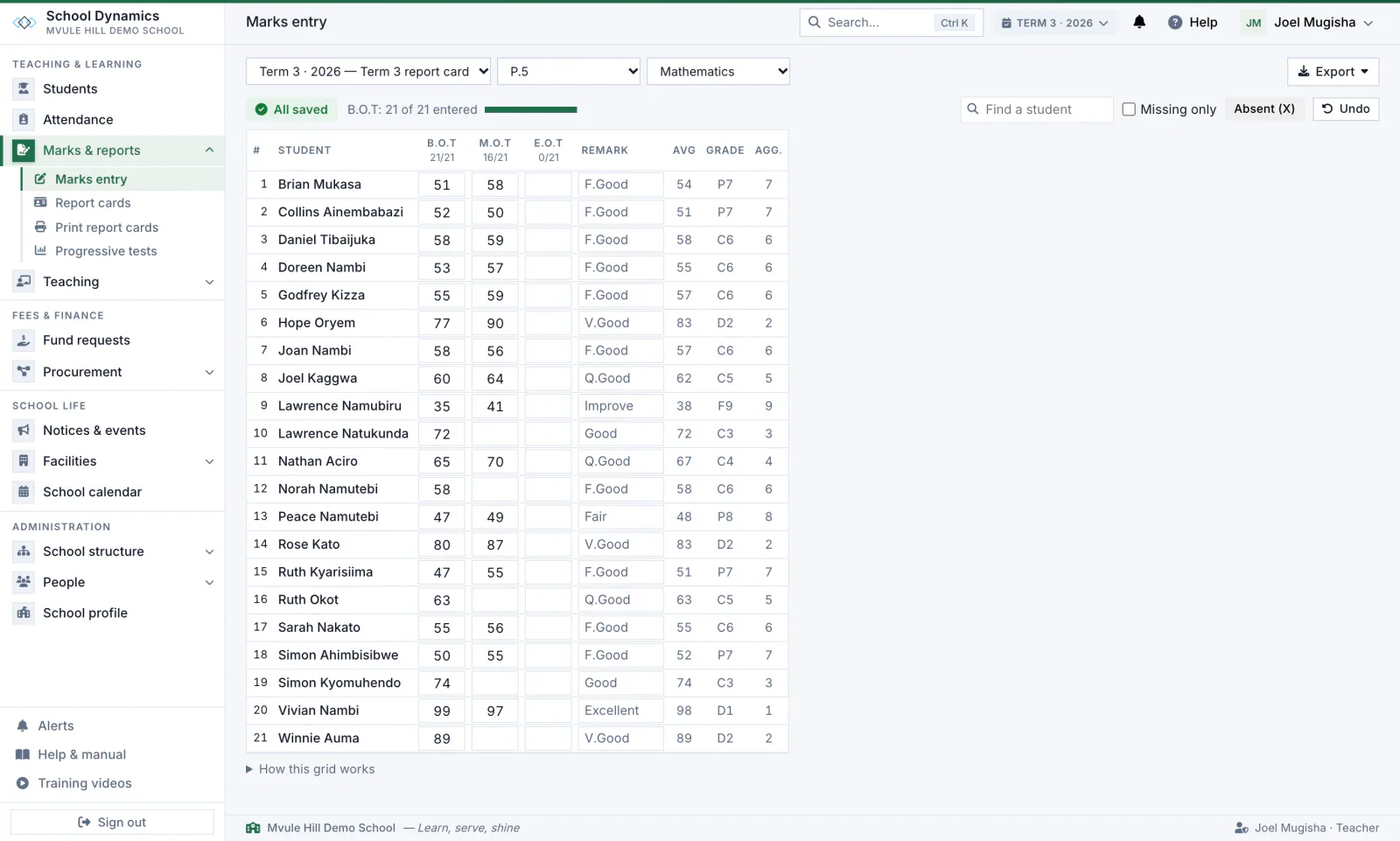
- The term. It starts on the term in the top bar.
- Choose your class
- Choose the subject. Only yours are listed.
- Type the mark and press Enter: it saves itself.
- All saved, or how many marks are on their way.
- Check the term 1. It starts on the term chosen in the top bar.
- Choose your class 2. If the class has streams, you can also choose one stream, or keep All streams.
- Choose the subject 3.
- Type the first student's mark 4 and press Enter. The cursor moves down the column. A moment later the box lights green and a small Saved shows.
- Carry on down the column. Tab goes across, the arrow keys move.
Marks are whole numbers from 0 to 100. A mark not entered shows as an empty box, never 0. The status 5 says All saved, or how many marks are still on their way.
- The remark fills itself as you type the marks: the one word the report card prints for the average (Improve, Fair, F.Good, Q.Good, Good, V.Good, Excellent). It shows in grey while it is automatic. Type your own word to change it: yours stays, also when the marks change and when the report cards are made. Clear it to go back to the automatic one.
- Average, grade and aggregates are worked out as you type, as a preview. The report cards are worked out again when they are made.
- Find a student finds a student by name or student number. The student number is also in the tip on the student's name.
- Missing only hides the students whose marks are in.
- On a laptop, you can paste a column or a block copied from Excel or Google Sheets.
- Download downloads this subject's marks for the class: a PDF to print and sign, Excel or CSV. A teacher's file has only their own subjects.
On a phone#
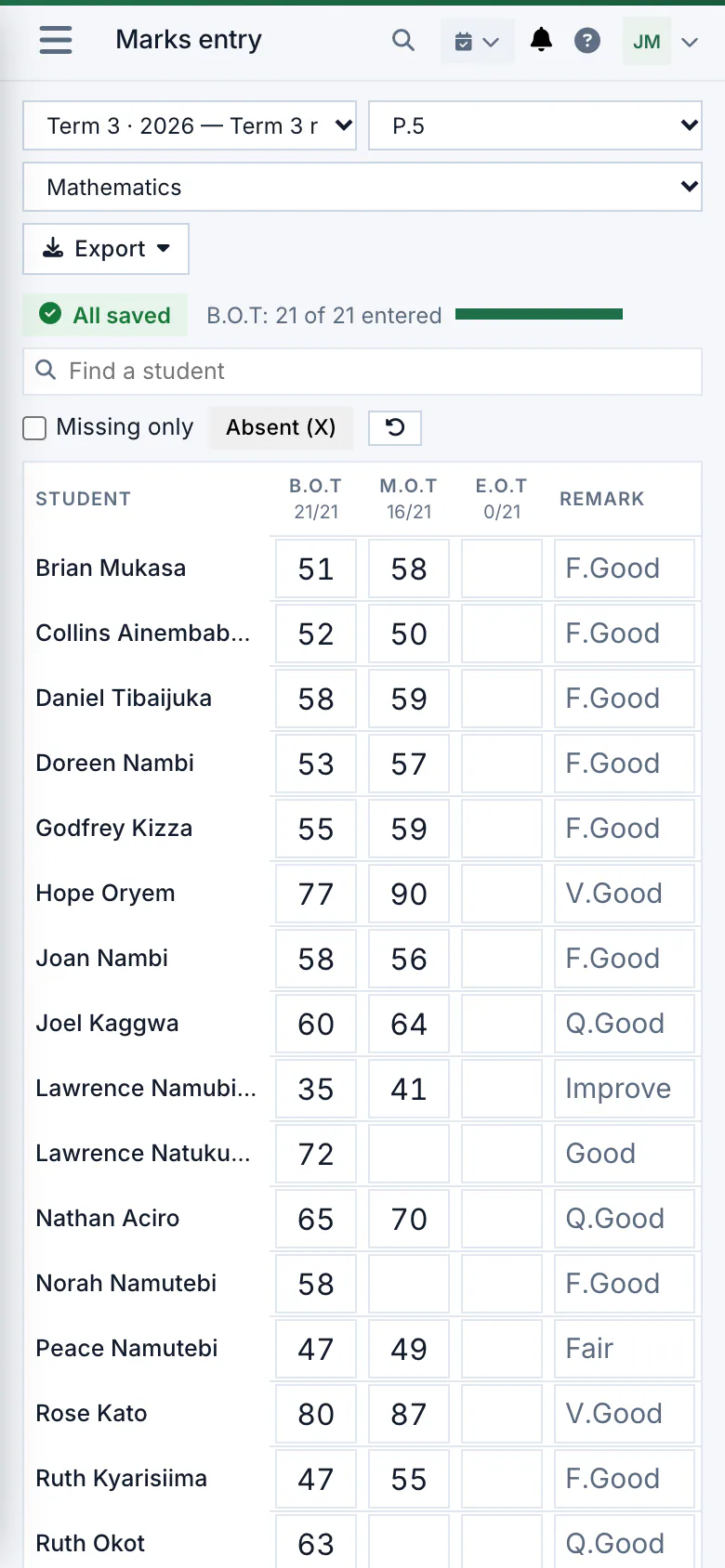
- All saved, or how many marks are waiting to be sent.
- Mark the box you are in as absent.
- Tap a box and type. Enter goes down the column.
Tap a box and type. Enter goes down, and Undo takes back the last change. If the internet goes off, your marks wait on the phone and are sent when it comes back.
A student who was absent#
Press Absent 2 while you are in the student's box, or type the absent mark (X, unless your school chose -). The box stays blank and the mark counts as in, so the class is not shown as behind. On the secular report card, a missed exam is left out of the student's average. The director of studies or head teacher chooses X or - with Absent is, at the top of the page.
When someone else changed the same mark#
If another person saved a different mark in the same box while you were typing, the box says Changed by someone else and shows both marks. Press Keep … to keep theirs, or Keep yours: … to keep yours.
When a mark is refused#
A refused mark turns the box red, says why in a small note, and is not saved.
| You see | Why, and what to do |
|---|---|
| Allowed: whole marks 0–100, or X for absent. | Type a whole number. Decimals and letters are refused. Until you fix it, nothing of that box is saved. |
| … marks are closed to teachers. | The exam is closed to teachers. Ask the director of studies. |
| A remark is one word of up to 20 letters … | Type one word, such as Good or V.Good. |
| Term 2 · 2026 is closed: the school is now in Term 3 · 2026 … | The term is over. Teachers can no longer change its marks; the director of studies or head teacher can. |
| Released to parents: this class's report cards for the term are out … | The class's cards are released. To correct a mark, the director of studies or head teacher reopens the class (see Check, approve and release). |
| Released: this student's report card is ready for parents … | That one card is visible to parents. It must be marked not ready first (see What parents see). |
Good to know#
- Every change to a mark is kept in the school's activity log, with who made it and the mark before and after.
- The director of studies follows how far each class is on the term at a glance. A mark counts as in once it is above 0, or entered as absent.
- A class that sat an extra exam this term (for example E.O.T 2) has a column for it after the term's exams. Its marks print on the report card in their own column and do not change the term's average, aggregates or positions. In that class, each set of exams (each term exam and each extra exam) has its own Grade, Aggs and Div. columns on the right: the subject's grade in that set, and the learner's aggregates and division in that set, worked out as you type. The division shows once every subject that counts has a mark in that set. When the extra exam leaves the average off, the Avg column is left off too.
- When the term's report cards are made, the marks you entered become each subject's average, grade and aggregates. If you change a mark after that, the class's cards are marked out of date until they are made again.