
Parents see a class's report cards only after the class is released. Before that, the cards go through two checks: the class teacher checks them, and the director of studies or head teacher approves them. Each class moves on its own, so a finished class can go out while another is still being corrected.
Draft → checked by the class teacher → approved by the DOS or head teacher → released.
Open Marks & reports › Report cards, tab Release.
Before you start#
- The class has report cards, and none is out of date (see Make the report cards).
- Write the comments first (see Comments). The page counts the cards without them.
- Who does what: the class teacher (or a stream's teacher) checks. The director of studies, head teacher, deputy and school administrator can check, approve, release and reopen. Teachers see only the classes they are class teacher of.
The release page#
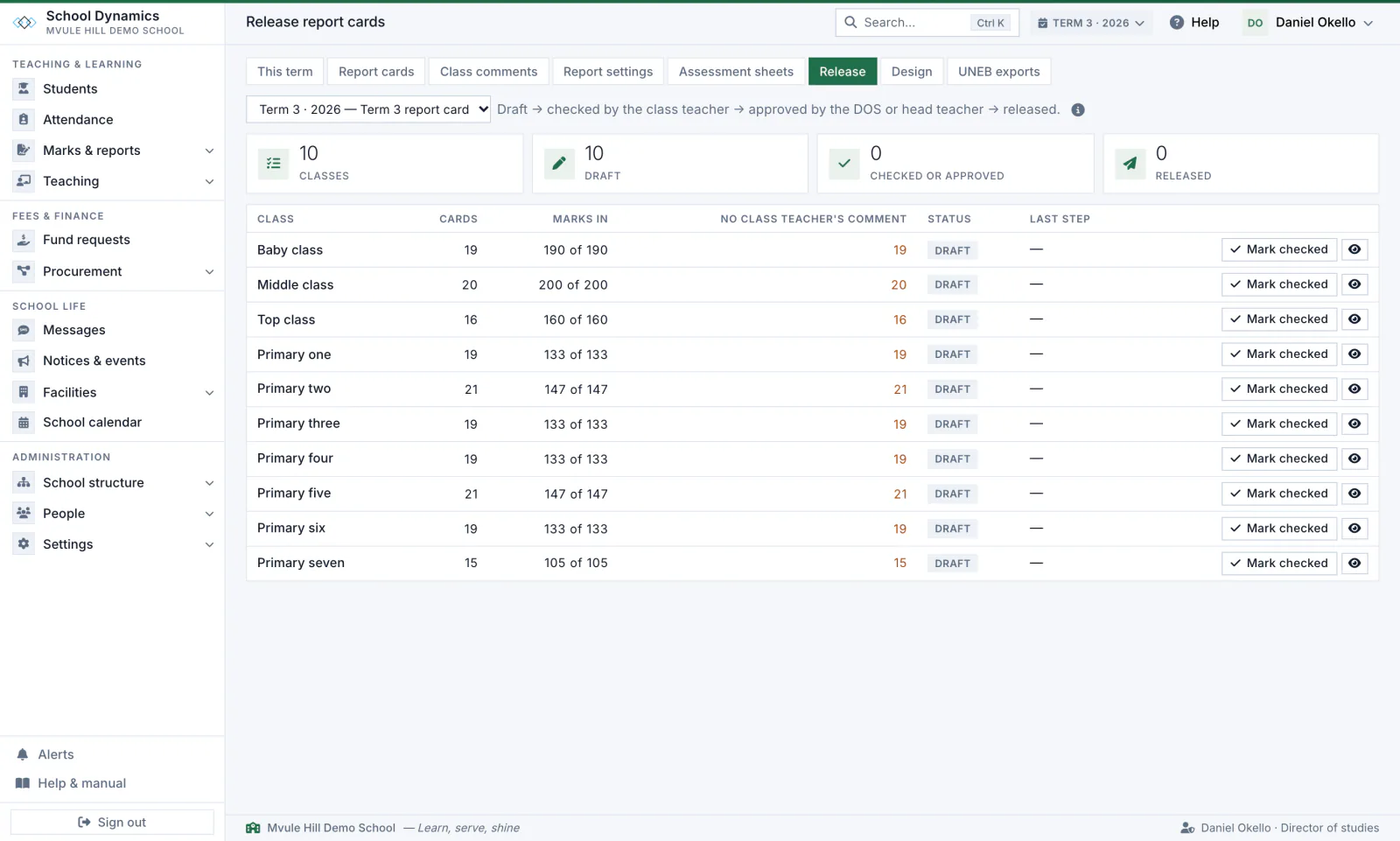
- The term's report.
- How many classes are at each stage.
- Where each class is: Draft, Checked by the class teacher, Approved or Released to parents.
- The next step you may take for that class.
- Open the class: its figures, history, print and sending.
Choose the term's report 1. Schools that also have theology or new-curriculum cards choose which kind first. The figures 2 count the classes at each stage.
Each line is a class with marks or cards: how many cards, how many marks are in, how many cards have no class teacher's comment, its stage 3 and the date of its last step. The button 4 is the next step you may take. The eye 5 opens the class.
The steps#
- Check. The class teacher reads the class's cards (print them, or open them from the report cards list), then presses Mark checked. Checked: the DOS or head teacher can approve it now.
- Approve. The director of studies or head teacher presses Approve. Approved: it can be released to parents.
- Release. They press Release to parents and confirm. The class's marks and comments lock.
- Send. Open the class and press Send to parents… (see below).
When a class is released:
- Parents can see its cards in the parents' app, on the parents' pages and through their links, unless the fees gate withholds a card (see What parents see).
- Its marks and comments cannot change on any screen or in the phone app. Making the cards again leaves the class as it is.
- A fresh parents' copy of each secular card is saved for the parents' app.
When a step is refused#
| You see | Why |
|---|---|
| There are no report cards for this class yet. Make them on the This term page first. | Make the cards. |
| … of this class's report cards are out of date: marks changed after they were made. Make them again on the This term page first. | Make them again, then check. |
| The marks or comments changed after the class teacher checked them. It went back to draft: the class teacher checks it again. | Something changed after the check, in this app or the old one. |
| The class teacher checks the report cards before they are approved. | Approve comes after check. |
| Approve the report cards before releasing them. | Release comes after approve. |
| Only the DOS or head teacher approves and releases report cards. | Class teachers only check. |
Open a class#
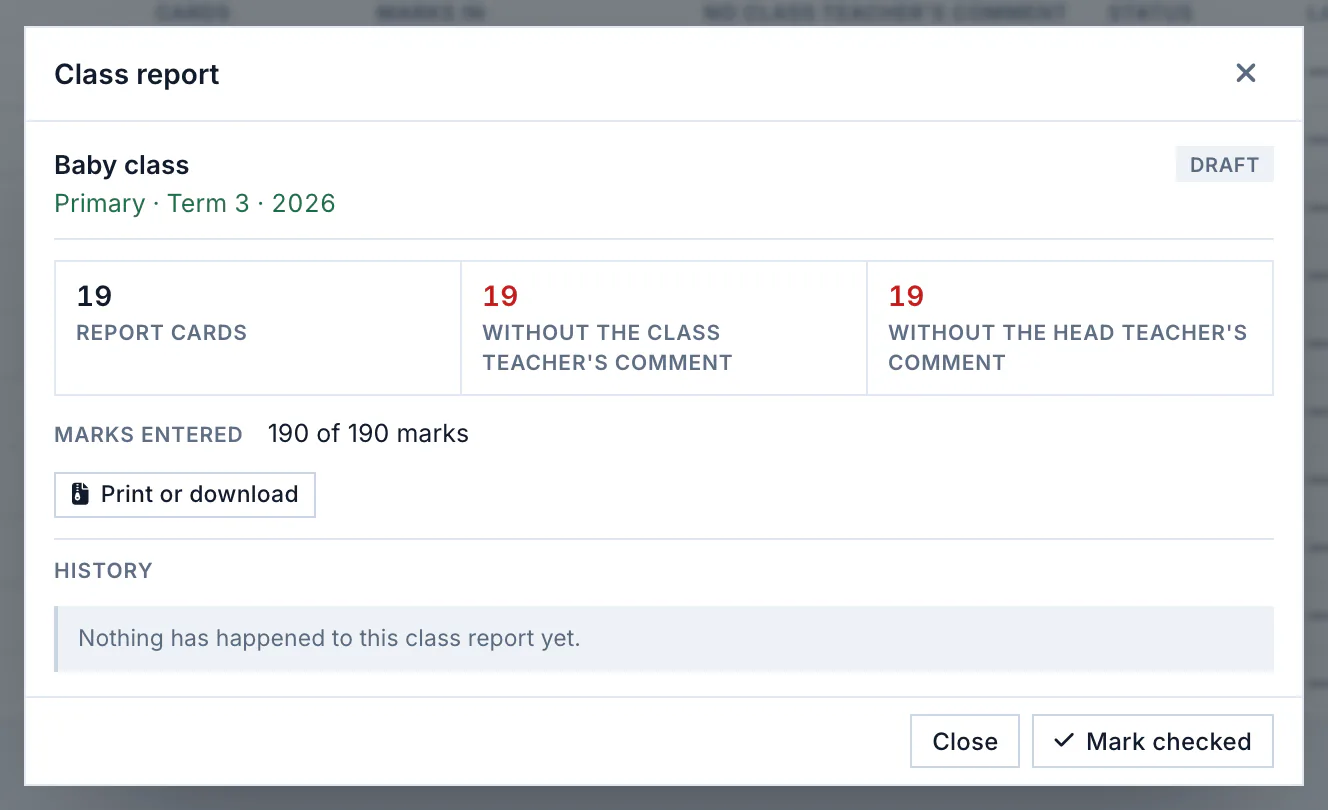
- The class's stage.
- Cards, and how many still lack a comment.
- Print the class, or a ZIP with one file per student.
- Every step, who took it and when.
Click a class's name (or the eye) for its window: the stage 1, the number of cards and how many lack the class teacher's or head teacher's comment 2, the marks entered, and the dates it was checked, approved and released. Print or download 3 opens the print window for this class (see Print report cards). History 4 lists every step with who took it and when.
The window's buttons are the steps you may take now, and Reopen….
Reopen a class to correct it#
Press Reopen… in the class's window, type What needs correcting (at least 5 characters), and press Reopen for correction. The class goes back to draft and the marks unlock. If it was released, parents stop seeing its cards, and the codes printed on them are marked as replaced: anyone who checks an old printed card is told a corrected card was issued.
The director of studies, head teacher, deputy and school administrator can reopen any class. The class teacher, or whoever checked it, can take back a check that is not yet approved.
Send the cards to parents#
After release, open the class and press Send to parents…. The window shows, before anything is sent:
- Messages: how many parents get the Report card ready message, each with a private link to their own child's card.
- Withheld for fees: students who owe fees. Their parents are left out unless you tick Tell the parents of withheld cards too; they then see the fees message when they open the link.
- Cost and the wallet, and how many go by app notification, WhatsApp and SMS.
- Two sample messages.
Press Send … messages. Pressing it again later sends nothing new to parents who already have their link; a class released again after a correction is announced again. The class's window then shows how many links were sent and opened. Send to the parent on a single card sends that card's link again.
Theology classes are released the same way, but nothing is sent from them: parents get the theology results inside the secular card.
Good to know#
- Every step, with who took it and any reason, is kept in the class's history and the school's activity log.
- A parent's link works for 60 days. Each time it is opened it checks again that the class is still released and the fees are cleared.