
The school has a set of ready-made messages: a text when a fees payment is recorded, a fees balance reminder, report card ready, an emergency message, and more. Each is a message template with its own words, and each is On or Off. You choose which ones may go, change their words, and send some of them by hand.
Before you start#
- You need to be the school administrator, the head teacher, the deputy, the director of studies, the bursar or the secretary.
- Every automatic message starts Off. Nothing goes by itself until you switch it on. Why, and the other switches, are in How text messages work.
The messages#
Open Settings › Message settings and the Templates tab.
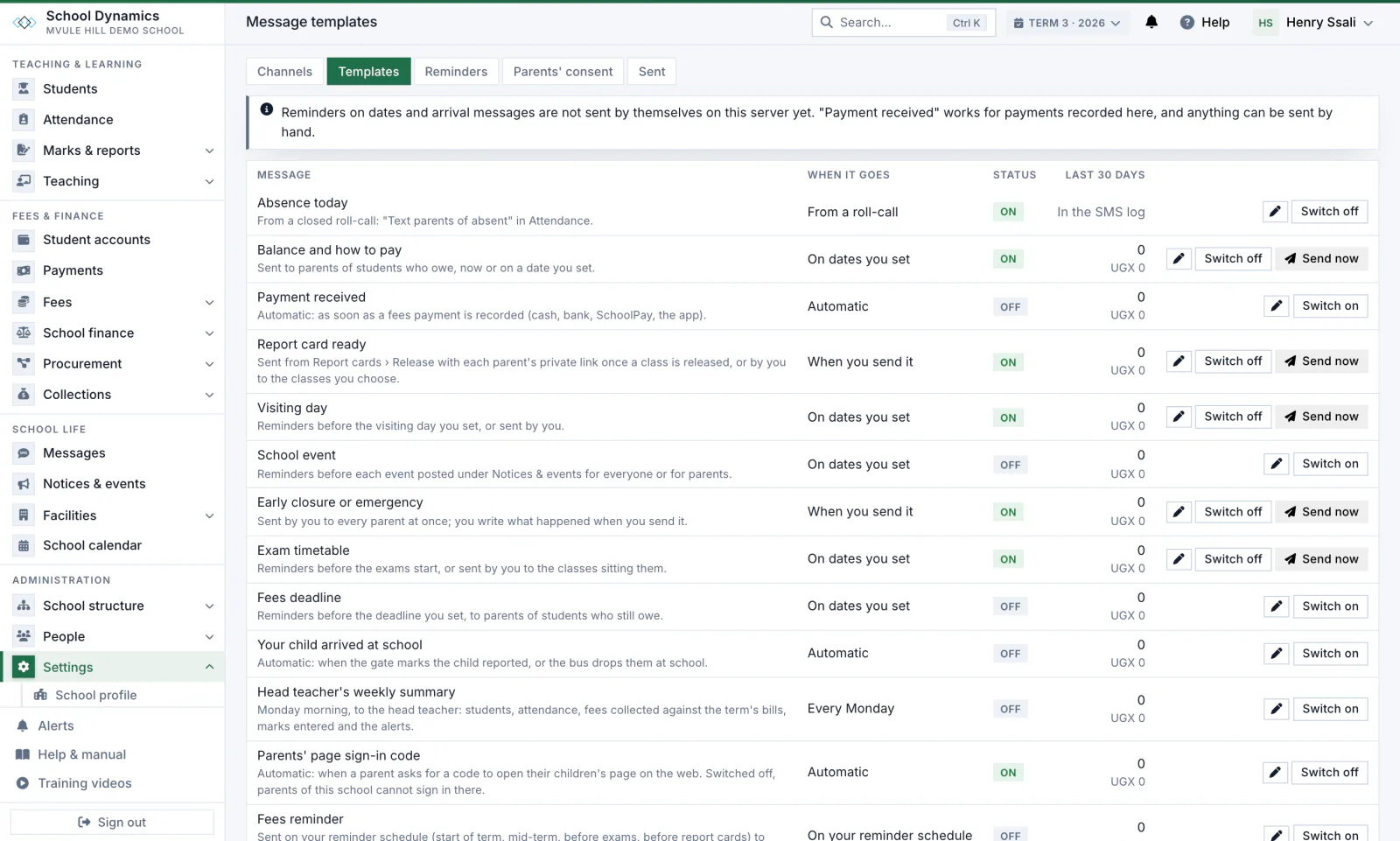
- The message. Click it to read or change its words.
- When it goes: automatically, on dates you set, when you send it…
- On or Off. An Off message is never sent.
- Switch it on or off.
- Messages sent by hand have Send now.
- How many went in the last 30 days, and what they cost.
Each row is one message 1, with a line saying what it is for. When it goes 2 says what sends it:
| It says | The message goes |
|---|---|
| Automatic | By itself, when the system sees it happen (a payment recorded, a child arriving). |
| On dates you set | On the days before a date you type on the message, at the time you choose. |
| When you send it | Only when someone presses Send now. |
| From a roll-call | From a closed roll-call, when someone presses the button to text parents of absent pupils. See Taking a roll-call. |
| Every Monday | Monday morning, to the head teacher. |
| On your reminder schedule | By the Reminders tab (below). |
The Status 3 is On or Off. Press Switch on or Switch off 4 to change it. Messages sent by hand have Send now 5. Last 30 days 6 counts what each message sent and what it cost.
These are the messages, and how each one starts in a new school:
| Message | When it goes | Starts |
|---|---|---|
| Absence today | From a roll-call | On |
| Balance and how to pay | On dates you set, or by hand | On |
| Payment received | Automatic, when a fees payment is recorded | Off |
| Report card ready | By hand, or from Report cards › Release | On |
| Visiting day | On dates you set, or by hand | On |
| School event | Before each event posted under Notices & events | Off |
| Early closure or emergency | By hand, to every parent | On |
| Exam timetable | On dates you set, or by hand | On |
| Fees deadline | On dates you set, to parents of students who owe | Off |
| Your child arrived at school | Automatic, from the gate or the school bus | Off |
| Head teacher's weekly summary | Every Monday | Off |
| Parents' page sign-in code | Automatic, when a parent asks for a code | On |
| Fees reminder | On your reminder schedule | Off |
| Payment plan instalment | On your reminder schedule | Off |
| Promise to pay | On your reminder schedule | Off |
| Calendar reminder | On your reminder schedule | Off |
| Your children's page | By hand | On |
| Record copy answered | Automatic | Off |
| Missing at night roll-call | Automatic, to the matron, patron and head teacher | Off |
| Seen at the sick bay | Automatic | Off |
| Serious sick-bay case | Automatic, to the head teacher | Off |
| Visiting time reminder | Automatic, the day before a visiting day | Off |
Messages marked On that go by hand still wait for someone to press Send now. Balance and how to pay, Visiting day and Exam timetable go by themselves only once you type a date on them.
Change a message's words#
Click the message's name, or its pencil button.
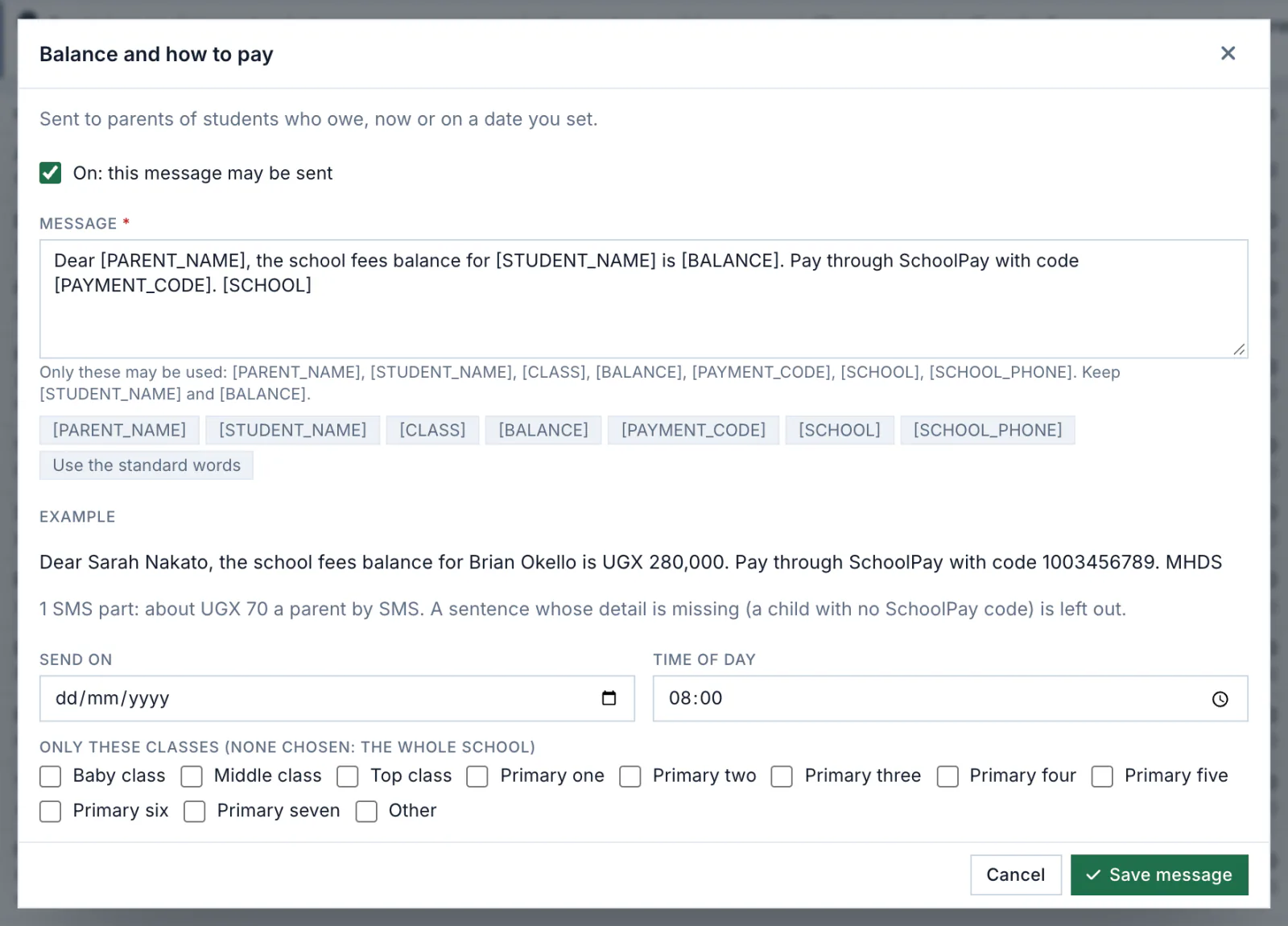
- On: this message may be sent.
- The words parents get.
- The details this message may use. Click one to add it.
- An example as a parent would read it, with its SMS parts and cost.
- For a reminder: the date, and the time of day it goes.
- Save the message.
- Tick or untick On: this message may be sent 1.
- Change the Message 2.
- To add a detail, click its button 3, for example [STUDENT_NAME]. Hover a button to see what it becomes. Use the standard words puts the original words back.
- Read the Example 4: the message as a parent would get it, with its SMS parts and what it costs a parent.
- For a reminder, set the date 5 (for example Send on, Visiting day or Exams start), Days before, to remind (for example 7, 1: a week before and the day before), the Time of day, and Only these classes (none ticked means the whole school).
- Press Save message 6.
A message with your own words shows Your words in the list.
The rules:
- Each message may use only its own details. Otherwise you see, for example, This message cannot use [BALANCE]. It may use [STUDENT_NAME], [TIME], [SCHOOL].
- Some details must stay: Keep [STUDENT_NAME] in the message, so the parent knows what it is about.
- A message is at most 1,000 characters.
- A sentence whose detail is missing for someone is left out of their text. A child with no SchoolPay code gets the message without the "SchoolPay code" sentence.
Common details:
| Detail | Becomes |
|---|---|
| [SCHOOL] | The school's short name |
| [PARENT_NAME], [STUDENT_NAME], [CLASS] | The parent's name, the child's name, the child's class |
| [BALANCE] | What is still owed, with the money sign: UGX 280,000 |
| [PAYMENT_CODE] | The child's SchoolPay code |
| [AMOUNT] | The amount paid |
| [DATE], [TIME], [TERM] | The date the message is about, the time, the term |
| [EVENT], [PLACE] | An event's title and where it happens |
| [MESSAGE] | What you write when you send it (the emergency message) |
| [LINK] | A private link to the parent's own page on the web (for Report card ready, the report card itself) |
Reminders on a date#
For Balance and how to pay, Visiting day, Exam timetable and Fees deadline, type the date on the message and save it. The reminder goes at the Time of day (08:00 unless you change it) on each of the Days before you chose, to the classes you ticked, while the message is On. Balance and how to pay has no days before: it goes on its Send on day.
School event needs no date: it reminds parents before each event posted under Notices & events for everyone or for parents.
- Fees reminders go only to parents of students who owe.
- If a whole batch costs more than the wallet holds, it is not started. The row then says, for example, Not sent on 05 Nov 2026, 08:00: 412 messages cost UGX 20,600 and the wallet has UGX 9,000. Top up; it is tried again at the next run.
- A reminder missed while the server was off is still sent if it is no more than two days late, and never once the event it is about has passed.
When School Dynamics has not yet switched on scheduled sending for your school, the Templates tab says Date reminders and arrival messages do not go out by themselves yet. "Payment received" still works for payments recorded in School Dynamics, and you can send any message by hand with Send now.
Send a message by hand#
- Make sure the message is On.
- Press Send now on its row.
- Tick the Classes it is for. None ticked means the whole school.
- For some messages, choose the date. For Early closure or emergency, write What happened: short and clear, under 600 characters.
- Read the figures: how many Messages, the Cost (SMS, WhatsApp and app notifications), and what is In the wallet. Read the examples.
- Press Send (the button says how many, for example Send 230 messages).
Only parents of active students get these messages. A message about a child goes once for each child; a message about the school (an emergency, an event) goes once to each parent.
The dialog does not let you send when, for example, This message is switched off. Switch it on first., No active student in this choice owes the school., or the wallet is short. Pressing send twice in the same dialog sends nothing new: Nothing new to send: these were already sent.
Report card ready is usually sent from the release page, with each parent's private link to the card. See Checking, approving and releasing.
The Reminders tab#
The Reminders tab gathers the reminders to parents that follow the school's own dates. Each has Switch on and Switch off, and shows what the next one will cost against the wallet before anything goes.
- Fees reminders: the balance and how to pay, to parents of students who owe. Press Change the schedule to choose the moments: Days after the term opens, Mid-term, Days before exams, Days before report cards (and the day Report cards come out on), the Time of day, Only students owing more than (UGX), and the classes. Leave a moment empty to skip it. Press Save the schedule. Each moment of the term is then listed as Coming, Due now, Sent or Missed (its time went by without it being sent).
- Payment plan instalments: before an instalment falls due, on the day, and after it is missed, while it is unpaid.
- Promises to pay: before the day a parent promised to pay by, on the day, and after it is missed, while the promise is not kept. See Promises to pay.
- Calendar reminders: before each entry for parents on the school calendar, on the days set on the entry. See The school calendar.
The words of these reminders are changed on the Templates tab. The fees side of reminders is in Reminders and demand notices.
Who got what: the Sent tab#
The Sent tab lists every ready-made message: who it went To, which message, By which way (SMS, WhatsApp or app notification), the Status (Sent, Failed, Not sent (asked not to get them), Waiting or Sending) and When. Choose a message or a status, or search the text or number.
Click a name to read the text, the number, Why it went this way (why a cheaper way was not used), and why it failed. For a text, See all SMS opens All messages. When a message failed, see When a text does not arrive.
Good to know#
- Switching a message on records the moment. Payment received and Your child arrived at school never text about payments or arrivals from before that moment.
- Each message goes once: a payment once, an arrival once a day for each child, a reminder once for each date and child.
- Payments recorded in School Dynamics are texted at once. Payments that arrive another way, such as SchoolPay, are picked up by the regular check, which runs only when scheduled sending is on.