
The school calendar puts the whole year in one place: the terms, holidays, events, exam weeks, visiting days and events posted as notices. Everyone on the staff can read it. The head teacher's office, the director of studies and the secretary keep it.
Before you start#
- Every member of staff can open the calendar. Adding, changing and removing entries is for the school administrator, the head teacher, the deputy, the director of studies and the secretary.
- Some entries come from other pages and are changed there: the terms (from Academic years), exam weeks (from published exam timetables) and events posted under Notices & events.
Read the calendar#
Open School life › School calendar.
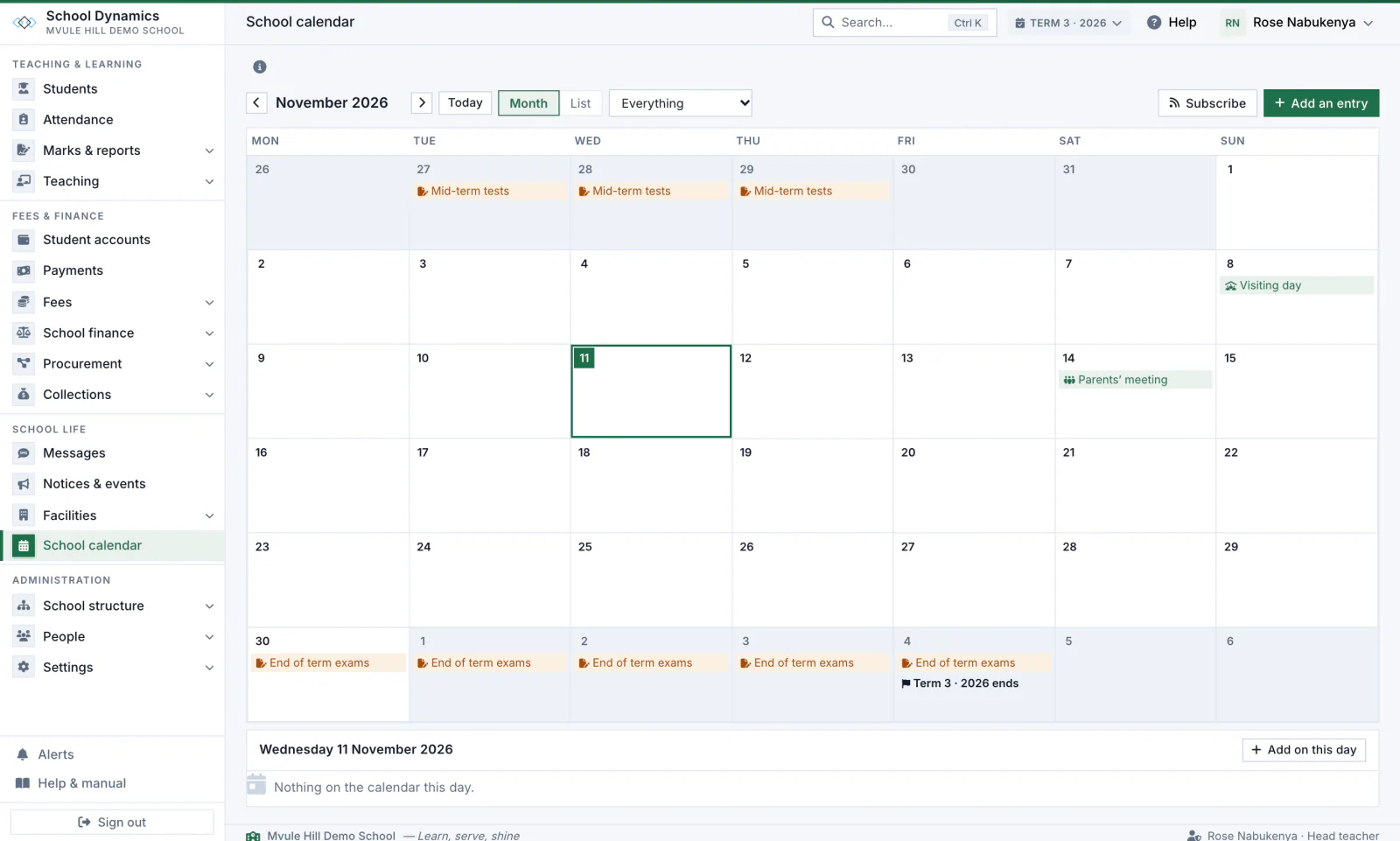
- The month. The arrows move a month; Today comes back.
- A month grid or a list.
- Show only one kind: terms, holidays, exam weeks, visiting days…
- Click an entry to read it. Click a day to list its entries below the month.
- Put the calendar in your phone's calendar.
- Add an entry.
- Move between months with the arrows 1. Today brings you back to this month.
- Choose Month or List 2. The list shows the month's entries in a table, with who each is for and its reminder.
- Show only 3 one kind: Terms, Holiday, School event, Exam week, Visiting day, Meeting, Sports and games or Notices.
- Click an entry 4 to read it: when, who it is for, where, and its reminder. Click a day's number to list that day's entries under the month (on a phone, this is the easiest way to read a day).
When you open an entry that comes from another page, the dialog says where it is kept and has a button to go there: Academic years for a term, Exam timetable for an exam week, Notices & events for an event posted as a notice. Your own invigilation duties from the exam timetable show on your calendar too.
Add an entry#
Press Add an entry 6, or the small + on a day of the month to start on that day.
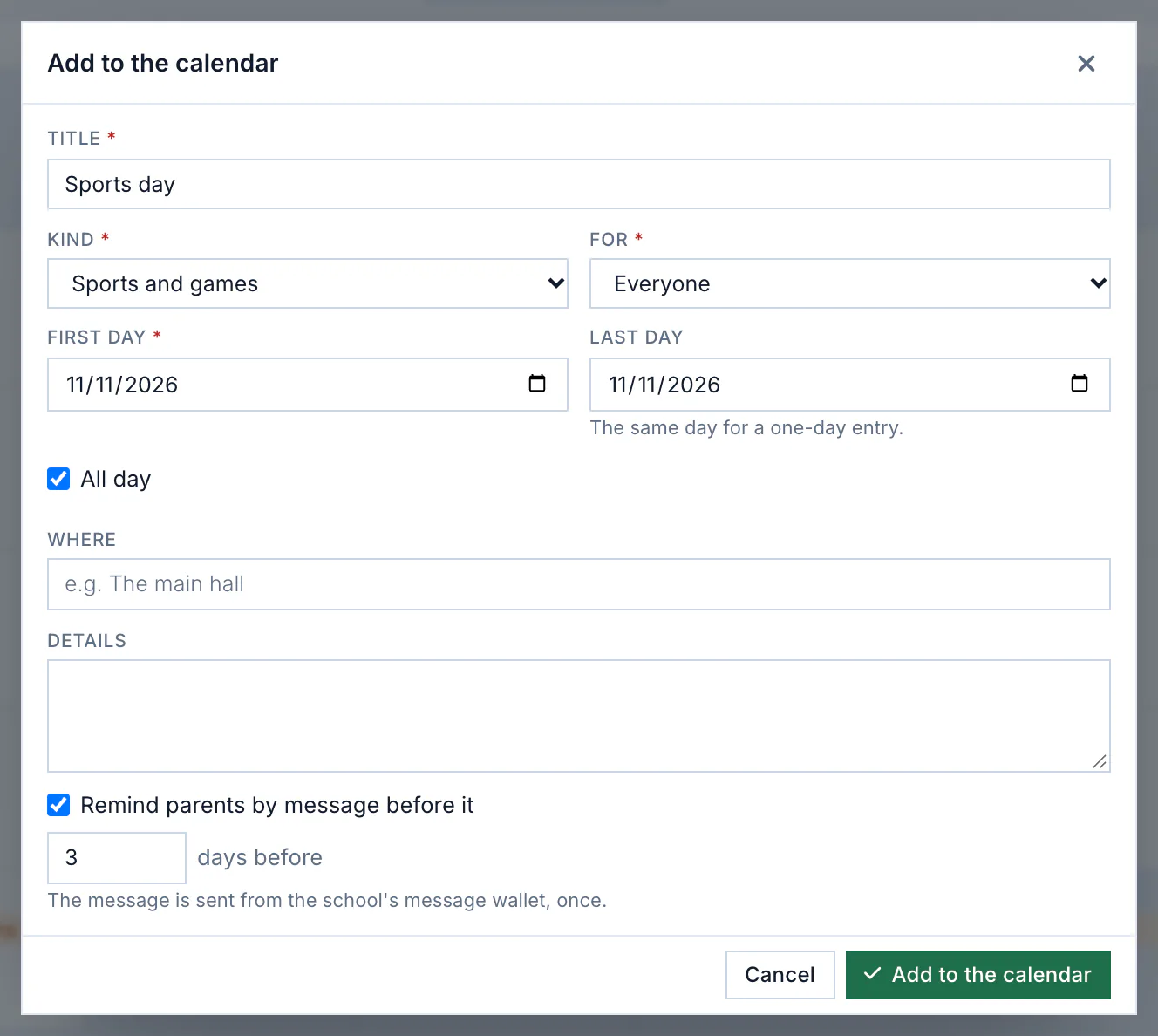
- What it is.
- The kind of entry.
- Who it is for: everyone, parents, or staff only.
- The first day. Add the last day for an entry of several days.
- Remind parents by message this many days before.
- Add it to the calendar.
- Type the Title 1, for example Sports day or Half-term break.
- Choose the Kind 2: Holiday, School event, Exam week, Visiting day, Meeting or Sports and games.
- Choose who it is For 3: Everyone, Parents or Staff only.
- Choose the First day 4, and the Last day if it lasts more than one day.
- Untick All day to give Starts at and Ends at times.
- Add Where and Details if you like.
- To remind parents, tick Remind parents by message before it and type how many days before 5 (1 to 60).
- Press Add to the calendar 6.
The calendar opens on the entry's month. To change an entry, open it and press Edit, change it, then press Save the entry. Remove entry takes it off the calendar after asking.
The rules:
- An entry cannot end before it starts, and lasts at most a year.
- Give both times or neither: an entry without times is all day.
- Only an entry for Everyone or Parents can remind parents.
- A Visiting day is one day, for Parents or Everyone. Its Details box becomes Rules for visitors, which parents read when they book, and you can tick Only parents of boarders may book. Then set its visiting times under Visiting days (see Visiting days). Once families have booked, it stays a visiting day and cannot be removed until their bookings are cancelled.
Reminding parents#
An entry with a reminder sends one message to each parent of an active student (for a visiting day only for boarders, to parents of boarders), the number of days before that you set, at the time of day chosen on the Reminders tab. It is paid from the SMS wallet; parents with the School Dynamics app may get it as a free app notification instead.
The reminder goes only when Calendar reminders is switched on under Settings › Message settings, tab Reminders, where the coming reminders are listed with their cost. Like every automatic message, it starts off. See Automatic messages and templates.
Put the calendar on a phone#
Press Subscribe on the calendar page.
- Your own calendar: press Make my calendar address. Copy the address into your phone's calendar app, or press Open in my calendar app. It holds everything on the school calendar, with your timetable lessons and invigilation duties. Keep the address to yourself. New address stops the old one working.
- The school's calendar for parents: those who keep the calendar press Make the school's address. It holds the terms, holidays, exam weeks, visiting days and everything meant for parents. Share it on the school's website or in a parents' group. New address replaces it; Switch address off stops it.
Phones subscribed to the calendar pick up changes the next time they refresh.