
Staff lists everyone who works at the school, with their roles and contacts. From here the school administrator adds new staff, gives each one a sign-in name and password, changes their details, and deactivates those who leave.
Before you start#
- The school administrator, the head teacher, the deputy, the director of studies and the bursar can see the list.
- Adding staff, changing their details, roles and passwords, and deactivating them is for the school administrator and the school's owner.
The staff list#
Open Staff & payroll › Staff.
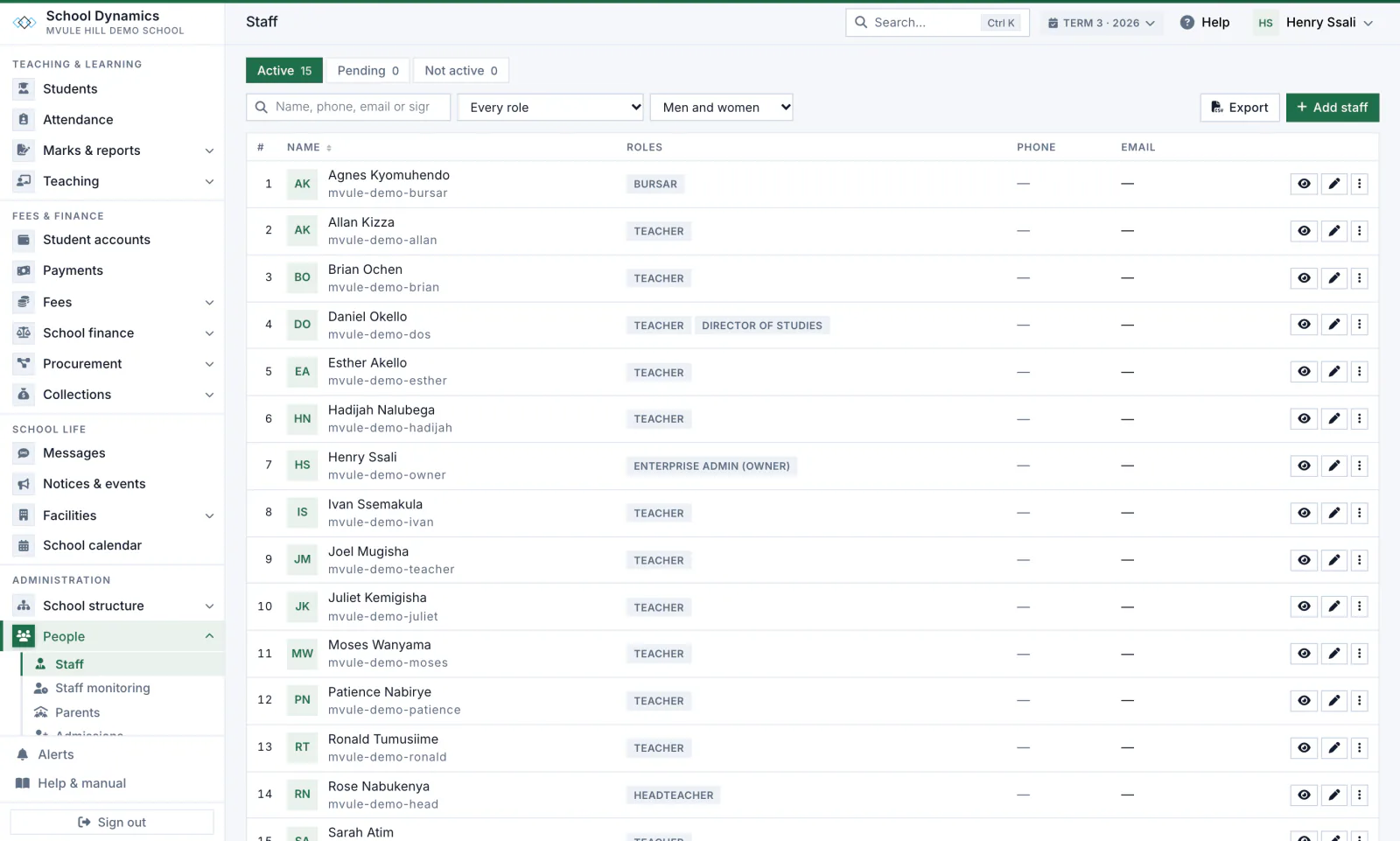
- Active, Pending and Not active staff, with how many.
- Find someone by name, phone, email or sign-in name.
- Show one role only.
- Add a member of staff.
- Click a name for the quick view: roles, contacts and what they teach.
- Edit, and More: roles, a new password, two-step sign-in, deactivate.
- The tabs 1 show Active, Pending and Not active staff, each with how many.
- Search 2 by name, phone number, email or sign-in name. Choose a role 3, or men or women.
- Export downloads the list shown as a spreadsheet. ID and bank numbers, addresses, family and emergency contacts, and education are in it only for those who manage staff.
- Add staff 4 adds a new member of staff.
- Click a name 5 for the quick view: their roles, phone, email, date of birth, supervisor, the classes and streams they lead, the subjects they teach this year, their highest education and emergency contact, and their signature. Those who manage staff also see the NIN, TIN, NSSF and bank numbers. Lessons monitored opens their staff monitoring record.
- The buttons at the end of a row 6: the pencil to edit, and More for the rest.
Add a member of staff#
- Press Add staff.
- On Name & contacts, type the First name and Last name, choose the Sex, and type the Mobile number. Add the other details you have.
- Fill in Personal, Education and ID & bank now or later. The bank details are used for payroll.
- On Sign-in & photo, type a Sign-in name, or leave it blank to use their email or phone number.
- Type a Password of at least 4 characters, or leave it blank and set it later.
- Add a Photo and a Signature (for documents they sign) if you have them.
- Tick their Roles. Teacher is ticked for you. See Roles and permissions.
- Press Add to staff.
A note says, for example, Juliet Kemigisha added. They sign in as …, with their sign-in name. Tell them their sign-in name and password; nothing is sent to them. They then sign in as in Signing in.
The form refuses, with a sentence saying why, when:
- the first or last name, the sex or the mobile number is missing (That mobile number is not right. Use a Ugandan mobile number, like 0772 123456.);
- the email is already someone else's (The email … is already used by someone else.);
- no role is ticked (Give at least one role (e.g. Teacher).).
Change someone's details#
Press the pencil on their row, or Edit in their quick view.
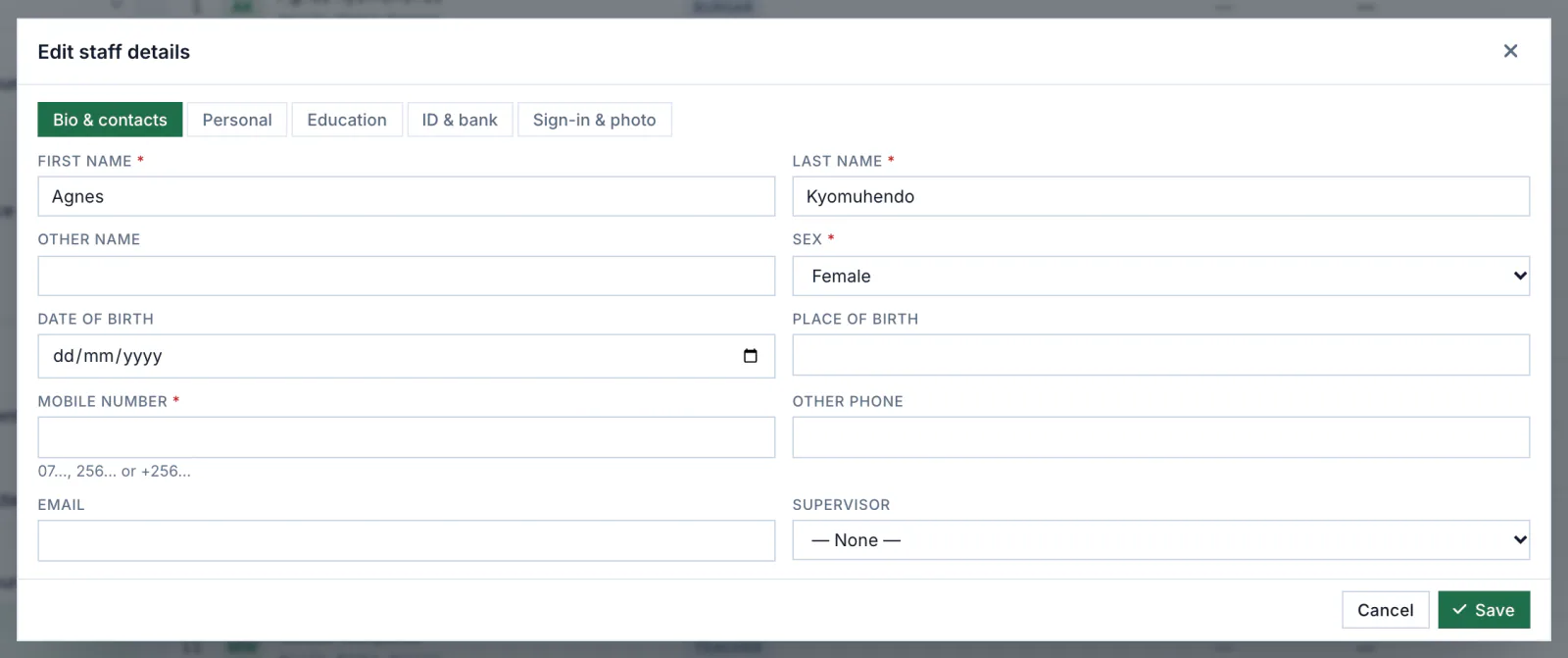
- The details, in five tabs.
- First and last name, sex and a mobile number are needed.
- Mobile number: 07…, 256… or +256…
- Email: no two people can share one.
- Their supervisor, if they have one.
- Save changes.
The same form opens, with its five tabs 1. Change what you need: the name 2, the mobile number 3, the email 4, the supervisor 5, or anything on the other tabs, then press Save changes 6. A new photo or signature replaces the old one. If nothing was changed, the note says Nothing changed.
Roles and passwords are not changed on this form: use the More menu.
The More menu#
| Choose | What happens |
|---|---|
| Roles | Tick or untick their roles. See Roles and permissions. |
| Set a new password | Type the new password twice (at least 4 characters) and press Set password. Nothing is sent: tell them in person. Their other browsers and phones ask them to sign in again with it. |
| Reset two-step sign-in | For someone who lost their phone and their recovery codes. They sign in with the password alone until they set two-step sign-in up again from My profile. |
| Deactivate | They can no longer sign in, and they leave the active list. Their records stay. |
| Activate | For someone not active: they can sign in again. |
Good to know#
- Every member of staff has their own sign-in. Never share one account between two people: the activity log records who did what.
- A teacher's classes and subjects are set on the classes and subjects pages, not here. The quick view only shows them.