
Staff monitoring keeps the sheets that class monitors and the director of studies fill in: which lessons were taught, when the teacher came in and left, and what the monitor noted. The dashboard shows the trends, and reports gather the evidence for one teacher, a subject, a class or a term.
Before you start#
- Reading the records, the dashboard and the reports is for the school administrator, the head teacher, the deputy, the director of studies and the bursar.
- Recording, changing and deleting them is for the school administrator, the head teacher, the deputy and the director of studies.
- Teachers do not see these records, not even their own.
Record a lesson#
Open Staff & payroll › Staff monitoring and press Record a lesson.
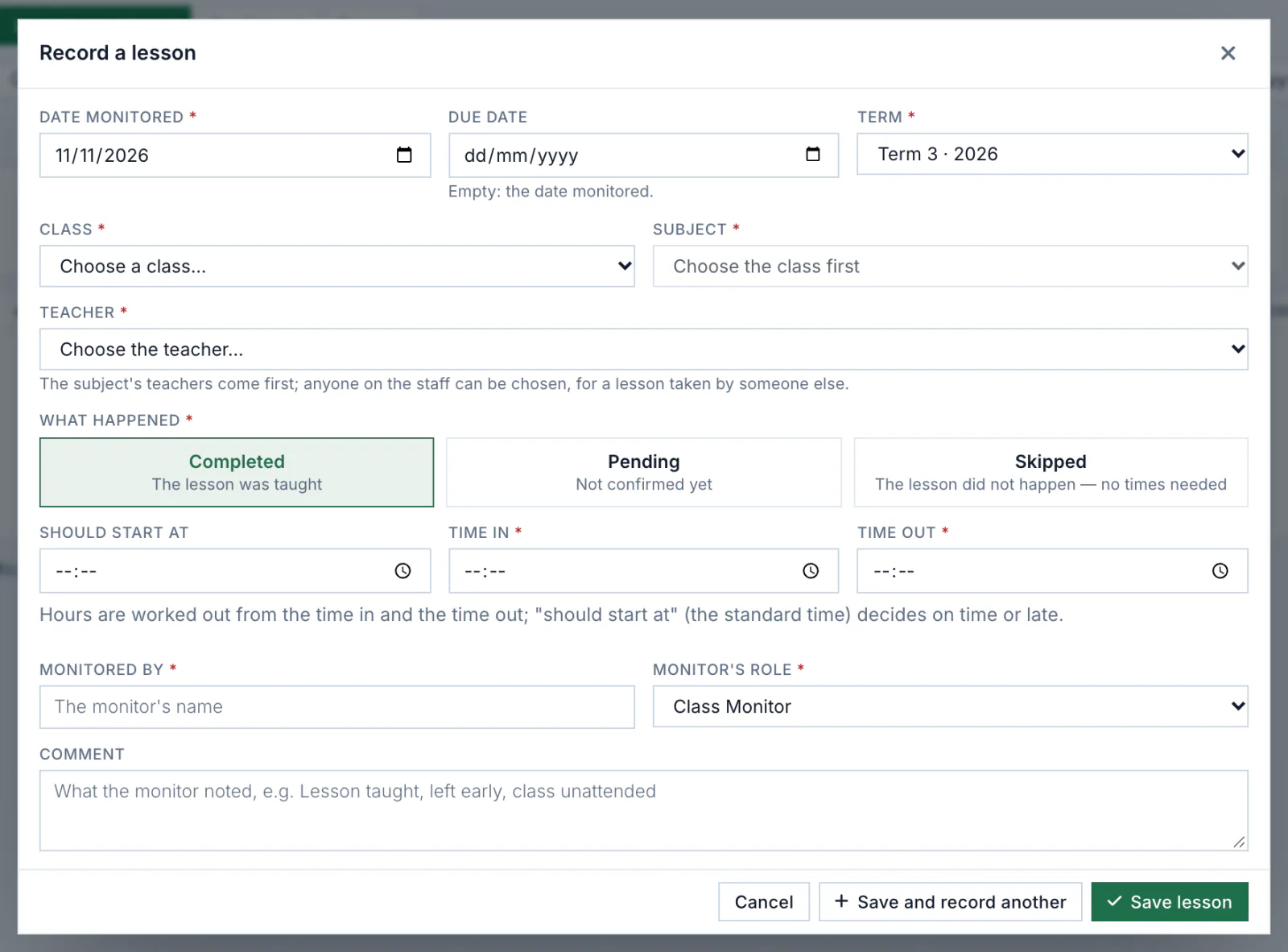
- The day the lesson was watched.
- The class, then the subject.
- The teacher. The subject's teachers come first.
- What happened: Completed, Pending or Skipped.
- Time in and time out. With Should start at, on time or late is worked out.
- Who watched the lesson, and their role.
- Save and record another: the day, class and monitor stay for the next line.
- Choose the Date monitored 1. Add a Due date if it differs (empty means the date monitored), and check the Term.
- Choose the Class, then the Subject 2.
- Choose the Teacher 3. Picking a subject suggests its teacher. Anyone on the staff can be chosen, for a lesson taken by someone else.
- Choose What happened 4: Completed (the lesson was taught), Pending (not confirmed yet) or Skipped (the lesson did not happen).
- Type Should start at, Time in and Time out 5. A skipped lesson needs no times. The line under the times shows how long the lesson was and whether it started on time.
- Type who it was Monitored by and choose the Monitor's role 6: Class Monitor, DOS or Other. Add a Comment if the monitor wrote one.
- Press Save lesson, or Save and record another 7 to go on with the same sheet.
The dialog refuses, with a sentence saying why, when a needed field is missing, when the class is of another year than the term, when the subject is not one of the class's, or when Time out cannot be earlier than time in.
The lessons monitored#
The first tab, Lessons monitored, lists every lesson recorded, newest first. Search a teacher, monitor or comment, or choose a teacher, term, class, subject, status or dates. The figures above the list count the lessons shown: Lessons monitored, Hours taught, Completed, Skipped and On time.
- Click a lesson for its record: times, how long it was taught, punctuality, the monitor, the comment, and who entered it. Edit changes it; Delete lesson removes it from every report, after asking.
- Click a teacher's name to see that teacher's lessons alone. The Lessons monitored button in a staff member's quick view opens the same page.
- Excel downloads the lessons shown.
The dashboard#
The Dashboard tab sums up the lessons recorded, for every term or for one: how many this week and this month, the hours taught, the Completion rate, Times entered (lessons with a time in and out), On time, and how many teachers were monitored. It also shows the lessons by status, the last seven days, the teachers, subjects and classes monitored most, and the latest lessons. Click Lessons monitored, This week or This month to open those lessons.
Reports#
The Reports tab keeps named reports you can open again, each with its reference (for example EMT-00012).
- Press New report.
- Choose the Kind of report: One teacher (needs a teacher), One subject (needs a class and one of its subjects), One class (needs a class) or Whole term (needs a term, or both dates).
- Type a Name you will know it by, for example Mr Okello, Term 2.
- Narrow it with the Term, Class, Subject, Teacher, From and To. Leave both dates empty to cover the whole term.
- Press Save and open.
The report opens over the list: its figures, a table By teacher, and a breakdown by subject, class or month. Excel and PDF download it. Every lesson opens the report's own page, with every lesson it covers and Download PDF. Change edits the name or filters; Delete report removes the report but not its lessons.