
The payroll pays staff once a month. The bursar sets each person's salary once. Each month the bursar prepares the payroll, the head teacher approves it, and the bursar records it as paid. PAYE, NSSF and Local Service Tax are worked out at Uganda's rates for that month, and the paid payroll goes into the school's spending by itself.
Before you start#
- The school administrator, the head teacher and the bursar can see payroll. Nobody else sees anyone's salary.
- Setting salaries, preparing payrolls and recording them as paid is for the bursar and the school administrator. Approving is for the head teacher and the school administrator.
- The bank details of each member of staff are on their record under Staff & payroll › Staff (the ID & bank tab). See Staff and their sign-in accounts.
Set up payroll once#
Open Staff & payroll › Payroll and press Payroll settings.
- Choose where Salaries are filed under: a budget account, such as Salaries. Gross pay is entered there when a payroll is paid.
- Choose where Employer NSSF is filed under, or leave it as the salaries account.
- Choose how staff are Usually paid by: Bank Transfer, Mobile Money, Cash, Cheque or Other.
- If PAYE, NSSF and LST are paid to the authorities later, tick PAYE, NSSF and LST are paid later (owed until remitted) and choose who they are Owed to, a supplier such as URA. They then show among what the school owes until paid.
- Press Save settings.
Until the salaries account is chosen, the page reminds you, and no payroll can be recorded as paid. If the school has no budget accounts yet, add one such as Salaries first: see Budget and expenditure.
Set each person's salary#
Open the Salaries tab. It lists every active member of staff with their basic pay, allowances, deductions, their net pay this month and how they are taxed. Choose No salary yet to find those still to set. Click a name.
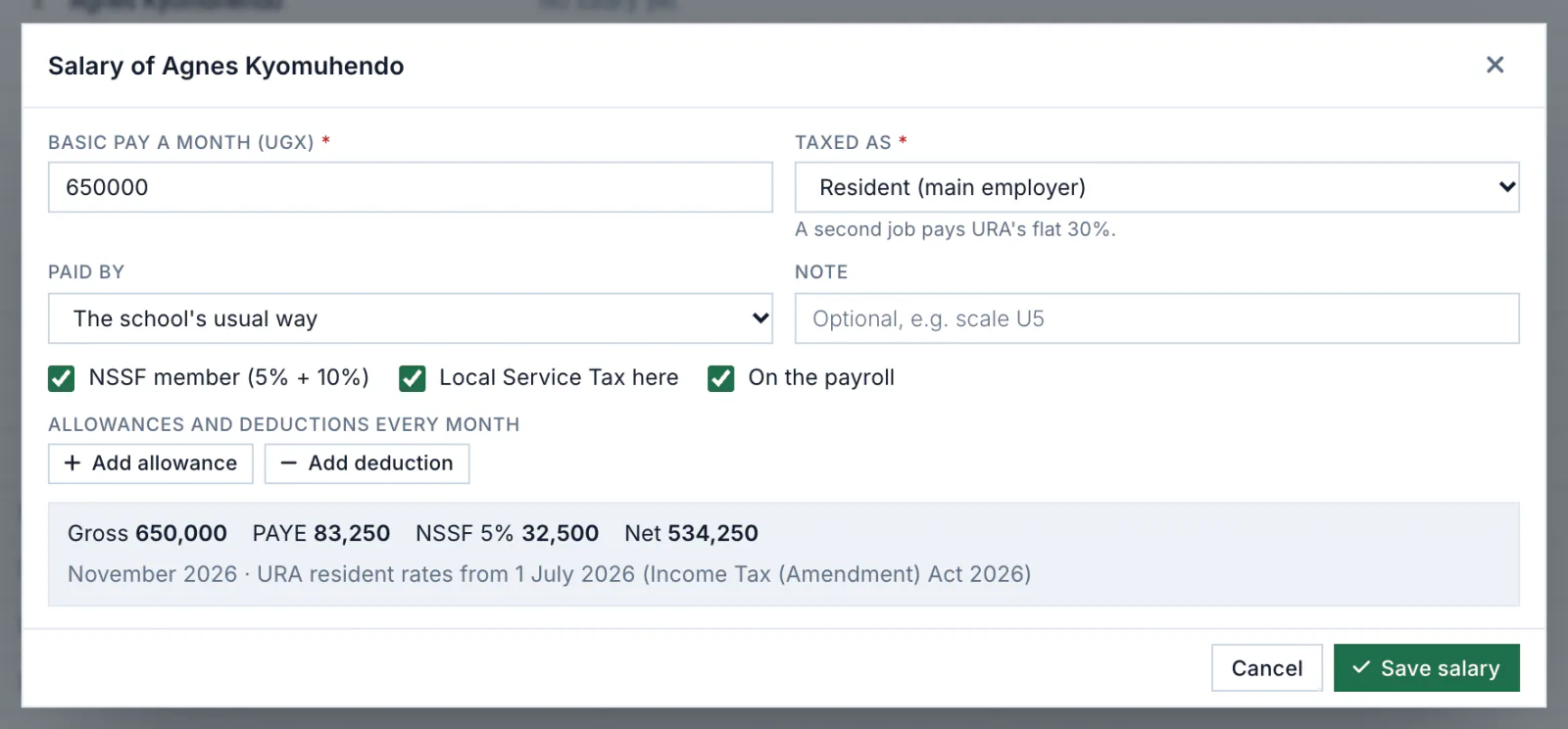
- Basic pay a month, in shillings.
- How they are taxed: main employer, non-resident, or a second job.
- NSSF and Local Service Tax, and whether they are on the payroll.
- Add an allowance or a deduction paid every month.
- This month's pay as you type: gross, PAYE, NSSF, LST and net.
- Save the salary.
- Type the Basic pay a month (UGX) 1.
- Choose how they are Taxed as 2: Resident (main employer), Non-resident, or Second job (flat 30%).
- Untick NSSF member (5% + 10%) or Local Service Tax here 3 if they do not apply. Untick On the payroll to pause their pay.
- Add what they get or give every month 4: press Add allowance (housing, transport…) or Add deduction (a SACCO saving, a loan), type its name and amount. An allowance is taxed unless you untick Taxed.
- Read the figures 5: gross pay, PAYE, NSSF, LST, other deductions and net pay this month.
- Press Save salary 6.
A change reaches the next payroll prepared, or a draft when it is refreshed. Payslips already approved never change.
How pay is worked out:
- Gross pay is the basic pay plus every allowance.
- NSSF: 5% of gross pay from the member of staff, and 10% on top from the school.
- Local Service Tax is taken in July to October, a quarter of the year's amount each month, by the band of the monthly gross pay.
- PAYE is worked out on gross pay, less allowances that are not taxed and less LST, by URA's table for that month (or a flat 30% for a second job).
- Net pay is gross pay less PAYE, NSSF, LST and the other deductions.
Prepare the month's payroll#
- On the Payrolls tab, press New payroll.
- Check the Month. A payroll can be prepared at most one month ahead, and there is one payroll a month.
- Press Prepare payroll.
The month's payroll opens as a Draft, with one payslip for each active member of staff with a salary. Approved unpaid leave in the month is taken off as Unpaid leave, by the days away.
Check each payslip. Click a name to open it:
- To add overtime, a bonus or a salary advance for this month only, use Add for (month) only: choose Add to pay or Take off pay, type what it is for and the amount, and press Add line. Remove such a line with its ×.
- Take off this payroll leaves the person out this month; their salary stays.
At the top of the page:
- Rebuild payslips builds every payslip again from the salaries as they are now. Lines added for this month are kept.
- Delete draft deletes the draft and its payslips. Nothing has been paid and no salary changes.
- Summary PDF prints the month's payroll. Bank list downloads who to pay and how much, with their bank and account numbers, for the bank or a mobile money bulk payment.
Approve the payroll#
The head teacher opens the month's payroll, checks it, and presses Approve payroll. A box asks to confirm the number of staff and the net pay.
The button cannot be pressed while a payslip has more deductions than pay (the page lists how many), or when nobody is on the payroll. Once approved, the payroll is frozen. To change it, press Back to draft, say Why, and it will need approving again.
Record it as paid#
After paying the staff:
- Open the month's payroll and press Record as paid.
- Check Paid on (not in the future) and Paid by.
- Choose the Term the spending belongs to.
- Read what will be entered in the spending: the gross pay under the salaries account, and the employer NSSF.
- Press Record as paid.
The payroll is now Paid and cannot be changed. The gross pay and the employer's NSSF are entered in the school's spending under the accounts you chose, like any other spending (see Recording spending). Each payslip is emailed to staff who have an email address; the page counts Payslips emailed and marks those with no email. Email those not sent tries again for those whose email failed.
Good to know#
- The payrolls list shows each month's staff, gross pay, PAYE, NSSF, net pay and status, with the last net pay and its cost to the school (gross pay plus the employer's NSSF).
- Every step (prepared, changed, approved, sent back, paid) is listed under History on the payroll's page, with who did it.