
The duty roster shows who is on which duty in each week of the term: teacher on duty, the gate, meals, a dormitory, and any duty your school names. Everyone on the staff can read it. The head teacher, the deputy, the director of studies and the school administrator build it.
Before you start#
- The term needs its start and end dates (under Academic years), so its weeks are known. See Academic years and terms.
- Building the roster is for the head teacher, the deputy, the director of studies and the school administrator.
Read the roster#
Open Staff & payroll › Duty roster. It opens on the active term; choose another term at the top.
- Your next duties at the top lists yours.
- Each row is a week (Monday to Sunday), and each column a duty. This week is shaded.
- Your own name is marked. A name with a warning sign is someone who is on leave that week: hover it to see the leave.
- Print the roster opens the term's roster as a PDF to print or share.
When nobody is on duty yet, the page says so.
Put someone on duty#
Press Put someone on duty, or the small + in a cell to start on that week and duty.
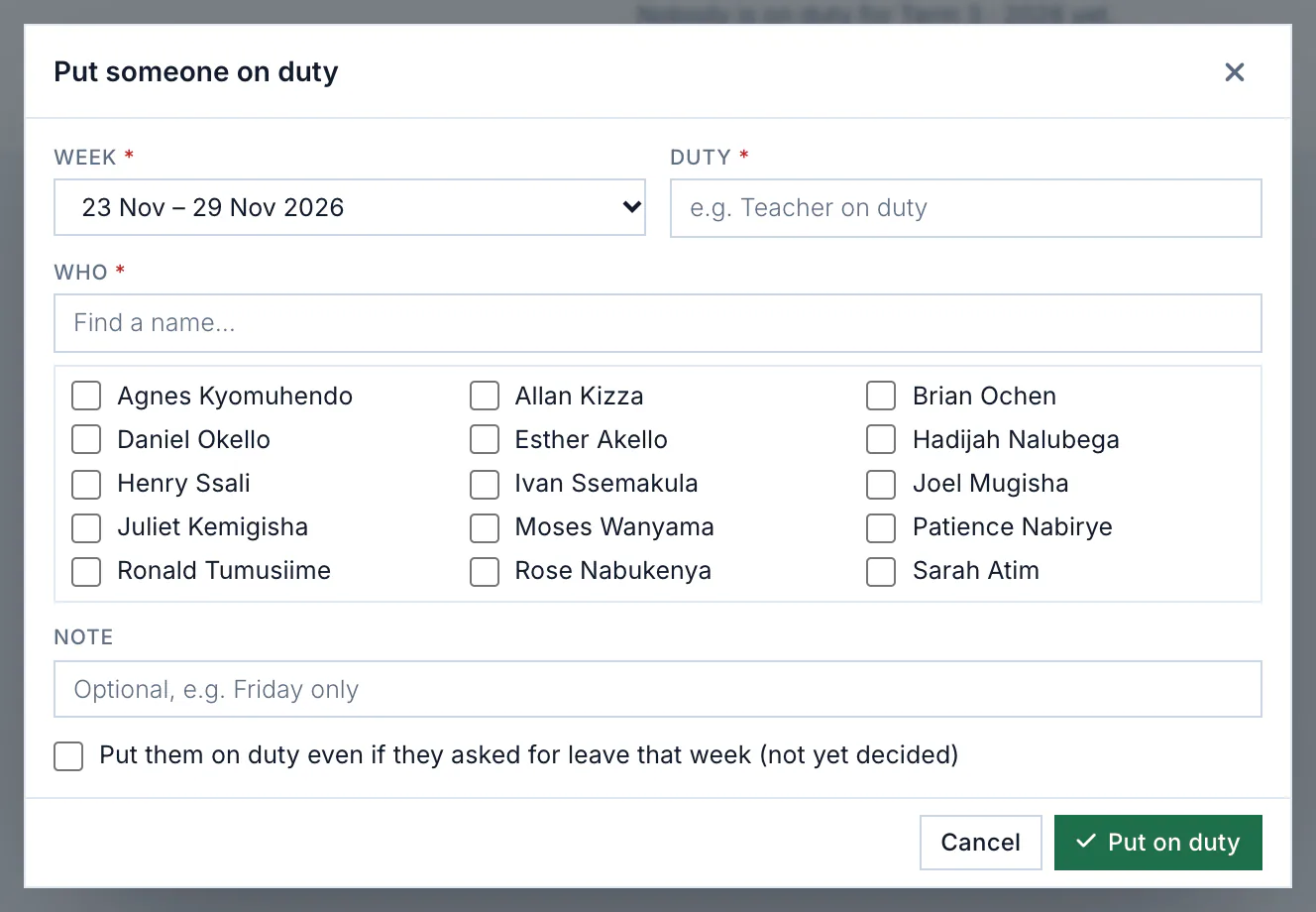
- The week: Monday to Sunday.
- The duty. Pick one or type your own.
- Who. Type to find a name, then tick.
- A note, for example Friday only.
- Put them on even if they asked for leave that week.
- Put on duty.
The roster refuses, with a sentence saying why, when:
- the person is on approved leave that week (… is on annual leave … Choose someone else.);
- the person has asked for leave that week and it is not yet decided. Tick Put them on duty even if they asked for leave that week (not yet decided) 5 to put them on all the same, since the leave may still be declined;
- the person is already on that duty that week;
- the week is outside the term's dates.
To take someone off, press the small × beside their name and confirm.
Fill a duty by turns#
For a duty that rotates through the term, let the roster share it out:
- Press Fill by turns (or the round-arrow button beside a duty's name).
- Choose or type the Duty.
- Choose People a week.
- Tick Who, in the order they should take their turns.
- Press Fill the empty weeks.
The people you ticked take the duty in turn, week after week, for every week of the term that has nobody on that duty yet. Anyone on leave, or waiting for leave, that week is skipped. A note says how many turns were given and who was skipped. Weeks that already had someone are left as they are.
When leave is approved later#
Approving leave never removes a duty. The person's name stays on the roster with a warning sign, so you can see the clash and find a replacement: take them off that week and put someone else on. The person approving the leave sees the duties too, before deciding. See Leave.