
Budget & expenditure compares what each vote and budget account was given with what it spent. Use it at the start of a term to set the budget, and during the term to see what is over or nearly over.
Open it from Fees & finance › School finance › Budget & expenditure. The first tab is Budget vs spending.
Before you start#
- The bursar, the finance officer and the school administrator add and change items. The head teacher and the deputy can see every figure, but cannot change anything.
- The school needs its votes and budget accounts. If it has none, set them up first: see Votes and budget accounts.
Reading the page#
At the top, choose the period: Term, Year or All time. The term list starts on the term chosen in the top bar; pick another term to look back. To see one vote alone, choose it in the vote list, which starts on Every vote.
The four figures:
| Figure | Means |
|---|---|
| Budget | Every budget item in the period. |
| Spent | Every expenditure in the period, and how much of the budget that is. Click it for the items. |
| Left to spend / Over budget | Budget less spent. It reads No budget set when there is no budget for the period. |
| Owed to suppliers | What the school still owes for things bought on credit, and how much is overdue. Click it for Creditors. |
The table Budget against spending lists each vote, then its accounts, with Budget, Spent, Left and a bar for how much of the budget is spent. An account spent past its budget is shown in red and reads, for example, 630,000 over. An account with spending but no budget shows No budget.
- Click a vote's name to see that vote alone.
- Click an account's name to open its own page (see below).
Further down: Term by term (budget and spending for the last terms; click a bar to open that term), Month by month (spending in the last six months, by the date it was paid), Over budget (the accounts furthest over), How it was paid, Latest spending and Owed to suppliers.
Add the term's budget#
Each budget item is an amount for one budget account in one term.
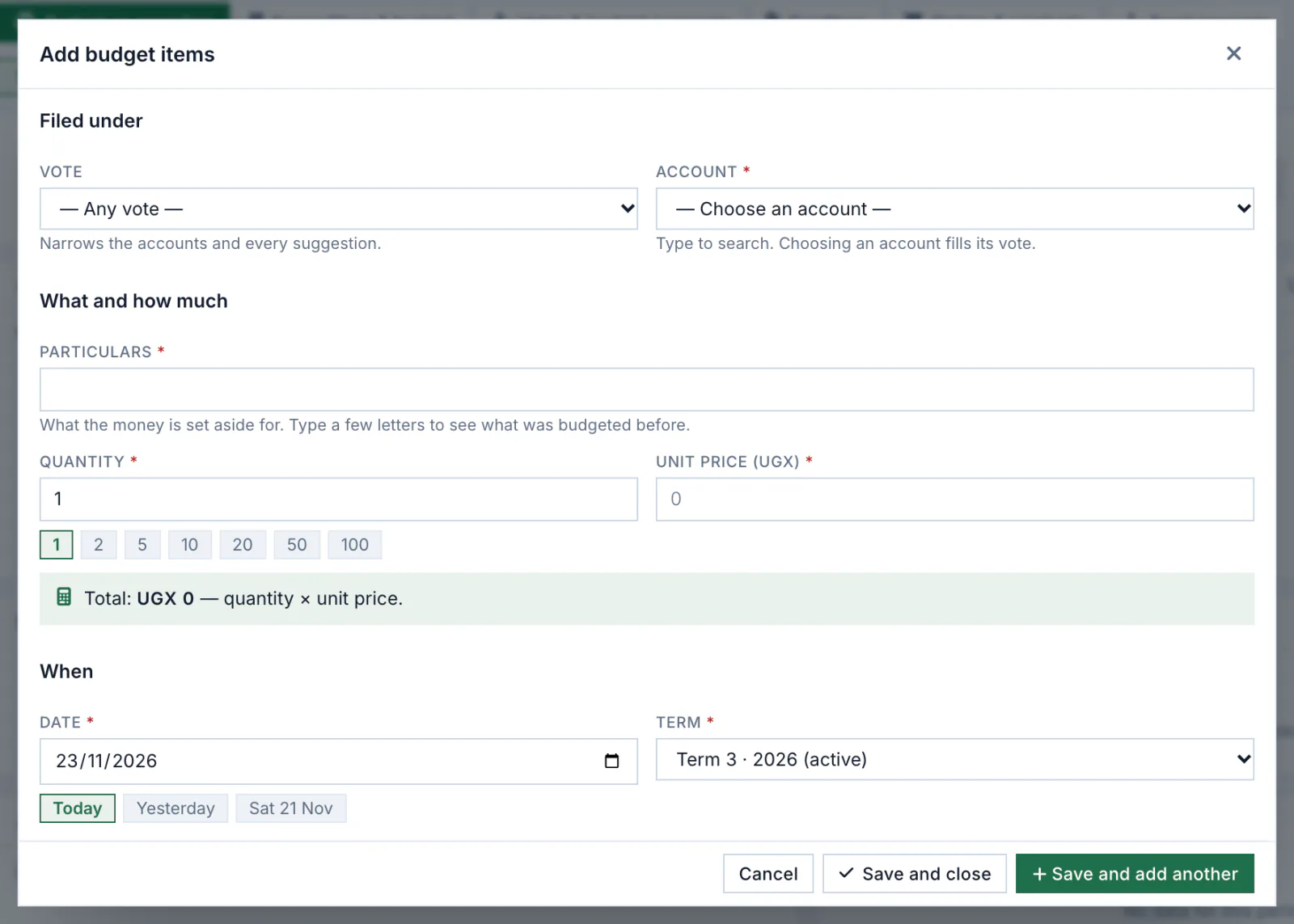
- Optional: a vote narrows the accounts and the suggestions.
- The budget account the money is set aside for.
- Particulars: what the money is for.
- Quantity × unit price makes the amount.
- The term this budget belongs to.
- Save and stay in the dialog for the next item.
- Press Add budget item. The dialog Add budget items opens on today's date and the active term.
- Choose the Account 2. Choosing a vote first 1 shortens the list; choosing an account fills in its vote.
- Type the Particulars 3, for example Maize flour, 50 bags.
- Type the Quantity and the Unit price (UGX) 4. The total is shown under them.
- Check the Term 5.
- Press Save and add another 6, or press Enter. The item is saved and the dialog stays open, on the same account and term, for the next item.
- When you have entered the last item, press Done.
The dialog helps when you enter many items at a sitting:
- Most used under the account offers the accounts used most in the last six months.
- Budgeted before offers items entered before on that account or vote. One click fills in the account, particulars, quantity and unit price; the date and term stay as they are.
- Budgeted at under the unit price offers prices used before for exactly the same particulars.
- Entered in this sitting at the top lists what you saved, with its total. To take one back, press its arrow; that item is deleted.
Press Save and close to save one item and close the dialog.
The tabs#
| Tab | What it shows |
|---|---|
| Budget vs spending | The page above. |
| Expenditure & budget | Every item, one by one, with filters. |
| Votes & budget accounts | The votes and their accounts: see Votes and budget accounts. |
| Creditors | What the school owes its suppliers: see Record spending. |
| Suppliers | Shown only to those who cannot see Procurement; others find it under Procurement › Suppliers. |
| Orders & products | Simple orders placed with suppliers (below). |
| Fund requests | Requests for money from staff: see Fund requests. |
Every item, one by one#
The Expenditure & budget tab lists the items. Switch between Expenditure and Budget items at the top. The figures show the total, the number of items shown and, for expenditure, how much was Bought on credit.
Narrow the list by particulars or item number, term (Active term, All terms or one term), vote, account, supplier, payment method, dates, amount (More than, Less than, Exactly) and On credit only.
Click an item's particulars for Details and history: who recorded it, when, and every change since. The row menu also has:
- Account's budget vs spending: the account's own page.
- Its credit: for an item bought on credit, its entry under Creditors.
- Edit, Duplicate (dated today) and Delete (bursar, finance officer and school administrator).
Export downloads the figures as a CSV file for a spreadsheet.
An account's own page#
Click an account anywhere on these pages to open it. It shows Budgeted, all terms, Spent, all terms and Left to spend, then a Term by term table and the Latest items. Its buttons Add budget item or Record expenditure already filed on this account. Every item opens the list for this account in every term.
Under Tidy the chart of accounts, finance staff can Merge into another account… (for two spellings of one thing: every item moves across) or Delete account (its items move to Unclassified). Nothing is lost either way.
Orders & products#
Orders & products keeps simple orders placed with a supplier, priced from the products that supplier sells.
- Place an order: choose the Supplier, then each product and its quantity (Another product adds an item), the Delivery and a Note to the supplier. Press Place order.
- Update an order with its pencil: Order status (Pending, Received, Completed or Canceled), Paid? with the amount and how it was paid, and the invoice, receipt and goods received note as files.
- The Products switch lists each supplier's products. New product asks for the supplier, the store item it is, its name, unit price and pricing details.
Good to know#
- Spending counts in the term chosen on the item, whatever the date it was paid.
- The Committee reports button at the top opens the report library, with the budget summary and the committee pack: see Committee reports.
- Votes can be merged or deleted from the row menu of a vote here too. A deleted vote's accounts and items move to Unclassified, to be sorted out.