
The report library holds the reports a finance committee, a board or the auditors read: the budget summary and vote details, the income schedule, fees expected, the payroll, stock and the books of account. Each one opens as a table you can shape, save and export. The committee pack puts the committee's workbook in one file.
Open it from Fees & finance › School finance › Committee reports. It is also the Report library tab of Finance reports, the Committee reports button on Budget & expenditure and the Reports button in the Books of account.
Before you start#
- The bursar, the finance officer, the school administrator, the head teacher and the deputy can run the reports. The Payroll report is only for those who may see the payroll.
- The reports are only as complete as the records: budget items and spending, votes with their committee numbers, the income sheet and its plan, and the books.
The library#
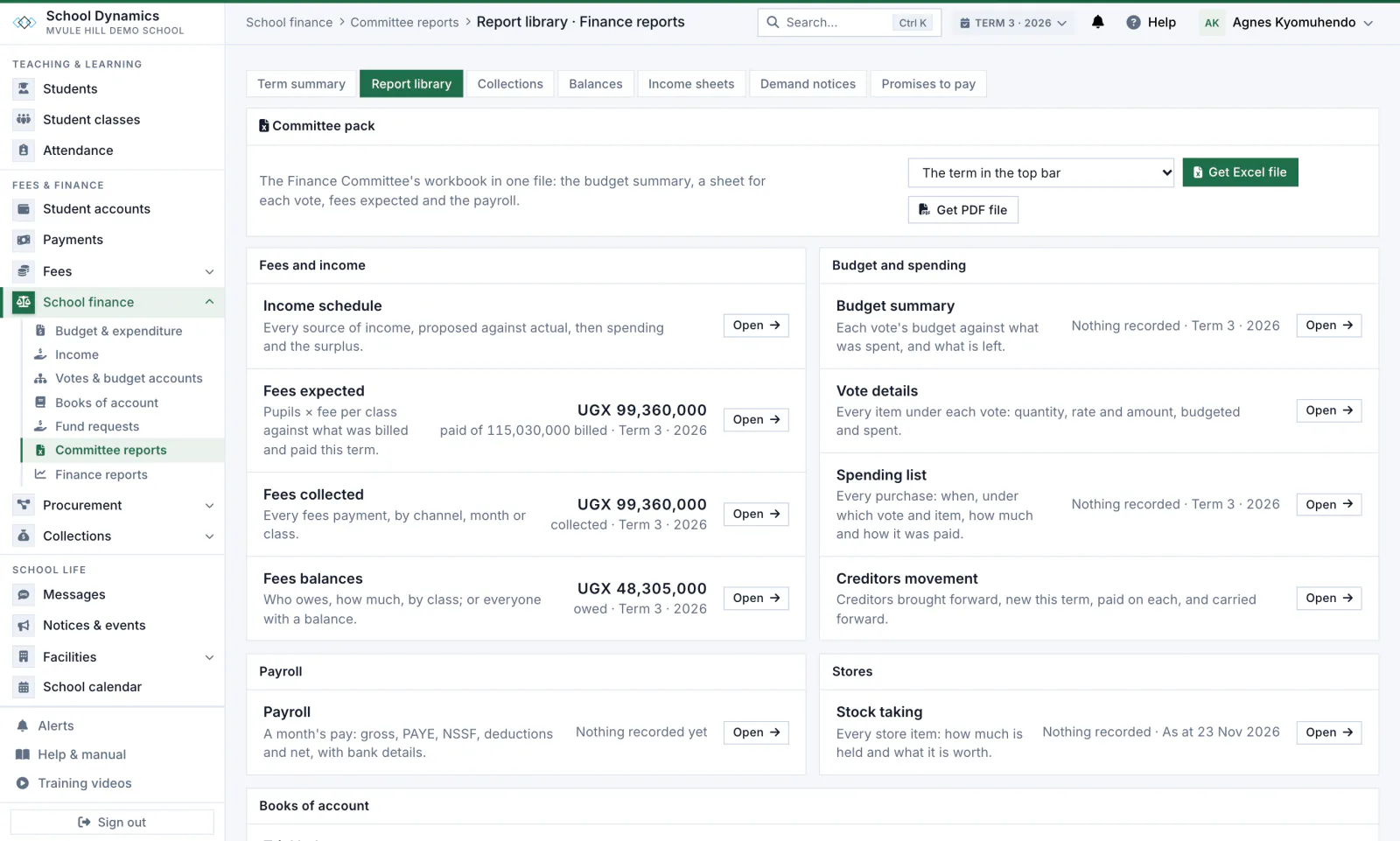
- The committee pack: the committee's workbook in one file.
- The term of the pack.
- Prepare it as Excel (or PDF).
- Open a report.
- This term's headline figure.
The reports are listed by section, each with its headline figure for this term 5:
| Section | Reports |
|---|---|
| Fees and income | Income schedule, Fees expected, Fees collected, Fees balances |
| Budget and spending | Budget summary, Vote details, Spending list, Creditors movement |
| Payroll | Payroll |
| Stores | Stock taking |
| Books of account | Trial balance, Income and expenditure, Balance sheet, General ledger, Cash book, Day book (all journals) |
Click a report's name 4, or Open, to run it. Views you or your colleagues saved are listed under the report, as bookmarks.
Make the committee pack#
The pack is the Finance Committee's workbook in one file: the budget summary, a sheet for each vote that has anything in the term, fees expected and the payroll.
Your exports lists the packs and large exports made for you. They are kept for 7 days.
Shape a report#
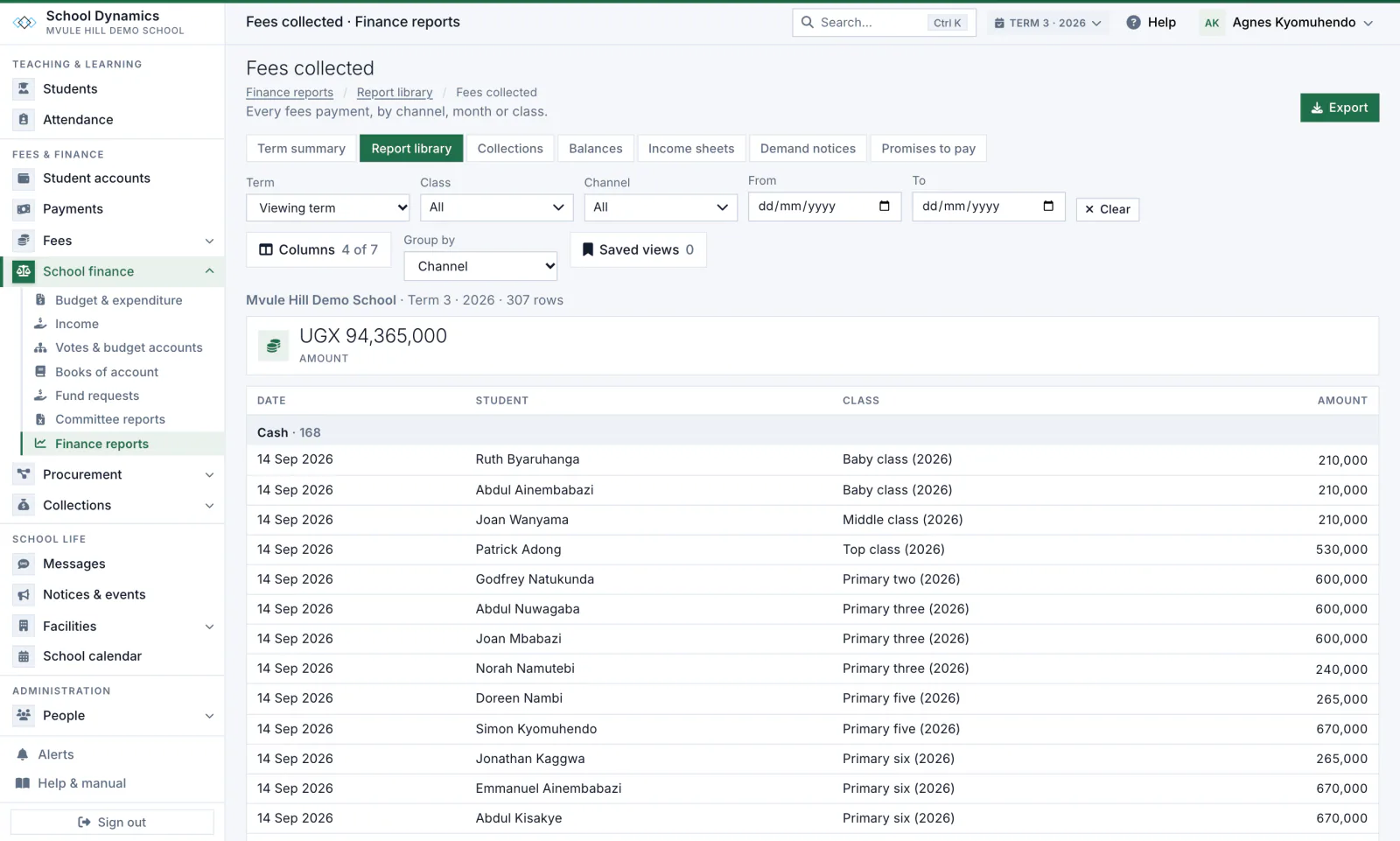
- Filters: the term, classes, channels…
- Choose the columns and their order.
- Group the rows, with a subtotal for each group.
- Save this layout and its filters by name.
- Excel with formulas, PDF to print, or CSV.
Each report opens with its filters 1. Which ones depend on the report: the Term (the term in the top bar to start), Compare with another term, the Month for the payroll, votes, items, classes, channels, accounts, or As at a day. Show empty … adds votes or items with nothing in them. Clear filters puts the filters back.
- Columns 2: tick the columns to show and move them left or right. Default layout puts them back.
- Group by 3: group the rows, for example fees collected by channel, month or class.
- Click a column heading to sort by it; click again to reverse.
The totals are shown above the table. The screen shows the first 500 rows; the totals and every export cover them all.
Save a view#
Open Saved views 4, type a name (Transport, this term) and press Save view. Tick Share with the school to let everyone who may run the report open it. A view you saved can be changed with Update view, copied with Save as new, or removed with Delete. Only the person who saved a view changes it.
Export#
Open Export 5:
- Excel, with formulas: totals stay live in the spreadsheet.
- PDF to print.
- CSV: plain figures for another program.
On the budget reports, the same menu also makes the Committee pack (every vote) as an Excel workbook or PDF to print.
A report with more than 2,000 rows is prepared in the background. The page says so; collect it from Your exports in the library.
Good to know#
- The budget reports read the same items as Budget & expenditure, and the income schedule reads the Income page.
- Trial balance, income and expenditure, balance sheet, general ledger, cash book and day book come from the Books of account.
- A report is a reading: running or exporting it changes nothing.