
Every shilling the school spends is recorded as an expenditure, filed under a budget account, so it counts against the budget. Something bought on credit is recorded the same way, with the part not yet paid; it then waits under Creditors until the supplier is paid.
Before you start#
- The bursar, the finance officer and the school administrator record and change spending and pay creditors. The head teacher and the deputy can look.
- The school needs its votes and budget accounts: see Votes and budget accounts.
- Suppliers are optional on an item. They are added under Procurement › Suppliers.
Record an expenditure#
Record expenditure is on the Budget & expenditure page, on its Expenditure & budget tab and on each account's page. From an account's page, the dialog opens already on that account.
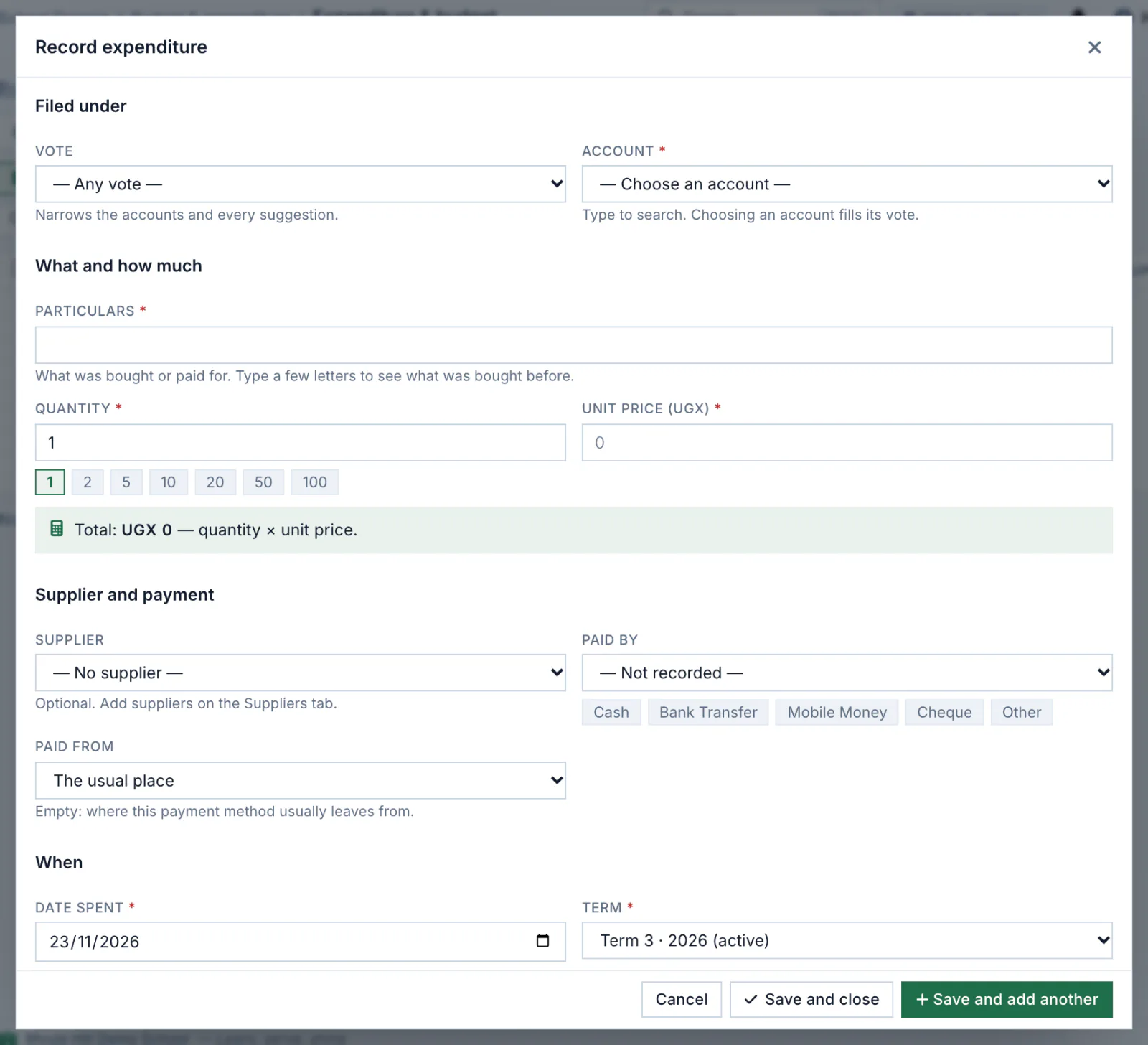
- The budget account the spending is filed under.
- Particulars: what was bought or paid for.
- Quantity × unit price makes the amount.
- Optional: the supplier.
- How it was paid.
- Save and stay for the next item.
- Press Record expenditure. The dialog opens on today's date and the active term.
- Choose the Account 1. You can choose a vote first to shorten the list.
- Type the Particulars 2: at least 4 characters, for example Firewood, 2 lorries.
- Type the Quantity and the Unit price (UGX) 3. The total is shown under them.
- Choose the Supplier if there is one 4.
- Choose how it was paid under Paid by 5: Cash, Bank Transfer, Mobile Money, Cheque or Other. Leave Paid from on The usual place unless the money left from somewhere else, such as petty cash.
- Check the Date spent and the Term. The date cannot be after tomorrow.
- If the supplier is still owed part or all of it, tick Bought on credit and type what is Still owed (UGX).
- Press Save and add another 6 (or Enter) to record the next item, or Save and close.
A message confirms what was recorded, for example Expenditure recorded: UGX 450,000 on Firewood. As with budget items, Bought before offers what was bought before (one click fills the account, particulars, quantity, unit price, supplier and payment), and Paid before offers earlier prices for the same particulars.
Changing an item#
Open the item's menu on the Expenditure & budget tab and choose Edit. If you leave the quantity and the unit price as they are, the amount stays exactly as it was. Press Save changes.
- An item posted by a supplier invoice or by the payroll keeps its amount, account, term and credit; only its particulars, date and payment method change here.
- An item on credit cannot be switched to not on credit once something was paid on it, and its credit cannot be cut below what was already paid.
- Spending dated in closed books is refused: The books are closed up to …. Date it after that, or ask for the books to be reopened.
Finding items#
The Expenditure & budget tab opens on the term chosen in the top bar. Change it under the term list: All terms, or any term. Next to it are Every vote and Every account; choosing an account sets its vote.
More filters opens the rest: a whole year, the supplier, how it was paid, where it was paid from, Cash or credit (for example Credit still owed), the position against the budget (Over budget, Not budgeted), where it came from (Entered here, Posted by a supplier invoice, Posted by a payroll), Needs a look (no supplier, no payment method, blank particulars, an amount of zero), who recorded it and when, the amount, and the dates, with Today, This week, This month and Last month. The button shows how many of these are on, and Clear turns them all off. Search finds words in the particulars, or an item by its number (#1520).
Change many items at once#
Tick the items in the first column, or tick the box at the top of the column for the whole page. A bar shows how many are ticked and what they add up to; Select all … matching takes every item the filters show, on every page. From the bar:
- Move to term: the items count in another term. Use it for items entered under the wrong term, or due in another one. Each item keeps its date.
- Copy to term: new items in another term, for example next term's budget from this one. The copies can change the unit prices by a percentage and round them.
- Account: file the items under another budget account. They take its vote.
- Change: the Date, Words in the particulars (for example Term 2 to Term 3), and the Supplier and Payment method for expenditure, or Amounts by a percentage for budget items.
- Export: only the ticked items, to Excel, CSV or PDF.
- Delete.
Every item keeps the rules of a single change. Items posted by a supplier invoice or the payroll, and items in closed books, are left as they were. After the change, a note says how many were done and why any were left. The same Move to another term… and Copy to another term… are on each item's menu.
Creditors#
A creditor is a supplier the school still owes. Open Creditors from the tab on Budget & expenditure, or from Owed to suppliers.
The figures at the top show what is Still owed, what is Overdue, how many credits are Paid off, and Not in the budget when old credits still need filing under an account. A strip below shows what is owed by how late it is: Not yet due, 1–30 days late, 31–60 days late, 61–90 days late and Over 90 days late.
Choose how to look at them:
- Credits: each credit, with the tabs All, Overdue, Not paid, Partly paid and Paid. Search by supplier, what it was for, or credit number (12), and narrow by supplier or by the term it was bought in.
- By supplier: each supplier with what was bought on credit, paid, still owed and overdue, and the next due date.
- Term movement: for a term, each credit's brought forward, new this term, paid, and carried forward. As a report opens it in the report library.
When you open the page, every unpaid credit past its due date becomes Overdue. A credit due today is not overdue yet.
Pay a credit#
- Press Pay on the credit.
- Type the Amount paid (UGX). It starts at what is still owed, and cannot be more.
- Check the Payment date, Paid by, Paid from and the Reference or receipt no.
- Press Record payment.
The credit becomes Partly paid, or Paid when nothing is left. A payment for more than is owed is refused: That is more than is owed.
Pay a supplier one sum#
When one payment covers several credits of the same supplier:
- Choose By supplier.
- Press Pay supplier on the supplier's row.
- Type the Amount paid (UGX). It starts at everything owed to them here.
- Fill in the date, how it was paid and the reference.
- Press Record the payment.
The sum is spread over the supplier's credits, the one due first paid first. How it is spread, in the dialog, shows what each credit gets as you type the amount.
Add a credit by itself#
Press Add credit, then choose what it is:
- Bought on credit now: something bought on credit that is not recorded yet. Choose the Budget account, Bought on and Term, say What was bought on credit and the Amount owed (UGX). It is recorded as spending under that account, and owed here.
- Owed before the books: a debt from before the school kept its books here, such as the balance on construction works. Give Owed since and what is Still owed (UGX). It is brought forward and never counted as spending again.
Add a Due date if there is one (after it, the credit turns Overdue), and press Add credit.
Other jobs on a credit#
- File: an old credit marked not in the budget is filed under a budget account with File › File it, so it counts as spending.
- Payments (…) in the row menu lists the payments made. A wrong payment can be deleted there with its bin; the amount is owed again. A supplier invoice's voucher payment cannot be deleted here.
- Edit: a credit that came from an expenditure takes its supplier, description and amount from that expenditure; change those on the expenditure. Here you change the due date, the expected payment method and the notes.
- Delete: only for a credit with nothing paid. A credit that came from an expenditure is deleted with its expenditure item.
Export downloads the credits shown as a CSV file.
What happens next#
- The expenditure counts in Spent for its account and term at once, and in the reports.
- The Books of account write it themselves: spending out of the money place it was paid from; a credit owed to suppliers; a payment to a creditor out of the money place.
- Nothing here changes a student's balance.