
Every member of staff signs in with their own details. What you see afterwards depends on your roles (see Who can do what).
Sign in#
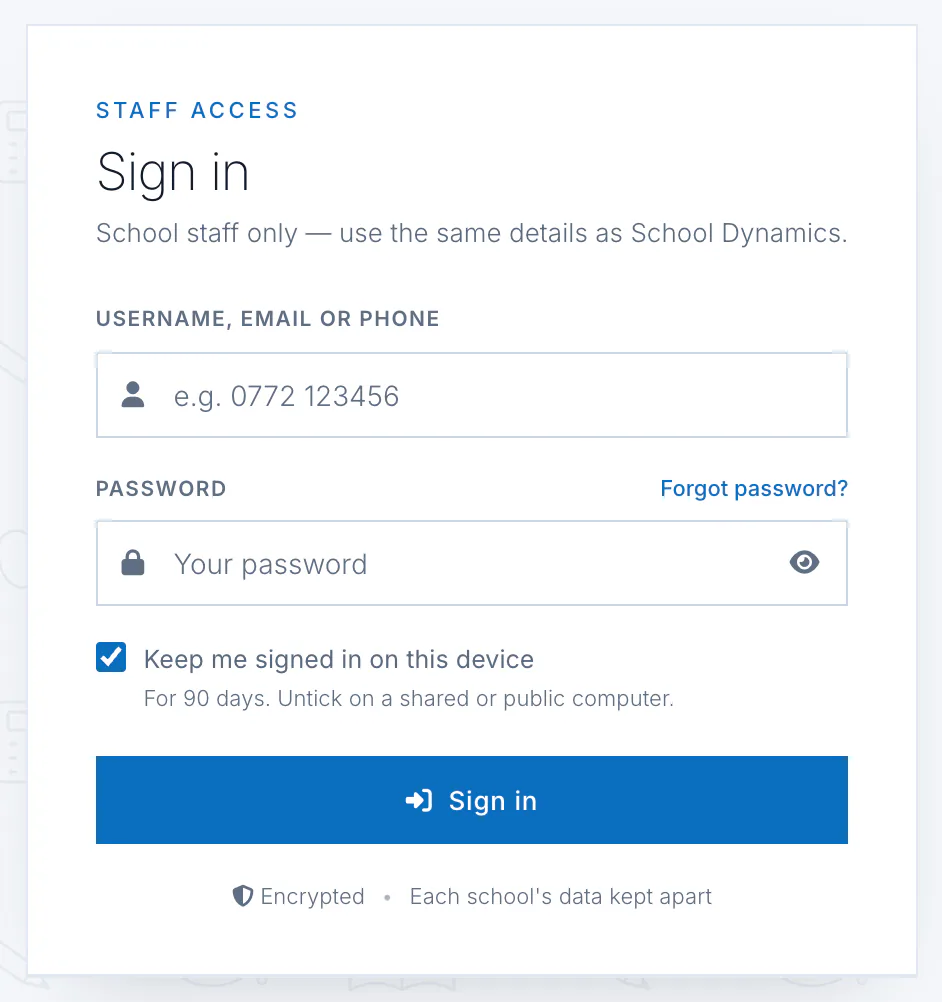
- Your username, email address or phone number.
- Your password. The eye button shows what you typed.
- Forgot it? Get a link to set a new one.
- Keep this ticked on your own computer. Untick it on a shared one.
- Sign in.
- Open School Dynamics in your browser: app.schooldynamics.ug, or your school's own web address.
- In Username, email or phone 1, type your username, your email address or your phone number. Any usual way of writing the number works (0772 123456, +256 772 123456).
- Type your Password 2. Press the eye to check what you typed.
- Leave Keep me signed in on this device 4 ticked on your own computer: it stays signed in for 90 days. Untick it on a shared or public computer.
- Press Sign in 5. The dashboard opens, or the page you were going to.
When it does not let you in#
| You see | What to do |
|---|---|
| The username or the password is wrong. Check both and try again, or press Forgot password? | The name or the password is wrong. Check both, or press Forgot password? 3. |
| Quick check — type the characters in the picture | After two wrong tries the page asks for the characters in a small picture. Type them and try again. |
| Too many wrong tries. Wait … seconds, then try again. | Five wrong tries in a row. Wait that long, then try again. |
| This account is switched off. Ask the school office to switch it back on. | Your account was switched off. Only the school can switch it back on. |
Under the form, Trouble signing in? opens WhatsApp to School Dynamics support.
The first time: choose your own password#
If the school gave you the default password, School Dynamics lets you in only as far as My profile. It says Choose your own password to carry on.
- Type the default password in Current password.
- Type a password of your own, at least 4 characters, in New password and again in New password again.
- Press Change password. The rest of the system opens.
You cannot keep the default password: many people know it.
Two-step sign-in#
If you use two-step sign-in, the page Enter your code opens after your password.
- Open your authenticator app and find School Dynamics.
- Type the six-digit code it shows in Code.
- On your own computer or phone, you may tick Don’t ask for a code on this device for … days. Never tick it on a shared one.
- Press Sign in.
Phone not with you? The links under the form give two other ways in:
- Text me a code instead, then Text me a code: a code goes by text to the phone number on your record. It works for 10 minutes. Send another code asks again after a minute.
- Use a recovery code: type one of the ten recovery codes you saved. Each works once.
After five wrong codes the page sends you back to sign in again. The code page also gives up after 10 minutes: Your sign-in timed out. Sign in again.
To turn two-step sign-in on, see Your profile, password and devices.
Asked to turn it on#
The school's owner, the school administrator, the head teacher and the bursar must use two-step sign-in. Until they turn it on, a page Turn on two-step sign-in opens each time they sign in. Not now puts it off until the date the page shows. After that date it is the only way on.
Forgot your password#
- On the sign-in page, press Forgot password?
- Type your username, email or phone in Username, email or phone, and the characters in the picture.
- Press Email me a reset link.
- Open the email and press its link. It works for one hour.
- On Set a new password, check your Email address, then type your new password in New password and again in Type the new password again.
- Press Save new password. The sign-in page opens and says Your new password is saved. Sign in with it.
The link goes only to the email address on your account. The page gives the same answer whether or not it found you, so it never tells anyone who has an account.
No email address on your account? Ask the school administrator. They choose Set a new password in your row's menu on the Staff page.
From the phone app#
The School Dynamics app can open the web in your phone's browser already signed in, with no password to type. Its link works once, for two minutes. If you use two-step sign-in and this browser is not remembered for it, you still type a code.
A link that was already used, or is older than two minutes, shows This link has ended. Open the web from the app again, or press Staff sign in. See The School Dynamics phone app.
Sign out#
Press Sign out at the foot of the menu, or open your name at the top right and press Sign out. The sign-in page says You have been signed out.
This signs out this browser only. To sign out your other computers and phones, use Sign out everywhere else on My profile.
If the licence has expired#
When the school's licence is unpaid past its date, every page leads to one that says (your school)'s licence has expired. The school's records are safe; nothing is lost.
- The people who handle the bill (the school administrator, bursar, finance officer, head teacher and deputy) see the invoice: the amount, the due date and how many days it is overdue. Depending on the school, they can press Pay UGX …, or How to pay and I have paid, and open Invoice PDF or Payment link.
- Everyone else sees who to speak to at the school.
Once the bill is paid, the system opens again on its own. It may take a few minutes. See Licence and billing.