
Most answers are in this manual. When they are not, help is one press away on every page.
Look it up in this manual#
- Help & manual, at the foot of the menu, opens the manual. Search it for the job you want to do: record a payment, release report cards.
- Each chapter follows a part of the menu (see Welcome). Each lesson ends with common questions.
- Words you do not know, such as quick view, explain themselves when you point at them. They are all in the glossary.
- Still stuck on a lesson? Ask the School Dynamics team at the bottom of the lesson. The answer shows on the lesson.
The Help menu#
Press Help in the top bar, on any page.
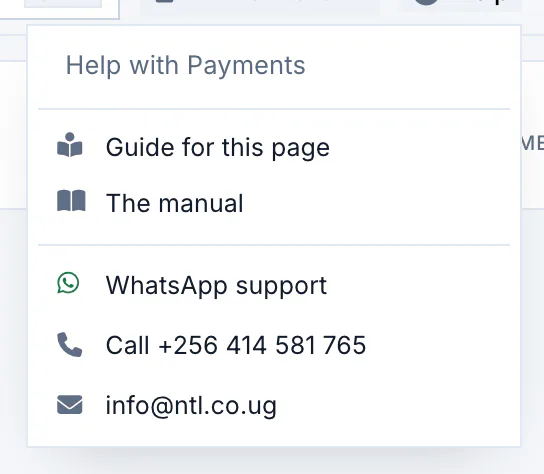
- At the top 1, the menu names the page you are on: Help with Payments.
- Guide for this page 2 opens the lessons about this page in a panel beside it. Show me here in the panel walks you through the page.
- The manual 3 opens the whole manual.
- WhatsApp support 4 opens WhatsApp with a message already written: Hello School Dynamics, I am the Bursar at (your school) and I need help with Payments. Add your question and send it.
- Call … 5 calls School Dynamics support. The email address under it opens a new email.
When you cannot sign in#
- Press Forgot password? on the sign-in page (see Sign in and sign out).
- Under the sign-in form, Trouble signing in? opens WhatsApp to School Dynamics support. On a school's own web address it also says to ask the school office.
- Your school administrator can set a new password for you and reset your two-step sign-in.
When something goes wrong#
| You see | What it means, and what to do |
|---|---|
| The system hit a problem, with a Reference | The problem was written down for the team. Try again in a moment. If it keeps happening, press Send to support on WhatsApp: the message carries the reference, so the team can find exactly what happened. |
| This page was open for too long | The page was left open too long and its form stopped working, for your safety. Nothing was saved. Press Go back, reload the page and try again. |
| This page is not open to your account | Your roles do not include this page. Ask your school administrator (see Who can do what). |
| You're offline — changes can't be saved until the connection returns. | Your connection dropped. Wait for the bar to go, then save. |
Write to the team#
The Talk to us page on the School Dynamics website is a form for anything that can wait for an email answer.
- Type Your name and Email address.
- Choose What is it about?: starting with School Dynamics, prices and packages, help using School Dynamics, payments and invoices, something not working, or something else.
- Write Your message. If it is about your school's account, say which school.
- Type the characters in the picture and press Send message.
The page gives you a reference. A person from the team replies to your email address, usually within a working day.
What to tell support#
A good message gets a quick answer. Say:
- your school and your role;
- the page (its name in the menu) and what you pressed;
- what you expected, and what you saw instead (the exact words, or a screenshot);
- the error's Reference, if there was one.