
My profile is your own page: who you are in the school, your password, two-step sign-in and the devices you are signed in on. Open it from your name at the top right › My profile.
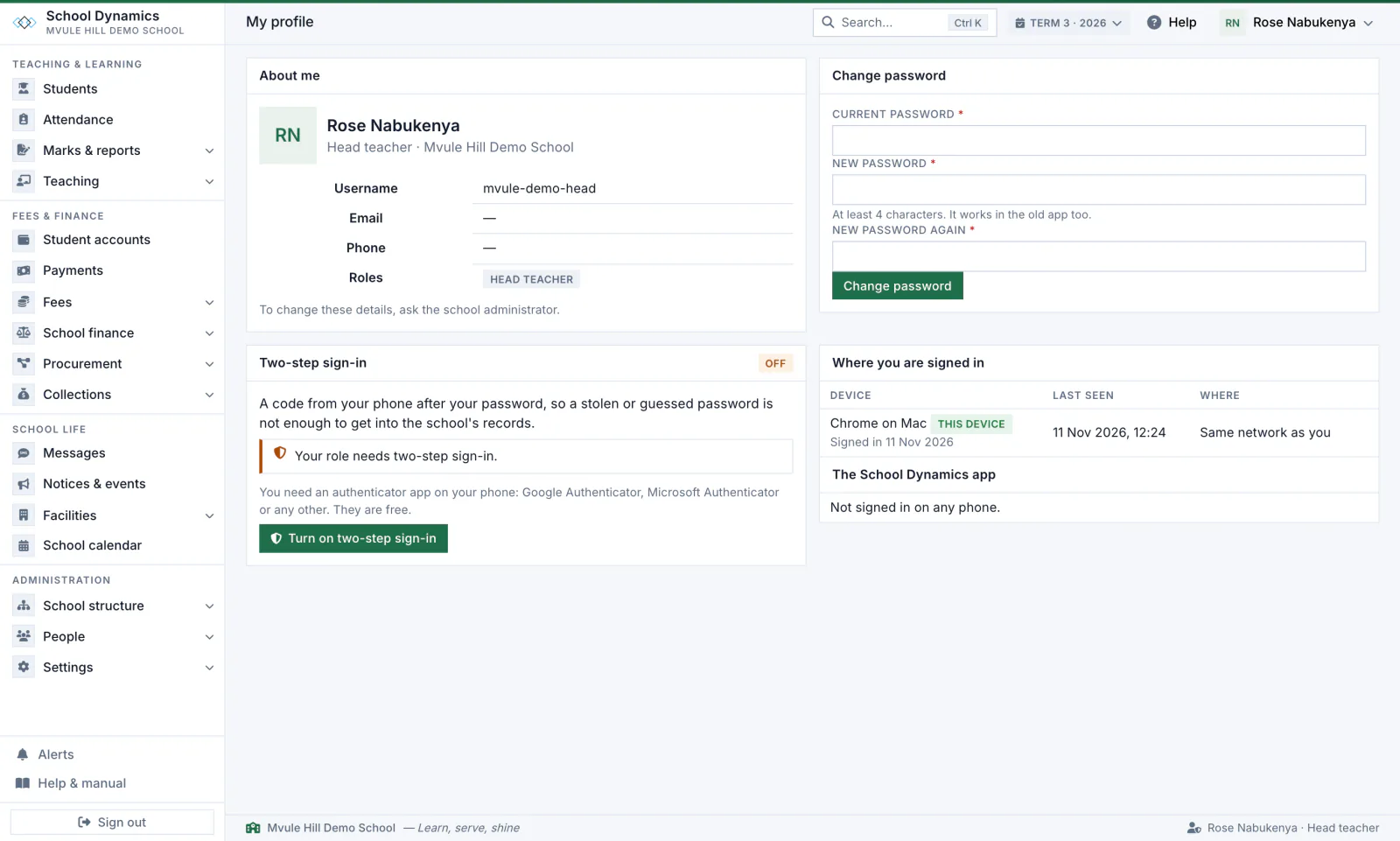
- Your details. To change them, ask the school administrator.
- Your password now.
- Your new password: at least 4 characters.
- Saves it, and signs out your other devices.
- Two-step sign-in: on or off, and your recovery codes.
- Every browser and phone where you are signed in.
About me#
The first card 1 shows your name, your role and school, your username, email, phone and roles. To change these details, ask the school office. They change them on the Staff page (see Staff and their accounts).
Change your password#
You stay signed in here. Every other browser, the app on your phones and the devices remembered for two-step sign-in are signed out, and need the new password.
| You see | Why |
|---|---|
| That is not your current password. | The first box is wrong. |
| Choose a password different from the current one. | The new password is the old one. |
| That is the default password. Choose your own. | The default password cannot be chosen again. |
| The two new passwords do not match. | The second box differs from the first. |
| Too many tries. Wait a minute and try again. | Five wrong current passwords in a row. |
Turn on two-step sign-in#
With two-step sign-in, your password alone does not open your account: you also type a six-digit code from your phone. You need an authenticator app on your phone, such as Google Authenticator or Microsoft Authenticator. They are free.
- In the Two-step sign-in card 5, press Turn on two-step sign-in.
- In your authenticator app, add an account and scan the square code on the screen. Cannot scan? Type the key shown under it instead.
- Type the six digits the app now shows in Code from the app.
- Press Turn it on.
- Your recovery codes opens with ten codes. Press Print, or write them down, and keep them somewhere safe. They are shown only now.
- Press I have saved them.
From now on, School Dynamics asks for a code after your password on any device not remembered for it. See Sign in and sign out.
Who must use it#
The school's owner, the school administrator, the head teacher and the bursar must use two-step sign-in: their roles look after the school's money, staff or records. Their card says Your role needs two-step sign-in and the date to turn it on by. After that date, School Dynamics asks for it before anything else. Everyone else may turn it on.
Recovery codes and turning it off#
When two-step sign-in is on, the card says how many of the 10 recovery codes are left.
- New recovery codes: type a code from your app and press Make 10 new codes. The old ones stop working. Do this when few are left.
- Turn off: type your password and press Turn off. This button is there only if your role does not need two-step sign-in.
Lost your phone?#
Sign in with a recovery code. If the phone number on your record still works on another phone, Text me a code instead gets you in too. Then move two-step sign-in to your new phone:
- If your role does not need it: press Turn off, then Turn on two-step sign-in again and scan the code with the new phone.
- If your role needs it: ask the school administrator. They choose Reset two-step sign-in in your row's menu on the Staff page. You sign in with your password alone until you turn it on again with the new phone.
With no recovery code left and no phone, only the administrator's reset gets you in. Nobody can reset their own.
Sign in with Google#
Connect your Google account once, and from then on choose it on the sign-in page instead of typing your password, here and in the School Dynamics app. Your password keeps working, and if two-step sign-in is on, it still asks for its code.
- Open your name at the top right. While Google sign-in is off, the menu shows Sign in with Google · Off: press it, or open My profile and find the Sign in with Google card.
- Press Continue with Google and choose your Google account.
- A message says Google sign-in is on. Next time, choose your email to sign in.
To stop it, press Turn off in the same card. If you joined with Google and never set a password, set one first, so you can still sign in without Google.
Asked after signing in#
When you sign in with your password and Google sign-in is off, School Dynamics asks once: Next time, sign in with one tap. Google may also show its own small chooser at the top of the page. Pick your account there, or press Continue with Google, and you carry on to the page you were going to.
On the dashboard, the same question opens as a window once each time you sign in. Close it with ✕ and a slim line stays at the top of the dashboard, Sign in with one tap next time, with Connect Google; its ✕ hides it until you next sign in.
- Not now: asked again after 7 days, then after 30, then after 90 each time.
- Don't ask me again: never asked again. The menu and My profile still have the button.
Google tells School Dynamics only your name and email, so we know it is you. Nothing is posted to your Google account.
Where you are signed in#
The last card 6 lists every browser where you are signed in: the device, when it was last used, and where (Same network as you, or another network). Your own says This device.
- To sign out one of them, press the sign-out button at the end of its row and confirm.
- Sign out everywhere else signs out every other browser and the School Dynamics app on your phones. They will need your password (and code) again. This browser stays signed in.
Below the browsers, The School Dynamics app lists the phones where you are signed in to the app. Sign out a phone you no longer have with the button at the end of its row.
Not asked for a code lists the devices you told not to ask for a two-step code. The ✕ at the end of a row makes that device ask again.
Light or dark, compact or comfortable#
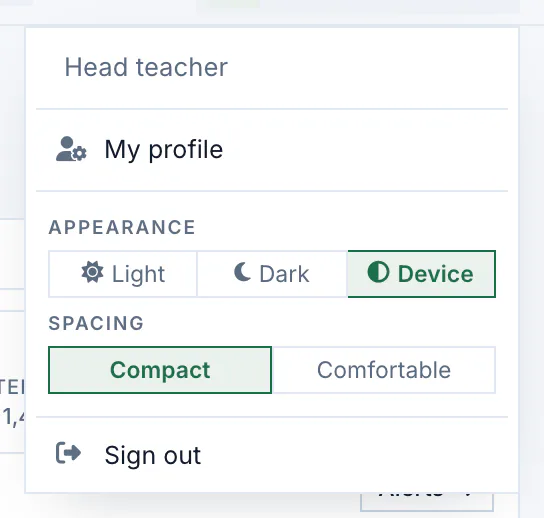
Open your name at the top right:
- Appearance 2: Light (what everyone starts with), Dark, or Device to follow your computer's or phone's own setting. Your choice follows you to any computer.
- Spacing 3: Compact fits more on the screen; Comfortable gives bigger rows and buttons, easier on a tablet.
The change shows at once and is kept for you, so your other computers show it too.