
Every page of School Dynamics has the same frame: the menu on the left, the top bar above, and the page itself. Learn them once and every module works the same way.
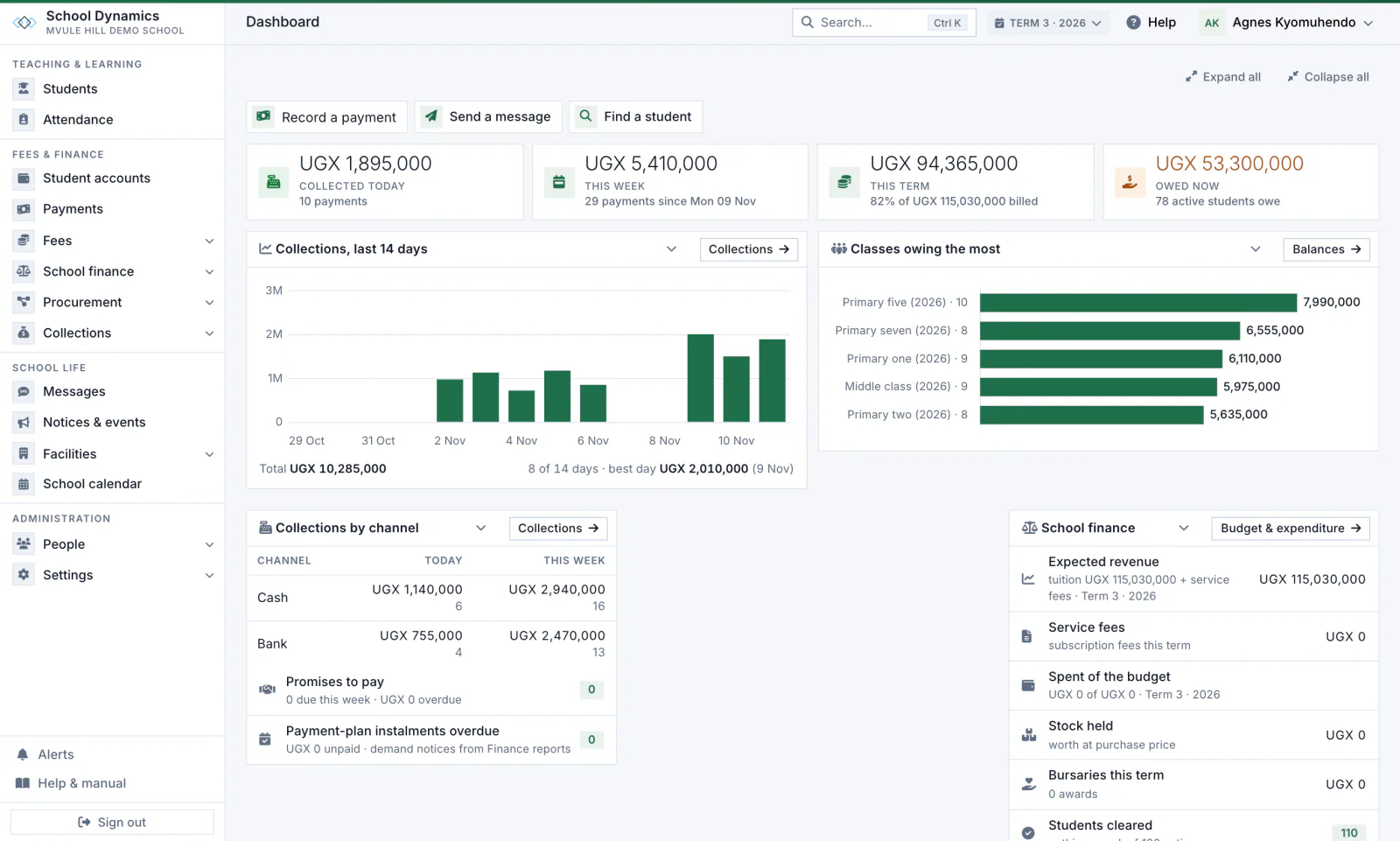
- The school's name and logo: they open the dashboard.
- The menu: only the pages your roles may use.
- Search and go (Ctrl+K).
- The term you are looking at.
- Help and support.
- Your account: My profile, light or dark, Sign out.
- Alerts, with how many are open, and Help & manual.
The menu#
The menu 2 lists the pages you may use, in the order a school day runs:
- Teaching & learning: students, attendance, marks and report cards, teaching.
- Fees & finance: student accounts, payments, fees, school finance, procurement and collections.
- School life: messages, notices and events, facilities, the school calendar.
- Administration: the school's structure, people and settings.
A name with an arrow, such as Marks & reports, is a group: click it to open or close its pages. Only one group is open at a time.
The menu always shows where you are: the group of the page you are on is open and its page is lit, even on a page you reached by a tab at the top of another page (Report cards › Design lights Report cards), after you press the browser's back button, and after the page is refreshed.
You see only what your roles allow, and only what fits your school: Theology marks only in a school with theology classes, Competency reports only in secondary schools. See Who can do what.
- The school's name and logo at the top 1 open the dashboard.
- Alerts 7 at the foot shows how many alerts are open for you. See Alerts.
- Help & manual, under it, opens this manual (see Welcome).
- Sign out is at the very bottom.
On a phone, the menu is hidden. Press the button with three lines at the top left to open it.
The top bar#
From left to right:
- Where you are: the menu group, the menu page (press it to go back to that page's first tab), then the name of the page you are on, for example Marks & reports › Report cards › Design. On a phone only the page's name shows.
- Search… 3: search and go (below).
- The school switch, only for people who work in more than one school of a school group.
- The term switch 4 (below).
- The SMS wallet, for people who send messages: signal bars, like a phone's, and the credit left. Press it for the details. See How SMS works.
- A licence notice, for the people who handle the bill, when an invoice is due.
- Help 5: Guide for this page (the lessons about the page you are on), The manual, and WhatsApp, a call or an email to support. See Get help.
- Your name 6: My profile, light or dark, compact or comfortable spacing, and Sign out. See Your profile.
Look at another term#
Marks, report cards, fees and finance reports show one term at a time: the school's active term, unless you choose another with the term switch.
- Press the term in the top bar.
- Choose a term. The terms are listed by year; the school's active term says Active.
- The page now shows that term. The button says Viewing … and its icon changes, so you do not forget.
- To go back, open it again and press Back to the active term.
Search and go (Ctrl+K)#
The quickest way to anything. Press Search… in the top bar, or Ctrl + K (Cmd + K on a Mac), or / on any page when you are not typing in a box.
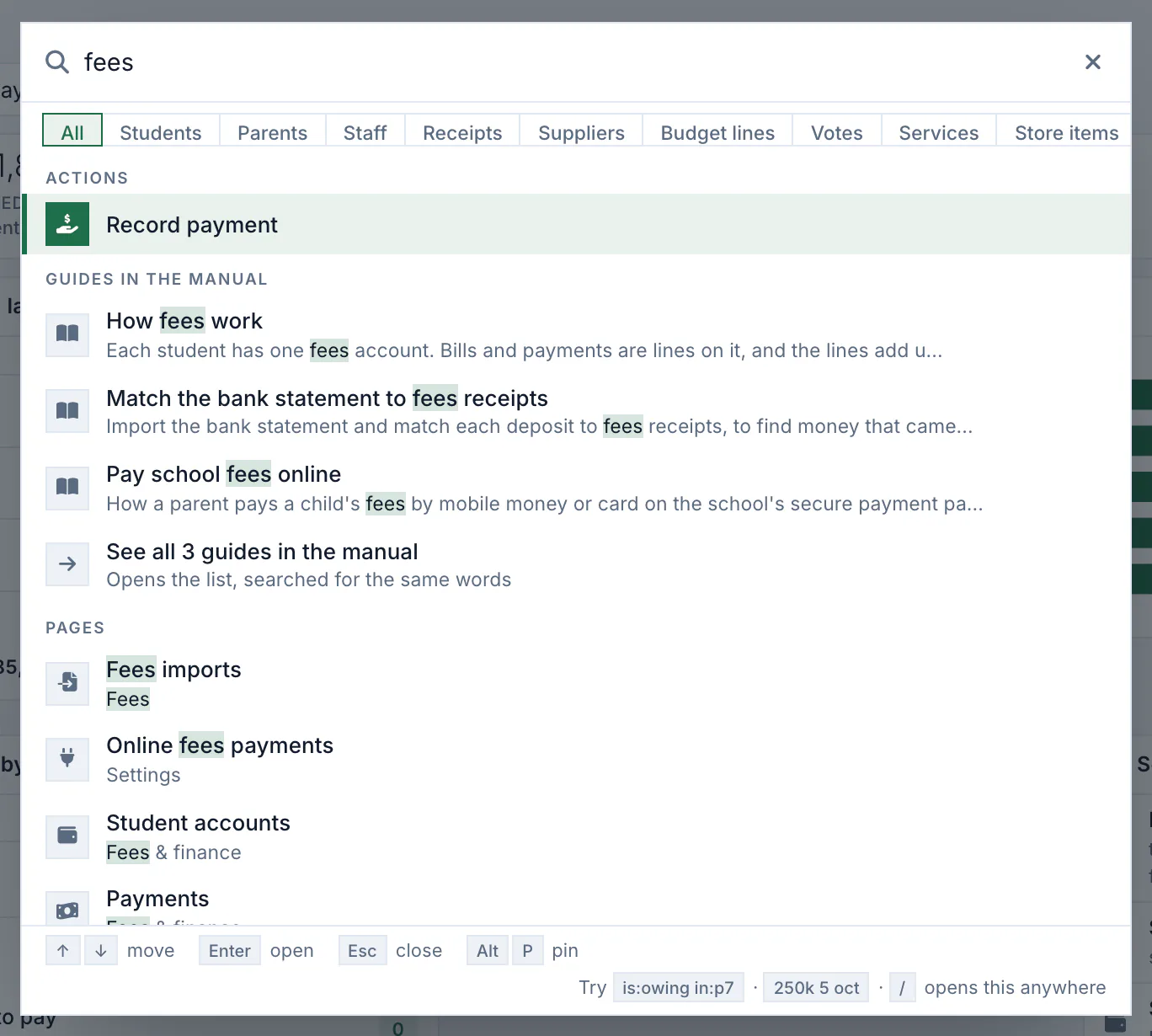
- Type a name, a class, a code, a phone number or a page.
- Look in one kind of record only.
- Actions: start a job straight away.
- Pages of your menu that match.
- The keys: arrows to move, Enter to open, Esc to close.
Type 1 and the results appear as you type:
- Records: students, parents, staff, receipts and classes, and also suppliers, budget items, votes, services, store items, library books and subjects. You see only the kinds your role may see. Search by name (any spelling), class, admission number, SchoolPay code, phone number or receipt number.
- Actions 3: Record payment, Record a promise to pay, Enter marks, Print report cards, Take attendance and Send a message, each only for the roles that may.
- Pages 4: every page of your menu, also by everyday words (type debtors for student accounts, salaries for payroll).
A student shows what they owe (Owes UGX 250,000, Cleared). A name spelt another way is marked close match.
Move with the arrow keys and press Enter to open 5. Ctrl + Enter opens a page in a new tab. Esc closes the box.
Some results have buttons of their own: a student's Fees account and Record payment, a receipt's Print receipt, a class's Enter marks and Print report cards.
Search tricks#
- Look in one kind only. Press a chip 2 (Students, Receipts …), press Tab to move to the next kind (Shift + Tab to go back), or start with the kind:
students: nakato,receipts: 4512. Each chip says how many were found of its kind; a kind with none shows 0 on a dashed edge. Looking in one kind shows up to 20 of it; if that kind has none, Look in everything instead searches all of them again. - The chips stay in sight. However many results there are, the chips and the search box stay at the top; each group's heading stays at the top of the list while you scroll its results.
- Students who owe, in one class.
is:owing in:p7. Other words afteris:arecleared,credit,boarder,day,activeandleft. - A payment by amount and day.
250k 5 octfinds payments of UGX 250,000 on 5 October. - Pin a record you open often: the pin button on its result, or Alt + P. With nothing typed, the box shows your Pinned records, then Recent ones and Recent searches, then Actions.
Quick views and row menus#
Lists do not send you away to another page. Click a record's name, or the eye button at the end of its row, and a quick view opens over the list: the record's main figures, its facts, its latest activity and its buttons. Close it with the ✕ or Esc and you are back where you were in the list.
The button with three dots at the end of a row is its row menu: the actions for that one record, such as Set a new password on a member of staff.
Adding and changing records happens in dialogs too. The main button of a dialog says what it does (Add stream, Send 2 messages). After it is done, the list updates in place and a short message says what happened. Anything that deletes asks you to confirm first. Anything that costs money or touches many records shows what will happen before you press its button.
While a page works#
- Loading… covers the screen while a page is on its way. If it takes long it says Still working — this is taking longer than usual. and offers Cancel.
- Long jobs, such as printing a class's report cards, an import or a big send, show a box with a progress bar. It keeps going while you work on other pages, and ends with Download or a link to the result.
- No connection? A bar says You're offline — changes can't be saved until the connection returns. Wait for it to go before saving.