
A subject here is a subject as one class takes it: English in P.4 and English in P.5 are two subjects, each with its own teachers. A new class already has the usual subjects for its level, so the work is mostly checking them, naming the teachers, and adding or removing a few.
Open the list from School structure › Subjects. Subjects are added, changed and removed right there on the list, or on each class's own page; both use the same form.
Before you start#
- The school administrator, the head teacher, the deputy and the director of studies see every subject. Everyone else (teachers, mostly) sees only the subjects they teach, with the note Subjects you teach.
- Only the school administrator, the director of studies and the school's owner can add, change or remove subjects.
- Add your staff first, so you can name them as teachers; see Staff and their accounts.
The list of subjects#
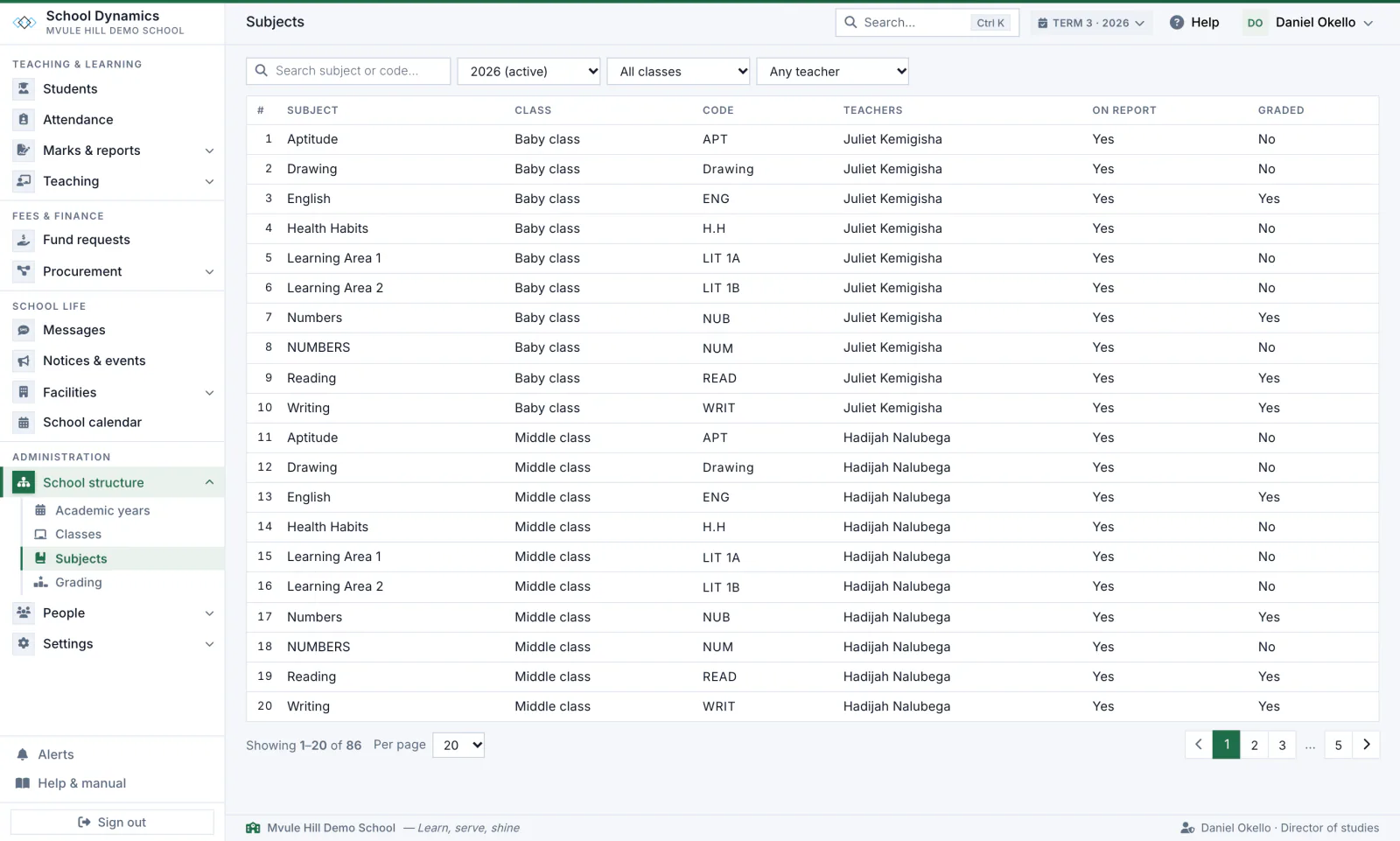
- Find a subject by its name or code.
- One class's subjects, or every class.
- The subjects one teacher teaches.
- Whether the subject is printed on report cards, and whether it counts towards grades.
- Click a subject to see how far its marks, scheme of work and lesson plans are.
The list shows every subject of the year, class by class, with its code and teachers. Those who manage subjects also see Add subject above the list and a pencil and a bin on each row. Search by name or code 1, or narrow it to one class 2 or one teacher 3. On report and Graded 4 say whether the subject is printed on report cards and counted in grades. Click a class's name to open the class.
Click a subject's name 5 for its quick view: how many of the term's marks are entered for the last two exams, how many lines its scheme of work has this term, and its lesson plans (how many, how many approved, and how many wait for review). From there, Scheme of work and Marks open those pages.
Add a subject to a class#
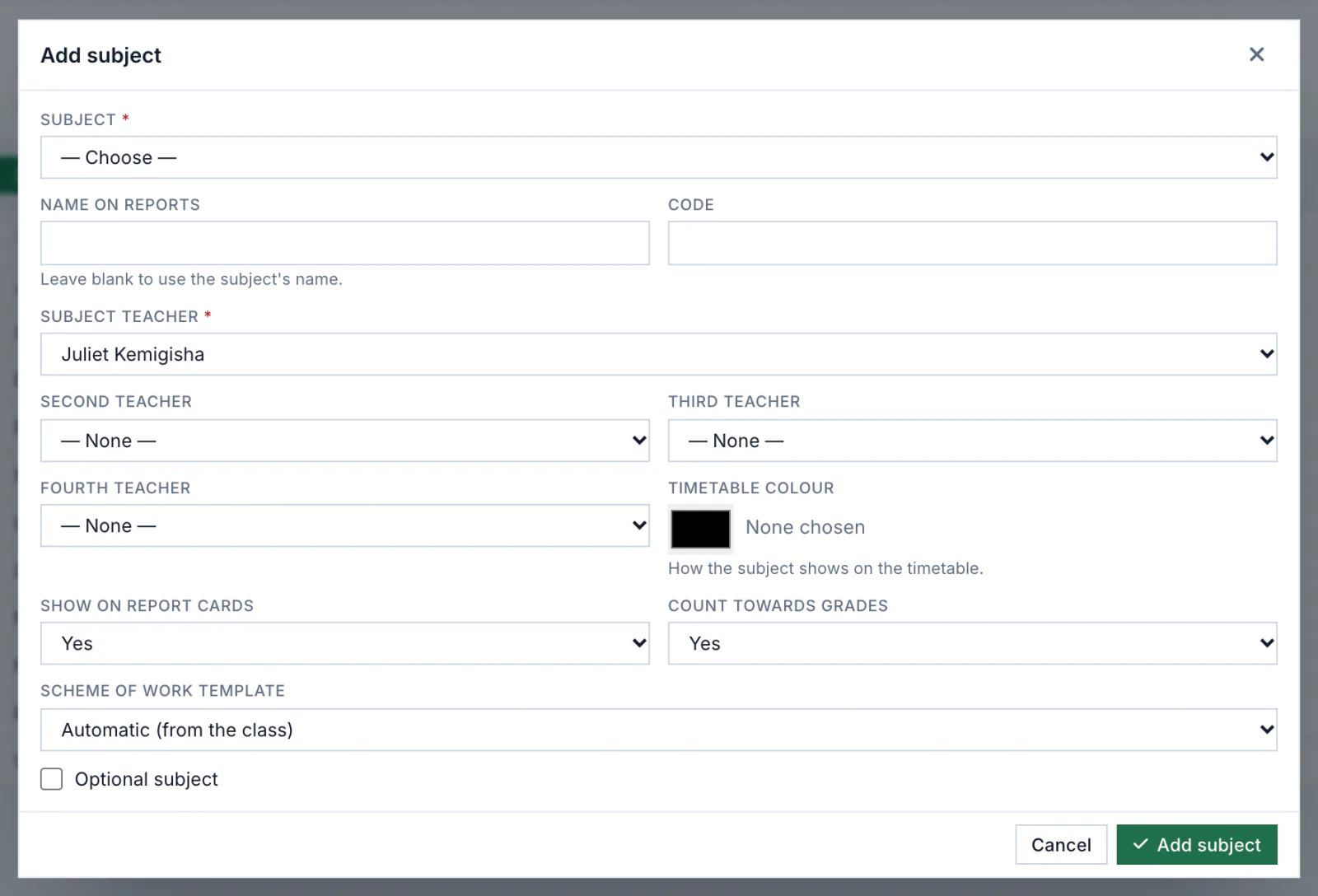
- The subject, from the list for this kind of class.
- The name printed on report cards. Leave it blank to use the subject's own name.
- The subject teacher. Up to three more teachers can share the subject.
- No hides the subject from report cards.
- No leaves the subject out of the totals and aggregates.
- On School structure › Subjects, press Add subject and choose the Class. If the list is narrowed to one class, that class is already chosen. (On a class's own page, press Add subject on its Subjects tab; the class is that one.)
- The class's teacher is filled in as Subject teacher, and the Subject list shows only the subjects the class does not have yet.
- Choose the Subject 1. A nursery or primary class can choose from the nursery and primary subjects and the others (such as Luganda, IRE and CRE); other classes from their own kind.
- Change Name on reports 2 if the cards should say something else. Leave it blank to use the subject's own name. Add a Code if you use one.
- Choose the Subject teacher 3. If others share the subject, choose them as Second teacher, Third teacher and Fourth teacher.
- Set Show on report cards 4 and Count towards grades 5.
- Press Add subject.
The other fields:
- Timetable colour: how the subject shows on the timetable. No colour clears it. See Timetable.
- Scheme of work template: the layout of the subject's scheme of work. Automatic (from the class) suits most subjects. See Schemes of work.
- Optional subject: tick it for a subject only some students take.
A class takes each subject once: choosing one it already has says That subject is already in this class. Every teacher must be a member of the school's staff.
Change or remove a subject#
- To change a subject, press the pencil beside it on the list (or on its class's page), or click its name and press Edit in its quick view, then Save subject. The subject itself cannot change; add the other subject and remove this one.
- To remove a subject, press the bin beside it on the list or on its class's page, and confirm. A subject that already has marks stays: the page says This subject already has marks, so it cannot be removed. Set Show on report cards to No instead.
New curriculum subjects (secondary schools)#
A secondary class has a second tab, New curriculum, for the subjects of the new curriculum. A new secondary class already has its compulsory subjects. To add one, press Add subject on that tab, choose the Subject, its teachers (up to four) and whether it is optional, and press Add subject. New curriculum subjects can be changed with the pencil, but not removed from this page.
When a school has new curriculum subjects, the Subjects page has two tabs, Report-card subjects and New curriculum. The second lists each subject with how many of its mark rows have a score this term; Add new curriculum subject and the pencil work there too, for secondary classes. See Competency reports.
Theology subjects#
In a school that teaches theology, the Subjects page has a Theology tab. It lists every theology class's subjects of the year, with their teachers and how far this term's marks are, and the head teacher, the director of studies and the school administrator add, change and remove them there. See Theology classes.
Good to know#
- A subject always belongs to its class's year. When a class moves to another year, its subjects move with it.
- A subject's marks, scheme of work and lesson plans belong to it, so the same subject next year is a new subject in next year's class.