
The timetable is the school's week of lessons: which class has which subject, with which teacher, in which room, and when. You can look at it a class at a time, a teacher at a time or a room at a time, and print any of them. The director of studies builds it here, lesson by lesson, or with the generator.
Open it from Teaching › Timetable.
Before you start#
- Everyone who can see the Teaching menu can look at the timetable: the head teacher, deputy, director of studies, teachers, the secretary and the school administrator. A teacher with lessons on the timetable opens on their own week.
- Only the director of studies and the school administrator can add, change, move or remove lessons, and look after the rooms.
- The year's classes and their subjects must exist. See Classes and streams and Subjects.
Reading the timetable#
The page has four tabs: Week, List, Teachers' load and Classes. Those who build the timetable also see Rooms and Generate a timetable beside them.
Above the week, choose:
- the year, and the term (Every term shows all of the year's lessons);
- whose week to show: Class, Teacher or Room, then the class (and stream), the teacher or the room.
The Week tab is a grid, Monday to Friday, with Saturday added when any lesson falls on a Saturday. Each lesson shows its subject, its times, and the teacher and room. Its title line says how many lessons and hours a week are shown. A lesson with a dashed edge is a draft lesson. A lesson marked with a warning sign clashes with another (see below). The List tab shows the same lessons as a table, with their term and status.
Adding a lesson#
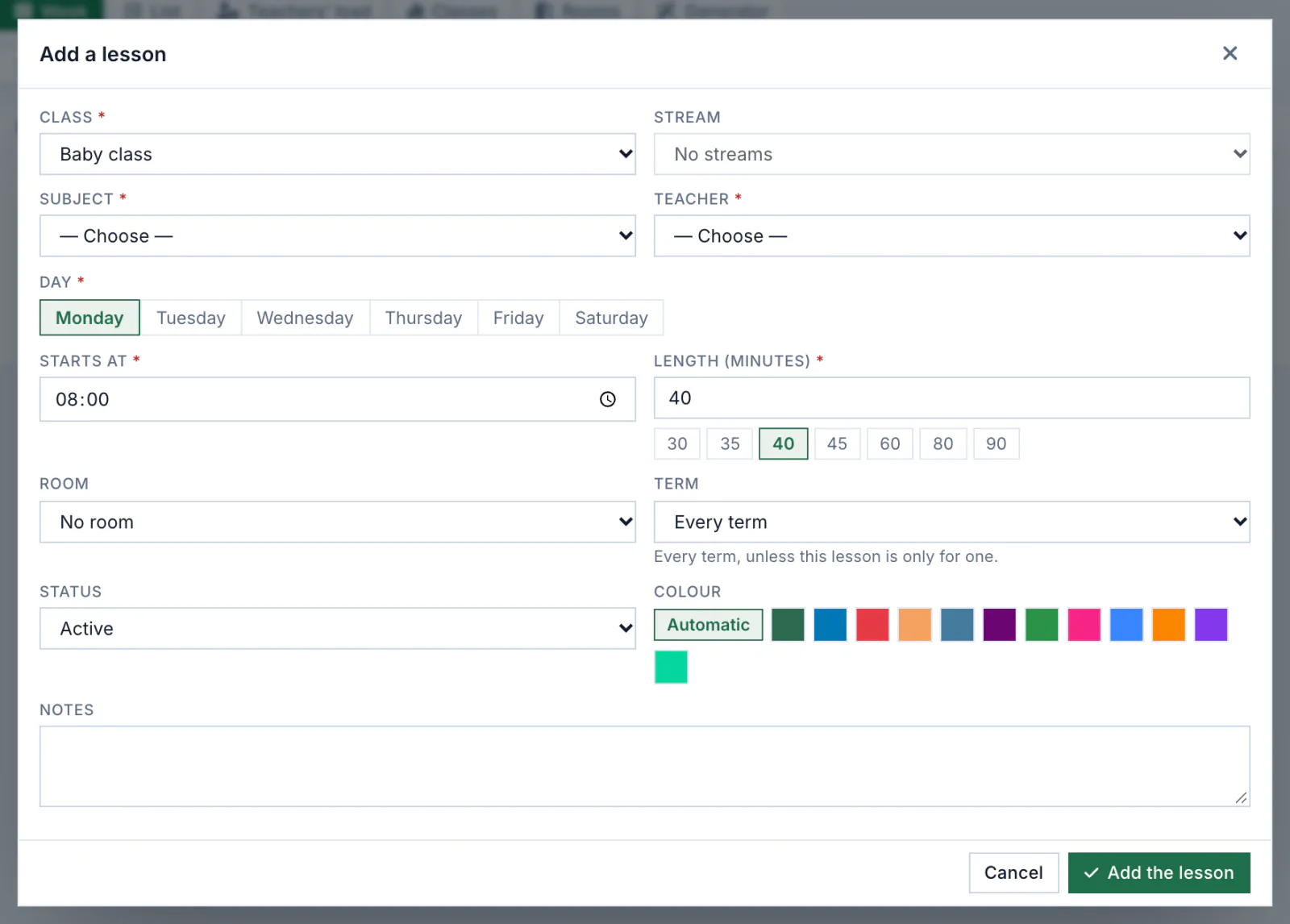
- The class. For one stream only, choose the stream beside it.
- One of the class's subjects.
- Who teaches it.
- The day, Monday to Saturday.
- The time it starts. Set its length beside it.
- Saves the lesson, unless it clashes.
- Choose the class, teacher or room whose week you are filling.
- Press Add a lesson. To fill a gap in the week, press the + in the empty slot instead: its day and time are filled in for you.
- Choose the class 1, and the stream if the lesson is for one stream only. Then choose the subject 2 and the teacher 3.
- Choose the day 4 and the start time 5. Once the school has lessons (or a school day set in the generator), the usual start times show as buttons under the time. Set the length in minutes, or press one of the lengths offered.
- Choose a room if the lesson needs one. Leave Term as Every term unless the lesson belongs to one term only.
- Read the box at the bottom. Green means the class, the teacher and the room are free then. Red lists what the lesson clashes with.
- Press Add the lesson 6.
The Status of a lesson is Active (the default), Draft or Disabled. You can also give it a colour (otherwise each subject gets its own) and a note.
A lesson lasts from 10 to 300 minutes and may not run past midnight. The subject and stream must belong to the class.
Clashes#
A lesson cannot be saved on top of another lesson of the same class, the same teacher or the same room at a time that overlaps. The box in the dialog says which lesson is in the way, for example Grace Achen is already teaching Mathematics with P.6 on Monday 08:00–08:40.
- A lesson for one stream clashes with the whole class's lessons and with that stream's. A whole-class lesson clashes with every stream's.
- A room clashes only when the lesson has a room.
- Active and draft lessons count. Disabled ones do not.
- Only lessons of the same year count, and a lesson for one term does not clash with another term's lessons.
When the double booking is meant, for example one teacher taking two streams together, tick Save it anyway: it is a combined lesson, or the double booking is on purpose, then save. The week marks lessons that clash, and a line above it says how many there are.
Changing, moving and removing lessons#
- Change a lesson: click it in the week (or press the pencil in the list). Change what you need and press Save changes.
- Move a lesson: drag it to another day or time in the week. The move is checked for clashes in the same way. If it clashes, the lesson does not move: it opens at its new day and time with the clashes listed, so you can save it anyway or choose another time.
- Copy a lesson: press Copy the lesson in the lesson (or the copy button in the list). A copy opens on the next day; choose its day and time, then save.
- Remove a lesson: open it and press Remove the lesson. You are asked first, and it cannot be undone. To stop a lesson for a while, set its status to Disabled instead.
Disabled lessons are hidden. Tick Show disabled lessons to see them.
Teachers' load and classes#
The Teachers' load tab lists every teacher on the timetable: their lessons, periods and hours a week, lessons each day, the classes they teach, and their load:
| Load | Hours a week |
|---|---|
| Normal | Up to 20 |
| Heavy | Up to 30 |
| Too much | More than 30 |
Only active lessons count. Click a teacher's name to open their week, or press the print button to print it.
The Classes tab shows how complete the timetable is: lessons a week, how many classes have a timetable, and how many have a lesson for every subject. Each class shows its subjects timetabled, the lessons it has a week and the subjects Not timetabled yet. The arrow opens that class's week.
Rooms#
Rooms stop two lessons (or two exam papers) being put in one room at the same time. Open Rooms beside the tabs.
- Press Add a room.
- Type the name, for example Science lab, and choose the kind: classroom, laboratory, hall, library or other.
- Give the number of seats if it matters, a building if the school has buildings, and notes.
- Leave In use (offered when timetabling) ticked.
- Press Add the room.
Two rooms cannot have the same name. A room's row menu has Edit the room, Stop using the room (or Use the room again) and, for a room with no lessons, Delete the room. Click a room's name to see its week.
Printing#
Print opens the week on screen as a PDF: a class (or one stream), a teacher or a room, for the term chosen. The half-shaded button beside it prints the same week in black and white.
Good to know#
- Teachers with active lessons on this year's timetable get My lessons today on their dashboard. It also shows any exam they invigilate that day.
- Teacher workload counts each teacher's periods from the timetable.
- The exam timetable uses the same rooms.