
Assignments are the work teachers set for a class: homework, assignments, projects, classwork and quizzes. Every student of the class is listed on the work. Parents hand it in on the phone app, and the teacher records what came in, marks it and gives feedback here.
Open it from Teaching › Assignments.
Before you start#
- Teachers set work for the subjects they teach. They see the work they set and the work others set for their subjects.
- The head teacher, the deputy, the director of studies and the school administrator see all work and can change any of it.
Set work#
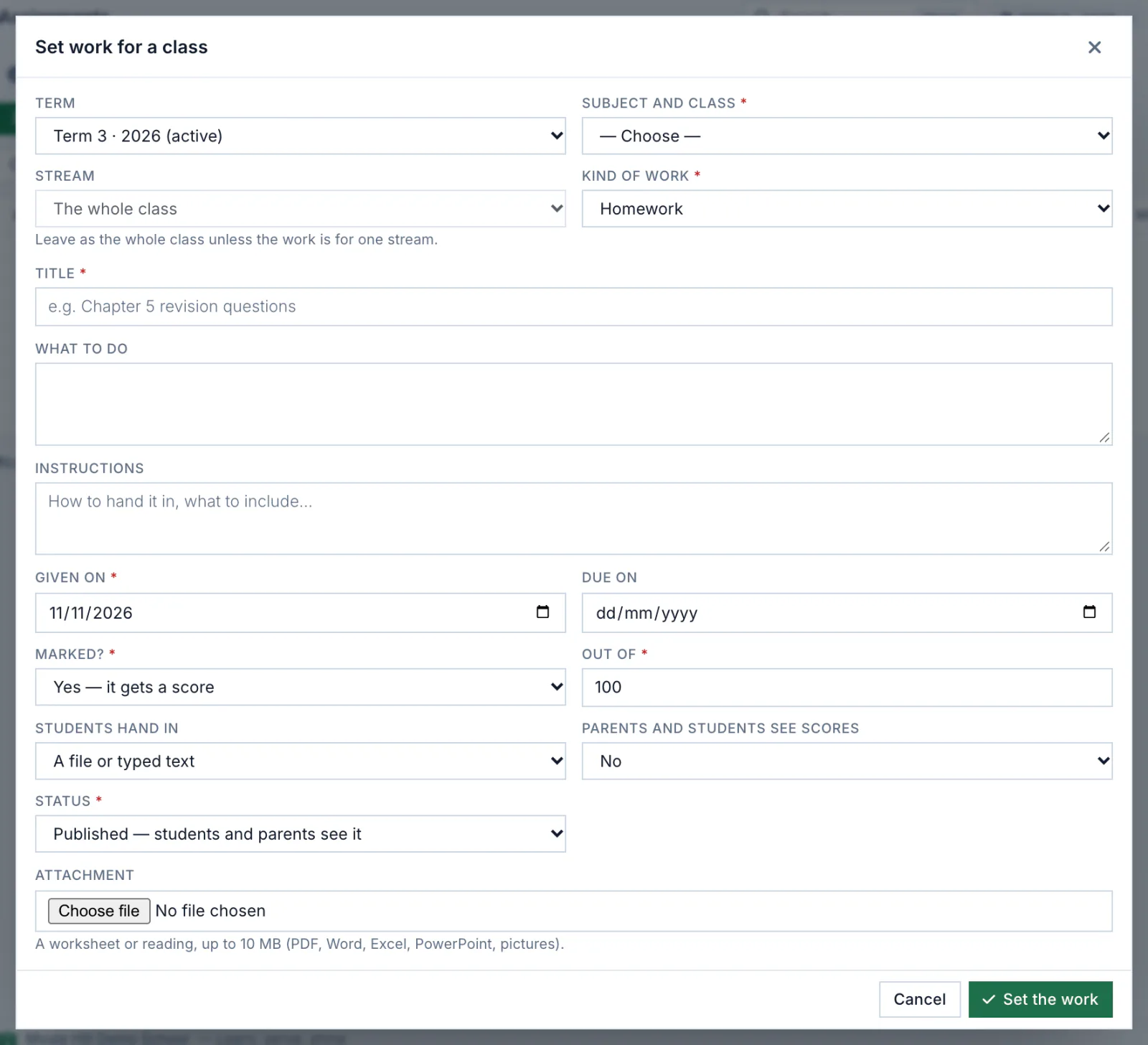
- The subject and class. Only the subjects you teach are offered.
- Homework, assignment, project, classwork or quiz.
- A short title students will recognise.
- When it is due. It cannot be before the day it is given.
- Draft keeps it hidden. Published shows it to students and parents.
- Every active student of the class is listed for it.
- Press Set work.
- Choose the subject and class 1. Leave Stream as The whole class unless the work is for one stream.
- Choose the kind of work 2 and type a title 3.
- Type what to do and any instructions.
- Set the day it is given and the day it is due 4.
- Under Marked?, choose Yes — it gets a score and type what it is out of, or No — only whether it was done.
- Choose how students hand it in: a file or typed text, a file only, typed text only, or nothing (done in class).
- Choose whether parents and students see the scores on the app.
- Choose the status 5, attach a worksheet if you have one, and press Set the work 6.
An attachment can be up to 10 MB: a PDF, a Word or Excel file, a CSV or text file, or a picture. The term is the active term unless you choose another.
Follow the work#
The figures at the top count the work published, work due in the next 7 days, overdue work that students still owe, and work handed in but not yet marked. The tabs narrow the list:
- Everything: all the work, newest first.
- Outstanding: published work not yet handed in by everyone, due in the next 7 days, overdue or with no due date, soonest first.
- To mark: marked work with submissions still to mark.
Each row shows who the work is for, who set it, when it is due (highlighted when it is overdue), how many have handed it in, and how many are marked.
Mark the work#
Click a piece of work to open it. Its figures show the students, how many handed in, how many are still out and how many are marked, with the average score. Under Students' work is every student:
- Show Everyone, or only those Waiting, Handed in, Marked or Not handed in.
- For each student, set the status, type the score and add feedback. Their typed answer, file, photos and any parent's comment show beside them.
- Press Save changes.
Changes stay on the screen until you press Save changes. A score marks the work as marked. A score cannot be below zero or above what the work is out of, and work that is not marked takes no score. Rows that could not be saved turn red, with the reason.
To set several students at once, tick them and press Mark handed in or Mark not handed in. Once the due date has passed, Mark those waiting as not handed in marks everyone still waiting as not handed in.
Change, close or delete work#
The work's row menu, and the menu in its window, have Edit the work, Publish, Close (take no more work), Archive and Back to draft:
| Status | Means |
|---|---|
| Draft | Not shown to students and parents yet. |
| Published | Students and parents see it, and parents can hand it in. |
| Closed | Parents still see it, but no more work is taken. |
| Archived | Put away. Parents no longer see it. |
Once students have handed work in, its class and stream stay as they are. You cannot lower what it is out of below a score already given.
Delete the work is offered only while nobody has handed the work in or been marked. After that, close or archive it.
The work's window also has Add students who joined since, and Download the spreadsheet, which downloads every student's status, score and feedback.
What parents see#
Parents see their children's published and closed work in the phone app, and hand in published work there: typed text, a file, or up to 10 photos, as the work allows. Work already marked cannot be handed in again. They see the scores only when the work says parents and students see them. See The parents' app.