
The question bank keeps exam and practice questions by subject and syllabus topic, each with a marking guide. Teachers build it up over the terms and draw on it when setting tests and exams.
Open it from Teaching › Question bank.
Before you start#
- Every member of staff who can see the Teaching menu reads the questions in the bank.
- Teachers, the head teacher, the deputy, the director of studies and the school administrator can add questions. A teacher adds questions only for the subjects they teach this year.
Add a question#
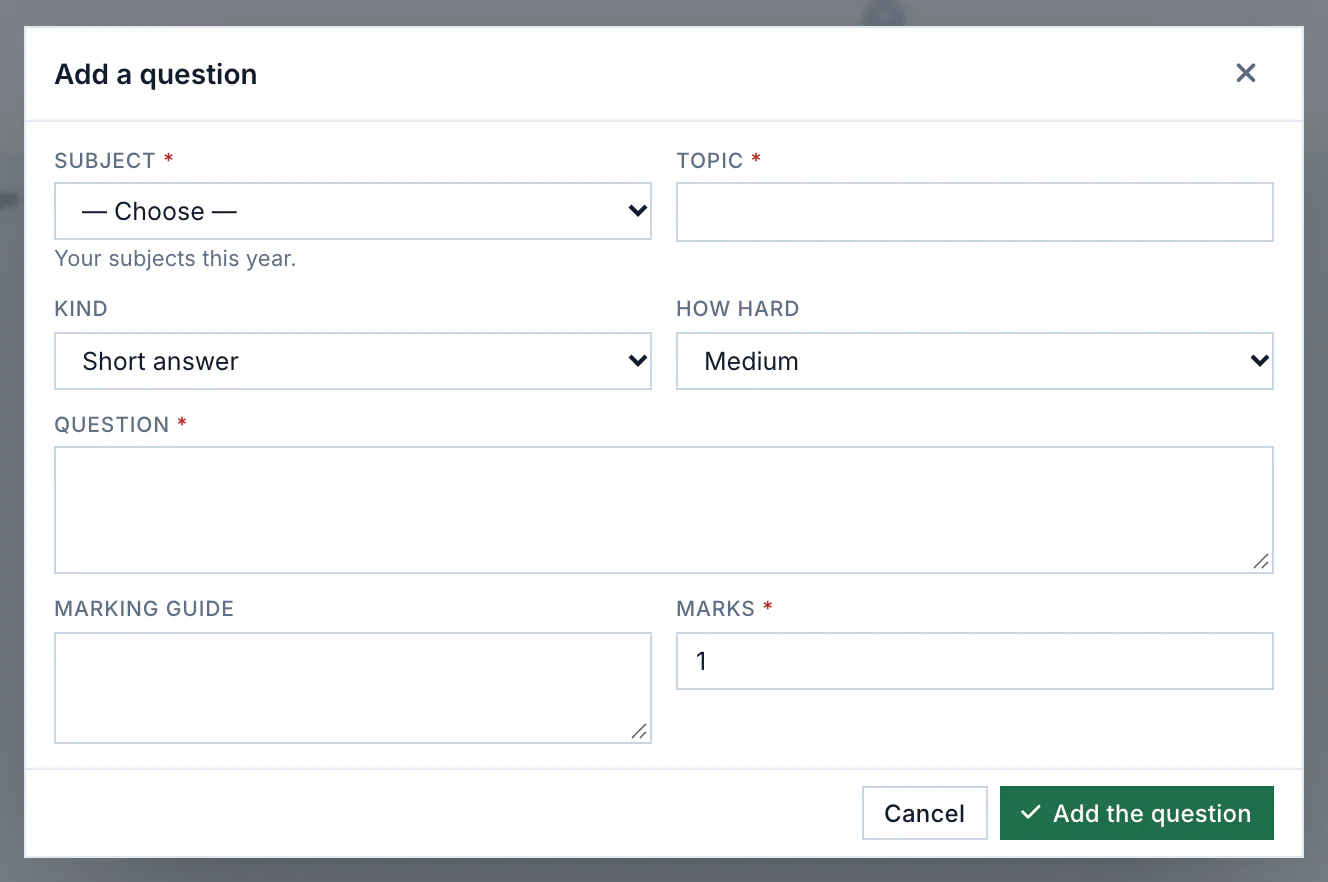
- One of the subjects you teach this year.
- The syllabus topic.
- Short answer, structured, multiple choice or essay.
- The question as students will read it.
- The marking guide: the answer, or the points that earn marks.
- What the question is worth, 1 to 100.
A question you type goes into the bank at once. A multiple-choice question needs at least two choices.
Find a question#
Search the topics and questions, and filter by class and subject. Each row shows the question, its kind and difficulty, the subject and class, the topic and the marks. Click a question to read it with its choices and marking guide, who added it and when.
The subject's teachers, the head teacher, the deputy, the director of studies and the school administrator can Edit the question or Remove the question from its window.
Draft questions with AI#
When the school allows AI suggestions, those who add questions also see Draft with AI.
- Press Draft with AI.
- Choose the subject, then the topic. Topics from the subject's schemes of work and the syllabus are suggested as you type; you can type your own.
- Choose the kind, how hard, and how many questions (up to 10).
- Press Draft the questions.
The questions come back as your drafts, under My drafts. None is in the bank until you approve it. Read each one, change what you want with Edit the question, then press Approve the question. Drafts are never printed or shared.