
The exam timetable plans one sitting of exams, such as the end-of-term exams: which class sits which paper, on which day, from when to when, in which room, and who invigilates. It checks for clashes as you go, gives every teacher a list of their duties, and prints.
Open it from Teaching › Exam timetable.
Before you start#
- The director of studies, the head teacher, the deputy and the school administrator build exam timetables.
- Every other member of staff who can see the Teaching menu reads the published ones and their own duties.
- The rooms come from the timetable's Rooms page. See The weekly timetable.
Start an exam timetable#
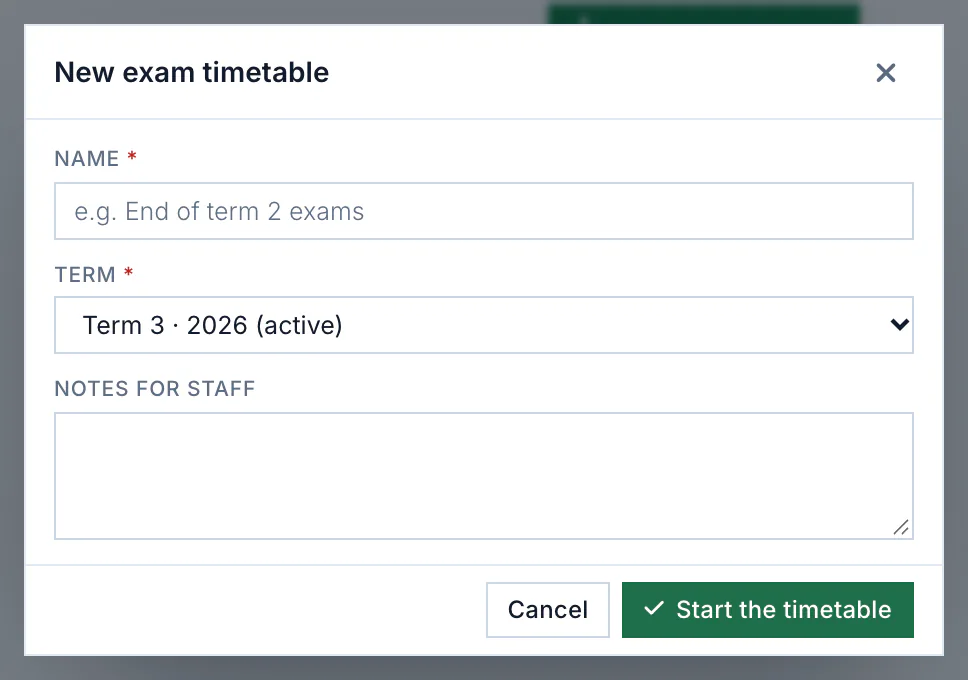
- A name staff will recognise, for example End of term 2 exams.
- The term the exams belong to.
- Notes for staff, shown under the name.
- Starts it as a draft. Add its papers next.
It starts as a Draft: only those who build exam timetables can see it. Rename changes its name, term or notes. Once it has papers, its term cannot change: make a new exam timetable for another term.
Add the papers#
- Press Add a paper. To add one on a day already listed, press Paper on this day beside that day.
- Choose the class and the subject. Under Paper, add Paper 1 or Practical if the subject has more than one.
- Choose the day, and when it starts and ends. A new paper starts with the same day and times as the last one you added.
- Choose a room if it needs one, and add a note to print on the timetable, for example Bring a calculator.
- Read the box at the bottom: green means the class, the room and the invigilators are free.
- Press Add the paper.
A paper cannot be set on a Sunday, must end after it starts, and lasts at most 6 hours. The class must be in the term's year.
A paper clashes when the class already sits a paper at that time, or the room is already used. The check covers every exam timetable of the school, draft or published. When it is meant, tick Save it anyway, the clash is meant.
To change or remove a paper, press the pencil on its row. Remove takes its invigilators off too.
Choose the invigilators#
- Press the person button on a paper's row. Who invigilates opens.
- Find each member of staff and tick them.
- Choose one as Chief if you want.
- Press Set (the button counts the invigilators).
The window warns when someone is already watching another paper at that time, or is on approved leave that day. Tick Keep them anyway, the clash is meant to keep them. A paper can have up to 20 invigilators.
The Invigilators tab lists everyone with duties: their papers, hours and how many as chief. The print button on a row prints that person's duties.
Publish#
Press Publish when the papers are in (an empty exam timetable cannot be published). Then:
- every member of staff with a duty sees it under My duties. Those with lessons on the timetable also see it on the day in My lessons today on their dashboard;
- the school calendar shows the exam week, from the first paper to the last;
- if the school sends fees reminders before exams, they count from the first paper. See Reminders and demand notices.
Back to draft hides it from staff again and drops the exam week from the calendar.
Print#
- Print gives the whole exam timetable as a PDF. To print one class's papers, choose the class first, then press Print this class.
- Each invigilator's duties print from the Invigilators tab.
My duties#
Every member of staff has a My duties tab. It lists their invigilation on published exam timetables, from a month ago onwards: the day and time, the class and paper, the room, and who else is watching. The number on the tab counts the duties still to come. The print button prints your own duties for that sitting.