
A lesson plan is the plan for one lesson: what will be taught, how, with what, and the steps of the lesson. Teachers write it from one of the school's templates and send it for review. Their supervisor approves it or sends it back saying what to change.
Open it from Teaching › Lesson plans.
Before you start#
- Teachers plan lessons for the subjects they teach. A nursery plan names a learning area instead of a subject, for a class the teacher teaches in.
- Teachers see their own plans and the plans of anyone they supervise. The head teacher, the deputy, the director of studies and the school administrator see every plan.
- A plan's supervisor is the teacher's supervisor on their staff record. The head teacher, the deputy, the director of studies and the school administrator can review anyone's plans, so a teacher with no supervisor named is still reviewed.
Write a plan#
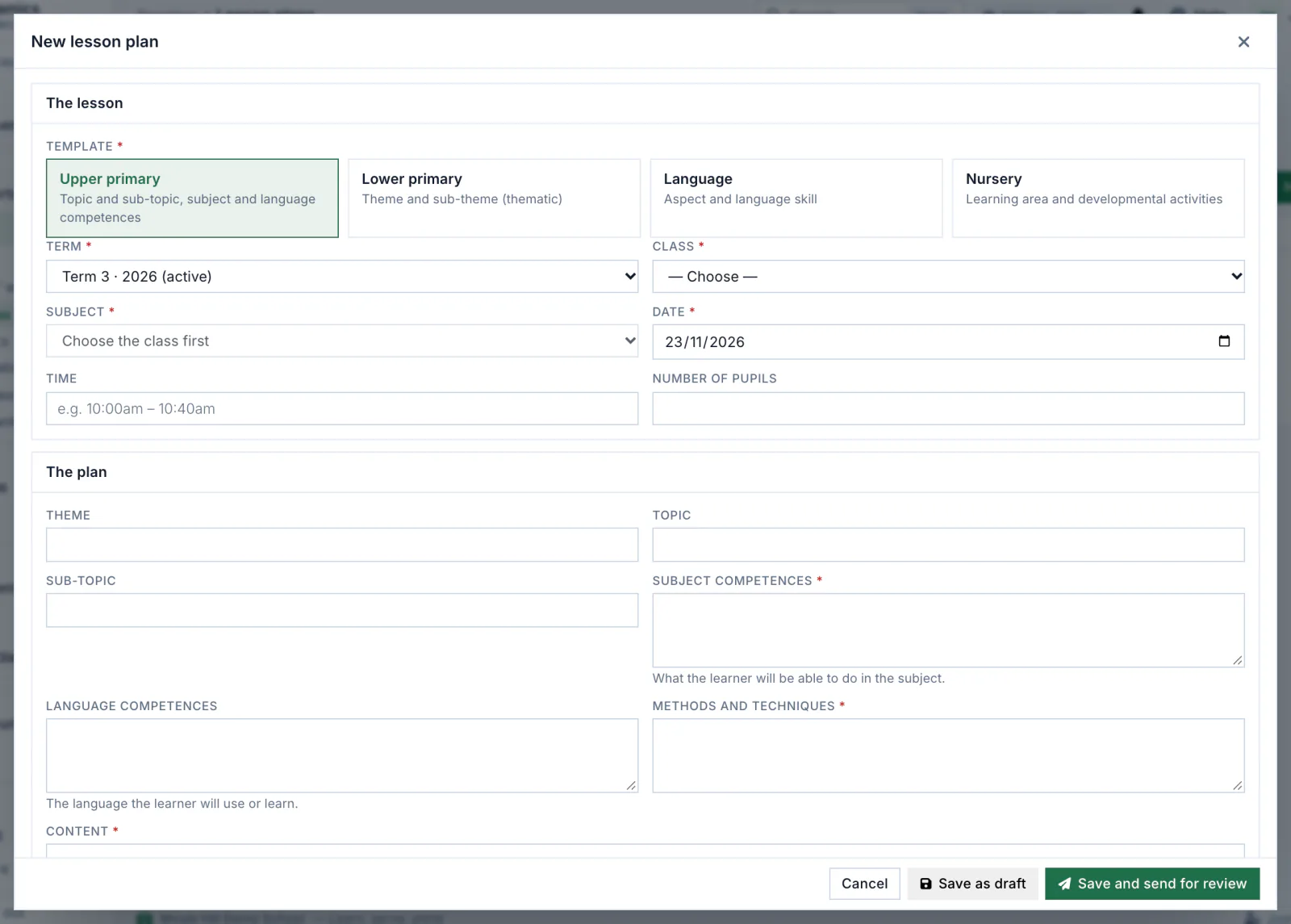
- The template: upper primary, lower primary, language or nursery.
- The term, then the class.
- One of your subjects in that class.
- The day of the lesson.
- Keep it as a draft to finish later.
- Save it and send it to your supervisor.
- Press New lesson plan.
- Choose the template 1: Upper primary (topic and sub-topic, subject and language competences), Lower primary (theme and sub-theme), Language (aspect and language skill) or Nursery (learning area and developmental activities).
- Choose the term 2 and the class, then the subject 3. For a nursery plan, type the learning area.
- Set the date 4, and the time and number of pupils if you want.
- If the subject has a scheme of work this term, choose a line under Fill from the scheme of work and press Fill the plan.
- Fill in The plan. More fields shows the template's other fields.
- Under Lesson procedure, type each step: its duration, its name, the teacher's activity and the pupils' activity. Add a step adds a row.
- Press Save as draft 5, or type a note for your supervisor and press Save and send for review 6.
These must be filled in before a plan saves: the subject competences (for nursery, the competences), methods and techniques, content, life skills and values, learning aids and references. If one is missing, the form says which.
Fill in Self-evaluation (strengths, areas to improve, strategies) after the lesson.
The head teacher, the deputy, the director of studies and the school administrator also see Teacher and Supervisor in the form, to write a plan for another teacher or choose who reviews it.
Find a plan#
The page has two tabs, Plans and By teacher. The figures at the top count the term's drafts, plans sent for review, plans sent back for changes and plans approved. Supervisors also see how many wait for their review.
On Plans, search by topic, theme or content, and filter by term, status, template and class, and by the lesson's dates (from and until). Supervisors can also filter by teacher and by supervisor, to see the plans one supervisor looks after. When plans are waiting for you, press Waiting for me to see only those. Click a plan to open it; the print button prints it.
By teacher lists the teachers whose plans you can see (the head teacher, deputy, director of studies and school administrator see everyone who teaches a subject that year), even those with no plans, with their drafts, plans waiting for review (and since when), plans sent back, approved and the last lesson planned. Click a name to see that teacher's plans.
Send for review, approve or send back#
Open a plan to read it. The buttons at the bottom depend on who you are and where the plan is:
| Button | Who | When |
|---|---|---|
| Edit the plan | The plan's teacher | While it is a draft or sent back |
| Edit the plan | The head teacher's office | At any time |
| Send for review | The plan's teacher | A draft, or a plan sent back |
| Approve / Send back | The teacher's named supervisor, or the head teacher's office | A plan sent for review, never your own |
| Delete the draft | The plan's teacher, or the head teacher's office | A draft never sent for review |
| Everyone who can open it | Always |
Here the head teacher's office means the head teacher, the deputy, the director of studies and the school administrator.
- Send for review needs a short note for the supervisor.
- Approve takes a comment if you want one. Left empty, it says Approved by you on today's date.
- Send back needs you to say what should change. The teacher sees it at the top of the plan as What to change, edits the plan and sends it for review again.
Nobody reviews their own plan, and only a plan sent for review can be reviewed. The plan's Review section keeps who sent it, who reviewed it, when, and what they wrote.