
Learning resources are the notes, past papers and links teachers share with a class. Staff find them here; parents open the ones marked for them in the phone app.
Open it from Teaching › Learning resources.
Before you start#
- Teachers, the head teacher, the deputy, the director of studies and the school administrator can share resources. Other staff who see the Teaching menu can read them.
- A teacher shares for the subjects they teach, or for a whole class they teach in.
Share a resource#
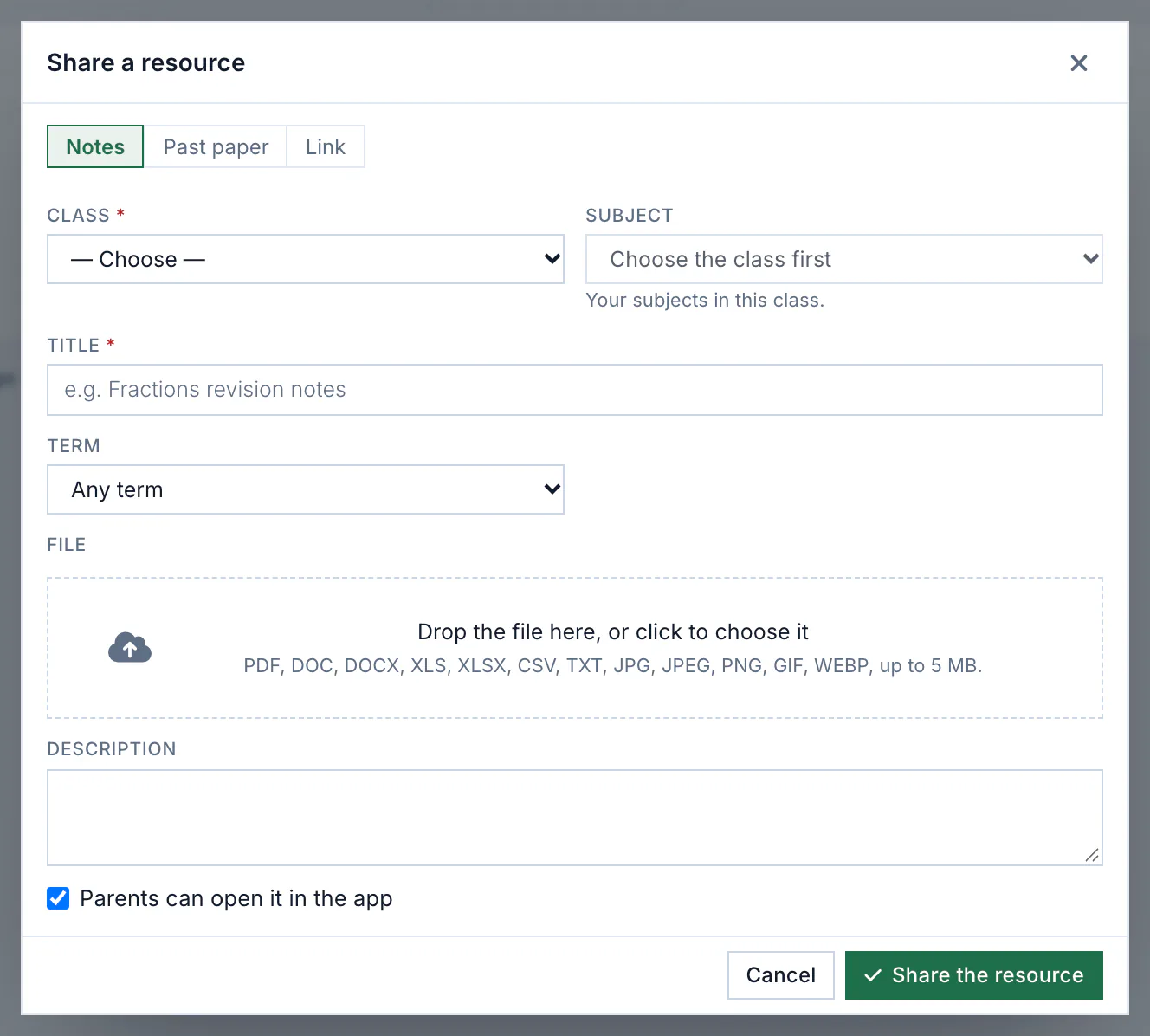
- Press Share a resource.
- Choose the kind 1: Notes, Past paper or Link.
- Choose the class 2, then one of your subjects 3, or leave The whole class.
- Type a title 4, for example Fractions revision notes.
- Choose a term if it belongs to one. For a past paper, type the year of the paper.
- Drop the file in the box, or click it to choose the file. For a link, type the web address instead.
- Add a description if it helps.
- Leave Parents can open it in the app ticked 5, or untick it to keep it for staff.
- Press Share the resource 6.
A file can be a PDF, a Word or Excel file, a CSV or text file, or a picture, up to 5 MB. Files are kept small because parents open them on phone data. A larger file is refused with a message: save it smaller (a PDF, or fewer pictures) and try again. A link must start with http:// or https://.
Find a resource#
Search by title or description, and filter by class, subject and kind. Tick Shared by me to see only yours. Each row shows the class and subject, the kind (with a past paper's year), the size, who shared it and when. Staff only under a title means parents do not see it.
Press the download button (or the arrow, for a link) to open it, or the eye to see its details. The details window has Open the file (or Open the link), and, for the person who shared it and for the head teacher, deputy, director of studies and school administrator, Edit the resource and Remove the resource.
When you edit a resource, leave the file box empty to keep the current file.
What parents see#
Parents see the resources marked for them, for the classes their children are in this year, in the phone app. When a resource is removed, parents no longer see it. See The parents' app.