
The timetable generator builds a whole week for you. It starts from your school day, how many lessons each subject gets, who teaches them, the times teachers cannot teach and the rooms some subjects need. It never puts a teacher, a class or a room in two places at once. What it makes is a draft: you review it in the timetable, move what you want, and only publishing replaces the real timetable.
Open it from Teaching › Timetable, then the Generate a timetable tab.
Before you start#
- Only the director of studies and the school administrator can use the generator.
- The year's classes and subjects must exist, and each subject should have its teacher. See Subjects.
- Add the laboratories and halls some subjects need under Rooms first. See The weekly timetable.
The generator has four tabs: Drafts, School day, Lessons a week and Teachers. Work through the last three, then generate from Drafts. The line under the tabs sums it up, for example 5 days × 8 lessons = 40 periods a week.
1. The school day#
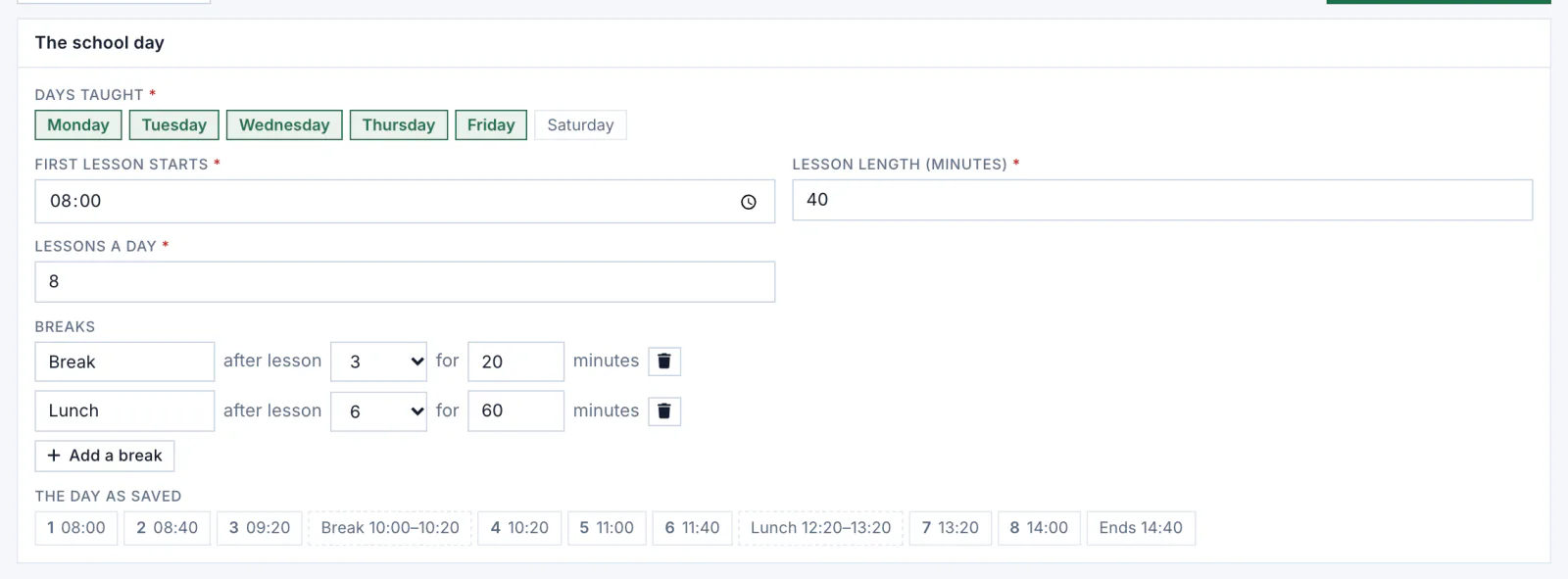
- The days lessons are taught.
- When the first lesson starts.
- How long one lesson lasts.
- How many lessons make a day.
- Breaks and lunch, each after one of the day's lessons.
- Open School day.
- Choose the days taught 1. Monday to Friday is ticked at first.
- Set when the first lesson starts 2, the lesson length in minutes 3 (20 to 120) and the lessons a day 4 (3 to 12).
- Set the breaks 5: each has a name, the lesson it comes after and its length. At first there is a 20-minute break after lesson 3 and an hour's lunch after lesson 6.
- Set the preferences (below) and the classes to timetable.
- Press Save the school day. The day as saved shows each lesson's start time.
Preferences are what the generator tries to keep:
| Preference | Means |
|---|---|
| Most periods of one subject a day | Per class, 1 to 4. Two allows a double. |
| Hard subjects in the morning, up to lesson | Hard subjects are kept before this lesson. At first, the last break. |
| Most lessons in a row for a teacher | 2 to 12. A break ends a run. |
| Time the generator may take (seconds) | It stops then, with the best week found. |
Under Classes to timetable, tick the classes to include. None ticked means every class. A class with streams gets a week for each stream, unless you tick as one class. The lessons of classes you leave out stay as they are, and the generator keeps their teachers and rooms free when they are teaching there.
2. Lessons a week#
Open Lessons a week and choose a class. Each subject shows its lessons a week, its doubles, whether it is Hard, the rooms it needs and its teacher (one per stream when the class has streams). A line says how many of the week's periods are used; it turns red when the subjects need more than the week has.
Subjects marked default have not been set yet: the class's week is shared evenly between its subjects, leaving about a tenth free, and the compulsory subjects get the extra lessons.
To change a subject, click its name:
- Type the Lessons a week and how many of them are doubles (two lessons in a row, for practicals). A subject can have at most half its lessons as doubles.
- Tick A hard subject: keep it in the morning if it should be.
- Under Must be taught in, tick the rooms it can use. Any one of them will do. With none ticked, it is taught in the class's own room.
- Choose the teacher, or leave The subject's own teachers, in turn.
- To use the same lessons, doubles and rooms for this subject in every other class, tick the box at the bottom.
- Press Save (the button names the subject).
Use the defaults puts the subject back to the shared-out week.
3. Teachers#
Teachers lists each teacher's periods a week (from the lessons a week of their subjects), their free periods and the classes they teach. Too many means they have more periods than free ones. Approved leave this term shows under the name.
To mark the times a teacher cannot teach, click their name. Tap a lesson to mark it; tap a day or a lesson number to mark the whole row. Then press Save (the button counts the times marked).
4. Generate and review#
- Press Generate a timetable.
- Under For, choose the term (the active term is chosen), or every term of the year.
- Leave Starting number empty for a new draft.
- Press Generate the draft. It works in the background for up to the time you allowed. You can leave the page.
The Drafts tab lists each draft with how many periods it placed (and how many it could not), its preferences missed and its state. The fewer preferences missed the better: it counts the preferences the draft could not keep.
Click a draft's name to see its details: what it could not place and why, any warnings, and which preferences it broke.
Press Review the draft to open the draft in the timetable itself. A blue band says you are looking at a draft. Moving, changing or removing lessons there changes only the draft, with the same clash checks as the real timetable, plus the times teachers cannot teach. Back to the timetable leaves the draft.
5. Publish, undo, remove#
Press Publish the draft beside a draft (or Publish the draft… in the review band). The window says exactly what will happen: which classes' timetable is replaced for the term, how many of their lessons will be switched off, and how many lessons the draft will write. Press Publish (the button counts the lessons) to go ahead.
- Undo: the lessons a publish switched off are kept. Press Undo the publish on the latest published draft of the year: its lessons are switched off and the old ones come back.
- Remove: a draft that is ready, failed or undone can be removed with the bin button. Its lessons are deleted; the timetable does not change.
Only one draft can be generated or published at a time. If another is running you are asked to wait for it to finish.