
A class is one level in one academic year: P.4 in 2027, S.2 in 2027. It has a class teacher, its subjects and its students. A school has one class per level each year; when a level is split into groups (P.7 East and P.7 West), the groups are streams of that one class, each with its own stream teacher.
Open it from School structure › Classes.
Before you start#
- The school administrator, the head teacher, the deputy, the director of studies, teachers and the secretary can see the classes.
- Only the school administrator, the director of studies and the school's owner can add or change classes and streams.
- The year must exist. A new academic year already gets one class for each level the school teaches, with its usual subjects; see Academic years and terms.
The list of classes#
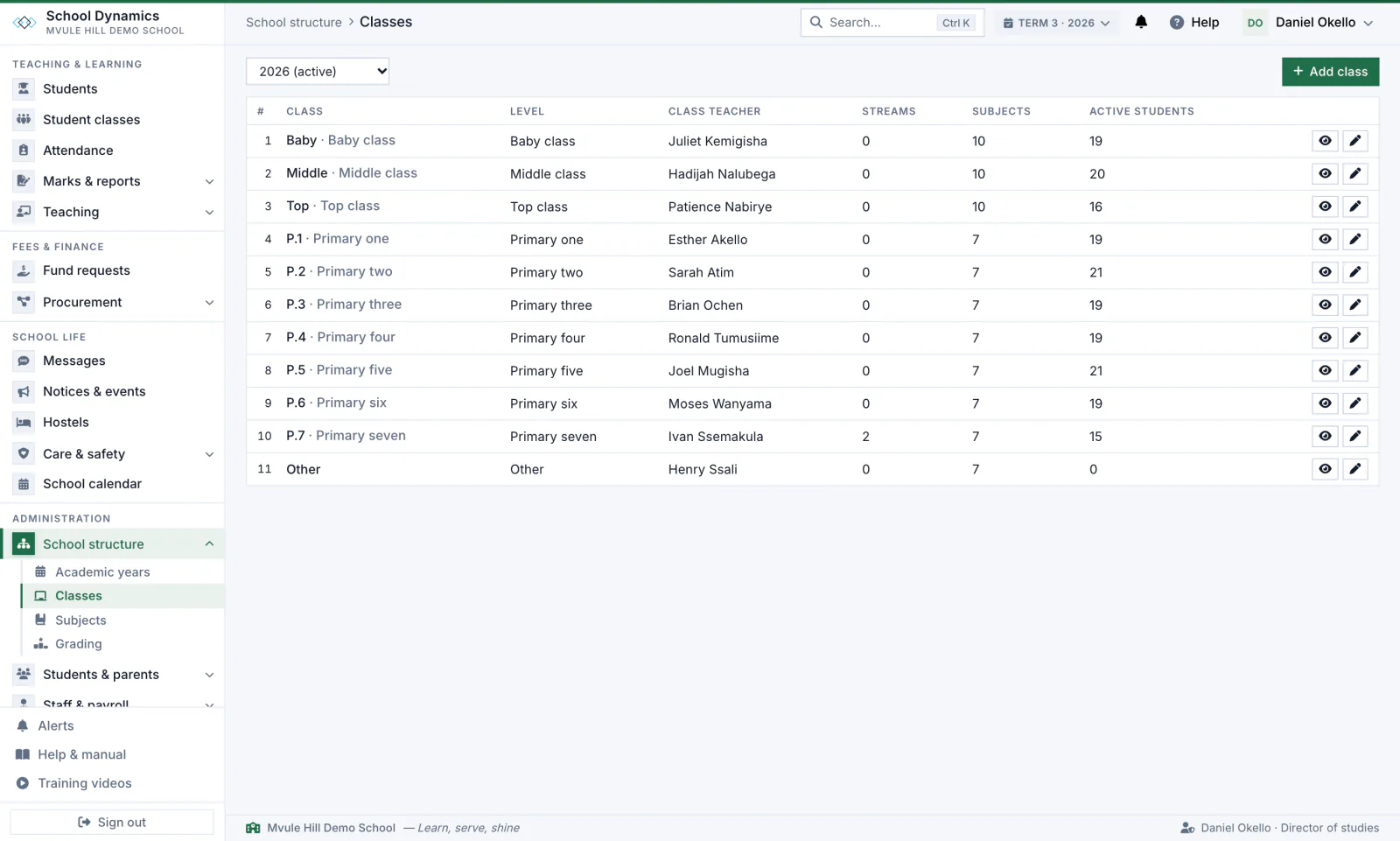
- The year whose classes are listed. It opens on the active year.
- Add a class for a level the school does not have yet this year.
- Click a class to see it at a glance.
- Change the class's name, class teacher or year.
The list shows the classes of one year 1, with each class's level, class teacher, number of streams, subjects and active students. Click a class's name 3 for its quick view. The pencil 4 changes the class.
Add a class#
Most schools never need this, because each new year comes with its classes. Add one when the school starts teaching a new level.
The class takes the level's name and short name, and gets the usual subjects for its level. A secondary class also gets the compulsory subjects of the new curriculum. If the year already has that level, the dialog says This school already has that class in that academic year.
At a university, a class belongs to a programme instead of a level: choose the Programme. A programme has one class per academic year. See Programmes.
Change a class#
- Press the pencil beside the class.
- Change the Class name, Short name, Class teacher or Details.
- Press Save class.
The class's level cannot change once it is made. Its Academic year can change only while no student is in the class; otherwise the dialog says This class has students, so its year cannot change. Add the class in the other year instead. When a class moves to another year, its subjects move with it.
A class at a glance#
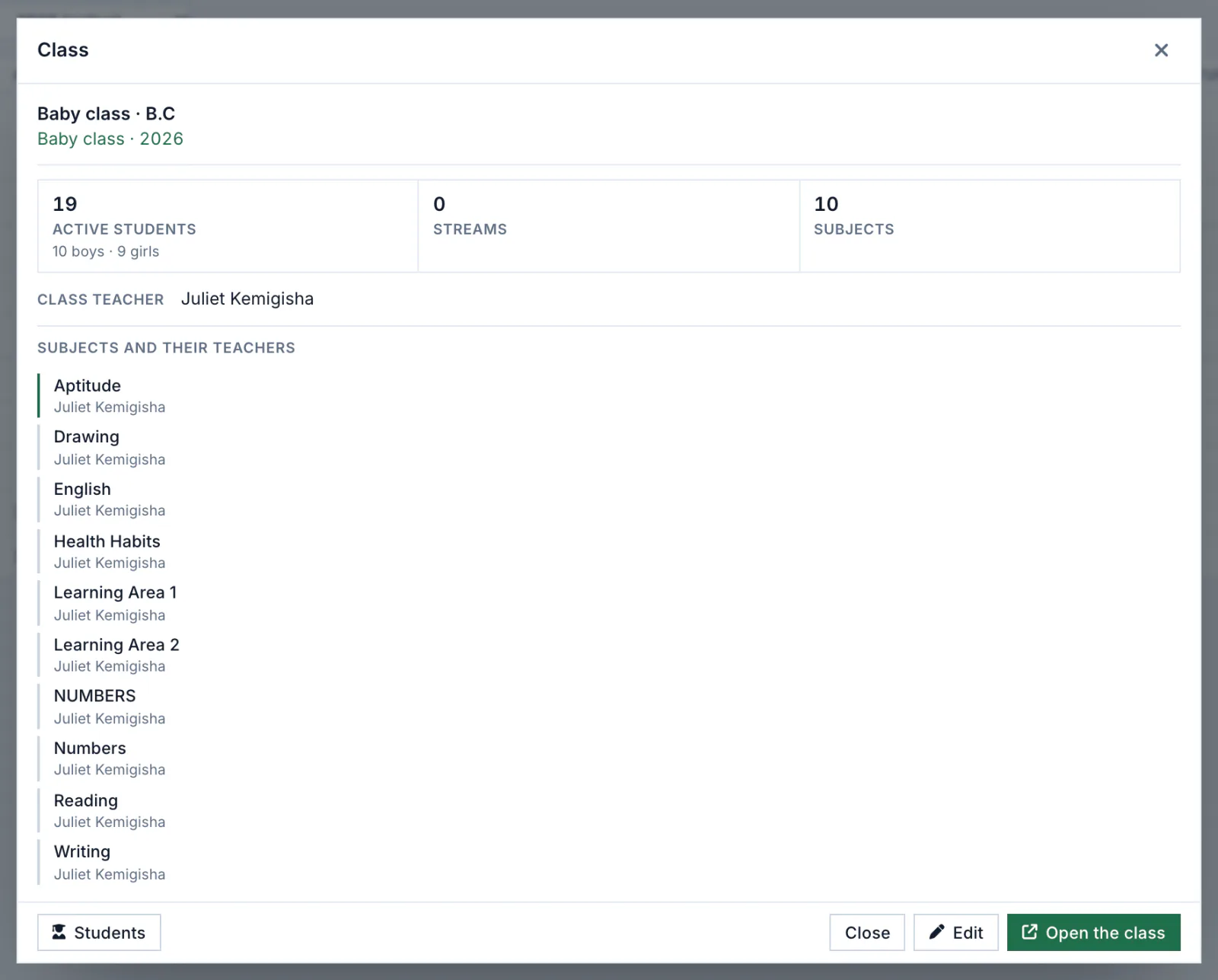
- Active students (boys and girls), streams and subjects.
- The class teacher, and each stream with its teacher and number of students.
- Every subject of the class and its teacher.
- The class's own page: subjects, streams and students.
Click a class's name for its quick view. It shows the active students, boys and girls 1, and each stream with its stream teacher and number of students 2. If some students of a streamed class are in no stream, it says how many. Below are the subjects and their teachers 3. Students opens the Students list for that class, Edit changes the class, and Open the class 4 opens its own page.
The class page#
A class's own page shows its year, level and class teacher, and has these tabs:
| Tab | What it holds |
|---|---|
| Subjects | The subjects the class takes, their teachers, and whether each is on report cards and graded. See Subjects. |
| New curriculum | Secondary classes only: the new curriculum subjects and their teachers. |
| Streams | The class's streams and their stream teachers. |
| Students | The class's active and pending students, with their stream. Click a name to open the student. Those who manage students change a student's stream with the branch button on their row, and Move students opens Student classes for this class, to move several at once. Print class list gives them on the school's letterhead, stream by stream, with each parent's name and phone and two blank columns to tick; With photos adds each child's photo. A teacher prints only the classes they teach. |
Add a stream#
- Open the class and choose the Streams tab.
- Press Add stream.
- Type the Stream name (for example East).
- Choose the Stream teacher, if it has one.
- Press Add stream.
To rename a stream or change its teacher, press the pencil beside it, then Save stream.
Then put the students in their streams: on the Students list, tick them, press Stream and choose the stream. See Finding students.
Good to know#
- Classes and streams are not deleted from these pages.
- Each year has its own classes. At the end of the year, students are promoted from this year's classes into next year's; see Changing class and promotion.
- Teachers must be members of the school's staff. Until your staff are added, the school's owner stands as class teacher; see Staff and their accounts.
- Class fees are set per class, not per stream; see Fee structure.