
The students list is where you look up a student, check who is in a class and act on many students at once. Open it from Teaching & learning › Students.
Anyone on staff who works with students can open it: teachers, the head teacher, the director of studies, the bursar, the secretary, the warden and the nurse. Only the school administrator, the director of studies and the secretary can admit, edit or move students.
Reading the list#
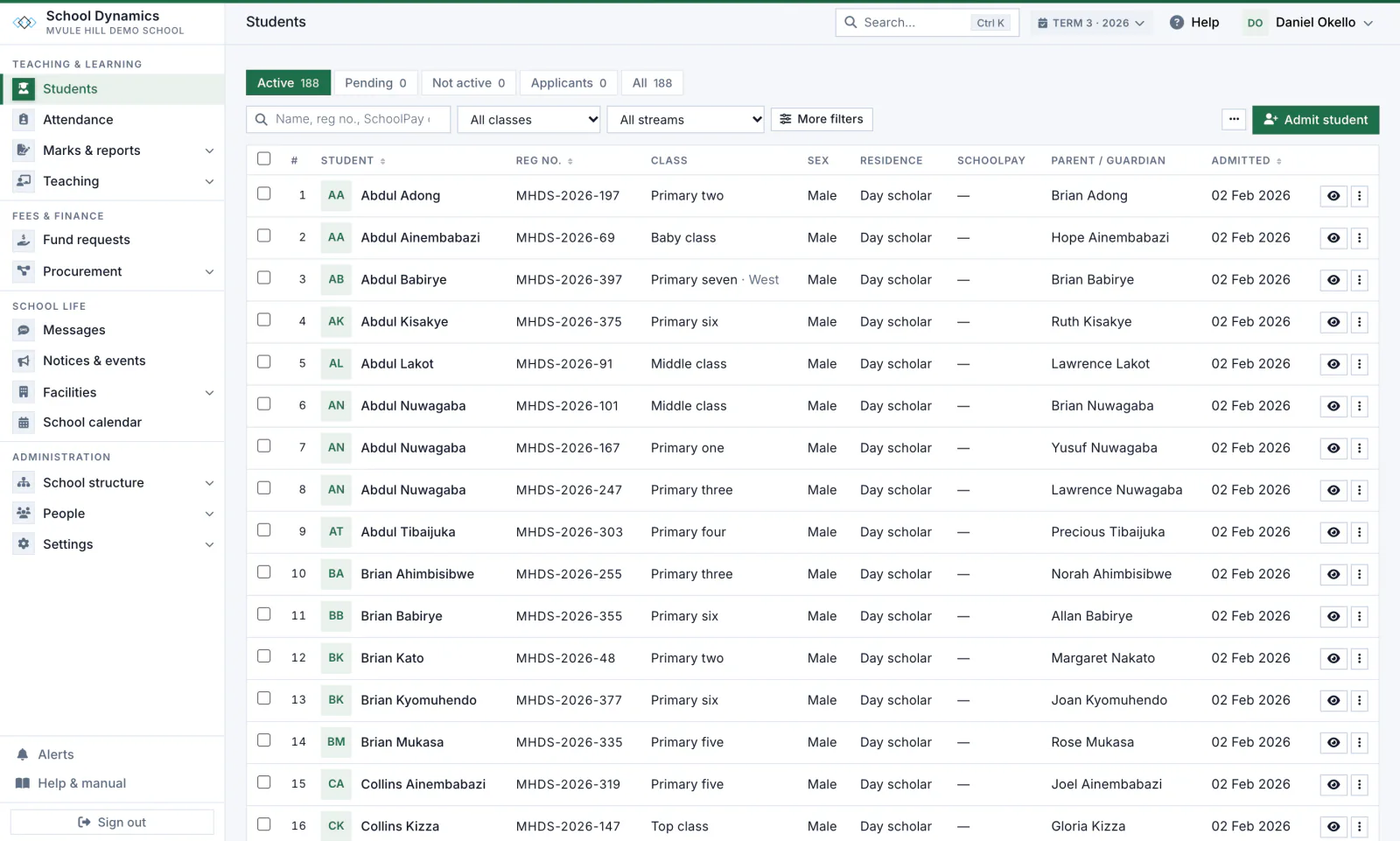
- The status tabs, each with how many students it holds.
- Search by name, reg no., SchoolPay code or phone number.
- Show one class. Classes are grouped by year.
- Sex, day or boarding, SchoolPay code, admission dates and more.
- Admit a new student.
- The row menu: full profile, admission letter, edit, status, class.
The tabs at the top 1 sort students by their status:
| Tab | Who is on it |
|---|---|
| Active | Students in school now. The list opens here. |
| Pending | Admitted but not yet active, for example waiting to report. |
| Not active | Students who left or finished school. |
| Applicants | Students the old system made from online applications. |
| All | Everyone, with a Status column. |
Each row shows the photo (or initials), the name, the reg no., the class and stream, sex, day or boarding, the SchoolPay code, the parent or guardian with their phone, and the day the student was admitted. A student with no class shows a red No class label.
Click the Student, Reg no. or Admitted heading to sort by it.
Searching and filtering#
- Type in the search box 2. It finds a name, a reg no., a SchoolPay code, a LIN or a phone number. With seven or more digits it also finds the guardian's, father's and mother's numbers, however the number was written.
- Choose a class 3. Classes are grouped by academic year, and the active year is marked. No class finds students without one. When a class has streams, a stream box appears beside it.
- Press More filters 4 for sex, day scholars or boarders, the SchoolPay code (Has a SchoolPay code, No SchoolPay code, Code shared with another student) and the dates a student was admitted. Schools with theology classes also get the theology class and stream here.
- Clear filters puts everything back.
The counts on the tabs follow your search and filters, so you can see at once how many of a class are pending or not active.
The row menu#
The ⋮ button at the end of each row 6 is the student's row menu. It holds:
- Full profile: the student's own page.
- Admission letter: the student's admission letter as a PDF, in a new tab. See Documents and ID cards.
- Edit details, Change status and Change class, for those who manage students.
Looking at a student without leaving the list#
Click a student's name, or the eye at the end of the row. The student's record opens in a quick view over the list.
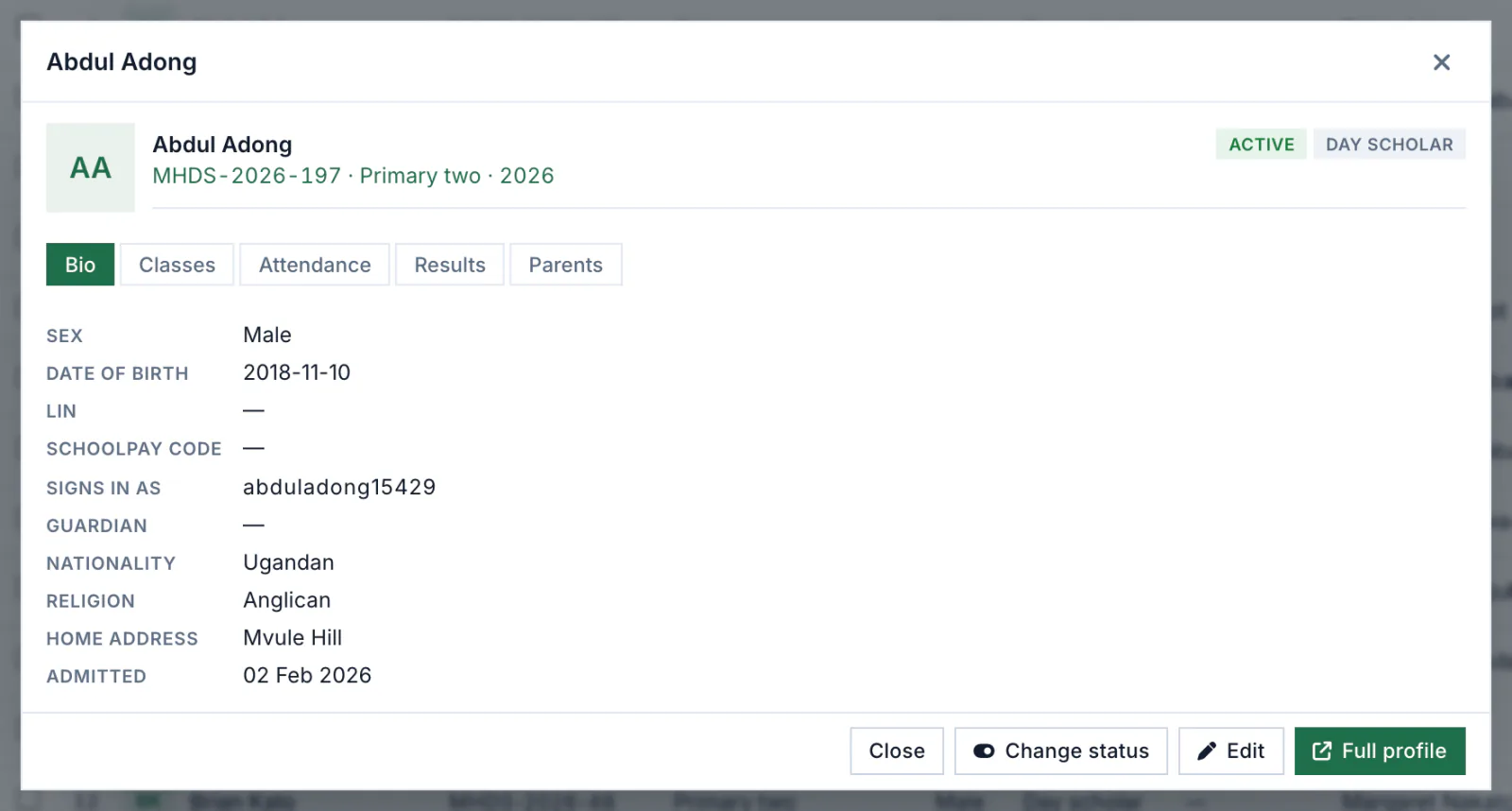
- The record, tab by tab: bio, classes, attendance, results, parents.
- The tab's facts.
- Change the student's status.
- Edit the student's details.
- Open the student's own page.
The quick view has the same tabs as the student's own page 1: Bio, Classes, Fees (for those who see fees), Attendance, Results and Parents. The facts of the open tab show below 2. On the Fees tab, the bursar can open the fees account or record a payment from here.
At the bottom, Change status 3 and Edit 4 open the same dialogs as on the list, and Full profile 5 opens the student's page. Close or Esc takes you back to the list where you were.
A student's name is a quick view link everywhere in School Dynamics: on roll-calls, class lists, discipline records and more.
Acting on many students at once#
Tick the students in the first column, or tick the box in the heading to tick the whole page. When the list has more pages, Select all … matching takes every student that matches your search and filters.
A bar appears with the actions: Status, Promote, Class, Stream, Sex and Reg. numbers (and Theology stream at schools with theology classes). Each one opens a dialog that says exactly what will happen, and who will be left as they are and why, before you confirm. See Changing class and promotion and Students who leave.
Students without a registration number#
If some active students have no reg no., a yellow line says how many. Press Give them numbers to number them all. The number is the school's short name, the year the student was admitted and their record number, for example MHDS-2026-1042. Students who already have a number keep it.
More student pages#
The ⋯ button at the right of the toolbar opens Class lists, Promotions and Optional subjects (see Changing class and promotion) and, for those who manage students, Export: a CSV file of every student on the tab you are on who matches your filters.