
A student's page brings everything about one student together. Open it with Full profile from the student's quick view, or from the row menu on the students list.
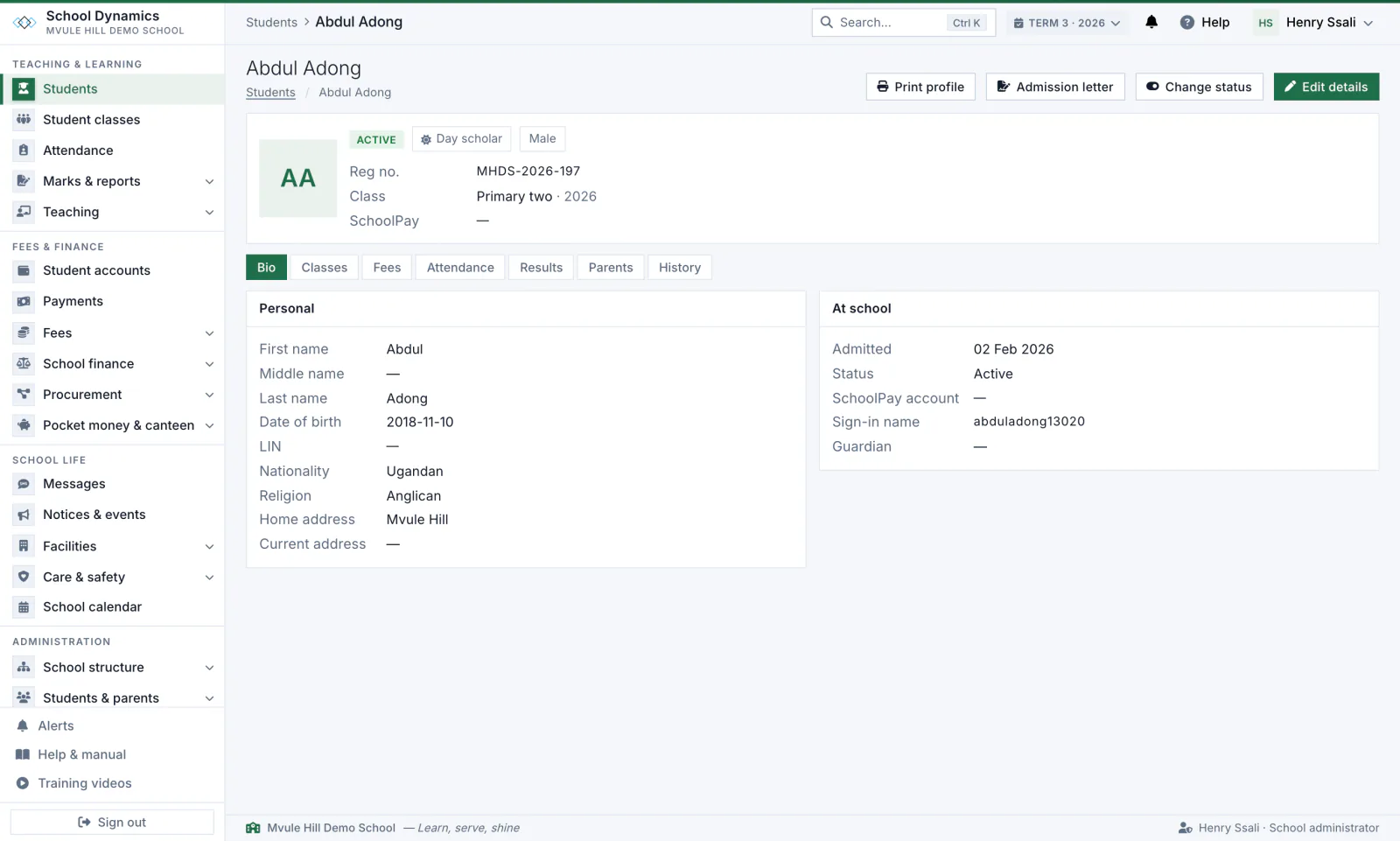
- The admission letter, as a PDF.
- Active, pending or not active.
- Change the student's details, class or parent.
- The student's details, tab by tab.
- The open tab: here the student's personal details and their time at school.
The top of the page shows the photo, the status, day or boarding, the sex, the reg no., the class and stream with its year, and the SchoolPay code. A click on the photo shows it full size.
Three buttons sit at the top right:
- Admission letter 1 opens the student's admission letter as a PDF in a new tab.
- Change status 2 makes the student active, pending or not active (see below).
- Edit details 3 opens the same dialog used to admit a student, to change any detail, the class or the parent.
Only the school administrator, the director of studies and the secretary see Change status and Edit details.
Print profile, beside them, opens the record as a PDF on the school's letterhead, to print or file: the photo, personal details, home and contacts, the class history, this term's attendance and, for those who see the school's money, this term's fees with the latest bills and payments. A teacher can print the profiles of the students they teach. It holds a child's personal details: keep the paper safe.
The tabs#
The tabs 4 each show one part of the student's details 5.
| Tab | What it shows |
|---|---|
| Bio | Names, date of birth, LIN, nationality, religion and addresses; when the student was admitted, the SchoolPay account, the sign-in name, the guardian, and the marketing agent if one brought the student. |
| Classes | The class history: one class record per year, with the stream and any optional subjects. At schools with theology classes, the theology classes too: the head teacher, the director of studies and the school administrator place the student in one (Place in a theology class), change it or its stream with the pencil, or take them out with the bin. |
| Fees | What the student owes (or holds in credit) over all terms, what was billed and paid this term, what was brought forward, and the latest bills and payments on their account. |
| Attendance | The attendance rate, present and absent, for this term, the last 90 days or this year, by kind of roll-call. |
| Results | The student's report cards, term by term, with marks, aggregates, division and position. |
| Parents | The parent account, brothers and sisters at the school, and the guardian details on the student's profile. |
| History | Who changed or opened this student's details. For the head teacher, the deputy and the school administrator. |
Classes#
Change class opens the edit dialog, where you choose the new class. The branch icon on a class record changes only that year's stream; if it is the current class, the student's stream changes too. See Changing class and promotion.
Fees#
Fees account opens the account's quick view and Statement opens it as a PDF; the bursar also has Record payment here. If some of this term's fees for the student's class are not billed yet, a yellow line says how much; for an active student, the bursar's Bill now bills them. See Student accounts and Record a payment.
Attendance#
Choose This term, Last 90 days or This year. The figures count closed roll-calls only, and only for a student who is active. See The attendance dashboard.
Results#
Each report card opens with the arrow at the end of its row, for those who may read report cards. A student with no report cards yet says No report cards for this student yet.
Parents#
The left card shows the linked parent account: name (a link to the parent's page), phone, email and sign-in name, and any Brothers and sisters here. Link a parent (or Link another parent) and Unlink parent change it. With no parent linked but guardian details on the profile, Find or add the parent links a parent with the guardian's phone number, or makes one; no password is sent. See Parents and guardians.
The right card, Guardian details on the student's profile, shows the guardian, second phone, occupation, father and mother as typed on the student's profile.
History#
Every change to the record (what changed, from what to what) and every time someone opened the record, a discipline record or a sick-bay visit, newest first. The top line says whether the parent agreed to the child's photos being used in public: Agreed, Said no or Not asked (no). See Data protection.
Changing the status#
Press Change status, choose Active, Pending or Not active, and press the button (Make active, Mark pending or Mark not active). The dialog says what each one does:
- Active: needs a class of the active year. The student gets a reg no. if they have none, and is billed this term's fees for their class that are not billed yet.
- Pending: admitted, not yet active. Nothing is billed.
- Not active: left or finished school. Their class history, results and balance stay. Nothing is billed. See Students who leave.
If the student cannot become active, the dialog says why, for example The student cannot be made active: … is not a class of …. Put them in a class of the active year first. Use Edit details to choose a class of the active year, then try again.