
When a student leaves the school, transfers or finishes their last class, mark them Not active. Nothing about them is deleted: they move off the lists of students in school.
Before you start#
- Changing a student's status is for the school administrator, the director of studies and the secretary.
Mark one student as not active#
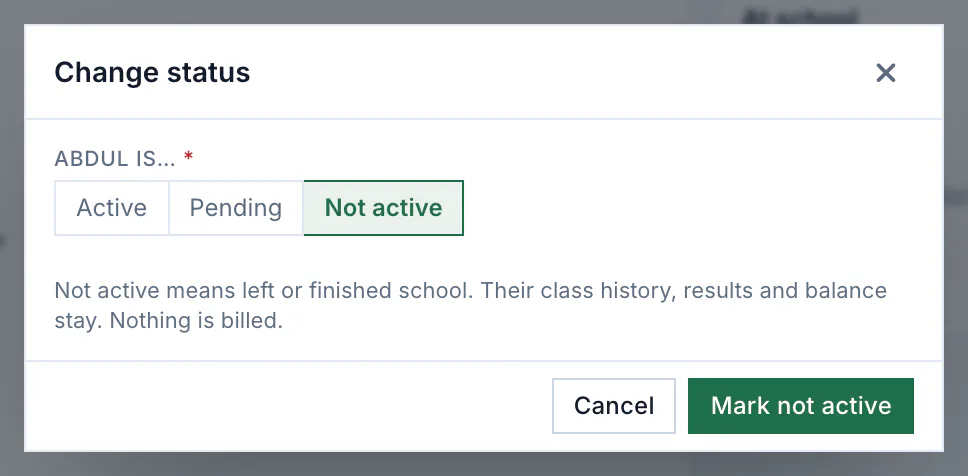
- Choose Not active.
- What it means: class history and balance stay, nothing is billed.
- Mark the student not active.
Mark many students as not active#
- On Teaching & learning › Students, filter the list (for example to the class that finished school) and tick the students, or tick the whole page. Select all … matching takes every page.
- Press Status in the bar that appears.
- Choose Not active. The dialog says how many will change, and who is left as they are because they already are not active.
- Press Mark … students not active.
What changes, and what stays#
A student marked not active:
- moves to the Not active tab of the students list, and off the Active one;
- keeps their class history, report cards and marks, and stays on the roll-calls already taken. Attendance figures, on their page and on the dashboard, count active students only;
- keeps their fees account and balance: what they owe stays owed. Fees already billed stay; to change them, see Fixing mistakes;
- is no longer billed: Bill now and new term's fees are for active students only;
- is left out of new roll-calls, attendance figures, ID card batches and promotions by results;
- is left out of letters printed for a class (they print for active and pending students), though you can still print a letter for the student by name;
- stays linked to their parent account.
The Student list export can still include them: choose Everyone, including those who left. See Exports.
When a student comes back#
Find them on the Not active tab, press Change status, choose Active and press Make active.
To become active, a student needs a class of the active academic year. If their class is from an earlier year, the dialog says the student cannot be made active and why: press Edit details, choose their class for this year, then make them active.
When they become active again, they are billed this term's fees for their class that are not billed to them yet, and get a reg no. if they have none.