
A payment or a bill is never typed over. To correct one, you change it, cancel it with a matching line, or add a line that puts the balance right. Each way leaves a trail with your name and your reason, so the statement always explains itself. Read How fees work first if you have not.
Before you start#
- The bursar, the finance officer and the school administrator can edit a line's wording, date and term, move lines to another term, undo a line, and reduce what is owed, add a charge or set a balance.
- Changing a line's amount or student is for the bursar (and the school's owner).
- Deleting a line is for the bursar alone.
- The head teacher and the deputy can see everything but correct nothing.
Which fix for which mistake#
| The mistake | The fix |
|---|---|
| Wrong description, date or being payment for | Edit the line |
| Wrong term | Change due term |
| Wrong student, or wrong amount | The bursar Edits the line. Or Undo it and record it again with a new receipt number |
| Recorded twice, or never happened | Undo it (the bursar may Delete it instead) |
| One payment was for several children | Split to other students: see Record a payment |
| The balance is wrong as a whole (an old debt, an agreed figure) | Set balance, or Reduce what is owed / Add a charge |
| A class fee was billed at the wrong amount | Correct the fee's bills on the Fee structure |
| A service was billed wrongly | Re-price at today's fee or Unsubscribe under Services |
| A bursary is wrong | Remove the award, then award the right one: see Bursaries |
A line's menu#
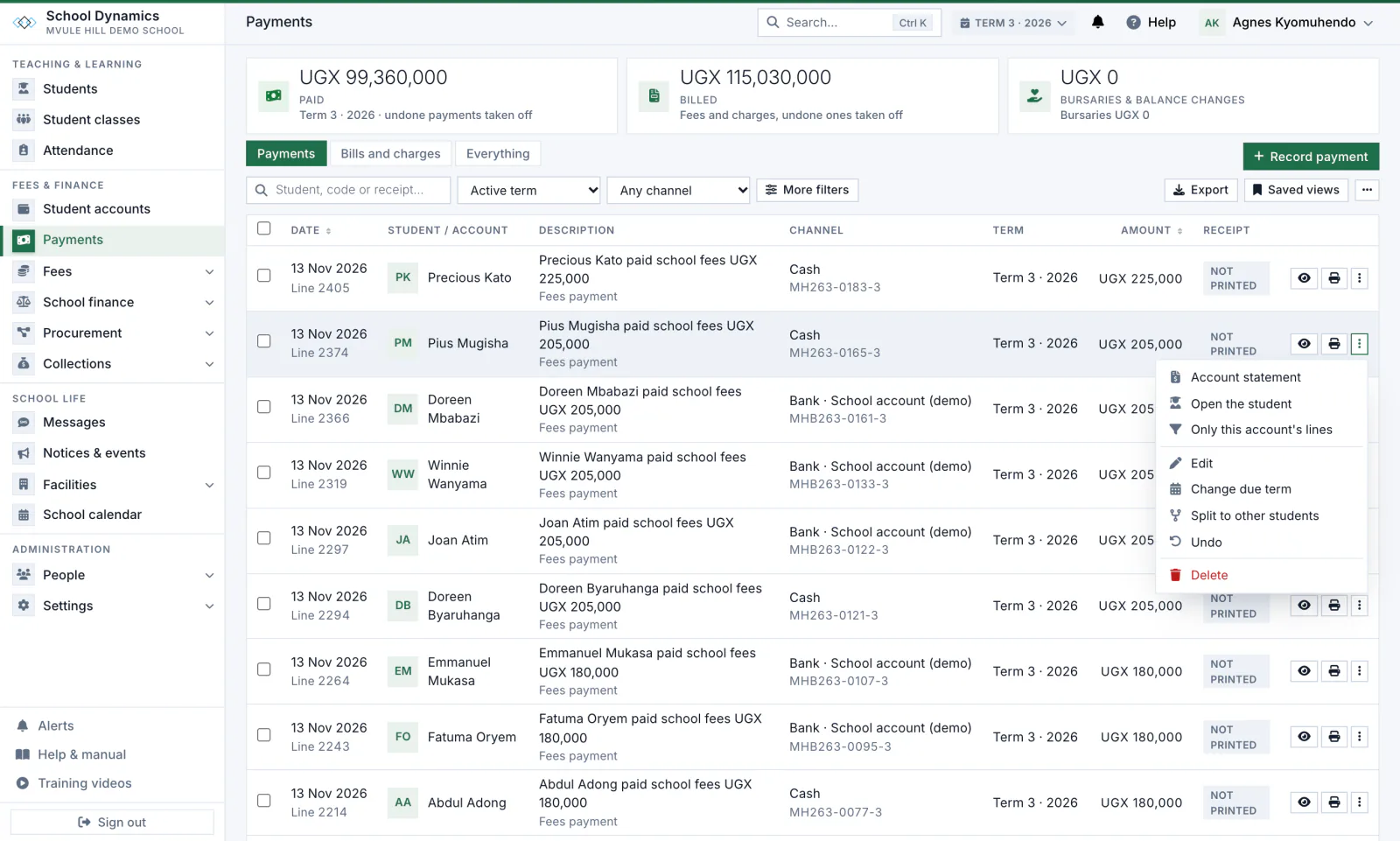
Every line has a menu (the three dots) on the Payments list and on the student's statement. The line's quick view (click its date or description on the Payments list) has the same buttons.
Edit a line#
- Open the line's menu and choose Edit 1.
- Change the Description, the Particulars (printed on the receipt), the Date or the Term.
- If you are the bursar, you can also change the Amount (UGX) (a plain number is a payment; a bill or charge has a minus sign in front, for example -50000) and the Account (search for the right student). Then write the Reason: it goes to the activity log.
- Press Save changes.
Moving a line to another student changes both balances at once. Anyone else sees Only the bursar can change the amount or the account of a line. in place of those boxes.
The dialog refuses to save when:
- nothing was changed (Nothing was changed: the line already says this.);
- the description is empty;
- the line is tied to another one. Its amount and student stay as they are, and the dialog says why: it was shared out, it is a share of a split, it was undone or it undoes another line, it is a bursary, or it carries a balance between terms. Correct the other line (the split's original payment, the bursary award, the carry-forward) instead;
- the line is in a closed period (see What is refused below).
Move lines to another term#
A payment entered in the wrong term can move without changing the balance (the balance counts every term). Only the term's figures change.
- Open the line's menu and choose Change due term 2. For many lines, tick them on the Payments list and press Change due term above the list.
- Choose the term in Move to term.
- Press Move to this term.
The academic year moves with the term. If any ticked line is in a closed period, none of them moves.
Undo a line#
Undoing a line cancels it with a matching line for the same amount on the same account, in the same term. Both lines stay on the statement.
- Open the line's menu and choose Undo 4.
- Type the Reason.
- Press Undo the payment (or Undo the charge for a bill).
The page says Payment on line … undone by line …. The new line reads Undoes line … with your reason, and the balance goes back to what it was. On the Payments list, Paid counts the payment with undone payments taken off. The first line's quick view shows Undone and the number of the line that undid it.
It is refused when the line was already undone (This line has already been undone.), when it is a share of a split payment (correct the original payment), or when it is a balance carried between terms.
Delete a line (bursar)#
Delete only what should never have existed, such as a test entry. Undoing is clearer.
- Open the line's menu and choose Delete 5.
- Type the Reason.
- Press Delete the line.
The line leaves the account, the balance is worked out again, and a copy goes to Deleted payments and charges with your name, the time and your reason. Its receipt number can then be used again.
Deleting is refused when the line was undone (Delete line … first, or leave both: together they already cancel out.), when it was shared out (its shares are on other students' accounts), or when it is a share of a split. Anyone who is not the bursar sees Only the bursar can delete a line. Ask the bursar, or undo the line instead.
Deleted payments and charges#
Open Payments › More payment pages › Deleted payments and charges. Every deleted line is listed with when it was deleted and by whom, the account, description, channel, term, amount and reason. Search by student, description, reason or receipt, and filter by term, channel, type, dates and amount. These lines count in no balance. They cannot be changed or brought back.
Reduce what is owed, or add a charge#
For a correction that is not tied to one payment, such as a discount the head teacher agreed or a charge for a broken window:
- Open the student's account (see Student accounts).
- Press Reduce what is owed or Add a charge.
- Type the Amount (UGX) and choose the Term.
- Type the Reason. It is written on the statement.
- Press Reduce what is owed or Add the charge.
The line reads Reduced what is owed: … or Charge added: … with your reason. It is an adjustment: the reports count it apart from payments and bills, so it never inflates the fees collected.
Set a balance#
When you know what the balance should be, such as an old debt from before the school used School Dynamics, or a figure agreed with the parent, set it.
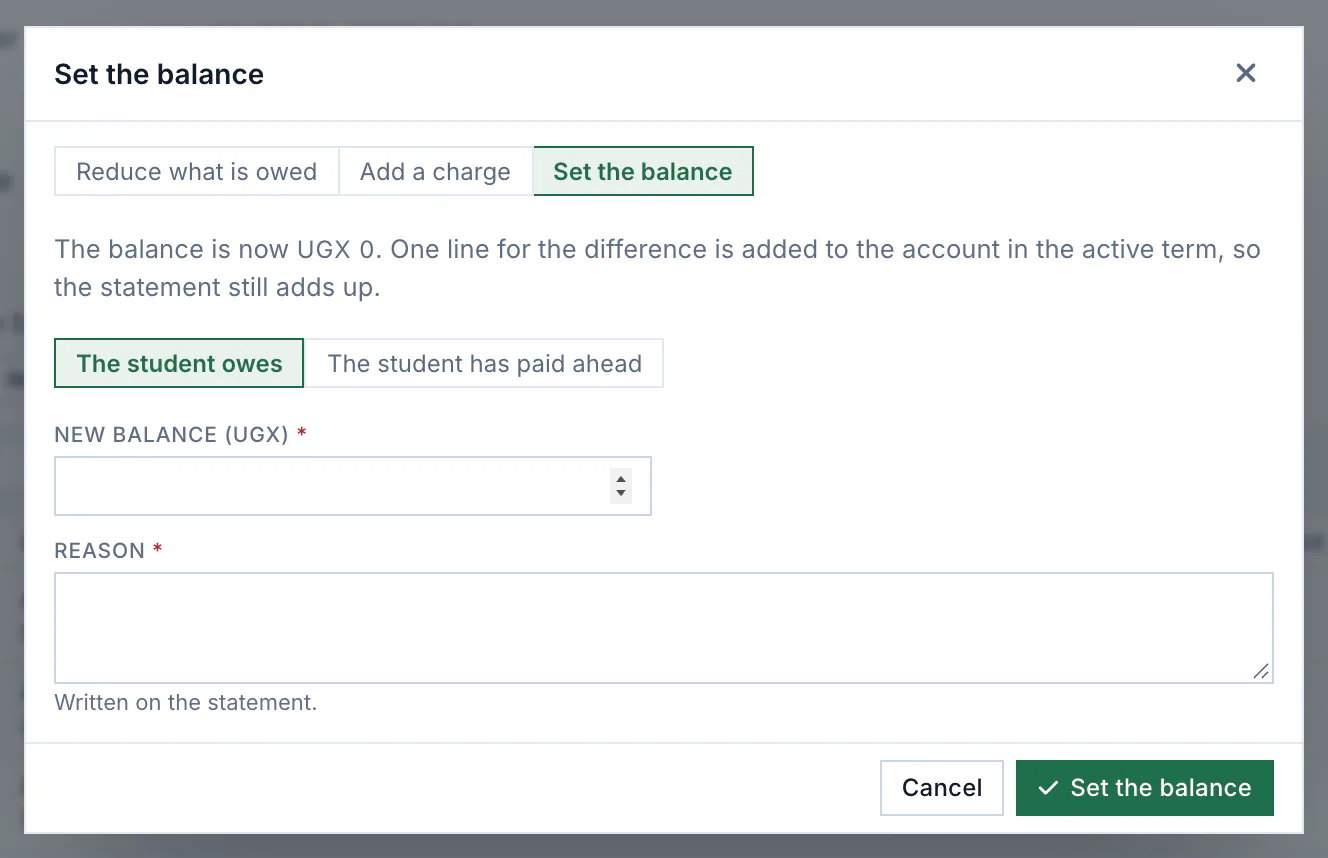
- Reduce what is owed, add a charge, or set the balance.
- The balance now. The difference is added in the active term.
- The new balance, without a minus sign. Choose above whether the student owes it or has paid it ahead.
- Why. It is written on the statement.
- Add one line for the difference.
- Open the student's account and press Set balance. The dialog opens on Set the balance 1 and shows the balance now 2.
- Choose The student owes or The student has paid ahead, and type the New balance (UGX) 3 without a minus sign: for UGX 300,000 owed, choose The student owes and type 300000. For cleared, type 0.
- Type the Reason 4.
- Press Set the balance 5.
One line is added, in the active term, for the difference. It reads Balance set to UGX … (was UGX …): your reason. Nothing else on the statement changes. If the balance is already that figure, nothing is added and the dialog says so.
You can also set a balance from the Student accounts list: Set balance… in a student's menu, or tick several students and press Set balance, type the New balance (UGX), choose whether the students owe it or have paid it ahead, write Why, then press Set balances. Every ticked account is brought to that one figure; those already at it are left alone, and the page says how many changed.
What is refused, and why#
- Closed periods. When the school has closed its books up to a date (see Books of account), a line dated on or before it cannot be edited or moved to another term, and no line's date can be moved into that period. The dialog says The books are closed up to …. Date the correction after that day, or ask whoever keeps the books to reopen them.
- Tied lines. A split payment and its shares, an undo line and the line it undoes, a bursary, and the lines that carry a balance between terms keep their amount and student. Correct the line they depend on.
- A fee is billed to a student once. A bill cannot be moved onto a student who already has that fee (This fee is already billed to this account.).
- Receipt numbers are used once. A cash receipt number once per school, a bank transaction number once per bank account, a SchoolPay receipt once in all of School Dynamics.
What happens next#
- Every correction (edit, move, undo, balance change, deletion) is written in the school's activity log with who, when and the reason.
- Balances follow at once, on every page and report.
- Parents who can see the balance see the new lines on the parents' pages.