
A service is a charge that only some students pay: the school bus, swimming, a uniform, a set of books. Unlike class fees, it is billed only to the students subscribed to it. You set up the services once, then subscribe students each term.
Open Fees & finance › Fees › Services. The page has four tabs: Services, Subscriptions, Batch subscriptions and Categories.
Before you start#
- The bursar, the finance officer and the school administrator can set up services and subscribe students. The head teacher and the deputy can look but not change anything.
- Every service sits under a category, so add the categories first.
- A service that comes with things from the store (a uniform, books) needs those items set up in the store first. See Keep the store.
Add a category#
Categories are the headings services are filed under, such as Transport or Uniforms.
- Open the Categories tab.
- Press Add category.
- Type the Name and, if you like, a Description.
- Press Add category.
Two categories cannot have the same name. A category can be deleted only when no service is filed under it.
The tab also shows, for each category, how many services it holds and what was subscribed this term and this year. These are amounts billed to subscribers, not money collected.
Add a service#
- Open the Services tab and press Add service.
- Type the Name, for example Swimming.
- Choose the Category.
- Type the Fee (UGX) for one subscription, in whole shillings. It may be 0.
- Add a Description if it helps.
- If the store hands something out with the service, tick Items are handed out from the store with this service (uniforms, books…) and tick the items. Each subscriber gets one of each.
- Press Add service.
The list shows each service with its category, fee, the items it hands out, how many students take it this term (Subscribers) and what it has Billed this term. Click a service's name for a quick view: who takes it, class by class, and the latest subscriptions. Its subscribers opens their list.
To change a service, press the pencil. A new fee is used for new subscriptions only. If some of this term's subscriptions were billed at the old fee, the page says how many, so you can re-price them (see below).
A service with subscriptions, a batch or bills on students' accounts cannot be deleted. Neither can the one marked Default.
Subscribe a student#
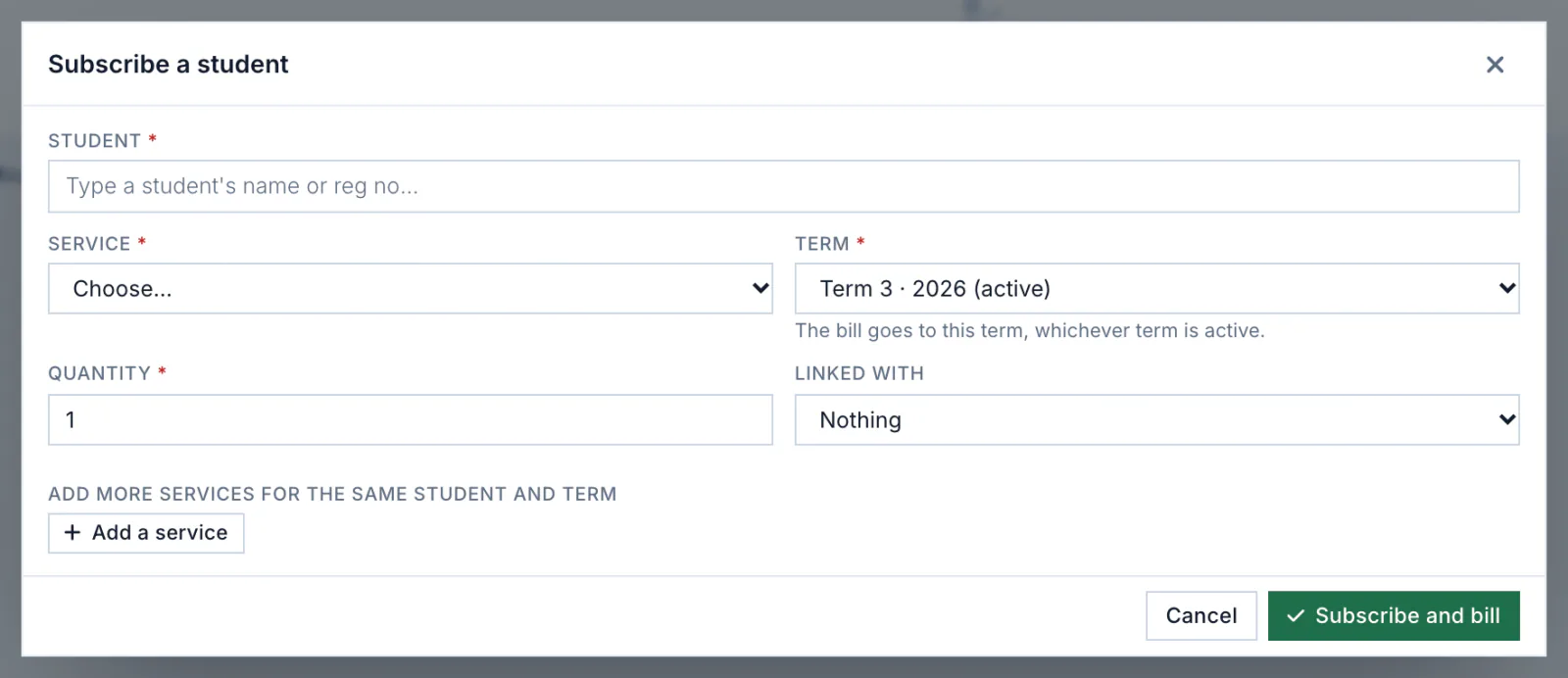
- Type the student's name or reg no, then pick them from the list.
- The service. Its fee shows beside its name.
- The term the bill goes to.
- How many. The bill is the fee times the quantity.
- Transport puts the student on a route's roster and asks for the stage and trip.
- Subscribe the student and put the bill on their account.
- Open the Subscriptions tab and press Subscribe a student.
- Type part of the student's name or registration number 1 and pick them.
- Choose the Service 2.
- Check the Term 3. The bill goes to this term, whichever term is active.
- Set the Quantity 4. Under the fields, the dialog shows what it will bill, for example Bills UGX 300,000 (2 × UGX 150,000).
- Leave Linked with 5 on Nothing, or choose Hostel or Transport. Transport asks for the Stage (pick-up point) and the Trip, and puts the student on that route's roster for the term.
- To add more services for the same student and term, press Add a service and choose them.
- Press Subscribe and bill 6.
The bill goes on the account at once: the student's balance falls by the price, and their statement shows a line such as Debited UGX 150,000 for Swimming service. If the service hands out items, they wait for the student in the store.
A student can have each service only once a term. A second subscription is refused with … is already subscribed to … for ….
Subscribe many students at once#
Use a batch to subscribe a list of students, or whole classes, in one go.
- Open the Batch subscriptions tab and press Add batch.
- Choose the Term and the Service, and the Quantity per student.
- Under Linked with, leave Nothing or choose Hostel.
- Add students: choose a class under Add a whole class… and press Add its active students, or type a name to add one student. Repeat for more classes. Clear the list starts again.
- If the store hands something out, tick Each student gets items from the store and set each item's quantity. With no items listed, the service's own list is used.
- Press Save batch. Nothing is billed yet.
- On the batch's row, press Subscribe and bill and confirm. Every student in it is subscribed and billed.
When it finishes, the batch shows how many students were Subscribed, how many were Already subscribed (left as they were, not billed again) and how many Failed, with the reason for each. The list icon on a batch that has run shows this again.
- Add missing students runs a batch that is done again. Only students still missing the subscription are added. Use it after you add students to the batch.
- Tick several batches that have not run yet and press Subscribe and bill ticked to run them one after another.
- A batch can be changed with the pencil, but its term and service stay. A batch that has not run can be deleted; one that has run is kept to show what it did.
Find and check subscriptions#
The Subscriptions tab lists who takes what. Filter by student, term (the active term at first), service and class. The chips narrow it further:
| Chip | Shows |
|---|---|
| All | Every subscription that matches. |
| Not billed | Subscriptions with no bill yet (usually made in the old system). |
| Priced differently | Subscriptions billed at another price than today's fee × quantity. |
| Items to hand out | Subscriptions that come with items from the store. |
For each subscription you see the quantity, the Price, what is Billed so far and the student's balance (owed or ahead). When what was billed differs from today's fee, it says so under the amount: at today's fee: …. Export saves the list as a spreadsheet.
Change or remove a subscription#
Open a subscription with its eye icon. You can:
- Change the quantity: type the new Quantity. The dialog says what it will bill more or take off. Press Save the new price.
- Bill it now: a subscription that was never billed shows Not billed yet and Bill now.
- Change what it is linked with: choose Nothing, Hostel or Transport and press Save the link. No bill changes.
- Change the items to hand out: add or remove items and press Save items. The store hands them out from Stores › To hand out.
- Remove it: type why in the Note box and press Unsubscribe. Everything it billed is taken off the student's account.
To act on many at once, tick them and press Re-price at today's fee or Unsubscribe. Each row's menu (⋮) has the same two actions for one subscription.
What happens next#
- Each bill, re-price and removal is a line on the student's account, in the subscription's own term. See Student accounts.
- A wrong amount is fixed here, with Re-price at today's fee or Unsubscribe, not by changing the statement. See Fixing mistakes.
- Items to hand out appear in the store's To hand out list until they are given to the student.