
The store pages keep the school's stock: each item, every delivery, everything that goes out, and the items students get with a service (a uniform, a set of books). Open them from Facilities › Stores. There are five tabs: Overview, Items, Batches, Stock in & out and To hand out.
Before you start#
- The store keeper, the purchaser, the bursar and the school administrator can use the store pages.
- The school needs an active term: every movement is filed under it.
- A delivery needs a supplier. Suppliers are kept under Procurement › Suppliers.
How the store counts#
Stock comes in as a batch: one delivery of one item, with its quantity, supplier and unit price. Everything that goes out is taken out of a batch. Each batch shows what is Left and what that is Worth now (left × unit price). An item's stock is what its current batches hold.
Add the items#
- Open the Items tab and press New item.
- Type the Name. Each item's name is used once.
- Under Counted in, type how it is counted: pieces, kg, boxes.
- Type the reorder level. At or below it, the item shows Running low.
- Press Add item.
Each item shows its stock and a status: In stock, Running low or Out of stock. The chips Low or out and Out of stock narrow the list. Click an item to see its current batches, what they are worth, its latest movements and how many wait to be handed out.
An item with batches, or one handed out with a service, cannot be deleted. Rename it if the name is wrong.
Receive a delivery#
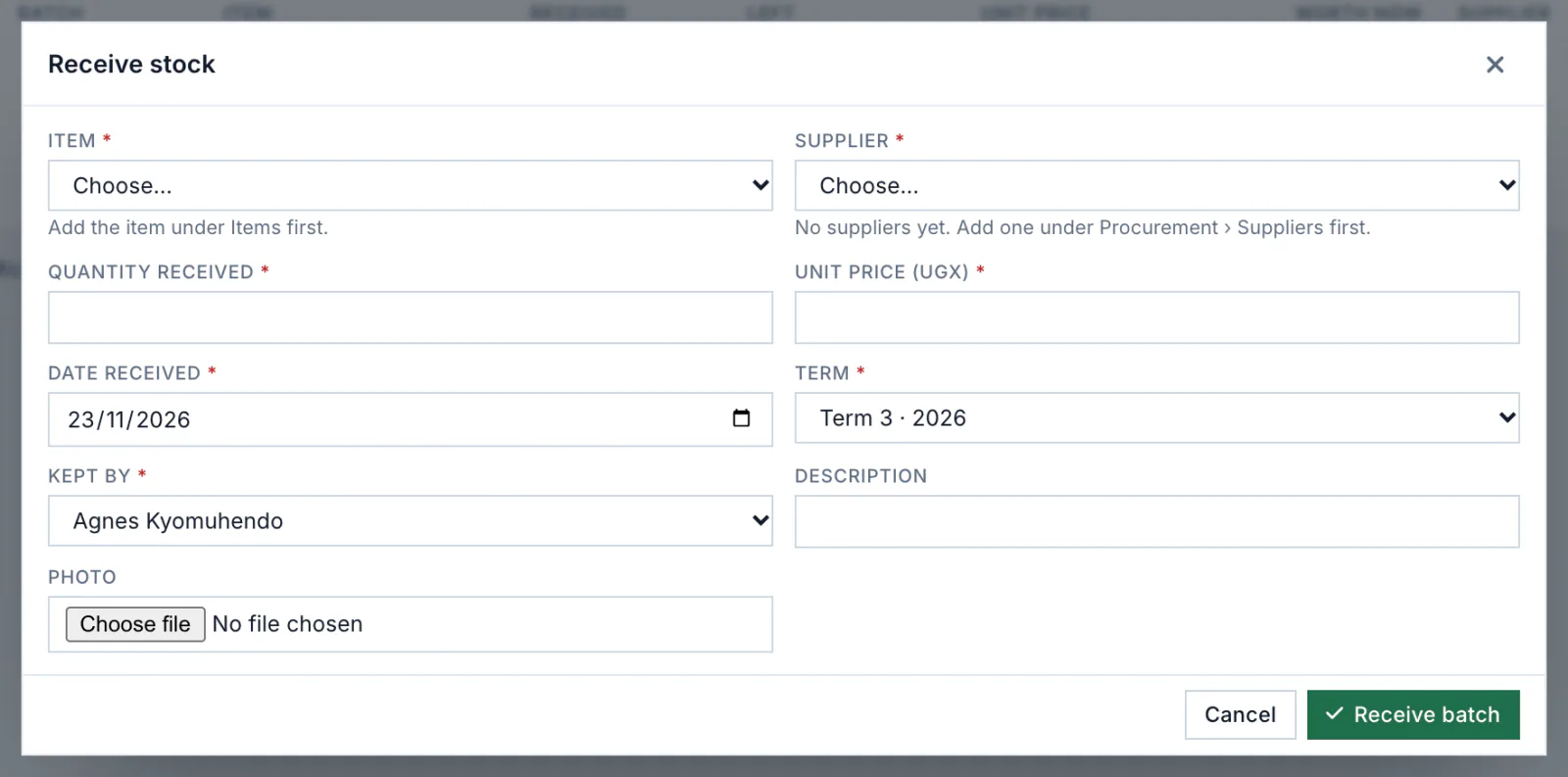
- The item that came in
- Who supplied it
- How much came, in the item's unit
- The price of one unit
- The term this stock is for
- Record the delivery
- Open the Batches tab and press Receive stock.
- Choose the Item 1 and the Supplier 2.
- Type the Quantity received 3 and the Unit price (UGX) 4.
- Check the Date received and the Term 5. The term starts as the active term.
- Check Kept by: the member of staff who keeps this stock. It starts as you.
- Add a description or a photo of the delivery note if you like.
- Press Receive batch 6.
The item's stock goes up at once. The batch list shows how many current batches there are and what they are worth.
You can correct a batch later with the pen button. Its quantity received cannot be less than what has already gone out of it, and once stock has moved its item cannot change.
Record stock going out (or coming back)#
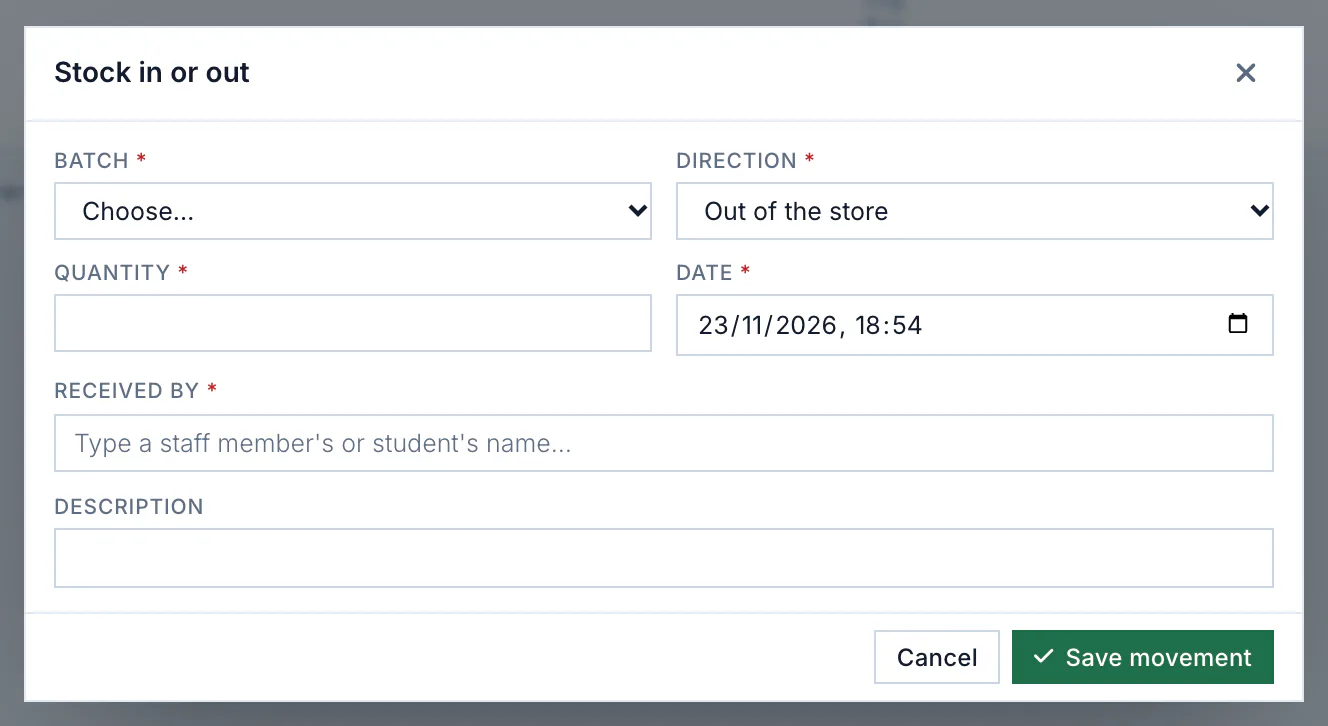
- The batch the stock comes out of (or goes back into)
- Out of the store, or into it
- How much
- Who received it: a member of staff or a student
- Save the movement
- Press Stock in or out (on the Stock in & out tab or the Batches tab). On the Batches tab, the arrow buttons on a batch's row open it for that batch.
- Choose the Batch 1. Each one says how much is left.
- Choose the Direction 2: Out of the store or Into the store.
- Type the Quantity 3 and check the Date.
- In Received by 4, type at least two letters of a staff member's or student's name, then click the person.
- Press Save movement 5.
If you ask for more than the batch holds, the dialog says Only … left in batch no. … and nothing is saved.
The Stock in & out tab lists the movements not yet archived, newest first. Narrow it by direction, item, term, who entered it, or dates. Export downloads the movements the filters show. The pen button corrects a movement (quantity, date, who received it, description); its batch and direction stay. A correction that would take the batch below zero is refused.
Hand out items that come with a service#
Some services come with things from the store, such as a uniform or a set of books. The service is set up that way under Services (Items are handed out from the store with this service). When a student is subscribed, each item waits for them on the To hand out tab.
- Open the To hand out tab. It shows what is Waiting this term.
- Find the student: search by name or registration number, or choose a service, item or class.
- Press Hand out on the row. To hand the same item to several students, tick their rows and press Hand out ticked.
- Choose the batch under From batch. The oldest batch with stock comes first.
- Press Hand out items.
Each hand-out is recorded as stock out of the batch, received by the student. When every item of a student's service is handed out, the service is complete. You can tick items of only one kind at a time, because they come out of a batch of that item.
The other buttons on a row:
- Take back: the item goes back into its batch (recorded as stock in) and waits to be handed out again. Say why.
- The note button: a short note on the item, such as Size 32 next term. Press Save note.
- The row menu: Mark pending (still waiting, for a reason), or Cancel the hand-out…. Cancelling takes all of that service's waiting items off the list; no stock moves and the bill stays. To undo it, find the row under Cancelled and press Put back on the list.
Start a new term#
At the start of a term, press Archive last term's stock on the Stock in & out tab. The dialog says how many movements and batches from other terms will be archived, and how much they still hold. Press Archive.
Archived batches stop counting in the items' stock. Record what is still on the shelves as a new batch for this term. To look back, tick Archived on the Batches or Stock in & out tab.
The overview#
The Overview tab shows the number of items, what the current stock is worth, how many items are out of stock or below their reorder level, and how many items are waiting to be handed out. Below are the items that are low or out, what is waiting to be handed out, the hand-outs not complete, the most valuable stock and the latest movements.
A school that has never received stock sees Stores are not used yet and a Receive the first batch button.