
The Hostels pages hold the school's boarding buildings, the rooms in them, every bed, and which student holds each bed. The night roll-call takes its list of boarders from here, so keep it up to date as boarders come and go.
Open it from School life › Facilities › Hostels.
Before you start#
- The warden, the director of studies and the school administrator can add buildings, rooms and beds and put students in them. Other staff who may see students can look at these pages, but cannot change anything.
- The school needs an active term, because every stay belongs to the term it was made in. Without one you see Set the school's active term first: every stay belongs to a term. Set it under Academic years.
The hostels page#
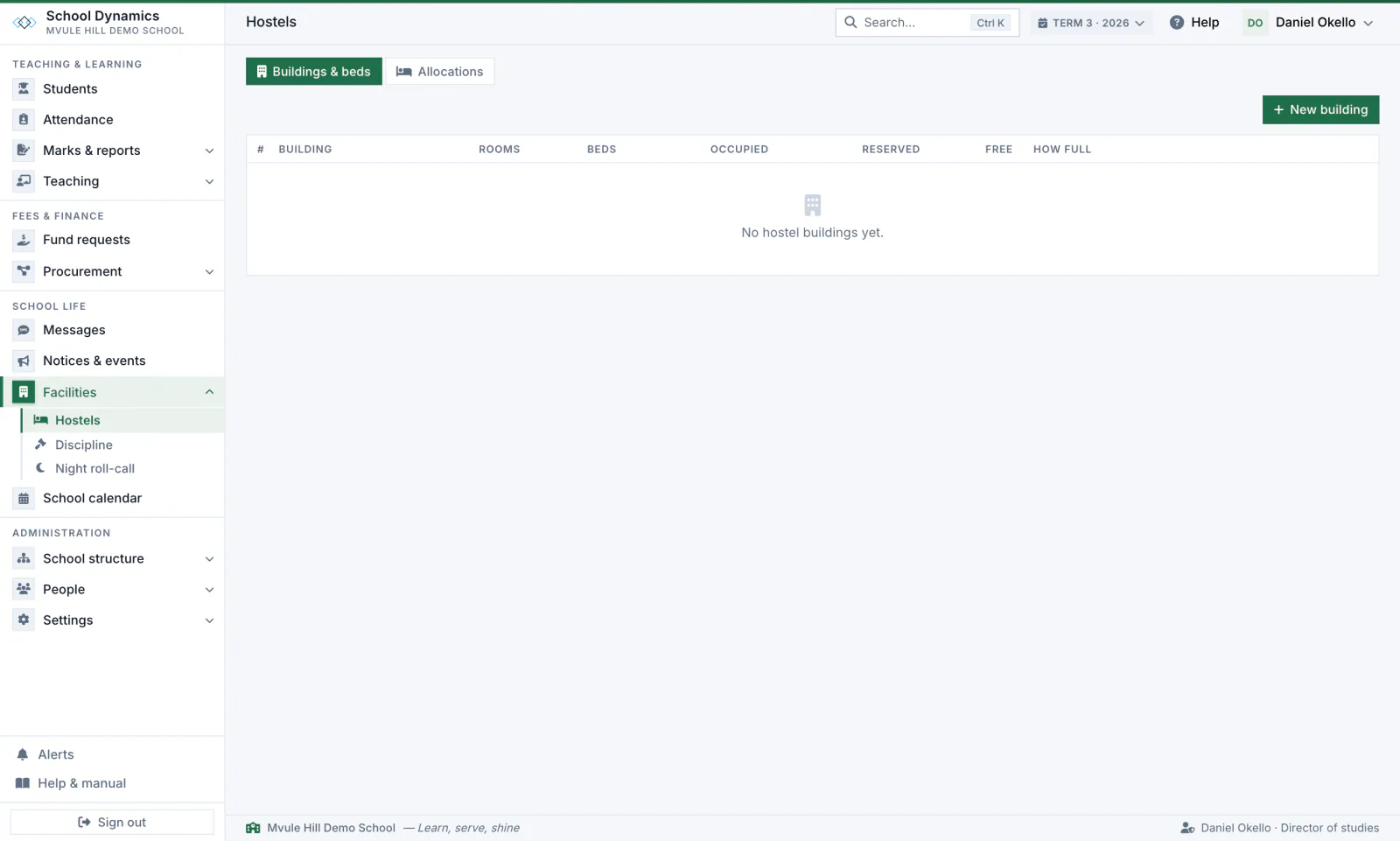
- Two tabs: Buildings & beds, and Allocations (who is in which bed).
- Add a hostel building.
- Each building with its rooms, beds and how full it is. Click a name for a quick view.
The page has two tabs 1. Buildings & beds lists the buildings; Allocations lists the students in beds.
Once the school has beds, figures at the top count every bed in the school: Beds, Occupied, Reserved and Free.
New building 2 adds a building. The table 3 shows each building's rooms and beds, how many are occupied, reserved and free, and a How full bar. Click a building's name (or the eye) for a quick view of its rooms; Beds and students at the foot of the quick view opens the building's own page. The bed icon opens it directly.
Set up a building, its rooms and beds#
- Press New building.
- Type the Building name (for example Block A). Add Details if you like (for example Boys).
- Press Add building.
- Open the building: press the bed icon beside it.
- Press New room. Type the Room name, and in Beds to add now how many beds the room has (4 is filled in).
- Press Add room. The beds are named Bed 1, Bed 2 and so on.
- Repeat for every room.
A room's name must be new in its building, and a bed's name new in its room.
A building and a room can each carry a Photo, at the foot of their form; the building's quick view shows it. When editing, a new photo replaces the one kept, and Take the photo off removes it.
More beds, or a bed with its own name. Press Add beds on the room. Either type How many beds (they are numbered on from the beds already there), or type one name in Or one bed with this name (for example Upper 3). Press Add beds. You can add up to 100 beds at a time.
Rename a bed. Under a room's beds, after Rename a bed:, click the bed's name, type the new one and press Rename bed.
On the building's page each room shows 3 of 8 beds taken, and each bed is a tile: Free, or the name of the student who holds it with Occupied or Reserved.
Put a student in a bed#
You can start in two places:
- On the building's page, click a free bed. The dialog opens with that bed chosen.
- On the Allocations tab, press Put a student in a bed, then choose a free bed in Bed. The free beds are grouped by room and building.
Then:
- Under Student, type the student's name or reg no, and click them.
- Choose the Status: Occupied — the student sleeps here or Reserved — held for the student.
- Check From (today is filled in) and Until (the end of the active term).
- Add Remarks if you need to.
- Press Put in bed. The bed now shows the student.
The system refuses when:
- the bed is taken: Bed 2 is already occupied by …;
- the student already holds a bed: This student already holds Bed 3 in Room 4. Check them out of it first. (Or move them: see below.);
- Until is before From: The end date cannot be before the start date.
Change, move or check out a student#
Click a taken bed on the building's page, or the pen beside a row on Allocations. The Bed stay opens with the student, the bed and the term.
- Change the stay. Change the Status, the dates or the Remarks and press Save stay. Choosing Vacant — the student has left ends the stay and frees the bed.
- Move to another bed. Open Move to another bed, choose the New bed and press Move to this bed. The student leaves the old bed today, and a new stay starts today in the new bed with the same status, end date and remarks.
- Check out. Press Check out and confirm. The stay ends today (or on its Until date, if that has already passed) and the bed is free.
Allocations: who is in which bed#
The Allocations tab lists the stays. Search by student or reg no, and choose what to show:
| Show | Lists |
|---|---|
| In a bed now | Students holding a bed (occupied or reserved). This is the default. |
| Stay ended, bed still held | Students whose Until date has passed but who still hold the bed. |
| Left | Stays that have ended. |
| Every stay | All of them. |
You can also choose a term (or Every term) and a building. Each row shows the bed, room and building, the status, the dates, the term and the remarks.
Stays that have ended#
When the Until date of a stay has passed and the student still holds the bed, the Hostels page warns: 3 students' stays have ended but still hold beds. See who opens Allocations at Stay ended, bed still held.
Free those beds (or Free all those beds on Allocations) checks out every one of those students at once and frees their beds.
Good to know#
- Nothing here is deleted: buildings, rooms, beds and stays stay as the record.
- A student holds one bed at a time, and a reserved bed counts as taken.
- A stay is filed under the term that was active when it was made. It is not renewed each term: the student keeps the bed until checked out.
- The night roll-call of a dormitory lists the students holding an occupied bed in that building. Reserved beds are not on it.