
On a visiting day, families come to see their children. To avoid a crowd at the gate, the office splits the day into times, each taking so many families. Parents book a time in the School Dynamics app (or the office books for them), and on the day the gate finds the booking and signs the family in.
Open it from School life › Care & safety › Visiting days.
Before you start#
- A visiting day is an entry on the school calendar of the kind Visiting day. With none, the page says No visiting day yet and, for those who may add one, offers Add a visiting day. Add visiting day at the top does the same.
- The head teacher, the deputy, the secretary, the warden and the school administrator set the times and book for families.
- The gate (receptionist, security, gate keeper) and the school administrator sign families in. They see the At the gate tab, which opens first for the gate staff.
Choose the day#
Choose the visiting day in the box at the top. Upcoming days are listed; tick Show past days to see earlier ones. For the chosen day the page shows:
| Figure | Means |
|---|---|
| Families booked | Bookings not cancelled, out of the places the times offer. |
| People coming | The people the booked families said they would bring. |
| Signed in | Families signed in at the gate. |
| Did not come | Booked, not signed in, and their time is over (by half an hour). |
| Walk-ins | Visitors signed in that day to see a student, with no booking. |
| Visiting day | The date, and whether it is for every family or boarders' families only. |
Set the times#
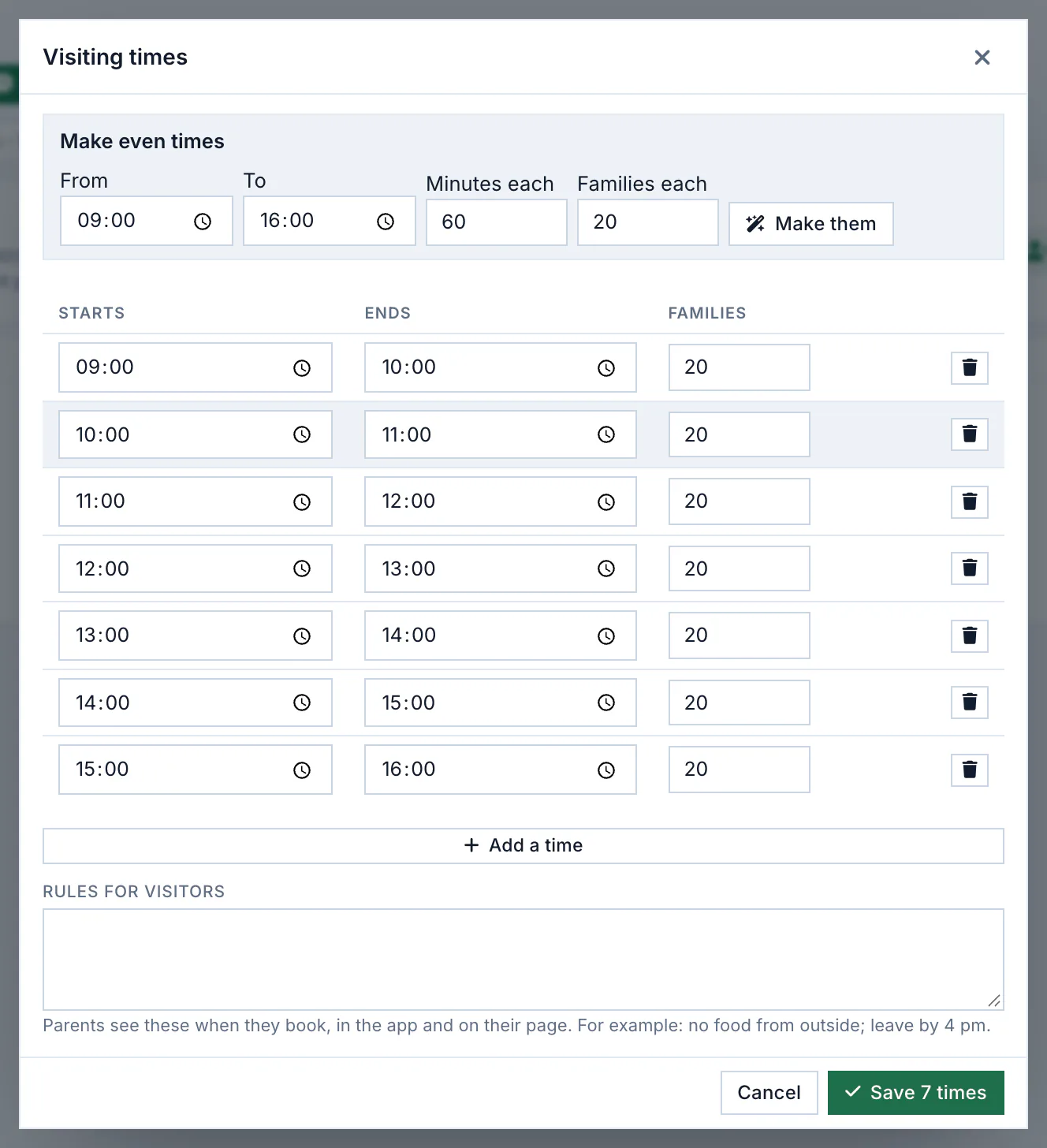
- Fill the day with even times: first start, last end, minutes each and families each.
- Each time and how many families it takes. Change any of them.
- Add one more time by hand.
- Rules parents see when they book.
- Save the times. Parents can book them at once.
- Open the Times tab.
- Press Set the times.
- Under Make even times, type From, To, Minutes each and Families each, then press Make them 1. The list fills with times.
- Change any start, end or number of families in the list 2, or remove a time with its bin. Add a time 3 adds one more.
- Type the Rules for visitors 4, for example No food from outside; leave by 4 pm.
- Press Save 5. The button says how many times you are saving, for example Save 7 times.
The Times tab then lists each time with Families booked, Places and a How full bar.
The rules for the times:
- Minutes each is from 15 minutes to 8 hours, and a day has at most 40 times.
- Times must not overlap, and each takes from 1 to 1,000 families.
- A time families have booked stays. It cannot be removed, and cannot take fewer families than have booked it. Make them keeps those times in the list for you.
How parents book#
Parents see the times and the rules in the School Dynamics app and on their page, and book one for one or more of their children, saying how many people are coming (up to 10). A parent books until their time begins, and can cancel until the day before. A day for boarders only takes only boarders' families. Each child can be booked once per visiting day, and a full time takes nobody more.
Book for a parent who calls#
On the Bookings tab, press Book for a parent.
- In The child being visited, type the child's name or student number and click them.
- Their brothers and sisters with the same parent are listed under Visiting. Tick the ones being visited.
- Choose the Time. Each time says how many places are left; a full one cannot be chosen.
- Check People coming and the Name of the person coming (the parent, filled in). Add a Phone and a Note for the gate if needed.
- Press Book the time.
The office can book any time on the day itself, until the day is over.
The bookings list#
The Bookings tab lists the day's families by time: the family and phone (and booked by the office when it was), the children being visited, the people coming and the status. Search by family, phone or child, or choose one time.
To cancel a booking, press the cross beside it and confirm. The place is freed for another family.
At the gate#
On the day, the gate opens At the gate. Each row is a family: the name, how many people, the time and the children.
- Find the family: type the family's name, phone or a child's name.
- Press Sign in.
The family is signed in at that time and the visit is written in the visitors' book, as a visit to the (first) child, naming every child they came to see. Each family is signed in once, and only on the visiting day itself. A cancelled booking cannot be signed in.
A family without a booking is signed in as an ordinary visitor: Open the visitors' book under the list takes you there. They count as walk-ins.
Good to know#
- If the school has switched on the automatic message Visiting time reminder, each family still booked is reminded the day before. See Automatic messages.
- A booking still not signed in half an hour after its time ends shows Did not come.