
The fixed-asset register lists the things the school owns and keeps for years: furniture, computers, vehicles, machines. For each one it keeps who looks after it, what it cost, what it is worth now, its condition and when it next needs maintenance. Open it from Facilities › Fixed assets. There are four tabs: Register, Checks & values, Categories and Labels.
Before you start#
- The store keeper, the purchaser, the bursar, the head teacher, the deputy head teacher and the school administrator can use the register.
- Each asset is filed under a term. The active term is chosen for you.
Make the categories#
Every asset belongs to a category, and the category's code goes into every asset's code.
- Open the Categories tab and press New category.
- Type the Name, for example Furniture.
- Type the Code: exactly 3 characters, for example FUR.
- Press Add category.
Two categories cannot share a name or a code. The Cost and Value now columns add up the category's active assets only.
A category, an asset and a check can each carry a Photo (at the foot of their form); a check can also carry a Document, such as a valuation or a repair note. When editing, a new photo replaces the one kept, and Take the photo off removes it. On Checks & values, a check's Photo and Document links open them.
Register an asset#
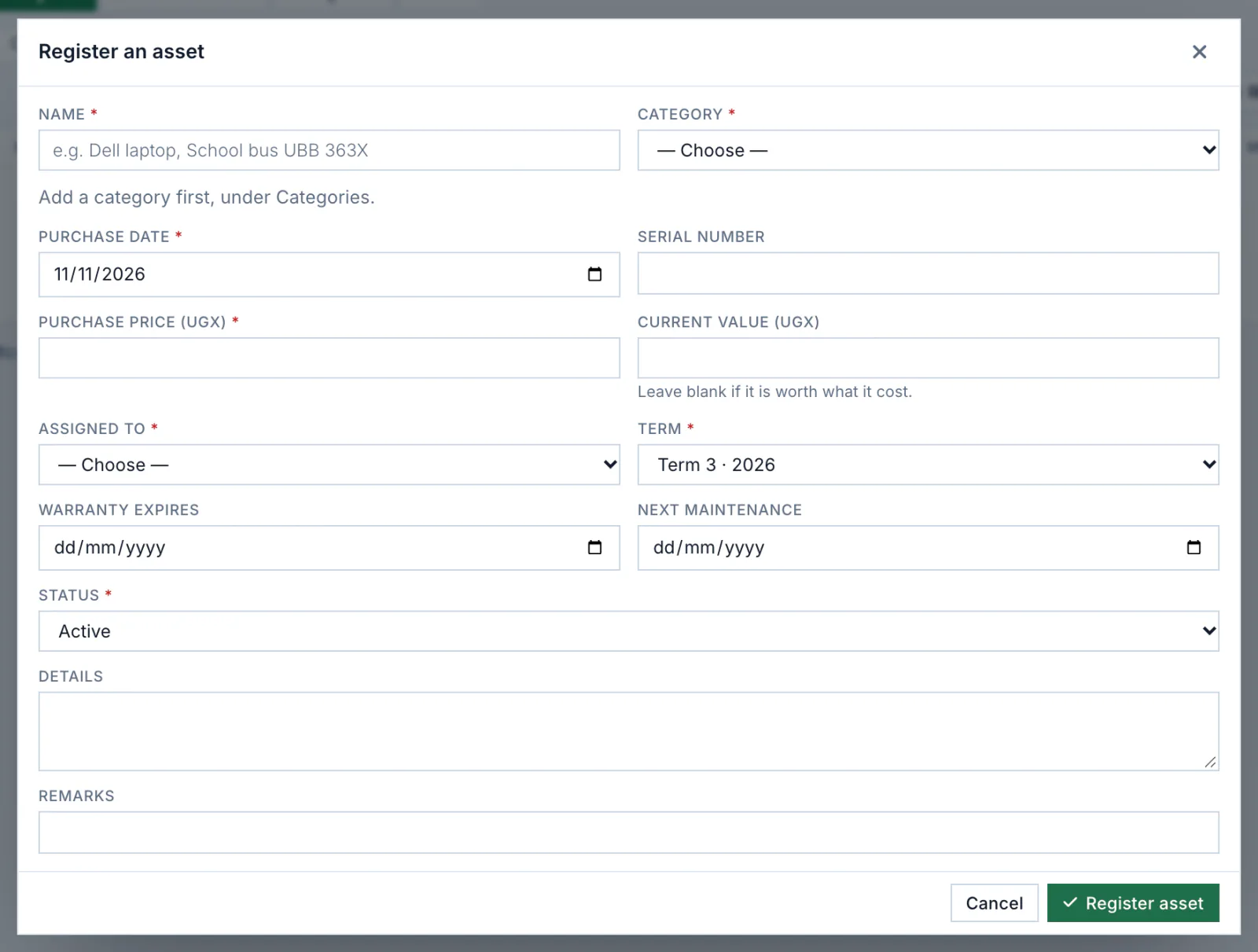
- What the asset is
- Its category: its code goes into the asset's code
- What it cost
- The member of staff who looks after it
- When it is next due for maintenance (optional)
- Register it and give it its code
- On the Register tab, press Register asset.
- Type the Name 1 and choose the Category 2.
- Check the Purchase date and type the Serial number if it has one.
- Type the Purchase price (UGX) 3. Leave Current value (UGX) blank if it is still worth what it cost.
- Choose who it is Assigned to 4: any member of staff.
- Add the Warranty expires and Next maintenance 5 dates if you know them.
- Press Register asset 6.
The asset gets its asset code at once, for example ABC-FUR-2026-0007: the school's short name, the category code, the year and the asset's number in its category. The message that appears says the code.
The register#
The top of the Register tab counts the active assets, what they are worth, the assets whose maintenance is due in the next 30 days, and the ones damaged or lost.
Search by name, code or serial number, or narrow the list by category, status or the person it is assigned to. Maintenance due shows the assets due in the next 30 days, or already late. A maintenance date of today or earlier is marked Overdue. Export downloads the list the filters show.
Click an asset's name for a quick view: its value, what it cost, when it was last checked, and its latest checks. Open full page opens its own page, with every check and its value over time.
Check an asset#
Check the assets regularly (every term is a good habit) and record what you find.
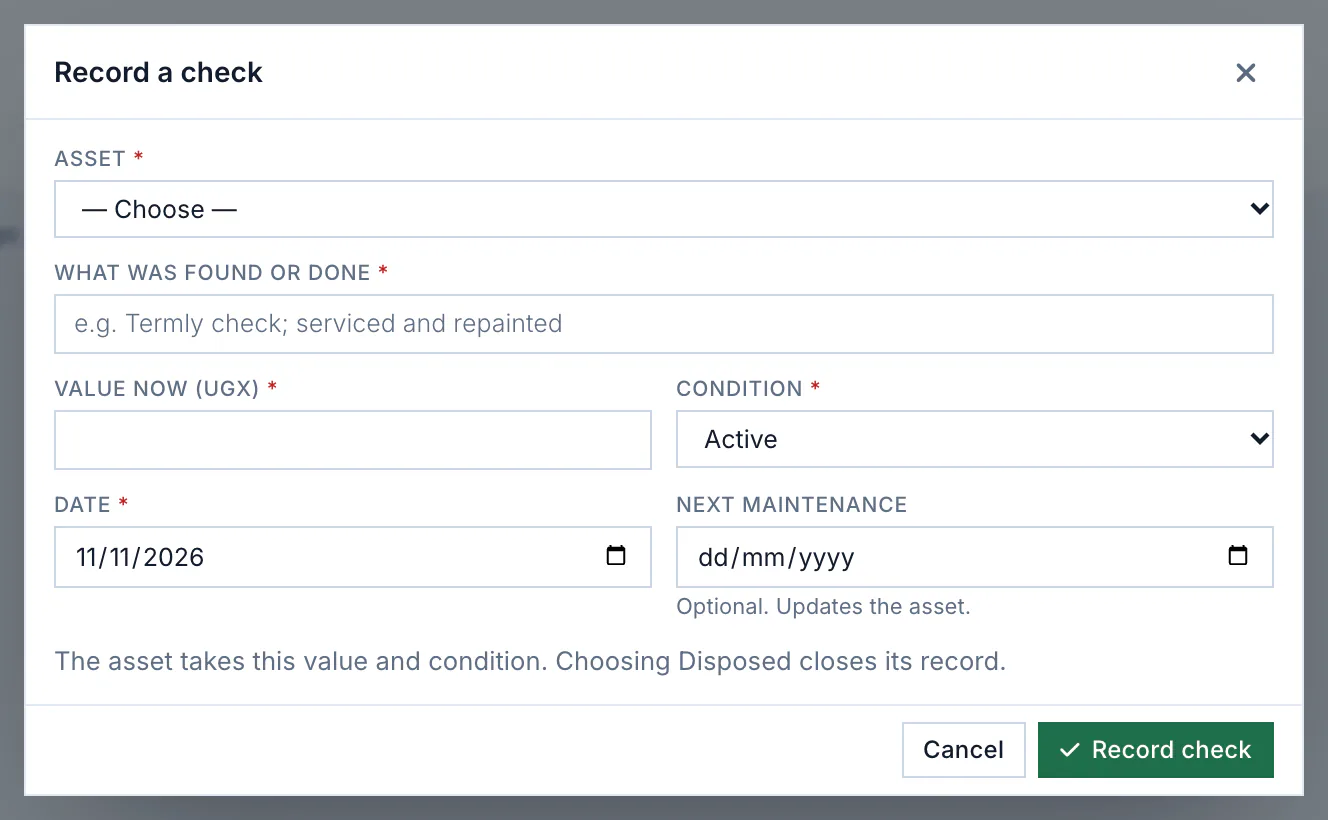
- The asset you checked
- What you found or did
- What it is worth now
- Its status: Active, Damaged, Lost or Disposed
- Save the check
- Press Record a check (on the Register tab, the Checks & values tab, or an asset's own page).
- Choose the Asset 1. Its value and status fill in.
- Type What was found or done 2, for example Termly check; serviced and repainted.
- Type its Value now (UGX) 3.
- Choose its Status 4.
- Check the Date. It cannot be in the future. Add the Next maintenance date if it changed.
- Add a Photo or a Document if you have one.
- Press Record check 5.
The asset takes the new value and status. The check keeps how much the value went up or down. Checks & values lists every check, with the net change at the bottom. Narrow it by Went up or Went down or held, by status, or by dates.
A check can record a value of up to UGX 99,999,999. For a bigger asset (a bus, a building), change the value with Edit on the asset instead.
Print labels#
Each label carries the asset's name, its code, a QR code and a barcode.
- One asset: press the QR code button on its row in the register, or Print label on its own page. The label opens as a PDF.
- A whole category: open the Labels tab and press New label sheet. Type a Title, choose the Category, and choose a Status (Active to start with) or leave it at any status. Fill Registered from and Registered to to print only the assets registered between those days, or leave them blank for all. Press Save sheet.
Saved sheets stay on the Labels tab, with the number of labels each holds. Press Print labels to open the sheet as a PDF. A sheet always prints the assets that match it today, so it can be printed again after new assets are registered.