
The sick bay keeps a record of every student who comes in: what they complained of, what the nurse found, what was given and what it cost. The record stays with the student, so the nurse can see their earlier visits, and the school can see what is going round.
Open it from School life › Care & safety › Sick bay. It has two tabs: Visits and Diseases.
Before you start#
- Only the nurse, the head teacher, the deputy head teacher and the school administrator can open the sick bay (and the school's owner, who sees everything).
- The school needs an active term: every visit is filed under the term it was recorded in. Without one you see Set the school's active term first: every sick-bay visit is filed under a term.
- Add the diseases you diagnose most often (malaria, flu…) on the Diseases tab first. A positive result must name one.
Record a visit#
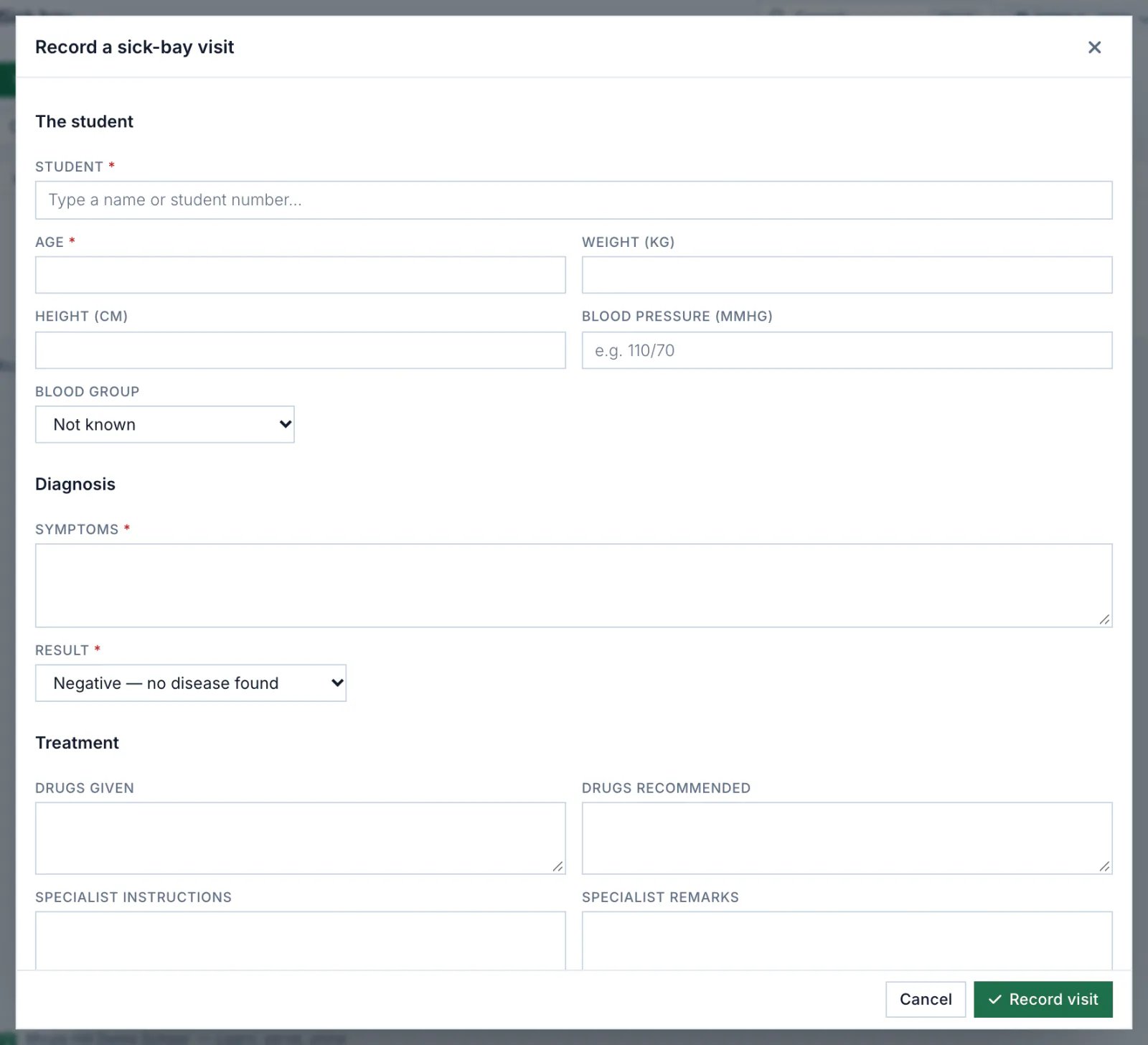
- Type the student's name or number and click them.
- The age fills in from the date of birth when the school has it.
- What the student complains of.
- Negative, or Positive: then choose the disease.
- The cost of the treatment, in shillings (0 if none).
- On the Visits tab, press Record a visit.
- Under Student, type the student's name or number and click them 1. Change picks another.
- Check the Age 2. It fills in from the student's date of birth when the school has it. Add the Weight (kg), Height (cm), Blood pressure (mmHg) and Blood group if you took them.
- Write the Symptoms 3.
- Choose the Result 4: Negative — no disease found, or Positive — diagnosed. For a positive result, choose the Disease, and tick any Other diseases found at the same visit.
- Write the Drugs given and Drugs recommended, and any Specialist instructions or Specialist remarks.
- Type the Cost of treatment (UGX) 5. Type 0 when there is no cost.
- Tick Serious case: tell the head teacher (lower in the dialog) if it is serious.
- Press Record visit.
A negative result clears any disease chosen before. The main disease is not repeated among the other diseases.
What happens next#
- The parent. If the school has switched on the automatic message Seen at the sick bay, the parent gets a short message that their child was seen, and at what time. It never says why: no complaint, result or medicine. It goes once per visit, and only for visits recorded after the message was switched on.
- The head teacher. For a serious case, if the school has switched on Serious sick-bay case, each head teacher is told who was seen and when, never why. It goes once per visit, including when you mark a visit serious later.
- The night roll-call. A boarder seen at the sick bay that day is not reported as missing at the night roll-call.
Both messages are off until the school switches them on: see Automatic messages.
Find and read visits#
The Visits tab shows the term's figures: Visits (and how many students), Diagnosed (with the disease seen most often) and Cost of treatment. The active term is chosen when the page opens.
Below them is the list: date and time, student, age, symptoms, result (Positive with the disease, or Negative, and Serious when marked) and cost. To narrow it:
- search by student or symptoms;
- choose a term, or Every term;
- choose Any result, Positive or Negative;
- choose a disease (a visit counts when it is the main disease or one of the others).
Click a student's name (or the eye) for a quick view of the visit: the measurements, symptoms, drugs, who recorded it, and the student's earlier visits. Open full page opens the visit on its own page, with every other visit by that student. Edit opens the visit to correct it, on either.
Export downloads the list as it is filtered, as a spreadsheet (CSV).
Diseases#
The Diseases tab is the school's list. Each disease shows how many times it was Diagnosed; click the number to see those visits.
- Add disease: type the Name (for example Malaria), a Description and a Photo if you like, and press Add disease.
- The pen beside a disease changes it: press Save disease. A new photo replaces the one kept; Take the photo off removes it.
A disease name can be on the list only once: Malaria is already on the list. Diseases are never deleted.
Good to know#
- Visits are never deleted. A mistake is corrected with Edit; the visit keeps its term.
- Sick-bay records are private. Every time someone opens a visit, and every export, is written in the school's activity log.