
The canteen page is a till. Scan the student's ID card, see what they can spend today, type the amount, and charge it to their pocket money. The money comes off their pocket money, never their fees.
Open it from Fees & finance › Pocket money & canteen › Canteen. The bursar also finds a Canteen button on the Pocket money page.
Before you start#
- The school administrator, the bursar, the finance officer and the store keeper can sell at the canteen. There is no separate canteen role: give the canteen's staff the Store keeper role (see Roles and permissions).
- The student must have pocket money. The bursar tops it up under Pocket money.
- A barcode or QR scanner that types into the page and presses Enter works. Without one, type the number.
Make a sale#
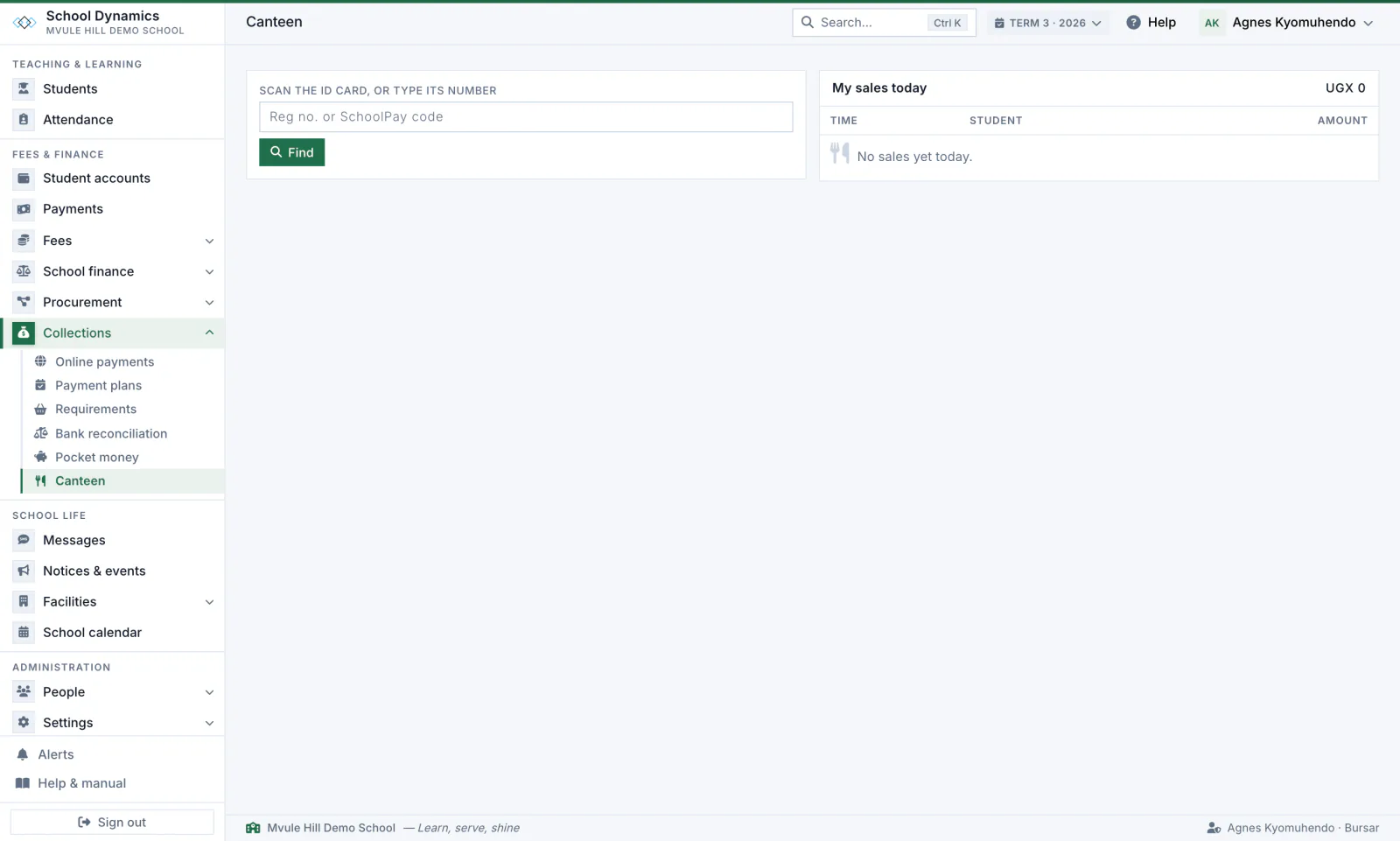
- Scan the ID card, or type the reg no. or SchoolPay code
- Find the student (a scanner usually presses it for you)
- Your own sales today, with their total
- Scan the student's ID card into Scan the ID card, or type its number 1, or type their reg no. or SchoolPay code.
- Press Find 2. The scanner usually does this for you.
- Check the photo, name and class. The till shows what the student Can spend now, what they Spent today, and the Daily limit.
- Type the Amount (UGX).
- Type What was bought if you want, for example Soda and chapati.
- Press Charge. The button shows the amount, for example Charge UGX 2,500.
A message says what was charged and what is left. The till is then ready for the next card. Next student clears the till without charging.
Your sales today are listed on the right 3, newest first, with their total.
When a sale is refused#
| The till says | What to do |
|---|---|
| … has no pocket money. The bursar tops it up. | The student has no pocket money yet. Send them to the bursar. |
| Not enough pocket money: the balance is … | Sell less, or the family tops up. |
| Over the daily limit of …: … left today. | Sell no more than what is left today. |
| No student of this school has the card … | Check the number, or type the reg no. by hand. |
| More than one student has the number … | Use the student's SchoolPay code instead. |
One sale can be at most UGX 500,000.
Good to know#
- The daily limit is the lower of the school's limit and the parent's own. Refunds made today count back, so they free room under the limit.
- A student whose balance is below UGX 5,000 shows a low-balance warning at the till.
- The till shows the student's name, class, reg no., photo and what they can spend. Canteen staff see nothing else about the student.
- To give money back for a wrong sale, the bursar refunds it under Pocket money.