
When a parent cannot pay now, they often promise a date: "I will bring UGX 300,000 by Friday." Record that promise to pay here. The system then watches the student's payments. The promise turns Kept when enough has been paid, or Overdue when the date passes first. You follow up the overdue ones by phone, by SMS or with a demand notice.
Open it from Fees & finance › Fees › Promises to pay. It is also a tab of Finance reports.
Before you start#
- The bursar, the finance officer and the school administrator record and follow up promises. The head teacher and the deputy can see everything on the page but cannot change it.
- Reminders by SMS are sent by the bursar or the school administrator, and are paid from the school's SMS wallet. See How SMS works.
Record a promise#
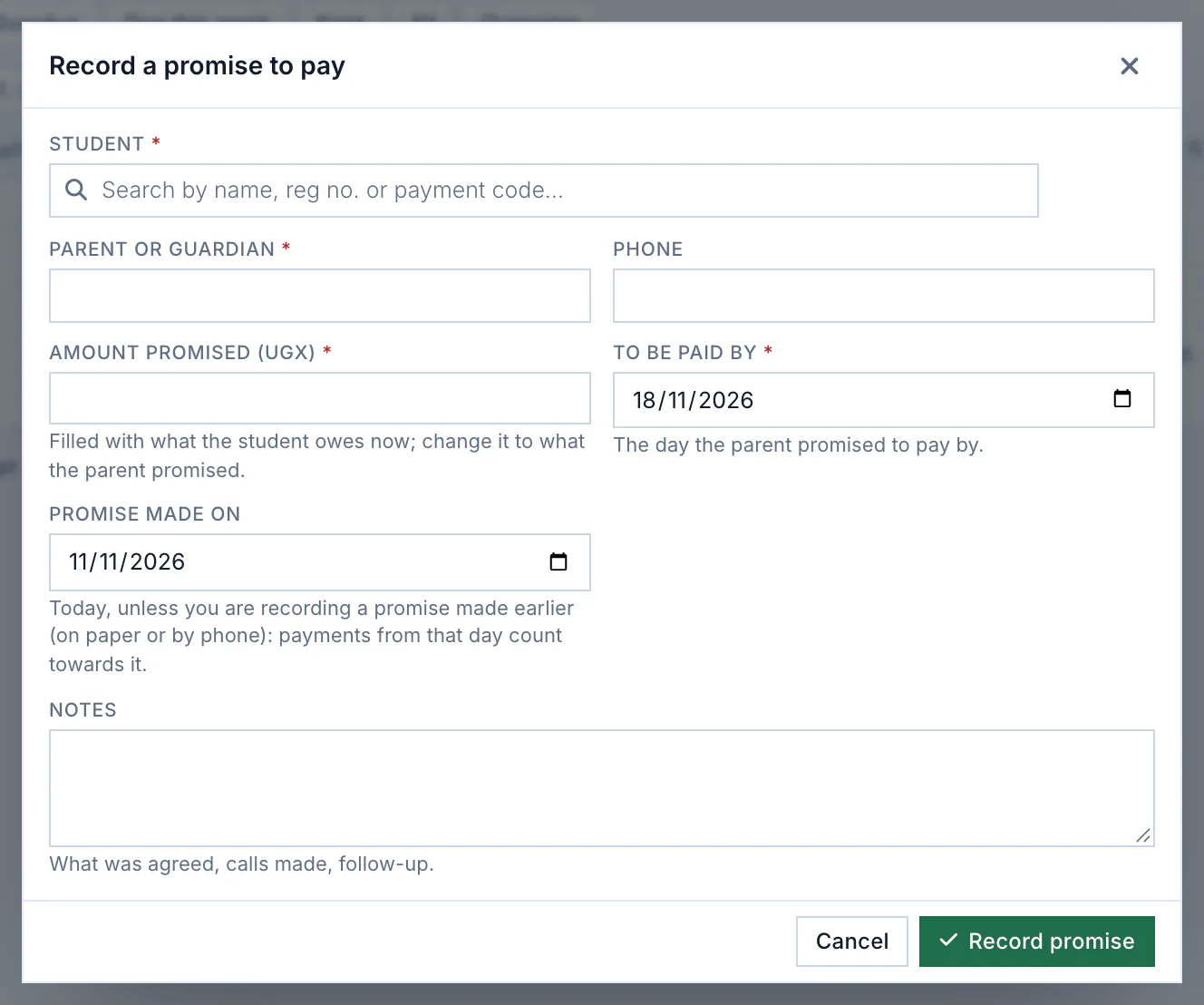
- Find the student by name, reg no. or payment code.
- Filled from the student's record. Change it if someone else made the promise.
- Filled with what the student owes now. Change it to the amount promised.
- The day the parent promised to pay by.
- Today, or the day an earlier promise was made (up to 90 days back).
- Save the promise.
- Press Record a promise.
- Find the student 1: type part of the name, the reg no. or the payment code, then pick them. A line under the box says what the student owes now, over every term.
- Check Parent or guardian and Phone 2. They are filled from the student's record. Change them if someone else made the promise.
- In Amount promised (UGX) 3, type the amount the parent promised. It starts as everything the student owes.
- In To be paid by 4, choose the day the parent promised to pay by.
- Leave Promise made on 5 as today. If you are recording a promise made earlier (on paper or by phone), choose that day instead: payments from that day count towards it.
- Write what was agreed in Notes.
- Press Record promise 6.
If the payments made since that day already cover the amount, the message says the promise is already kept. If its date has passed, it says the promise is overdue.
You can also start a promise from other pages, with the student already chosen:
- In a student's account quick view, under Promise to pay, press Record a promise. The quick view also lists the student's open promises.
- In the balances report under Finance reports, press the handshake button beside a student who owes.
- On the home page, the Promises to pay tile has Record a promise. The tile shows only while a promise is open.
The system refuses a promise:
- whose amount is not at least UGX 1;
- dated before the day it was made (The promised date cannot be before today.);
- made more than 90 days ago, or on a day in the future.
Kept, open or overdue#
You never set these yourself. Each promise is judged against the payments on the student's account:
| Status | Means |
|---|---|
| Open | The date has not come, and the payments made since the promise do not yet reach the amount. |
| Kept | The payments made since the promise reached the amount by the date. |
| Overdue | The date passed before the amount was paid. |
| Kept, paid late | It was overdue, then the rest was paid. |
- Only payments count: cash, bank, SchoolPay, the phone app, online payments and shares of a split payment. A bursary or a balance correction does not. A payment that was reversed no longer counts.
- Payments count by the day: one made on the day the promise was made counts.
- The status changes by itself. When a payment is recorded in School Dynamics, that student's promises are checked at once. Every hour, every open promise is checked again, so payments that arrive another way are counted too.
Follow up the list#
The tiles at the top count the promises Open, Overdue and Kept, with the amounts, and Kept so far as a percentage. When promises are overdue, a red line says how many; Follow them up opens them.
The tabs are Not yet kept (the list you start on), Overdue, Due this week, Kept, All and Overview. Search by student, parent, phone or notes, and narrow the list by class or by the promised date (Promised by … to).
Each row shows:
- the student, their class and what they owe now (or paid ahead, or cleared);
- the parent, their phone and the start of the notes;
- the amount promised and the day it was recorded;
- the date, with N days late or in N days;
- Paid since: what has been paid since the promise, and how much is still to go;
- the status.
Overview shows how the promises stand (open, overdue, kept), how many were recorded and kept each day of the last 7 days, the ones due in the next 7 days, the most overdue and the latest recorded.
CSV and Print list give the list you are looking at, with its tab and filters.
Open one promise#
Click the amount, or the eye button. The dialog shows what was promised, what has been paid since, what is still to pay and what the student owes now. It lists every payment since the promise was recorded (marked after the date when it came late), the student's other promises and how many were kept on time, any demands raised from it, and who recorded it.
Change a promise or mark it kept#
Open the row's menu (or the promise) and choose:
- Follow up / edit: change the parent, phone, amount, date or notes. Under Status, choose Not yet kept or Kept. When you choose Kept, give the day in Kept on (not in the future, not before the promise was made). Press Save follow-up.
- Mark kept: the promise is kept from now. Use it when the parent paid in a way that does not show on the account.
- Delete: the promise goes. The student's balance is not touched.
Remind parents by SMS#
- Tick the promises to remind, then press Remind by SMS above the list. For one promise, choose Remind by SMS in its row menu, or Remind by SMS in the open promise.
- Check the words. The buttons above the box put in the parent's name, the student's name, the amount promised, what is still unpaid, the date, the days overdue and the student's whole balance.
- Read the counts: how many promises are not yet kept, how many SMS go out, how many parents have no valid number (they are left out), the cost and what is in the wallet. A few examples show the real texts.
- Press Send N reminders.
Only promises not yet kept get a reminder. The text goes to the phone number of the student's parent in the school's records, not to the Phone typed on the promise. The same text to the same number goes once. The button stays off when the wallet cannot pay for all of them; top up first.
Reminders can also go by themselves: a day before the promised date, on the day, and 1 and 7 days after it is missed, while the promise is not kept. They are off until your school switches Promises to pay on under Settings › Message settings › Reminders. See Reminders and demand notices.
Demand notices from promises#
When a promise is missed, send a formal letter.
- One promise, at once: press the print button on its row, or Print notice in the open promise. You get a demand notice for that parent: what they promised and when, what has been paid since, what remains unpaid and the student's whole balance. It asks them to pay within 7 days, or within 3 working days when the promise is overdue. It has lines for the bursar and the head teacher to sign, with the bursar's signature printed when the school has uploaded one. Only promises not yet kept have it.
- Many promises as one demand: press Demand notices from promises at the top. Choose Which promises (overdue only, pending only, both, due on or before a date, or all), optionally Promised at least (UGX), and a Title. Each choice shows how many promises it takes and how many of those students still owe. Press Raise demand. To use only some promises, tick them first and press Demand notice, or choose Fees demand notice in a row's menu.
Raising a demand opens its page, where you print the notices. Students who no longer owe anything are left out. See Reminders and demand notices.
Good to know#
- A promise does not change what the student owes. It is a note of what the parent said, checked against the payments.
- For a family that will pay in several parts on several dates, agree a payment plan instead.