
Every student can be linked to a parent account: the parent's own record, with the phone number they are reached on and the sign-in for the parents' pages and app. A parent can have several children at the school.
Most parent accounts are made for you: when a student is admitted or imported, the parent is found by the guardian's phone number, or made from the guardian details. This page is for checking them and putting them right.
Before you start#
- Anyone who may see students can look at parents. Adding, editing, linking and unlinking (and the list's export) are for the school administrator, the head teacher, the deputy head teacher, the director of studies, the secretary and the bursar, who keeps the numbers fee reminders go to.
The Parents list#
Open Administration › Students & parents › Parents.
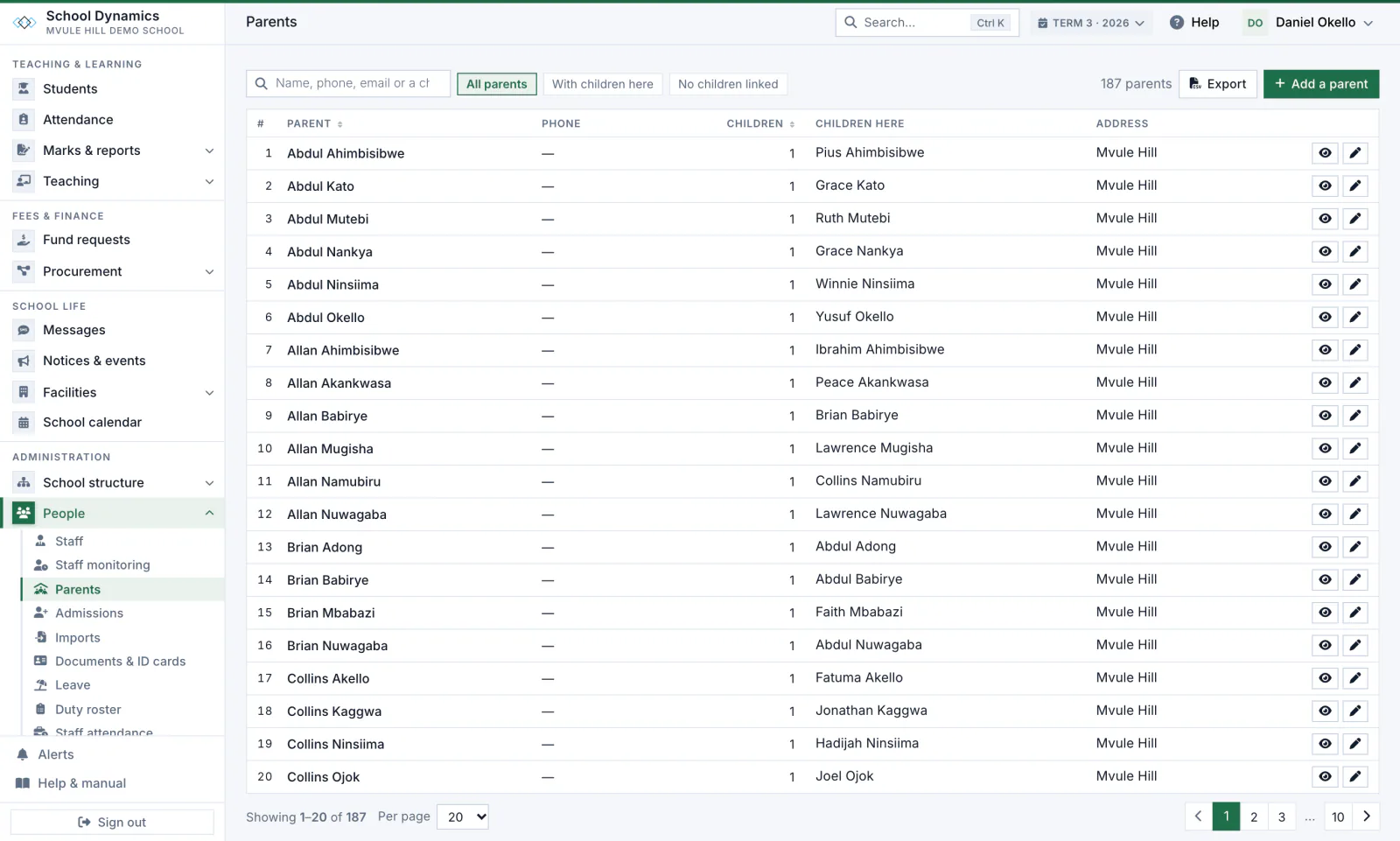
- Search by name, phone, email or a child's name.
- All parents, those with children here, or those with none linked.
- How many children; click to see them in the students list.
- Add a parent by hand.
Each row shows the parent, the phone number they are reached on, how many children they have, the first children's names, and the address. Search 1 by name, phone, email or a child's name, and choose 2 All parents, With children here or No children linked.
Click the number of children 3 to open the students list showing only that parent's children, on the All tab.
Click a parent's name for their quick view: phone, email, sign-in name, address, and their children with each child's class and status. From there:
- Link a child: search a student by name or reg no. and press Link. A student who already has a parent account moves to this one.
- The unlink icon beside a child removes the link. The student and the parent both stay; only the link goes.
- Edit opens the parent's details, and Full page opens the parent's own page, with the same children and buttons.
For those who manage students, Export gives every parent matching your search as a CSV file, with their children.
Add a parent#
- Press Add a parent 4.
- Type the first and last name. Both are required.
- Type the mobile number, for example 0772 123456. It must be a real Ugandan number; the parent signs in with it when nobody else does.
- Add a second number, email, address, occupation, nationality, religion and a photo if you have them.
- Under Children, search for the parent's children and pick them. A child who already has a parent moves to this one.
- Press Add parent.
A password is optional (at least 6 characters). Nothing is sent by SMS.
Change a parent's details#
Press the pencil on the row, Edit in the quick view or Edit details on the parent's page, then Save changes. When you change the mobile number, the parent's sign-in name follows it, unless someone else already signs in with that number.
A student's parents#
On the student's page, the Parents tab shows two things side by side:
- Parent account: the linked parent, their phone, email and sign-in name, and the student's Brothers and sisters here (other children of the same parent).
- Guardian details on the student's profile: the guardian, second phone, occupation, father and mother, as typed when the student was admitted or edited.
The buttons on the left card:
- Link a parent (or Link another parent): search parents by name or phone and press Link parent. Linking replaces the parent the student had.
- Unlink parent: the student no longer has this parent account. The parent's account stays.
- Find or add the parent, when no parent is linked: the system looks for a parent of the school with the guardian's phone number and links them, or makes a new parent account from the guardian details. No password is sent.
If there is neither a guardian name nor a phone on the student's record, add them with Edit details first.
What parents can do#
A parent with an account can see their children's fees, report cards and attendance on the parents' pages and in the parents' app. See What parents can do.