
The parents' page has no password. Each time, the parent types the phone number the school has for them, and the school sends a sign-in code to that phone: by SMS, by WhatsApp, or in the School Dynamics app.
Sign in with your phone number#
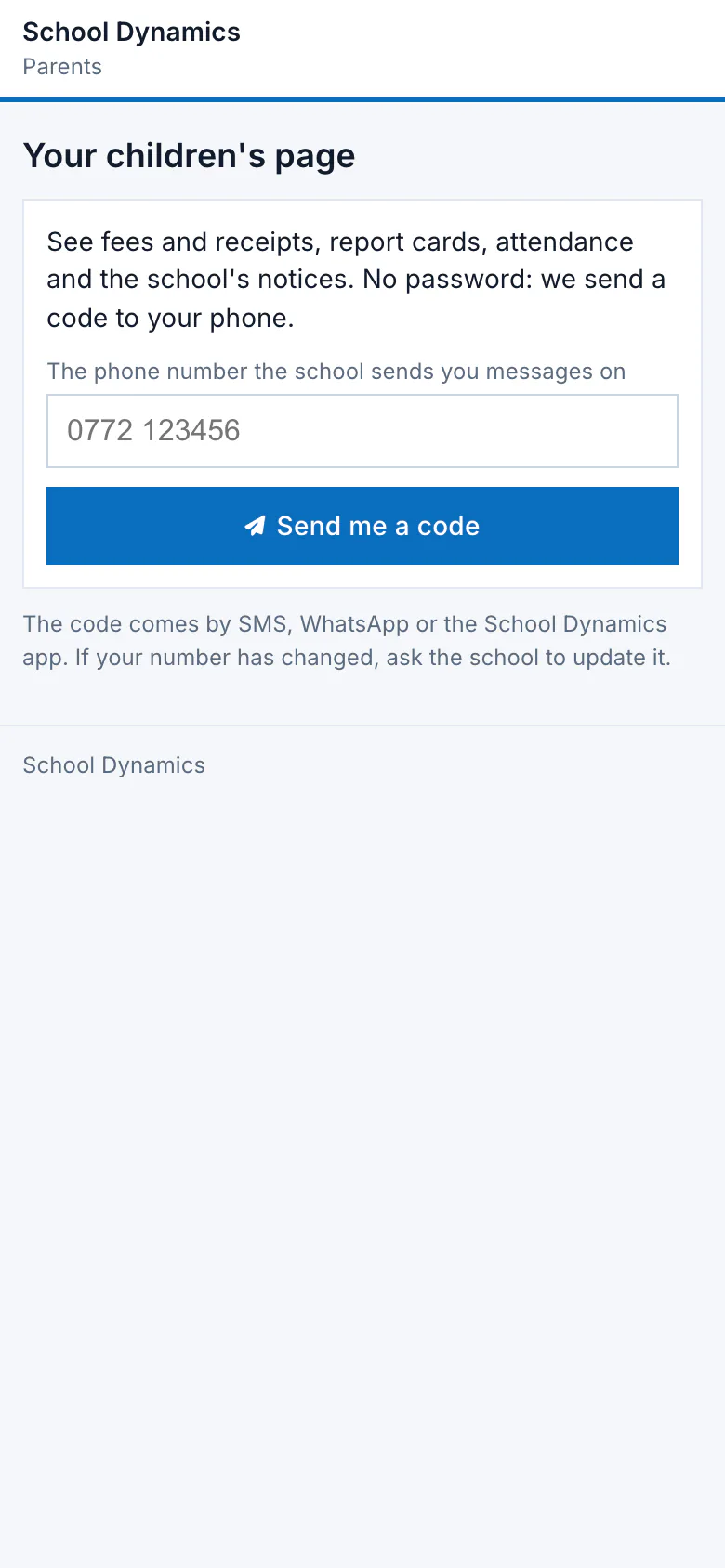
- The phone number the school sends you messages on.
- A six-digit code comes to that phone.
- Open the parents' page: app.schooldynamics.ug/parents, the parents' page on your school's own web address, or the link the school sent you.
- Type The phone number the school sends you messages on 1, for example 0772 123456.
- Press Send me a code 2. The page Enter the code opens: If (your number) is a number the school has for a parent, a 6-digit code is on its way. It works for 10 minutes.
- Type the six digits in Code.
- Press Open my children's page. Your children's page opens.
If the same number is on more than one family's record (for example, children in two schools), Which family? asks which one to open. Each choice names the children and the school. Press Open on the one you want.
You stay signed in for up to 12 hours, or until you press Sign out.
From the school's link#
The school may send you a link to your own page in a message. Open it, check the number it names (We will send a code to …, the number (school) has for you.) and press Send me a code. Then go on from step 4 above.
If the link says This link does not work any more, sign in with your phone number instead.
No code?#
- Wait a minute, then press No code? Send another.
- Check the number: press Use another number and type it again.
- If your number has changed, ask the school to update it. The code can only go to the number the school has.
What the messages mean#
| You see | What to do |
|---|---|
| Enter a Ugandan phone number, for example 0772 123456. | Check the number and type it again. |
| We sent a code a moment ago. Please wait a minute before asking for another. | Wait a minute. |
| Too many codes have been asked for this number. Please try again in an hour. | Five codes in an hour is the most. Try again later. |
| That code is not right. 3 tries left. | Check the digits. After five wrong tries the code stops working: ask for a new one. |
| That code has expired. Ask for a new one. | A code works for 10 minutes. Press No code? Send another. |
| That code has been used. Ask for a new one. | Each code works once. |
| Your school has not opened the parents' page. Please contact the school. | The school has switched off the sign-in code message. |
| You asked the school not to send you messages, so no code can be sent. Please contact the school. | Ask the school to record that you agree to messages again. |
| Your school cannot send messages at the moment. Please contact the school. | The school's messaging is off or out of credit. |
| The school has no phone number for you that can get a code. Please contact the school. | The school must add your number to your record. |
For staff: when a parent gets no code#
Check these, in this order:
- The number. The parent's phone number must be on the parent's record, as the number the school texts them on (see Parents and guardians).
- The message is on. Under Settings › Message settings, tab Templates, the message Parents' page sign-in code must be on. It is on unless someone switched it off. Switched off, no parent of the school can sign in.
- The school can send. Messaging must be switched on for the school and the SMS wallet must hold enough credit: each code is a message the school pays for (see How SMS works).
- The parent's consent. A parent who said no to every kind of message gets no code (see Settings › Message settings, tab Parents' consent).
To send every parent the link to their own page, open Settings › Message settings, tab Templates, and press Send now on Your children's page. Each parent gets a private link; they still sign in with a code. See Automatic messages.