
The parents' page is the school's own web page for parents. It works in the browser of any phone, with no app and no password: the parent types their phone number and gets a sign-in code (see Sign in to the parents' page with a code).
Parents see only their own children, and only what the school has chosen to share.
Your children#
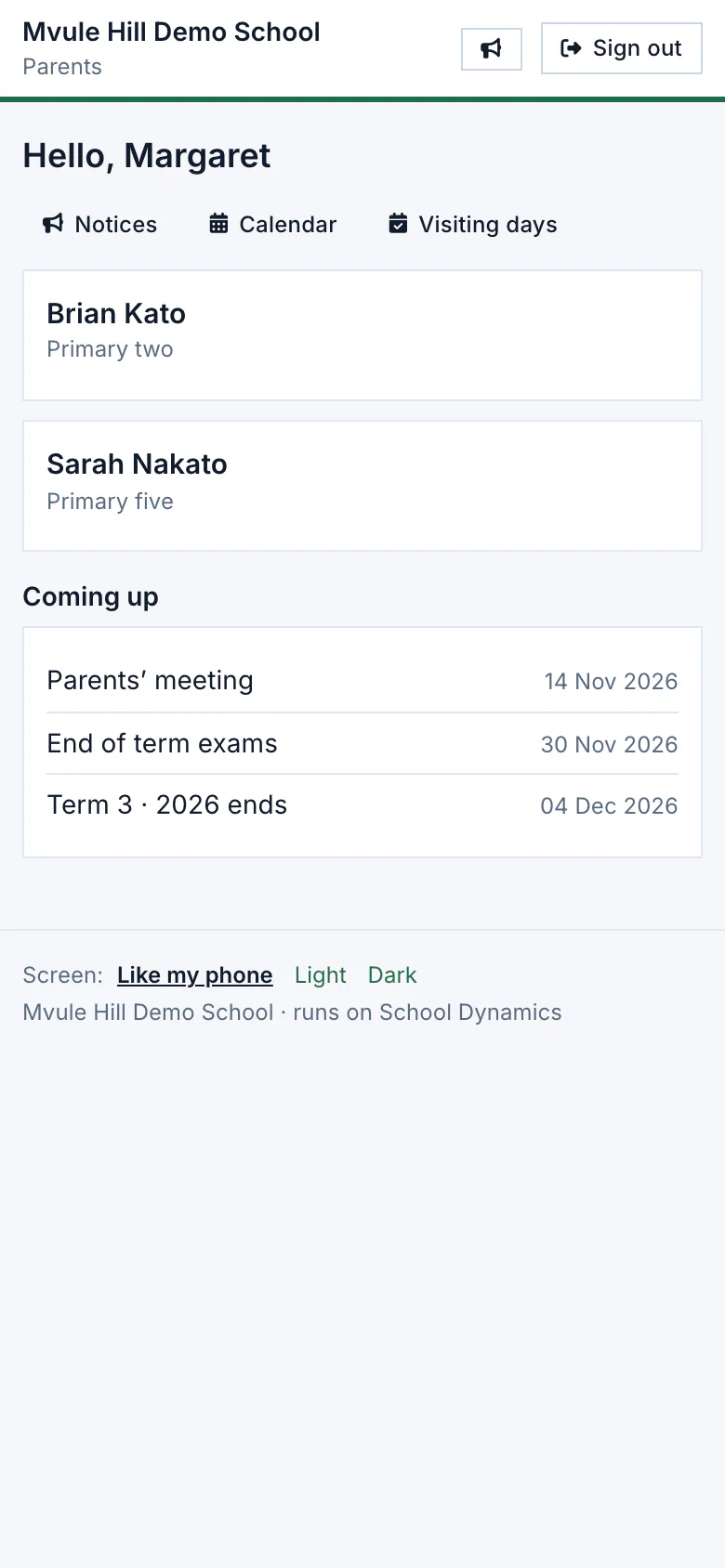
- The school's notices, calendar and visiting days.
- One card for each child: open it for fees, report cards and more.
- Sign out when you finish, especially on a shared phone.
- A light or dark screen.
The first page says Hello and the parent's first name. At the top 1 are Notices (with how many are new), Calendar and Visiting days.
Below is one card for each child 2: the name and class, and short notes when they apply:
- Owes UGX … or Fees cleared, when the school shares the child's fees account;
- how many report cards can be opened;
- how many items are still to bring;
- the next instalment of a payment plan, and when it is due.
A child who has left the school says no longer at the school. Under the cards, Coming up lists the next three dates on the school calendar in the coming month.
A child's page#
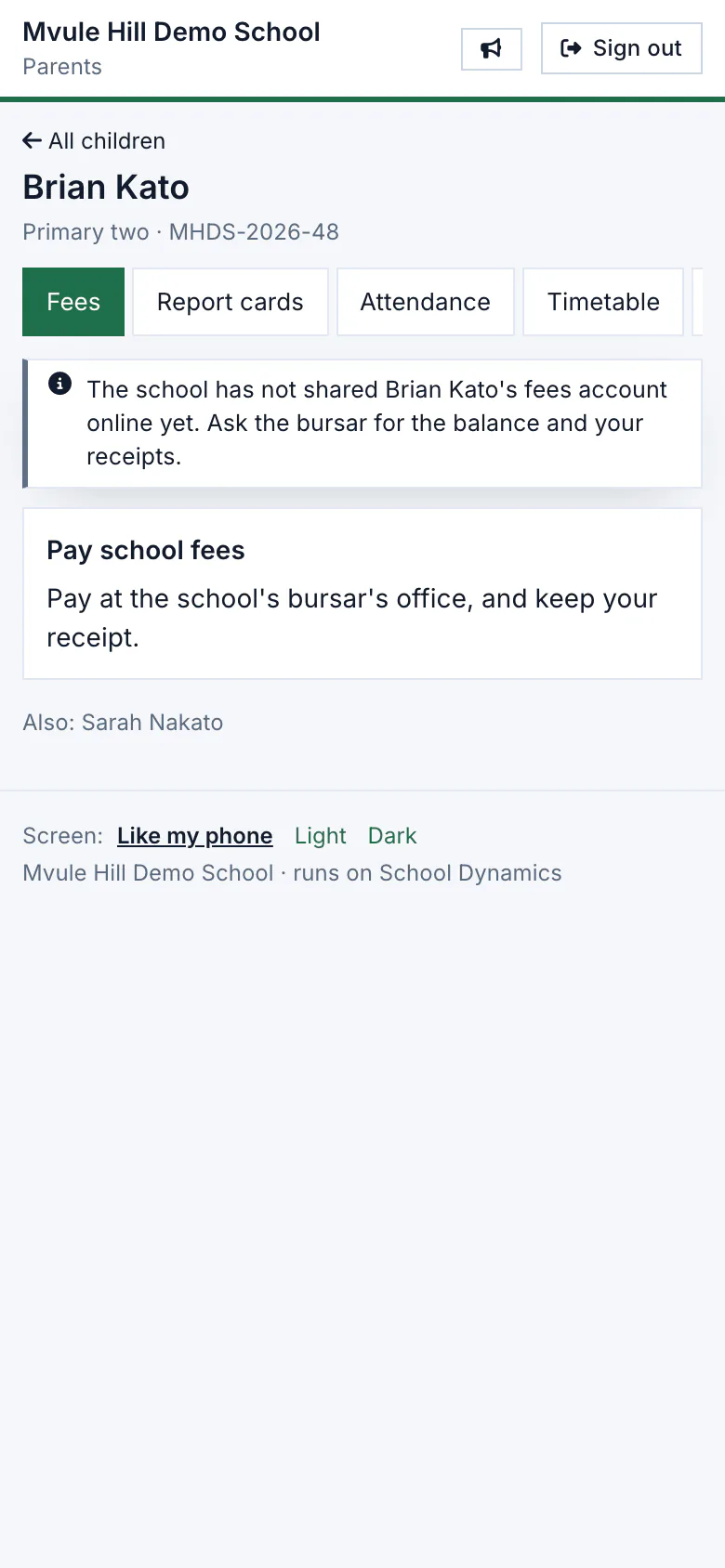
- The parts of the child's page: fees, report cards, attendance and more.
- How to pay this child's fees.
- Back to all your children.
Each child's page has six parts 1. Also: at the bottom opens the same part for a brother or sister. All children 3 goes back.
| Part | What it shows |
|---|---|
| Fees | What is still to pay (or in credit), billed and paid, and the Statement (PDF). Then Pay school fees 2: how to pay. Then the payment plan if there is one, every receipt as a PDF, and the latest lines of the account. |
| Report cards | Each report card the school has released, to open as a PDF. See Report cards for parents. |
| Attendance | This term's share of roll-calls present, how many present and absent, and the days marked absent. |
| Timetable | The class's lessons for each day: subject, teacher and times. |
| To bring | The term's requirements list: what was brought, and what is still missing (and what it costs in cash instead, where the school allows it). |
| Get a copy | Ask the school for a copy of everything it holds about the child. |
If the school has not shared the fees account, the Fees part says The school has not shared (the child)'s fees account online yet. Ask the bursar for the balance and your receipts. The Pay school fees box still shows how to pay. See Pay school fees online.
Asking for a copy of a child's record#
- Open Get a copy.
- Add a note if you want, in Anything to add (optional).
- Press Ask for a copy.
The page says when the school will answer: the law gives it 30 days. When the copy is ready, Download appears beside the request, until the date shown. If the school declines, the page shows its reason. To correct something on the record, contact the school.
Notices and the calendar#
Notices lists what the school has published for parents, newest first; a notice not yet opened says New. Opening it tells the school it was read.
Calendar lists the dates the school has put on its calendar for parents, for the coming months.
Visiting days#
Visiting days lists the coming visiting days, with the school's rules for visitors.
- Tick the children you are visiting.
- Choose a Time. Each time says how many places are left, or full, or passed.
- Type how many People coming and the Name of the person coming.
- Press Book this time.
Your booking then shows as Your time: …. Cancel booking is there until the day before. Some visiting days are for the families of boarders only. See Visiting days.
Screen, and signing out#
At the bottom of every page, Screen: chooses Like my phone, Light or Dark. Pages are light until the parent chooses otherwise.
Sign out is at the top right. The page says You have signed out. On a shared phone, always sign out.
If the school's account is paused, the parents' pages close and say The school's pages are paused: please contact the school.
For staff#
What parents see comes from the school's own records. When a parent says something is missing:
| Missing | What the school does |
|---|---|
| A child | Link the child to that parent (see Parents and guardians). The page says No child is linked to you at this school. |
| The fees balance, receipts and statement | Share the account: on Student accounts, tick it and press Show balance to parents (see Student accounts). |
| A report card | Release the class's report cards; a child who owes fees has the card withheld (see Report cards for parents). |
| A notice or a date | Publish the notice for parents or everyone (see Notices and events); put the date on the calendar for parents (see School calendar). |
| The timetable | Make the class's timetable active for this year (see Timetable). |
| Things to bring | Set the term's requirements list (see Requirements). |
Parents' requests for a copy of a record arrive under Data requests (see Data requests).