
A student's class for each year is kept as a class record. Their current class is their class record in the active year. This lesson shows how to move students between classes and streams, and how to promote a whole class when a new year begins.
Before you start#
- Moving students is for the school administrator, the director of studies and the secretary.
- Students are only ever placed in classes of the active academic year. At the start of a new year, make the year active and set up its classes first: see Academic years and terms and Classes and streams.
Move one student#
Use the row menu Change class on the students list, or Edit details on the student's page and choose the new class. On the page, the branch icon on a class record changes only the stream.
Move or promote many students#
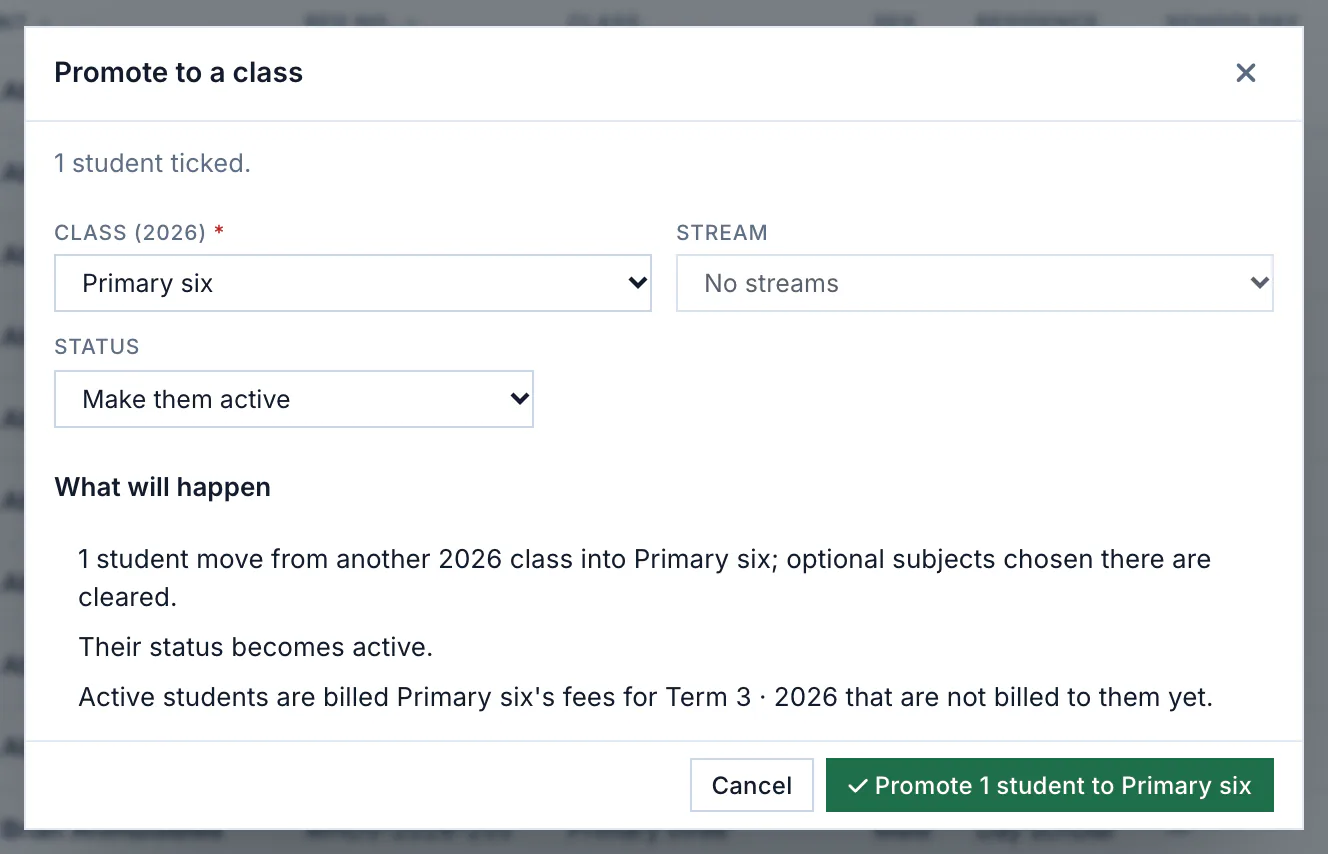
- The class, from the active year's classes.
- The stream, if the class has streams.
- Keep their status, or make them active, pending or not active.
- What will happen, before anything is done.
- Confirm: the button says how many students move, and where.
- On Teaching & learning › Students, filter the list to the students you want (for example one class) and tick them, or tick the whole page. Select all … matching takes every page.
- Press Promote (to move them up and make them active) or Class (to move them and keep their status).
- Choose the class 1 and, if it has streams, the stream 2.
- Choose the status 3: Keep their status, or make them active, pending or not active. Promote starts at Make them active.
- Read What will happen 4. It says who gets a new class record, who moves from another class of the same year, who only changes stream, and which fees will be billed. Students who would not change are listed under … left as they are, with the reason.
- Press the button 5, for example Promote 32 students to ….
The work carries on while you use other pages, and a message says how many were moved.
The same bar has:
- Stream: put the ticked students in one stream. Students not in that stream's class move to that class too.
- Theology stream, at schools with theology classes: place them in a theology class and stream. Their ordinary class does not change.
- Status: see Students who leave.
- Sex and Reg. numbers: correct the sex, or give reg nos. to active students without one.
A student has one class a year. Moving a student to another class of the same year moves their class record (it does not add a second one), and clears the optional subjects they chose in the old class.
Promote by results#
Promotions moves the students of a class whose report card meets a rule. Open it from the ⋯ menu on the students list, Promotions.
- Press New promotion.
- Choose the From class (classes with report cards, by year) and the To class (a class of the active year).
- Choose Who is promoted: By total marks, By division, By position in class, or One student.
- Choose the term under Report cards of, and the pass mark: the lowest total mark, the divisions that pass (from Division 1 to Any division (1–4)), or the lowest position.
- Press Preview who moves. A table lists every student with their marks, division and position, and Promoted or Stays with the reason.
- Press Promote … students.
Only the previewed list is promoted. If anything changed since the preview (a new report card, a student moved), the page says The list changed since you looked at it and you preview again. By division, a card with no division never passes; by position, a card with no position never passes. Students marked Not active are left out, and students already in the new class are skipped. Their status does not change.
Every run is kept in the list on the Promotions page: when, from and to which class, the rule, the report and how many were promoted.
Class lists#
Class lists (from the same ⋯ menu) shows every student's class in each year, past years included. Choose the year (the active year at first), a class and a stream, or search a name or reg no. Export gives the list in Excel or CSV.
- Add an enrolment puts a student in a class of any year, for example a class record that was missed. If the student already has a class that year, they are moved.
- When a student is in the same class twice, the row says Duplicate. Remove takes away the extra one; the other stays. Tick Duplicates only to see them all.
Optional subjects#
Optional subjects (from the same menu) is where you tick the optional subjects each student takes. Choose a class of the active year: each optional subject is a column, with All and None to tick or untick it for everyone shown. Tick or untick, then press Save choices; Undo changes forgets what you have not saved.
A class's optional subjects are marked on the class page first. See Subjects.